

AI Summary
Reverse image search on Android works through Google Lens, which is built into the Google app, Chrome browser, and most Android keyboards. Long-press any photo, tap the Lens icon, and Google scans the web for matches. No app install is required. For browser-based searches without an account, use Google Images on desktop mode or a dedicated reverse-search site.
What Is Reverse Image Search?
Reverse image search lets you find information about a picture instead of searching with text. Upload or select an image, and the search engine returns visually similar photos, the image’s source, related products, or the original uploader.
Behind the scenes, the engine breaks the photo down into visual patterns shapes, colors, textures, and object outlines then matches that pattern against billions of indexed images. This is why a clear, well-lit photo returns sharper results than a blurry or heavily filtered one.
Common reasons people do this on Android:
- Identifying a plant, animal, or landmark
- Finding the original source of a meme or photo
- Spotting fake profiles or stolen images
- Shopping for a product seen in a picture
- Checking if a photo has been used elsewhere online
- Verifying whether a profile picture is real or pulled from a stock site
- Tracing the origin of a viral screenshot before sharing it further
Method 1: Google Lens (Fastest, No App Needed)
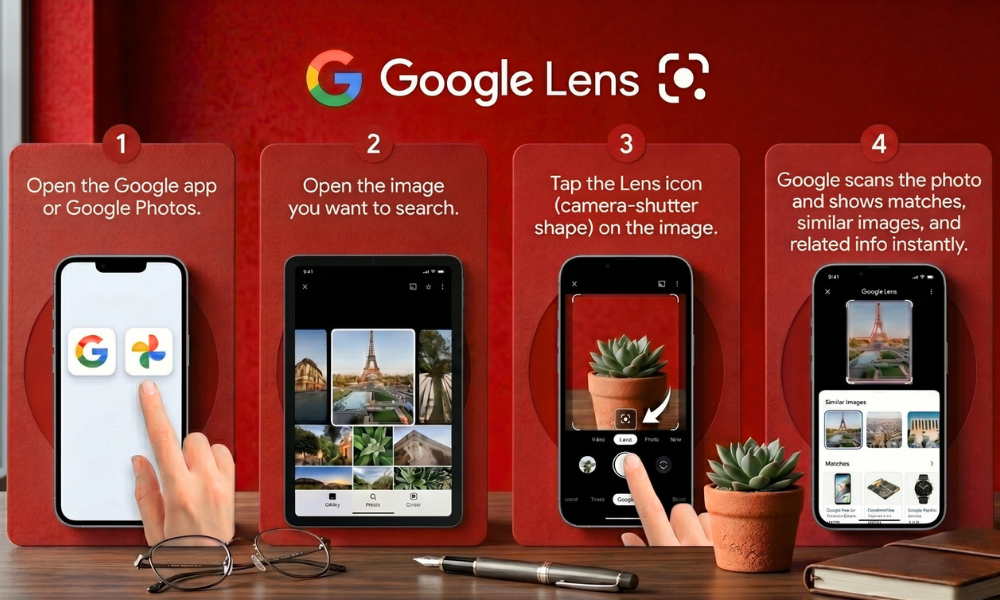
Google Lens is the default reverse image search tool on Android and works directly inside your photo gallery, Chrome, and the Google app.
Steps:
- Open the Google app or Google Photos.
- Open the image you want to search.
- Tap the Lens icon (camera-shutter shape) on the image.
- Google scans the photo and shows matches, similar images, and related info instantly.
You can also long-press an image inside Chrome and select “Search image with Google Lens” from the pop-up menu.
Once results load, Lens gives you several filters at the top of the screen All, Products, Text, and Visual matches. Switching between these narrows results depending on whether you’re trying to identify an object, read text inside the image, or find where else it appears online.
You can also drag the selection box on the image itself to focus Lens on one part of a photo, which helps when a picture contains multiple subjects.
Method 2: Reverse Search From Chrome Browser
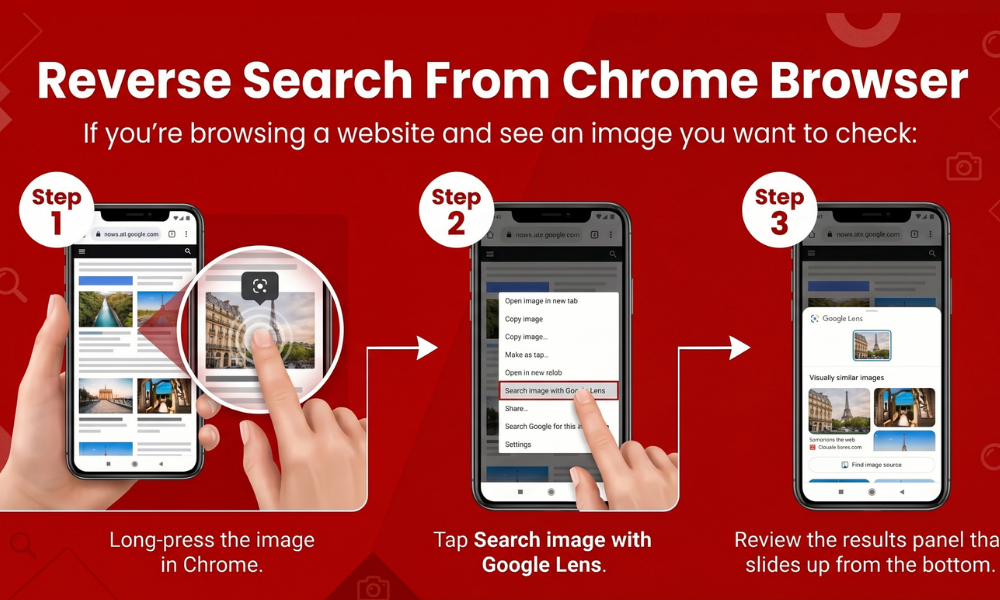
If you’re browsing a website and see an image you want to check:
- Long-press the image in Chrome.
- Tap Search image with Google Lens (or Search Google for this image on older versions).
- Review the results panel that slides up from the bottom.
This works on almost any image displayed in a web page, including social media previews opened in-browser.
Method 3: Search a Screenshot
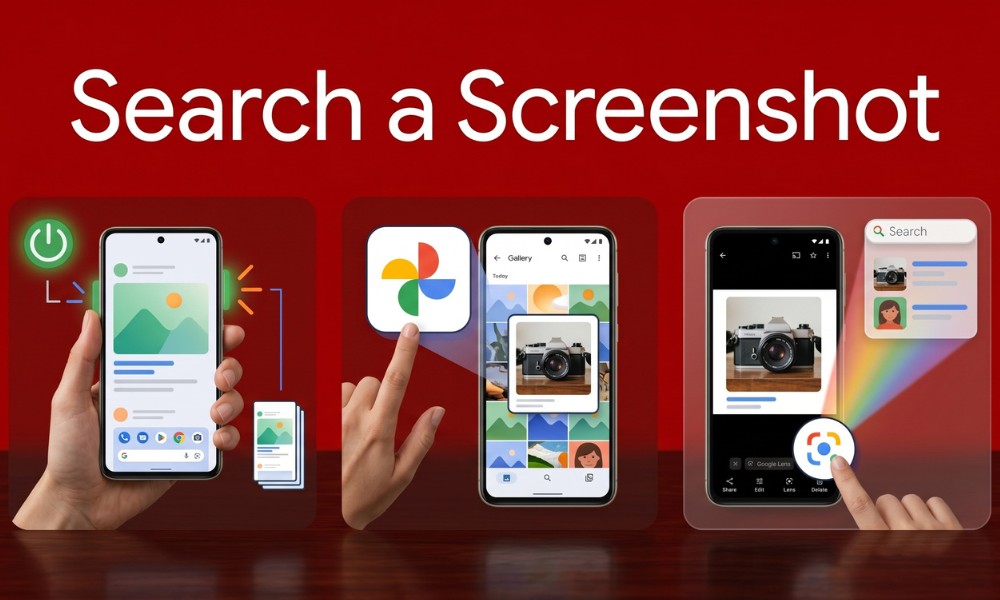
For images inside apps that block sharing (like Instagram or Snapchat):
- Take a screenshot (Power + Volume Down).
- Open the screenshot in Google Photos.
- Tap the Lens icon.
- Crop to the specific object or face if needed, then review results.
This is the most reliable method when an app doesn’t allow direct image sharing.
Method 4: Desktop-Site Google Images
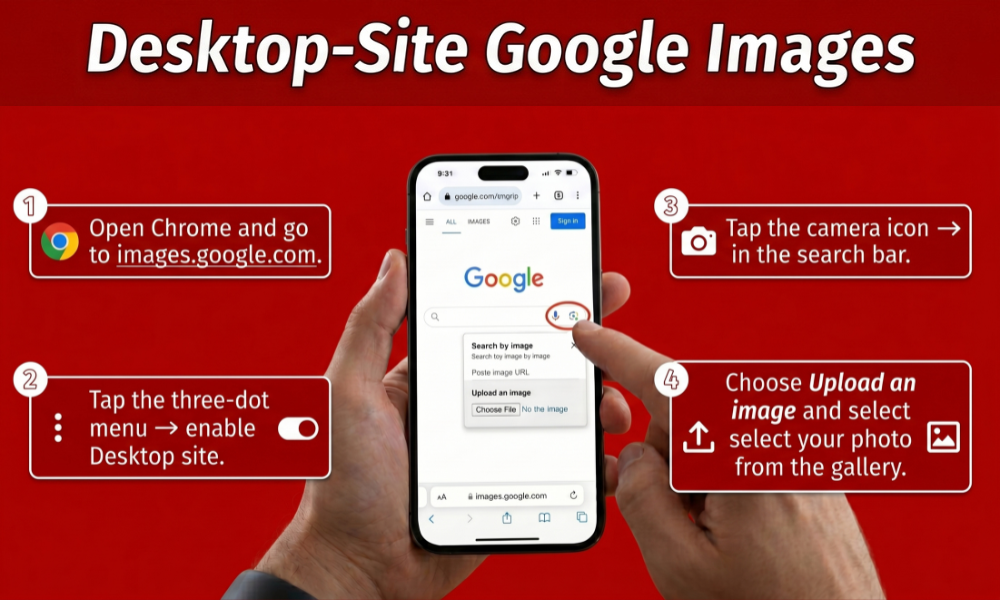
For a classic upload-style search:
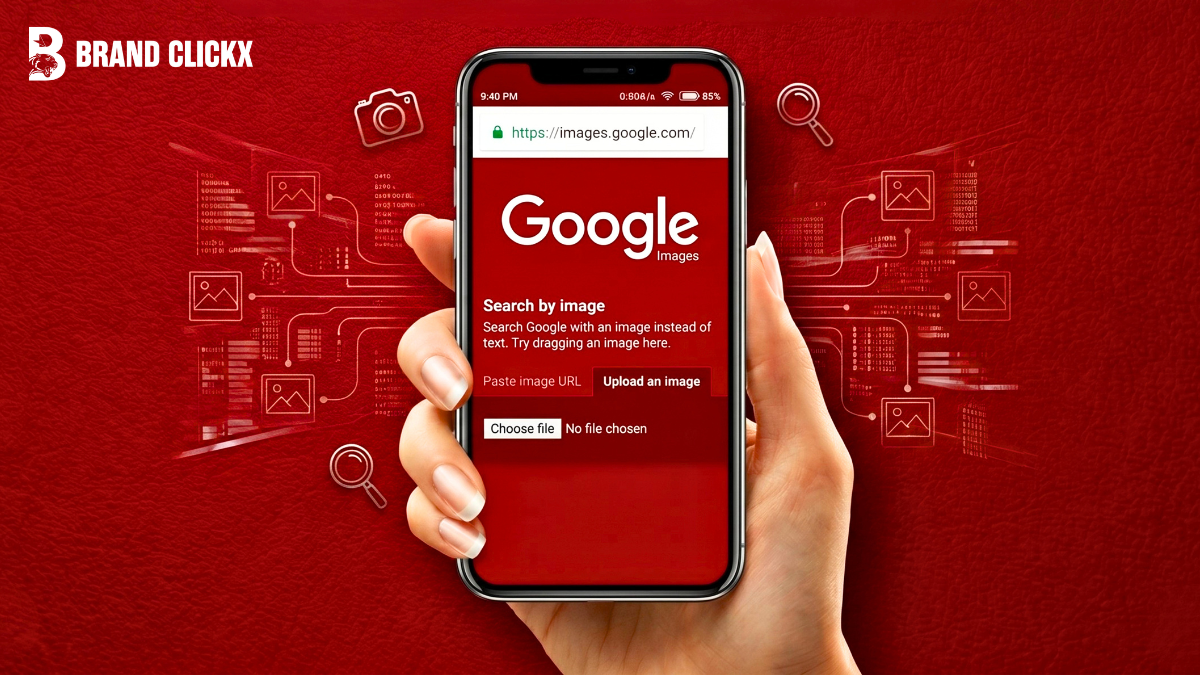
- Open Chrome and go to images.google.com.
- Tap the three-dot menu → enable Desktop site.
- Tap the camera icon in the search bar.
- Choose Upload an image and select your photo from the gallery.
This mimics the desktop reverse image search experience and is useful when Lens results feel too narrow.
Method 5: Third-Party Apps

Apps like Veracity, Reverse Image Search, or CamFind offer added options such as searching across Yandex or Bing simultaneously. Useful for:
- Cross-checking results across multiple engines
- Searching when Google Lens doesn’t recognize a niche image
- Batch-searching multiple photos
Tradeoff: these apps often require ad permissions or account sign-in, so Google Lens remains the simpler default for most users.
Comparison: Which Method to Use
| Situation | Best Method |
| Photo already on your phone | Google Lens via Google Photos |
| Image on a website | Long-press in Chrome |
| Image inside a restricted app | Screenshot + Lens |
| Want classic upload search | Desktop-site Google Images |
| Need multi-engine results | Third-party app |
Common Mistakes to Avoid
- Searching a cropped or low-res screenshot — crop tightly around the subject for better accuracy.
- Expecting exact matches for edited photos — filters or heavy edits reduce match accuracy.
- Ignoring the “Find image source” option — this is the best tool for tracing where a photo first appeared.
- Skipping Lens’s text/translate features — Lens also reads text in images, useful for verifying screenshots of articles or chats.
Tips for Better Results
- Use a clear, well-lit, uncropped version of the image when possible.
- For identifying people or fake accounts, try multiple cropped angles of the same photo.
- Combine Lens results with a manual text search using any visible captions or watermarks.
- For product searches, Lens often links directly to shopping results with pricing.
Real-World Use Cases
- Online dating safety: Reverse search a match’s profile photo to check if it’s been pulled from another account, modeling site, or stock photo library.
- Marketplace shopping: Found a product in a photo but no link or brand name? Lens often pulls up the exact listing or close visual matches from retailers.
- Travel and nature identification: Point Lens at an unfamiliar plant, insect, or landmark while traveling to get an instant identification without typing a description.
- Content verification: Journalists and researchers use reverse image search to check whether a “breaking news” photo is recent or recycled from an unrelated event.
- Recovering lost image sources: If you saved a photo years ago without noting where it came from, reverse search can often trace it back to the original post or photographer.
Privacy Considerations
Reverse image searching someone else’s photo raises a fair question: is it private? Google Lens searches are tied to your Google account activity the same way a normal text search is, and the uploaded image is processed by Google’s servers to generate matches.
The image itself isn’t typically published publicly through Lens, but it’s worth avoiding sensitive personal photos (passports, financial documents, private images of others) when using any reverse search tool, including third-party apps that may have weaker data handling practices than Google’s own services.
If privacy is a major concern, stick to Google Lens or Google Images over lesser-known third-party apps, since smaller developers may store or reuse uploaded images without clear disclosure.
Quick Recap
For most people, Google Lens covers every situation above without installing anything extra: gallery photos, web images, screenshots, and even products. Save the desktop-site method and third-party apps as backups for the rare cases where Lens comes up short.
Troubleshooting Lens Issues
Sometimes Lens returns nothing useful, or the icon doesn’t appear at all. A few quick fixes:
- Lens icon missing in Chrome: Update Chrome from the Play Store — older versions only show “Search Google for this image” instead of the full Lens panel.
- Blurry results: Move closer to the subject before screenshotting, or crop tighter so Lens isn’t trying to match background clutter along with the main subject.
- No matches for a person’s face: Google deliberately limits face-matching for privacy reasons, so Lens will often show “no exact matches” even when other reverse-search engines might surface results.
- App permissions blocking access: Lens needs camera and storage permissions enabled in Settings → Apps → Google → Permissions to scan photos from your gallery.
- Wrong region results: If matches feel oddly localized, check that your Google account’s region/language setting matches where you’re searching from, under Google app → Settings → General.
FAQs
Does Android have a built-in reverse image search?
Yes. Google Lens is built into the Google app, Google Photos, and Chrome on all modern Android devices. No separate download is required, and it works directly from your gallery or browser with a long-press or tap.
Can I reverse image search without the Google app?
Yes. Open Chrome, switch to desktop site mode, go to Google Images, and use the camera icon to upload a photo manually. This avoids needing the Google app installed.
Why does Google Lens not find a match?
Lens relies on visual similarity and indexed web data. Heavily edited, low-resolution, AI-generated, or rarely-shared images often return weak or no matches since there’s little reference data online.
Is reverse image search free on Android?
Yes. Google Lens and Google Images are completely free with no account required. Third-party apps may offer extra features but often include ads or in-app purchases.
Can I reverse search a photo from Instagram or Snapchat?
Direct sharing is often restricted, so take a screenshot first, then open it in Google Photos and tap the Lens icon to search it.