

Your most powerful image-investigation tool is already in your hand.
Google Lens handles close to 20 billion visual searches a month, and Google now calls it one of the fastest-growing query types in Search. A huge share of those searches happen on phones, often on an iPhone.
That matters for anyone who works in marketing, brand, or content.
A suspicious influencer photo lands in your DMs. A competitor posts a product shot. A potential partner’s headshot feels off. You do not need a laptop to check any of it. You need the right method on the phone you already carry.
The catch is that the iPhone has several ways to reverse image search on iPhone, and they are not equal. This guide walks through all four, then tells you which one to reach for and when.
Key Takeaways
- The iPhone offers four real ways to reverse image search, each with a different strength.
- The Google app with Lens is the most powerful and the one to default to.
- The Photos app’s Visual Look Up is on-device and handy, but it is not a full web search.
- Safari hides the upload option until you request the desktop site.
- For faces and non-Western sources, open Yandex in a browser instead of Google.
The Four Ways to Reverse Image Search on iPhone
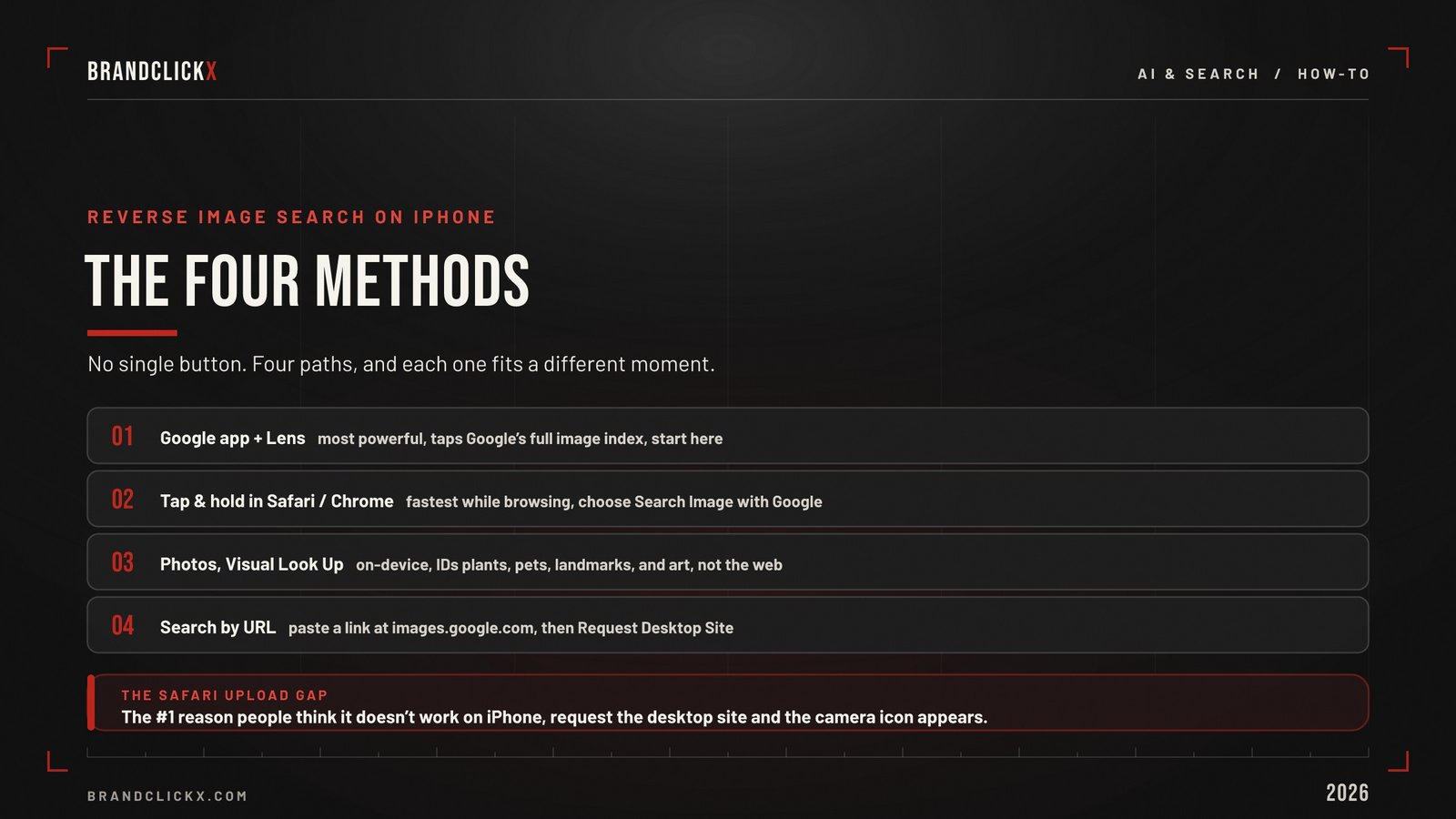
There is no single button. There are four paths, and each fits a different moment.
Method 1: The Google App and Google Lens (most powerful)
This is the one to learn first.
Download the Google app from the App Store if you do not have it. Open it and tap the colorful camera icon, the Lens icon, inside the search bar.
From there you can point your camera at something live, or tap the photo gallery icon to pick an image from your library. Crop to the object or face you care about by dragging the corners, then swipe up to see visually similar images, matching pages, and shopping results.
Lens taps Google’s full image index, so it is the most likely to find products, sources, and similar images. For most jobs, start here.
Method 2: Tap and Hold in Safari or Chrome (fastest while browsing)
When you are already looking at an image online, this is the quickest route.
Touch and hold the image until a menu appears, then choose “Search Image with Google.” That opens Lens with the image preloaded. Look for the “Find image source” option to jump toward where the picture originated.
It works in both Safari and Chrome, with no app switching and no downloading. This is the move for live competitive research and quick fact-checks.
Method 3: The Photos App and Visual Look Up (on-device)
Apple builds its own image recognition into the Photos app, and it is genuinely useful, with limits.
Open a photo, tap the Info icon, or swipe up, and look for the sparkly icon or a “Look Up” prompt. Visual Look Up can identify plants, pets, landmarks, art, and some objects using on-device intelligence.
Here is the honest boundary. Visual Look Up tells you what something is. It does not search the open web for where else an image appears or who posted it first. For provenance and reuse, you still need Lens or another engine.
Method 4: Search by URL and the Safari Desktop Trick
Sometimes you want to search an image that already lives online, or you want the full desktop experience.
If the image is online, copy its URL, open images.google.com, tap the camera icon, and paste the link.
If the camera icon is missing in mobile Safari, that is by design. Tap the page settings icon and choose “Request Desktop Site.” On iOS 18 and newer, the page settings live behind the icon in the bottom-left of the address bar. The camera upload option appears once the desktop site loads.
Why it matters: the Safari upload gap is the single most common reason people think reverse image search “doesn’t work on iPhone.” It works. You just have to ask for the desktop site first.
Which Method for Which Goal
Four tools is only useful if you know which to grab. Match the method to the moment.
| Your goal | Best iPhone method | Notes |
| Identify a product or object | Google app + Lens | Strongest for shopping and products |
| Quick check while browsing | Tap and hold in Safari or Chrome | No app switching, fastest |
| Identify a plant, pet, landmark, or artwork | Photos app Visual Look Up | On-device, no web search |
| Find where an online image came from | Search by URL in Google | Skips the download |
| Match a face across photos | Yandex in a browser | Google limits face matching |
| Full desktop-style search | Safari, Request Desktop Site | Unlocks the upload icon |
Strategic breakdown: the iPhone is not one reverse image search. It is four, and fluency means knowing which to open in two seconds.
Beyond Google: Using Yandex and Others From Your iPhone Browser
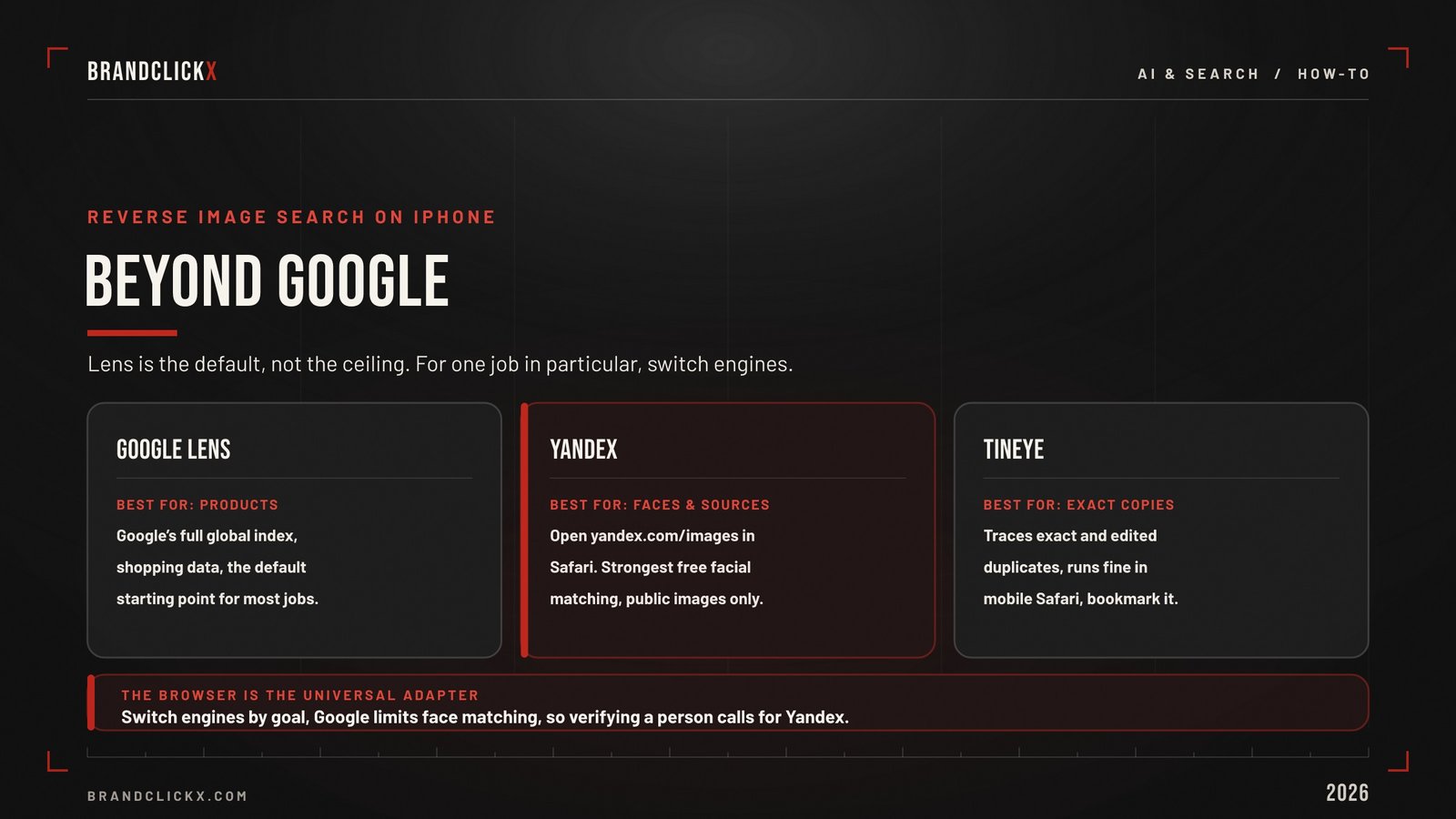
Google Lens is the default, not the ceiling.
For one job in particular, you should switch engines: matching the same person across different photos. Google deliberately limits face matching for private individuals, so it often comes up short here.
Open yandex.com/images in Safari instead, tap the camera icon, and upload or paste the photo. Yandex’s facial matching is the strongest free option, which is why it is the tool of choice for verifying that an influencer, testimonial, or partner is a real person and not a recycled profile.
There is a caution that comes with it, including a real data-governance question for businesses. We cover the full picture in our guide to Yandex reverse image search.
For tracing exact and modified copies, TinEye also runs fine in mobile Safari and is worth bookmarking. If you want the full comparison, see our roundup of the best reverse image search tools.
Market observation: the iPhone makes engine-switching effortless. The browser is the universal adapter. Use it.
A Marketer’s Mobile Workflow
Speed is the point of doing this on a phone. So keep the workflow tight.
See the image. A DM, a post, a product shot, a headshot.
Pick the engine by goal. Product or object, use Lens. Face or person, switch to Yandex in the browser. Source or duplicate, try a URL search or TinEye.
Crop and search. Isolate the face, logo, or product before you search.
Read the source pages. The hosting sites and earliest appearance carry the intelligence, not the thumbnails.
Act or escalate. A confirmed fake influencer gets rejected on the spot. A suspected counterfeit gets flagged to whoever owns brand protection.
This is the same discipline we lay out in the full reverse image search walkthrough, compressed for the device you actually use in the field.
Tactical framework: a 30-second mobile check before you reply, sign, or share prevents most image-based mistakes. Build the habit.
Why This Matters Now
Reverse image search on a phone is small. The shift behind it is not.
Search is moving from words you type to images you point at, and phones are leading that change. Younger users in particular treat the camera as a search bar.
For brands, that means two things. Your images travel without you, so knowing how to trace them is part of protecting them. And as AI-generated images flood every feed, the ability to verify a photo on the spot becomes a basic trust skill, not a specialist one.
The iPhone puts that capability in everyone’s pocket. The teams that use it well will catch fraud, theft, and fakes earlier than the teams that wait to get back to a desk.
Frequently Asked Questions
How do you reverse image search on iPhone?
The fastest way is the Google app. Open it, tap the Lens camera icon, then take a photo or pick one from your library. You can also tap and hold an image in Safari or Chrome and choose “Search Image with Google,” use the Photos app’s Visual Look Up, or paste an image URL into images.google.com.
Does the iPhone have a built-in reverse image search?
Partly. The Photos app’s Visual Look Up identifies plants, pets, landmarks, art, and some objects on-device. It is not a full web search, so for sources and reuse you still need Lens, Yandex, or another engine.
How do you reverse image search a photo from your camera roll on iPhone?
Open the Google app, tap the Lens icon, tap the gallery icon, and choose your image. Or open the photo in Photos, tap Share, and pick “Search with Google Lens.” Crop to the key part for sharper results.
Why can’t I upload an image to Google Images in Safari?
Mobile Safari hides the camera upload icon by default. Tap the page settings icon, choose “Request Desktop Site,” and the icon appears. On iOS 18 and newer, page settings sit behind the icon in the bottom-left of the address bar.
What is the best reverse image search app for iPhone?
For general use, the Google app with Lens. For matching faces or finding non-Western sources, open Yandex in a browser. Many people keep both and choose based on the goal.
Can you reverse image search someone’s photo on an iPhone?
Yes. Lens shows similar images and pages but limits face matching for private individuals. For matching the same person across photos, use yandex.com/images in Safari, and only on images that are already public.
Key Takeaways for Executives
- Default to the Google app and Lens. It is the most powerful free reverse image search on iPhone and the right starting point for most jobs.
- Know the four methods and their limits. Lens for power, tap-and-hold for speed, Visual Look Up for on-device ID, URL search for online images.
- Switch to Yandex in a browser for faces. Google limits face matching, so verifying a person calls for a different engine.
- Remember the Safari desktop trick. “Request Desktop Site” unlocks the upload option that mobile Safari hides.
- Build the 30-second habit. A quick mobile check before you reply, sign, or share prevents most image-based mistakes.
The Bottom Line
Knowing how to reverse image search on iPhone turns the device in your pocket into a real-time verification tool. Four methods, one clear default, and a browser that lets you switch engines whenever the job demands it.
As search becomes more visual and synthetic media spreads, the ability to check an image on the spot stops being a power-user trick and becomes table stakes for anyone who works with brands, content, or partnerships.
Tracking exactly these shifts, where search, AI, commerce, and brand collide, is the work BrandClickX exists to do.