

AI OVERVIEW SUMMARY
A batch image editor processes hundreds or thousands of images at once with the same settings, saving hours over editing individually.
The best 2026 options span four categories: professional editors (Adobe Lightroom $9.99/mo, Luminar Neo $119, Capture One $24/mo), free desktop tools (XnConvert, IrfanView, FastStone), online tools (Bulk Resize Photos, Cloudinary), and developer tools (ImageMagick command line). XnConvert is the best free option with 80+ batch actions across 500+ formats. Lightroom remains the photographer’s standard.
How to Edit 1,000 Photos in the Time It Takes to Edit 10
Editing one photo is easy. Editing a thousand is a different problem entirely.
If you have ever sat in front of a folder of vacation photos, product shots, real estate listings, or social media images, you know the pain. Resize, crop, watermark, convert, rename. Then repeat. For hours.
A good batch image editor turns that nightmare into a job that finishes while you make coffee.
This is not another generic listicle that rehashes the same five tools every other site mentions. This is a complete map of the batch image editing world in 2026, organized by what you actually need to do. Free desktop tools. Premium AI editors. Developer command-line beasts. Cloud APIs that handle millions of images. Online tools that need zero downloads.
Every tool below has been verified for 2026. Every price is current. Every feature claim is sourced. By the time you finish reading, you will know exactly which tool to pick for your workflow.
Let us get into it.
Quick Comparison: All 14 Batch Image Editors at a Glance
| # | Tool | Type | Best For | Price (2026) | Platform |
| 1 | Adobe Lightroom Classic | Pro photo manager | RAW catalog work, photographers | $9.99/mo+ | Windows, Mac |
| 2 | Adobe Photoshop (Actions) | Pro editor | Custom edit recipes, designers | $22.99/mo | Windows, Mac |
| 3 | Luminar Neo | AI photo editor | Portrait, landscape, creative | $119 one-time | Windows, Mac |
| 4 | Capture One | Pro RAW editor | Studio, tethered work | $24/mo or $299 | Windows, Mac |
| 5 | Topaz Photo AI | AI quality | Denoise, sharpen, upscale | $17/mo or $199 | Windows, Mac |
| 6 | XnConvert | Free converter | Format conversion, 80+ actions | Free | Win, Mac, Linux |
| 7 | IrfanView | Free viewer + batch | Windows users, format support | Free | Windows |
| 8 | FastStone Photo Resizer | Free resizer | Simple, fast, drag-drop | Free | Windows |
| 9 | BatchPhoto | Paid batch | Watermarking, automation | $49.95+ | Win, Mac |
| 10 | GIMP + BIMP | Free pro | Free Photoshop alternative | Free | Win, Mac, Linux |
| 11 | Bulk Resize Photos | Online | Quick browser resize | Free | Web |
| 12 | Cloudinary | Cloud API | Developer/e-commerce scale | Free tier + paid | Cloud |
| 13 | ImageMagick | Command line | Engineering pipelines | Free | All platforms |
| 14 | PhotoScape X | Free all-in-one | Beginners, social media | Free + Pro | Win, Mac |
Now let us go deep on each one.
Category 1: Professional Photo Editors
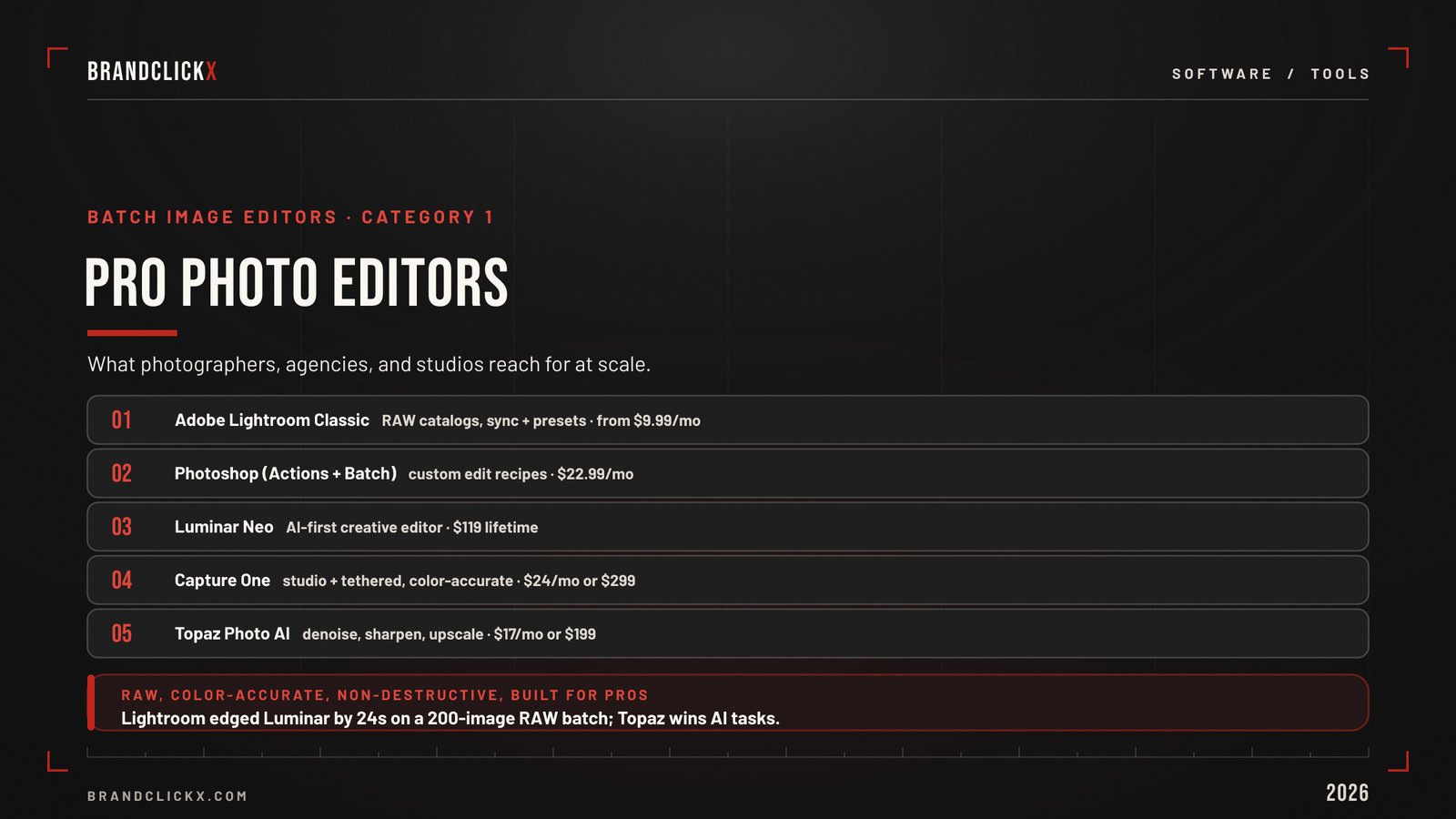
These are the tools photographers, agencies, and creative pros use. They handle RAW files, support non-destructive editing, and run color-accurate workflows.
1. Adobe Lightroom Classic: The Industry Standard
Best for: Photographers managing large catalogs of RAW files Price (2026): Adobe Photography Plan starts at $9.99/month (20GB cloud); 1TB plan at $19.99/month Platforms: Windows, macOS
Adobe Lightroom Classic is still the most-used batch image editor in professional photography. It is built around a catalog system that handles 50,000+ image libraries with ease, and its batch features work at scale.
What makes Lightroom strong for batch work:
- Sync settings across hundreds of selected images in one click
- Develop presets save your edit recipe to apply to any future batch
- Batch export with multiple output sizes, formats, and folders at once
- Keyword tagging, collections, smart albums for organizing thousands of files
- Non-destructive editing preserves originals
- Tight Photoshop integration for advanced retouching
Benchmark data from 2026 testing on Mac Studio M4 Pro: Lightroom Classic exports a 200-image RAW batch about 24 seconds faster than Luminar Neo on standard processing. On AI-heavy tasks, it loses to Luminar Neo and Topaz Photo AI.
The downside: Subscription-only. Three years of the Photography Plan costs about $360, and you never own the software.
2. Adobe Photoshop (Actions and Batch): The Power Recipe Builder
Best for: Designers and editors who want custom batch recipes Price (2026): $22.99/month standalone, or included with Photography Plan Platforms: Windows, macOS
Photoshop is not a dedicated batch tool, but its Actions feature combined with File > Automate > Batch is one of the most powerful batch image editor workflows in existence.
How Photoshop batch works:
- Record an Action while editing one image (any edit, any filter, any layer effect)
- Open File > Automate > Batch
- Point it at a folder of images
- Photoshop applies the same recipe to every file
Real-world examples:
- Resize 500 product photos to exact dimensions with a sharpening pass
- Apply a custom color grade and watermark to a full wedding gallery
- Convert a folder of TIFFs to optimized JPEGs with metadata stripping
- Run any Photoshop filter or generative AI edit across hundreds of images
The downside: Steeper learning curve than dedicated batch tools, and the subscription cost adds up.
3. Luminar Neo: The AI-First Creative Editor
Best for: Portrait, landscape, and creative editing without an Adobe subscription Price (2026): $119 lifetime license, or $119/year Pro plan; Pro Bundle around $179 Platforms: Windows, macOS
Luminar Neo has become the most popular Lightroom alternative because it offers Photoshop-like layers and a Lightroom-style workflow in one app, with strong AI baked in.
Standout AI batch tools:
- Sky AI replaces or enhances skies across an entire batch
- Relight AI rebalances exposure on faces in portraits
- Structure AI adds clarity selectively
- Mask AI generates subject masks automatically
- GenErase, GenSwap, GenExpand generative AI tools (Pro plan)
- Upscale AI, Noiseless AI as part of Pro extensions
Benchmark note: Luminar Neo’s Sky AI batch column was the fastest tool tested across every Apple Silicon Mac in independent 2026 benchmarks.
The downside: Lifetime license covers core features only. To get the full AI suite (GenErase, Upscale AI, Noiseless AI), you need the Pro Bundle or annual top-ups.
4. Capture One: The Studio Pro’s Choice
Best for: Studio photographers, tethered shooting, color-critical work Price (2026): From $24/month subscription or around $299 perpetual license Platforms: Windows, macOS
Capture One is the batch image editor that wedding pros, fashion shooters, and product studios reach for when color accuracy is non-negotiable.
Why pros pick Capture One:
- Industry-best tethered shooting for studio work
- Color rendering widely considered more accurate than Lightroom out of the box
- Sessions and Catalogs offer flexible workflow options
- Style transfer and recipe-based batch processing
- Layers and local adjustments more flexible than Lightroom
Real edge: Capture One owns the studio market because no other tool matches its tethered capture experience.
The downside: Less inclusive ecosystem than Adobe. Smaller plugin and preset community.
5. Topaz Photo AI: The Quality Restoration Specialist
Best for: Denoising, sharpening, and upscaling large batches Price (2026): From $17/month subscription or around $199 perpetual Platforms: Windows, macOS
Topaz Photo AI is a different category from the others. It does not try to be a full editor. It does three things at world-class level: denoise, sharpen, and upscale.
Where Topaz wins:
- Pure denoise speed beats Lightroom and Luminar Neo by a wide margin on Windows with RTX cards
- Upscale up to 6x with detail preservation
- Sharpening that recovers slightly soft images
- Batch processing through a single drag-and-drop window
- Plugin integration with Lightroom, Photoshop, Capture One
Use Topaz when: You shoot in low light, have old archives to clean up, or need to upscale images for large prints.
The downside: Single-purpose. You still need an editor for color, layers, and creative work.
Category 2: Free Desktop Tools
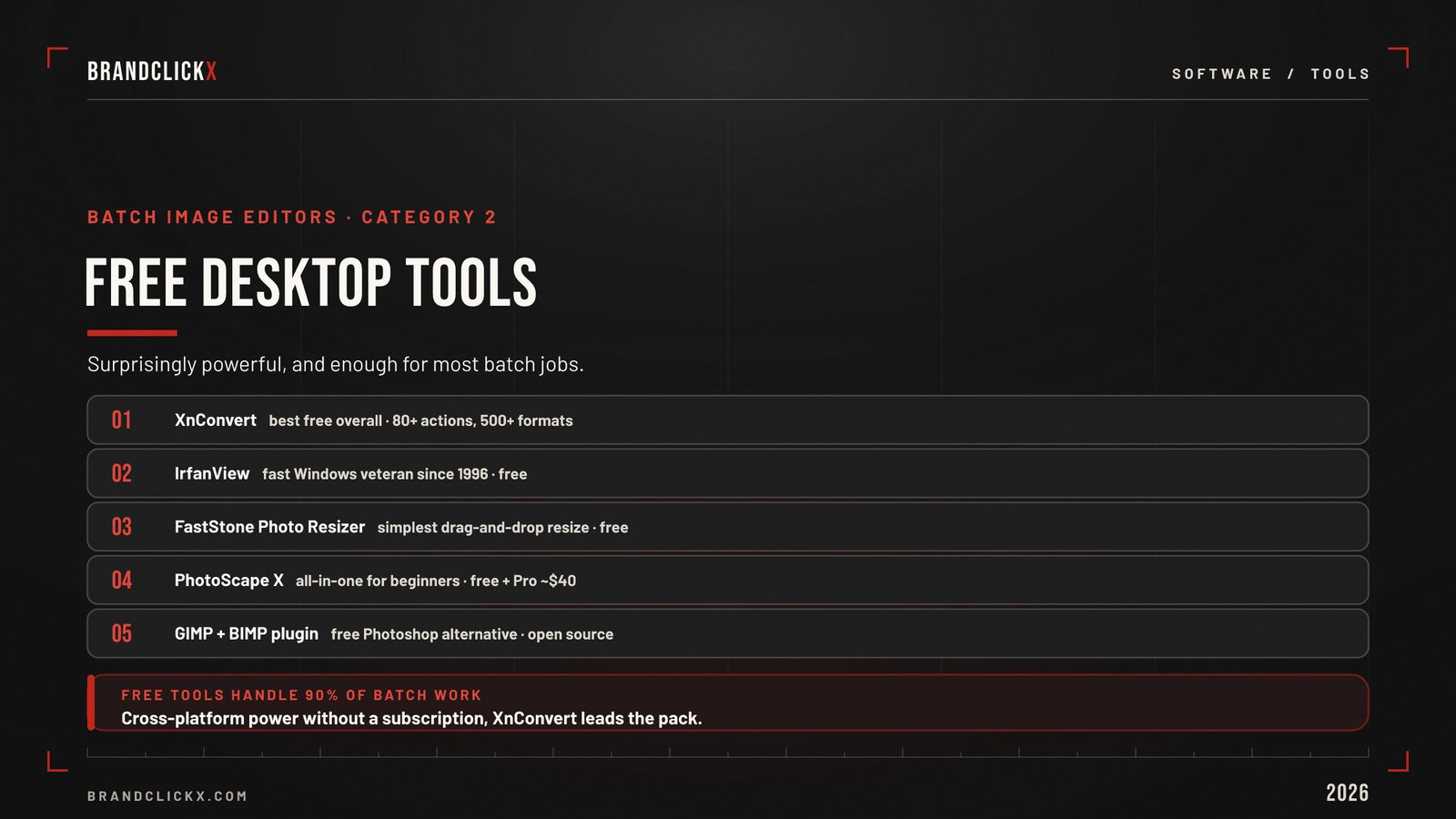
If you do not need professional features, these free tools handle 90% of batch image work. They are also surprisingly powerful.
6. XnConvert: The Best Free Batch Image Editor Overall
Best for: Anyone who wants serious batch power without paying Price: Free for personal use Platforms: Windows, macOS, Linux
XnConvert is the most complete free batch image editor available. It supports more than 500 input formats and offers over 80 batch actions.
What XnConvert does in one batch:
- Resize, crop, rotate, flip
- Convert between JPEG, TIFF, PNG, GIF, WebP, PSD, JPEG2000, JPEG-XL, OpenEXR, RAW, HEIC, PDF, DNG, CR2
- Add watermarks (text and image)
- Color adjustments and filters
- Metadata editing
- Rename in batch
- Save presets for reuse
Why it beats competitors:
- Open source and free
- Cross-platform (rare among free tools)
- Translated into 20+ languages
- Active development and support
The downside: The interface feels designed by engineers for engineers. Functional but not pretty.
7. IrfanView: The Lightning-Fast Windows Veteran
Best for: Windows users who want speed and format coverage Price: Free for personal use; $12 for commercial Platforms: Windows (Mac users need alternatives)
IrfanView has been around since 1996 and is still one of the fastest batch image editor options on Windows.
IrfanView batch features:
- Batch conversion across virtually every image format
- Resize, crop, rotate by exact pixel values
- Color depth changes
- Apply effects (sharpen, blur, sepia) in bulk
- Add watermarks and text overlays
- Plugin system extends capabilities
Real strength: IrfanView opens 4K images instantly. The batch dialog applies operations to hundreds of files faster than most modern alternatives.
The downside: Only Windows. No native Mac version. Interface looks dated.
8. FastStone Photo Resizer: The Simple Resize Champion
Best for: Quick batch resizing with drag-and-drop simplicity Price: Free for personal use Platforms: Windows
FastStone Photo Resizer is the batch image editor to recommend to non-technical friends. It loads, resizes, and exports in seconds with almost no learning curve.
What FastStone does:
- Batch convert across major formats (JPEG, JPEG2000, PNG, GIF, BMP, TIFF, PCX, TGA, WMF, EMF, ICO, CUR, PPM, HEIC, WEBP)
- Batch resize to target dimensions or percentage
- Crop, rotate, flip
- Color depth changes and color effects
- Add text and watermarks
- Add borders and frames
- Batch rename with sequential numbering
- Save and reuse settings as presets
Why it stands out: The drag-and-drop interface is the simplest of any tool on this list. You can resize 500 photos in under a minute without reading a manual.
The downside: Windows only. No advanced features for pro users.
9. PhotoScape X: The All-in-One for Beginners
Best for: Casual users who want batch plus light editing in one app Price: Free; Pro version around $40 Platforms: Windows, macOS
PhotoScape X bundles a viewer, editor, batch processor, collage maker, and GIF animator into a single app.
Batch features:
- Resize, crop, rotate in batch
- Apply filters and color adjustments
- Add text, frames, stickers
- Watermark in bulk
- Convert formats
The free version covers most basic batch needs. Pro unlocks more filters, more text options, and RAW support.
Why it works for beginners: Friendlier interface than XnConvert or IrfanView. Built-in templates for social media sizes.
The downside: Less powerful than XnConvert for serious batch work. Pro features locked behind paywall.
10. GIMP + BIMP (Batch Image Manipulation Plugin)
Best for: Users who want a free Photoshop with batch power Price: Free (both GIMP and BIMP plugin) Platforms: Windows, macOS, Linux
GIMP is the most-used free Photoshop alternative. Combined with the BIMP plugin (Batch Image Manipulation Plugin), it becomes a serious batch image editor.
What GIMP + BIMP can do:
- Apply any GIMP filter or script in batch
- Resize, crop, rotate, watermark
- Format conversion
- Custom edit recipes via scripting
- Free and open source
- Works on all major operating systems
Real strength: If you can edit one image in GIMP, you can batch that edit across thousands of images.
The downside: Steeper learning curve than dedicated batch tools. BIMP plugin must be installed separately.
Category 3: Paid Batch-Focused Tools
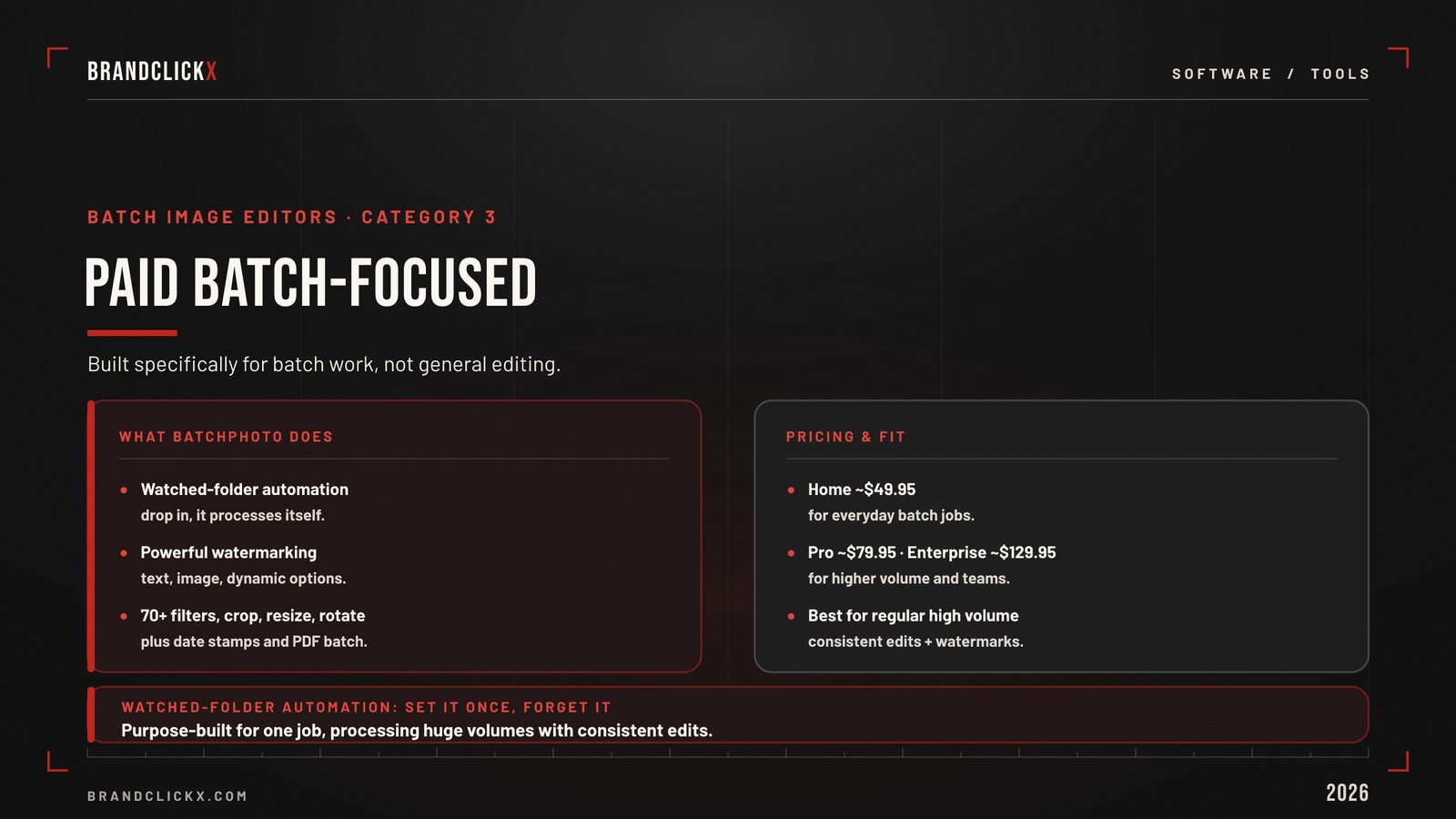
These are tools built specifically for batch work, not general editing.
11. BatchPhoto: The Watermarking and Automation Specialist
Best for: Users who process thousands of images regularly with watermarks Price (2026): Home edition around $49.95, Pro around $79.95, Enterprise around $129.95 Platforms: Windows, macOS
BatchPhoto is purpose-built for one job: process huge volumes of images with consistent edits and watermarks.
Standout features:
- Watched folder automation, drop images into a folder and they get processed automatically
- Powerful watermarking with text, image, and dynamic options
- 70+ filters and effects applied in batch
- Crop, resize, rotate, color adjust at scale
- Date stamping and metadata editing
- PDF batch conversion
Where BatchPhoto wins: The watched folder feature is the best in this category. Set it once and forget it. New images get processed automatically.
The downside: Paid software with a limited free trial. Less feature-rich than full editors like Lightroom for color work.
Category 4: Online and Cloud-Based Tools
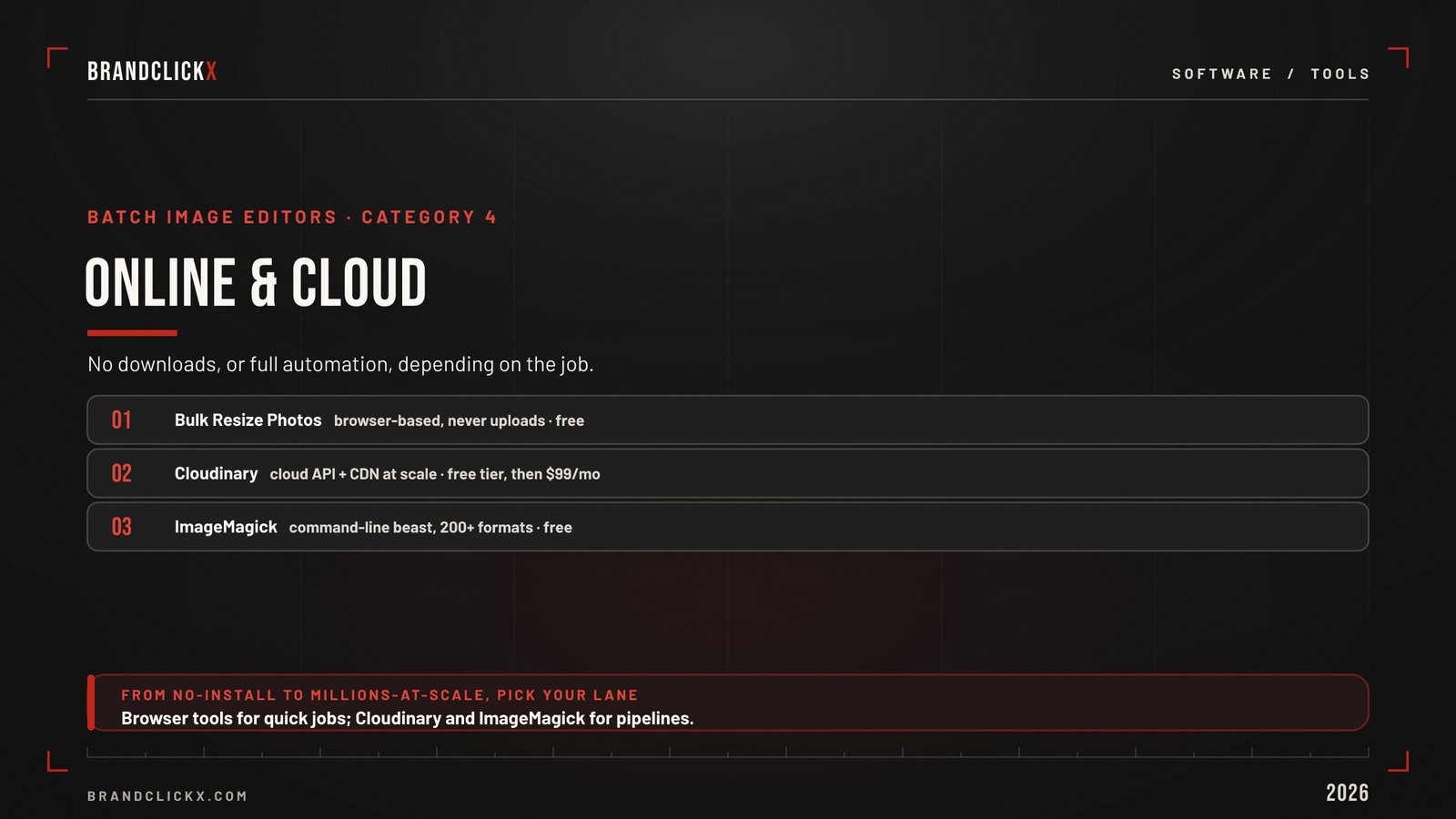
No downloads. No installs. Works on any device with a browser.
12. Bulk Resize Photos: The Fastest Browser Tool
Best for: Quick batch resizing without downloading anything Price: Free Platforms: Any web browser
Bulk Resize Photos is the go-to browser-based batch image editor for one reason: your images never leave your computer. Processing happens in the browser, which means it is both fast and private.
What it offers:
- Resize by percentage or exact dimensions
- Maintain aspect ratio automatically
- Convert formats (JPG, PNG, WebP)
- Adjust quality and compression
- Download all processed images in a single zip
Why it is useful: No upload time, no signup, no privacy worries. Drag, set the size, click resize, download. Done.
The downside: Browser-based means it slows down on very large batches (1,000+ images). Limited compared to desktop tools.
13. Cloudinary: The Enterprise Image Pipeline
Best for: Developers and e-commerce teams managing image delivery at scale Price (2026): Free tier (25GB storage, 25GB monthly bandwidth); paid plans start at $99/month Platforms: Cloud (web + API)
Cloudinary is not a simple batch image editor. It is an end-to-end image management and delivery platform used by companies handling millions of images.
What Cloudinary does:
- Bulk image compression through web interface
- API automation for batch resize, crop, convert
- Content-aware AI cropping that keeps the subject in frame
- URL-based transformations (resize, format, quality just by changing the URL)
- Format conversion including next-gen WebP, AVIF, JPEG-XL
- CDN delivery built in
- Watched folders and presets for automated workflows
Where Cloudinary shines: E-commerce sites with thousands of product images, marketing teams managing brand asset libraries, and developers building image-heavy apps.
The downside: Overkill for personal use. The API is powerful but requires technical knowledge.
14. ImageMagick: The Command-Line Beast
Best for: Developers, engineers, and Linux power users building image pipelines Price: Free and open source Platforms: Windows, macOS, Linux
ImageMagick is the oldest and most powerful command-line batch image editor. It is the engine behind countless web apps, automation scripts, and image processing pipelines.
What ImageMagick can do:
- Support 200+ image formats
- Resize, crop, rotate, flip in batch via mogrify command
- Apply filters, blur, sharpen across folders
- Convert between formats with a single line
- Combine images, create thumbnails, build composites
- Integrate into Python, PHP, Ruby, Node.js workflows
- Latest stable version: 7.1.2.13 (as of 2026)
Example command to resize every JPEG in a folder to 1200px wide:
magick mogrify -resize 1200x *.jpg
Where ImageMagick wins: Pure speed and scale. It can process tens of thousands of images via scripts. Web hosting platforms, WordPress plugins, and SaaS apps use it under the hood.
The downside: No graphical interface. You need to know command-line basics or have a developer set it up.
How to Choose the Right Batch Image Editor for You
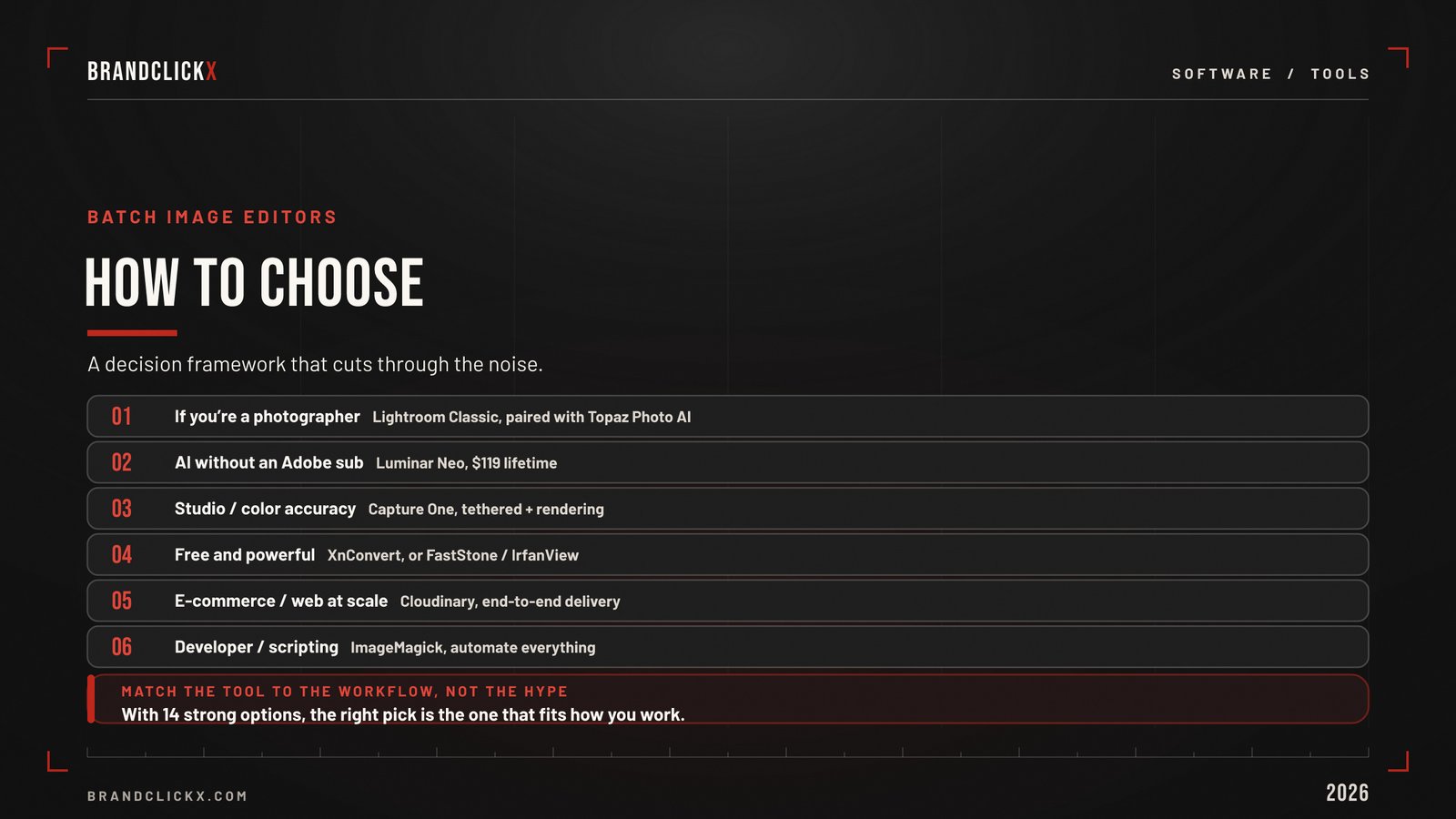
With 14 strong options, the question becomes: which one do you actually need?
Here is a decision framework that cuts through the noise.
If You Are a Photographer
Pick Adobe Lightroom Classic. It handles RAW files, catalog management, and batch development settings better than anything else. Pair it with Topaz Photo AI if you shoot in low light or need to upscale.
If You Want AI Without an Adobe Subscription
Pick Luminar Neo. Lifetime license at $119, strong AI tools, Photoshop-like layers. Save money over Adobe after about six months.
If You Run a Studio or Need Color Accuracy
Pick Capture One. Pros choose it for tethered shooting and color rendering.
If You Need Free and Powerful
Pick XnConvert for the most features. Pick FastStone Photo Resizer for the simplest interface. Pick IrfanView if you live in Windows.
If You Process Thousands of Images Regularly
Pick BatchPhoto for watched folder automation, or ImageMagick if you can script.
If You Are an E-Commerce or Web Team
Pick Cloudinary for end-to-end image delivery at scale.
If You Just Need a Quick Browser Tool
Pick Bulk Resize Photos. No download, no signup, no upload.
If You Want a Free Photoshop with Batch
Pick GIMP + BIMP plugin. Free and open source.
If You Are a Beginner Who Wants One Simple Tool
Pick PhotoScape X for an all-in-one with social media presets.
If You Are a Designer Who Needs Custom Recipes
Pick Adobe Photoshop with Actions and File > Automate > Batch.
Pro Tips: How to Run a Batch Job Like a Pro
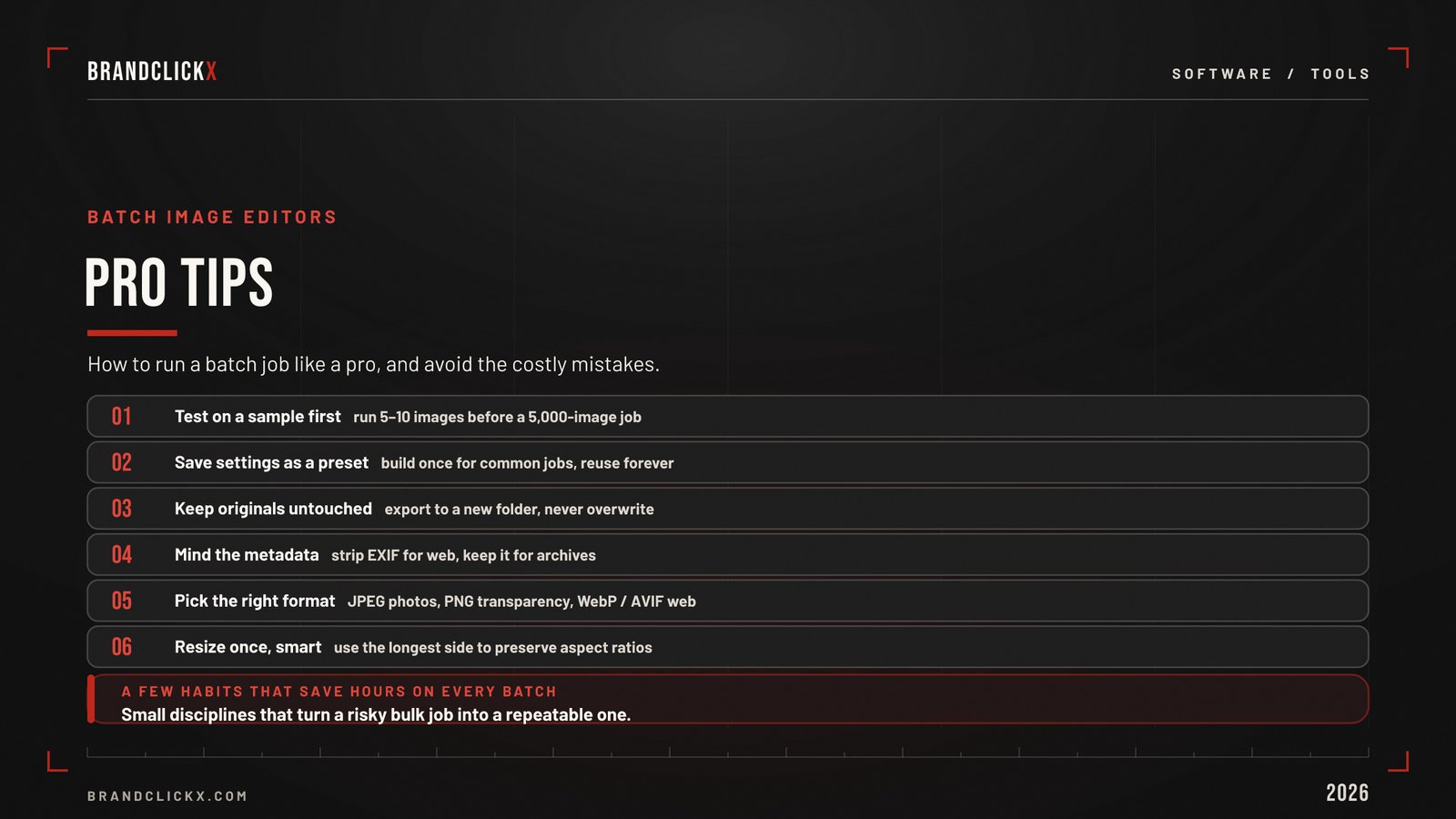
After picking a tool, these tips will save you hours.
Always test on a sample first. Run any batch on 5-10 images before committing to a 5,000-image job. Catch errors early.
Save your settings as a preset. Every tool above supports presets. Build them once for your most common jobs (web export, Instagram size, print master) and reuse forever.
Keep originals untouched. Use non-destructive editing or always export to a new folder. Never overwrite the source files until you have verified the output.
Mind the metadata. Decide upfront whether to keep EXIF data (camera info, GPS) or strip it. For public web uploads, strip it. For archives, keep it.
Pick the right output format. JPEG for photos on the web. PNG for graphics with transparency. WebP for modern web optimization (smaller files, similar quality). AVIF for cutting-edge sites where every kilobyte matters.
Resize once, smart. Use the longest side dimension (not exact width/height) to preserve aspect ratios across mixed portrait and landscape shots.
FREQUENTLY ASKED QUESTIONS
What is a batch image editor?
A batch image editor is software that applies the same edits to many images at once. Instead of resizing or watermarking each photo individually, you select a folder, choose your settings, and the tool processes every file automatically. Common batch actions include resize, crop, format conversion, watermarking, color adjustment, and renaming.
What is the best free batch image editor?
XnConvert is the best free batch image editor overall. It supports 500+ input formats, offers 80+ batch actions, works on Windows, macOS, and Linux, and is completely free for personal use. For Windows-only users, IrfanView and FastStone Photo Resizer are also strong free options.
How many images can a batch editor process at once?
Modern batch image editors can handle thousands of images at once. Desktop tools like Lightroom and XnConvert routinely process 5,000-10,000 image batches. Cloud platforms like Cloudinary can process millions through API automation. Command-line tools like ImageMagick are only limited by your hardware.
Is Adobe Lightroom good for batch editing?
Yes. Adobe Lightroom Classic is one of the best batch image editors for photographers. It allows you to sync develop settings across hundreds of images, batch export with multiple output sizes, and apply presets to entire catalogs. The Adobe Photography Plan costs $9.99/month and includes Photoshop.
What is the fastest batch image resizer?
For pure speed, ImageMagick command-line tools and FastStone Photo Resizer rank fastest among free options. For paid tools, Adobe Lightroom Classic wins on RAW exports while Topaz Photo AI dominates on AI-heavy tasks. Benchmark testing in 2026 showed Lightroom edged Luminar Neo by 24 seconds on a 200-image RAW batch.
Can I batch resize images online without downloading software?
Yes. Bulk Resize Photos works entirely in your browser and never uploads your images to a server. Cloudinary provides browser-based batch tools plus API automation. Both are free for personal use. For larger batches, desktop tools are usually faster than browser-based options.
How much does Adobe Lightroom cost in 2026?
The Adobe Photography Plan starts at $9.99 per month and includes Lightroom Classic, Lightroom, and Photoshop with 20GB cloud storage. The 1TB Photography Plan costs $19.99 per month. Photoshop alone costs $22.99 per month if you want it without Lightroom.
Is Luminar Neo better than Lightroom?
It depends on your workflow. Luminar Neo costs $119 lifetime (vs. Lightroom’s subscription), has stronger creative AI tools, and is easier to learn. Lightroom is better for catalog management, RAW processing, and integration with the broader Adobe ecosystem. Many professional photographers use both.
What is the best batch image editor for Mac?
For Mac users, top options include Adobe Lightroom Classic, Luminar Neo, Capture One, and XnConvert (free). Luminar Neo is well-optimized for Apple Silicon (M1-M4 chips). Capture One has the best tethered shooting experience for studio Mac users.
Can I batch edit images on Linux?
Yes. ImageMagick is the most powerful Linux batch image editor (command line). XnConvert offers a graphical Linux interface with 80+ batch actions. GIMP with the BIMP plugin provides a free Photoshop-like option. All three are free and run natively on Ubuntu, Fedora, and other distributions.
What is the difference between batch image editing and bulk image processing?
There is no functional difference. Both terms describe applying the same edits to multiple images at once. “Batch editing” is more common in photography circles. “Bulk processing” is more common in e-commerce and web development contexts. The tools that do one usually do the other.
How do I batch resize images for a website?
Use any batch image editor to resize to your target width (typically 1200-2400 pixels wide for hero images, 800-1200 for content images), convert to WebP format for modern browsers, set quality to 80-85%, and strip EXIF metadata. Cloudinary, XnConvert, and Photoshop all handle this workflow well.
Can AI batch image editors replace human editing?
No, but they get close for repetitive tasks. AI tools like Luminar Neo, Topaz Photo AI, and Imagen AI excel at applying consistent edits across large batches (color matching, denoise, sharpening, sky replacement). For creative work, custom retouching, and complex compositions, human editing still produces better results.
What is the best batch image editor for e-commerce?
Cloudinary is the top choice for e-commerce at scale. It handles product image management, automated resizing for multiple output sizes (thumbnail, gallery, zoom view), format conversion to WebP/AVIF, content-aware cropping, and CDN delivery. For smaller stores, Adobe Lightroom or XnConvert work well.
How do I keep image quality when batch resizing?
Always resize down, not up (downsizing preserves quality; upsizing without AI introduces artifacts). Use the right format for the content: JPEG quality 80-85% for photos, PNG for graphics with transparency, WebP for modern web. Avoid multiple round trips of compression (resize once, save once). For upscaling, use AI tools like Topaz Photo AI.
SOURCES & CITATIONS
This article is based on official tool pages, current pricing data, and verified benchmark testing:
Tool Pricing and Features (2026):
- Adobe official site: Lightroom and Photoshop Photography Plan pricing
- Skylum: Luminar Neo pricing and feature documentation
- Capture One: subscription and perpetual license pricing
- Topaz Labs: Photo AI pricing and capabilities
- XnSoft: XnConvert features and format support
- IrfanView official site: features and licensing
- BatchPhoto by Bits&Coffee: edition pricing and feature comparison
- Cloudinary: bulk image compressor and API documentation
- ImageMagick.org: version 7.1.2.13 release and command documentation
Benchmark and Comparison Data:
- Cultured Kiwi (May 2026): Luminar Neo vs Lightroom benchmarks on Mac Studio M4 Pro
- Imagen AI (April 2026): Lightroom vs Luminar Neo 2026 comparison
- Pixelcatcher (June 2026): Luminar Neo Review with current pricing
- SelectHub: Lightroom vs Luminar Neo feature analysis
- Digital Camera World (April 2026): Best Lightroom alternatives 2026
Free Tools and Online Options:
- Picmal (September 2025): Top batch image converter Mac comparison
- ItSelectable (August 2025): 15 best bulk image converters
- Clipping Path Experts (April 2025): Best free batch image resizer comparison
- UMA Technology: Best free batch photo editor for Windows
- OPT-IMG (March 2026): Best batch image processing tools 2026
- Transloadit: ImageMagick batch resizing guide
All pricing, features, and benchmark figures are verifiable through the sources listed above as of June 2026.