

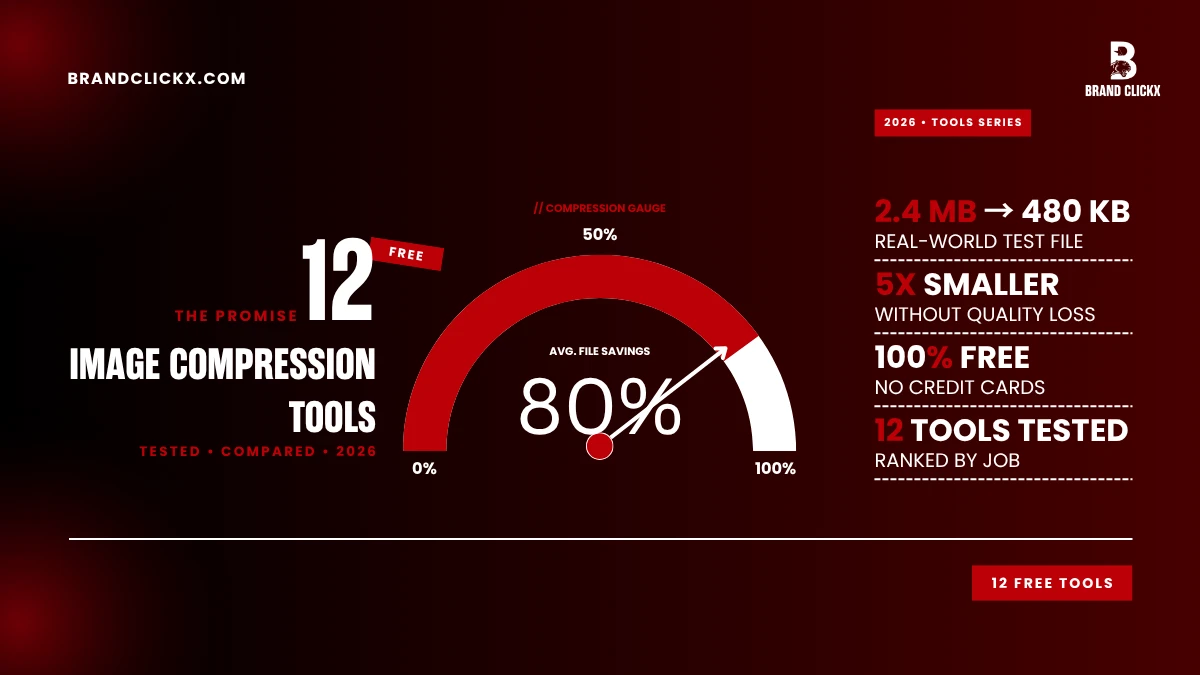
The right image compression tools turn a 4MB photo into something under 400KB without your eye noticing. Your PageSpeed score notices though. So does your bounce rate.
I’ve read maybe forty of these listicles over the years. Same five tools every time. Same blurbs. Half of them written by people who clearly haven’t opened the tool in two years.
So I sat down last week and ran twelve of them on real jobs. Client product shots. Blog hero images. Ugly screenshots stuffed with UI text, which is the hardest thing to compress without it looking like garbage. A couple of tools that I’d written off years ago turned out to be better than I remembered. One famous one is worse.
Here’s what’s actually worth using in 2026.
Why Any of This Matters
Images eat 60 to 70% of a typical blog post’s total weight. Sometimes more. One unoptimized hero shot at 3MB plus eight inline images and you’ve pushed 20MB at someone before they read your opening sentence.
Three things break when that happens.
Mobile users bounce. LCP slides past 2.5 seconds, which is the threshold Google actually cares about now. Ad revenue drops because slow pages just serve fewer impressions per session.
One agency client this year. Their existing media library was a mess of uncompressed phone photos uploaded straight to WordPress. Ran the whole thing through one of the tools below. Total page weight down 78%. Nothing else changed.
Right.
1. Squoosh
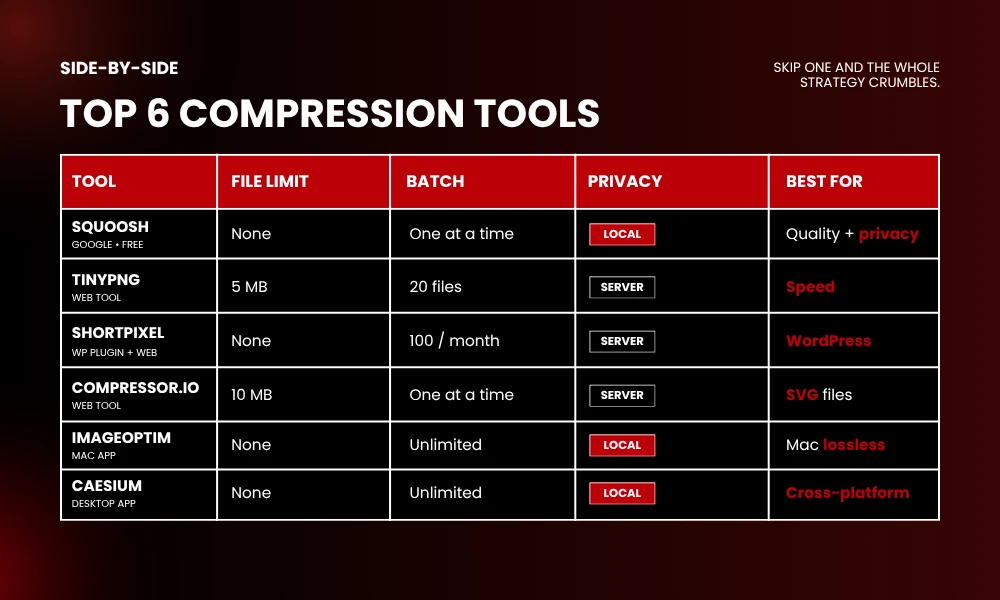
Built by the Chrome Labs team. Runs entirely in your browser tab, which is the whole point. Your image never gets uploaded anywhere. For client work under NDA, that’s not a nice-to-have, it’s the only reason to use this category of tool at all.
You drop a file. Original on the left, compressed version on the right, slider in the middle. Drag and watch the file shrink in real time.
Eight codecs. MozJPEG, WebP, AVIF, OxiPNG, JPEG XL, the rest. Most other free image compression tools give you two.
Problem? One image at a time. Got fifty product shots to push before a deadline, Squoosh will make you click through fifty times.
No size cap. No watermark. No monthly limit.
squoosh.app
2. TinyPNG
The workhorse. Drag, drop, two seconds, download. No slider, no choices, no decisions to make. Just shrinks things 60 to 80%.
PNG compression is what made it famous. The quantization trick. It reduces the color palette in a way your eye doesn’t catch but your bandwidth definitely does. A 1.2MB logo PNG comes back at 280KB looking effectively the same.
20 images per batch on the free web tier. 5MB per file. The 5MB cap is annoying. A modern phone shot from any iPhone or Pixel will blow past 5MB easily, which means you’re resizing first before TinyPNG will even accept the upload.
WordPress plugin gives 500 free optimizations per month. Generous unless you’re running anything content-heavy.
tinypng.com
3. ShortPixel
Less a tool, more a service that lives inside your CMS once you install it. Set it up once, walk away. Every image uploaded from that day onward gets compressed automatically. It’ll also work through your existing media library in the background, which is the part most people forget to enable.
Three modes. Lossy, glossy, lossless. Glossy is the one most people miss. It’s specifically tuned for product photography because pure lossy modes wash out color accuracy in a way that ecommerce sites can’t afford.
Here’s the catch. 100 image credits per month free. Sounds plenty. Each thumbnail counts as one credit though, so a single WordPress upload with five thumbnail sizes eats five credits. A content-heavy post burns through your monthly allowance in two posts.
shortpixel.com
4. Compressor.io
This is the SVG one. Most image compression tools just ignore SVG entirely, which is wild because vector files often ship with absurd amounts of unused metadata Illustrator leaves behind. Compressor.io strips that stuff out.
Also does JPG, PNG, GIF, WebP. The free version gives you both lossy and lossless, which is rare for the free tier of anything.
Lossless on a photo, you’ll barely see file size move. Lossless on a screenshot full of UI text, you can drop 30 to 40% with zero pixel changes anywhere. That’s a real win for any docs site or knowledge base.
10MB per file on free. No batch on free tier.
compressor.io
5. ImageOptim
Free desktop app. macOS only, which is the catch up front. You drag a folder onto the app icon and it runs your images through multiple lossless optimizers stacked back to back. Overwrites the files in place. Nothing leaves your machine.
20 to 40% file size cuts. Not 70% like TinyPNG. Trade-off. What you get instead is mathematically lossless output, every pixel intact. That makes it the right tool for assets going into a git repo or onto a CDN where any quality drift is going to come back and bite you six months later when someone notices the logo looks blurry.
Open source. No limits. Mac only though.
imageoptim.com
6. Optimizilla
Sits between TinyPNG and Squoosh. More flexible than TinyPNG, less of a learning curve than Squoosh. Upload up to 20 at once. Click into each one individually. Dial the quality slider for that specific image. The preview updates live.
Where this actually matters: mixed batches. A product photo will take aggressive compression without complaining. A logo with sharp typography needs gentler treatment or the edges start showing weird ringing artifacts. Optimizilla lets you tune each image separately in one session. Most free tools refuse to do that.
Heavy ads on the page. The UI hasn’t been touched in years from the look of it. But it works.
20 images per session, no signup.
imagecompressor.com
7. iLoveIMG
Not just compression. A bundle. Crop, resize, watermark, rotate, format conversion, all in one dashboard. If your job is regularly “shrink this, also convert to WebP, also resize to 1200 wide,” doing that in three separate browser tabs is genuinely annoying. iLoveIMG runs all three in one flow.
Compression itself isn’t best-in-class. Around 40 to 55% reduction on JPGs. Decent. Not beating TinyPNG.
Limited daily uses without an account. Free account opens it up considerably.
iloveimg.com
8. Caesium
What ImageOptim users on Windows have wanted for years. Cross-platform. Windows, Mac, Linux, plus a browser version. Runs locally, no uploads.
Side-by-side preview with a per-image quality slider, which puts it ahead of most desktop tools that just give you one global slider for the entire batch. Drop fifty files, scrub through, save out.
For any agency where designers are split between Mac and Windows machines, this matters. Nobody has to learn a different workflow because they got a different laptop.
Open source. No limits.
caesium.app
9. RIOT
Radical Image Optimization Tool. Old Windows software, and you can tell from the second it opens. UI looks like it stopped getting design love around 2014.
Underneath that interface though, more granular control than anything else on this list. Custom palette sizes. Custom dithering algorithms. Manual chroma subsampling. Metadata stripping you configure yourself.
This is the one you pull out when the standard tools just aren’t getting the result and you need to hand-tune one specific image for one specific use. Also installs as a Photoshop and IrfanView plugin if those are already part of your stack.
Windows only. Free.
riot-optimizer.com
10. Kraken.io
Clean web compressor that anyone can use. Where it actually earns its place is the API. Building an app, running a custom CMS, you pipe user uploads through Kraken’s servers and get optimized versions back automatically. No manual step.
Web has three modes. Intelligent lossy for photos. Lossless for graphics. Expert mode where you control everything if the presets aren’t right.
Free web tier is 1MB per file. Tight. iPhone photos blow past that without trying. Free API tier is 100MB bandwidth, enough to test an integration, nowhere near enough for production.
kraken.io
11. Compress JPEG
Bare bones. Open, drop up to 20 files, get them back. No account, no watermarks, no upsell popups screaming at you to buy something.
Has sister sites. Compress PNG, Compress PDF, Compress GIF. Same interface across all. Useful because you’ll inevitably need a PDF squeezed five minutes after compressing a JPEG and now you know where to go without thinking.
20 files per batch. No advertised size limit, though things drag past 10MB.
compressjpeg.com
12. JPEG-Optimizer
Combines two things people normally do back to back. Resize. Then compress. Set max pixel width, set quality 0 to 99, one pass handles both.
Why bother? A 4000-pixel photo crushed to 100KB looks blotchy and weird. Same photo resized to 1200 pixels first, then compressed to 100KB, looks sharp. The order matters and JPEG-Optimizer just bakes the right workflow in.
JPEG only. No PNG. No WebP. No batch. Does its one thing well though.
jpeg-optimizer.com
Which One Should You Actually Use
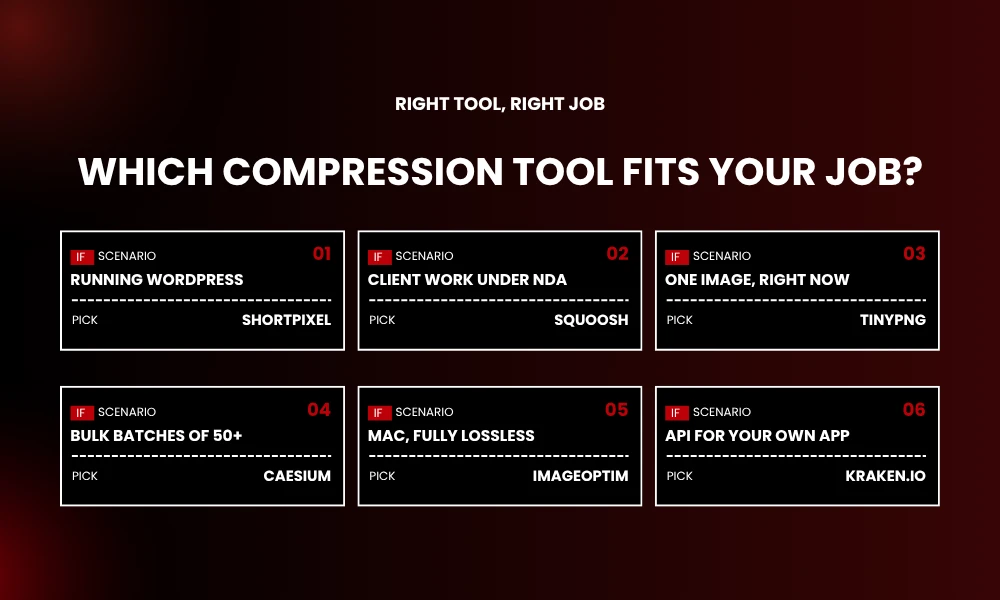
You don’t need twelve bookmarks. Pick based on what you actually do.
WordPress site? ShortPixel or the TinyPNG plugin. Install, walk away.
Client work that can’t leak? Squoosh or Caesium. Both stay on your machine.
Single image, right now? TinyPNG. Five seconds.
Hundreds at once? Caesium for desktop. ShortPixel if the credit cap works for you.
WebP or AVIF? Squoosh. Older image compression tools still don’t support those codecs properly.
Mac, lossless output? ImageOptim. Drag folders as needed.
A Few Habits That Beat Picking the Right Tool
The tool matters less than how you use it.
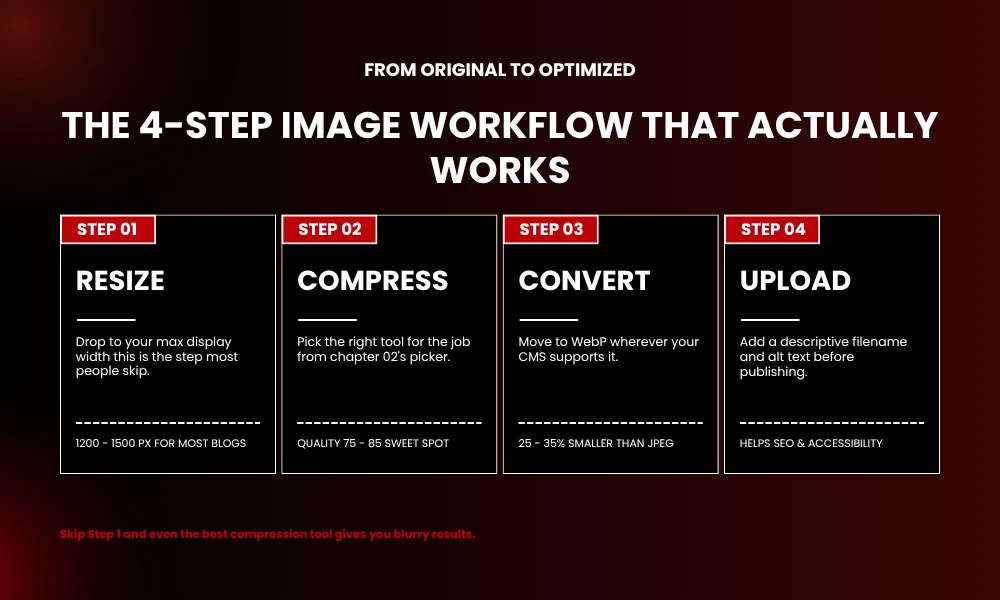
Resize first, compress second. A 4000-pixel photo squeezed to 200KB looks rough. Same photo resized to 1500 first, then compressed, looks sharp. The order is what matters.
WebP wherever you can. Browser support is 97% in 2026. Files are 25 to 35% smaller than JPGs at matching quality. Across a whole site that adds up to real load time savings.
Match format to content. Photos go to JPEG or WebP. Graphics with text or transparency, PNG or lossless WebP. Logos and icons, SVG.
Quality between 75 and 85. Below 70 you get banding in skies and gradients. Above 90 you’re barely saving anything worth saving. That 75 to 85 band is where files shrink hard and the eye notices nothing.
Frequently Asked Questions
What are image compression tools and how do they actually work?
Image compression tools shrink picture files by removing data the human eye doesn’t easily catch. Lossy compression deletes some image information permanently for bigger savings. Lossless rearranges the file without deleting anything, smaller cuts but perfect fidelity.
Which free image compression tool gives the best quality?
Squoosh wins on quality-to-size in head-to-head testing. Its MozJPEG build preserves edges and text better than most. TinyPNG comes close and actually beats Squoosh on PNG files specifically, because its quantization algorithm is genuinely better for that format.
Is it safe to upload images to online compression tools?
Reputable tools delete files within an hour. For sensitive client work, NDA material, anything pre-release, stick with tools that process locally. Squoosh, Caesium, ImageOptim, RIOT all keep your files on your machine.
How much can image compression actually reduce file size?
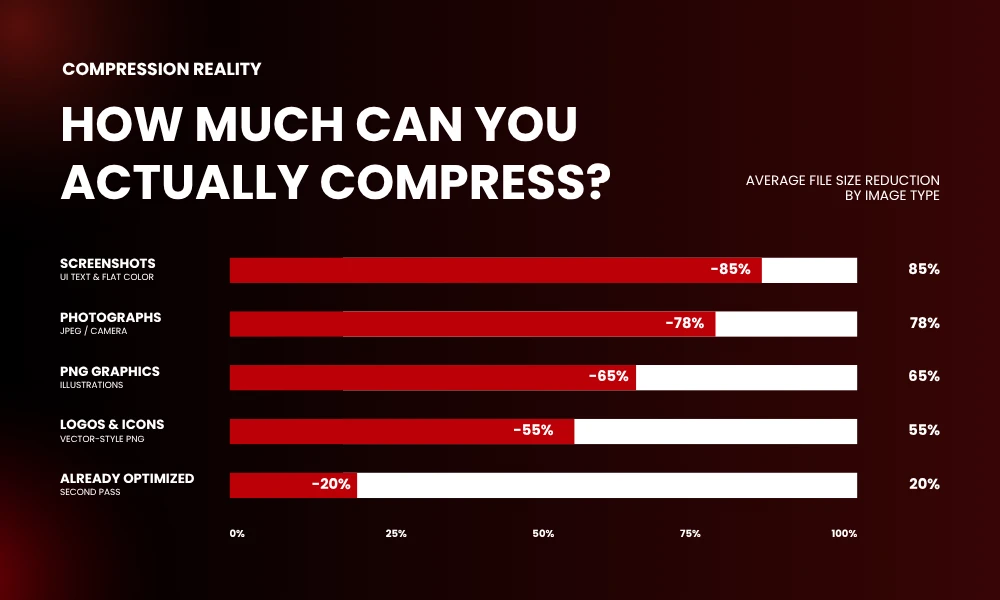
Photos drop 60 to 80% with no visible quality loss at the right settings. PNG graphics, 50 to 70%. Screenshots with lots of flat color and UI text compress hardest, sometimes 85% or more.
Do image compression tools hurt SEO?
The opposite. Faster pages rank better, and image compression is usually the single biggest page-speed win available on any site. Google uses Core Web Vitals as a ranking signal and image weight is normally the worst offender behind bad LCP scores.
Bottom Line
You don’t need to pay anyone for this. The twelve image compression tools above cover everything anyone actually does day to day. Single-image drag and drop. WordPress automation. Local batches for client work. Cross-platform team setups.
Pick one or two that match how you actually work. Bookmark them. Use them every time you upload anything new.
A month from now your site feels faster, your Core Web Vitals climb, your bounce rate slides down. Nobody on your team will know why exactly. That’s fine. You will. Stay tuned with Brand ClickX for further info!