

My nani kept her photos in a biscuit tin. By the time I got to scan them, some had stuck to the metal lid. Faces gone. Edges curled up like dry leaves you find under a hedge.
Old prints don’t wait around.
AI photo restoration rescued most of what was in that tin. Not all of it, mind. A few were past saving. But the rest came out sharper than I’d hoped. Cleaner, in a couple of cases, than the day my grandfather pulled them from the chemist’s envelope.
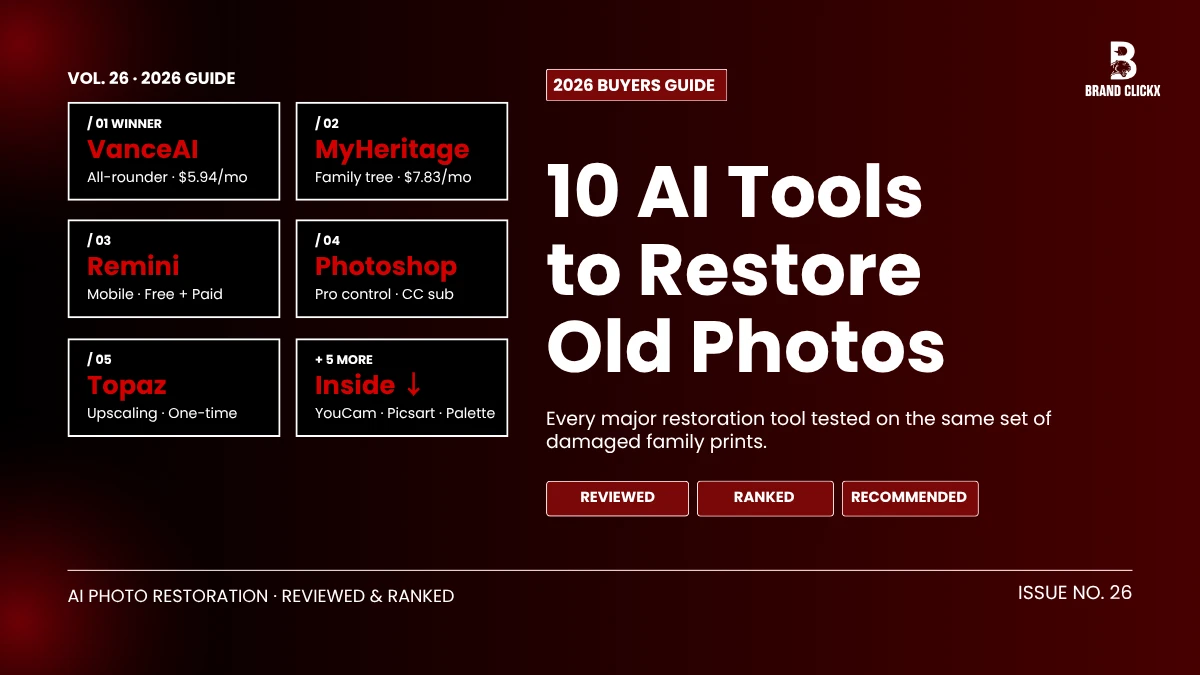
Below are ten tools that earned their place in 2026. Sorted by what they actually do well, not by who shouted loudest.
So What Is AI Photo Restoration, Really
Short answer. Software trained on huge piles of photographs that learns to patch over damage based on patterns it picked up during training.
You hand it a wrecked image. The model scans the rest of the picture. It works out what skin should look like there, or sky, or a bit of someone’s jacket, and paints that in over the scratches. Some go further and add colour to black-and-white, push up resolution, or sharpen blur.
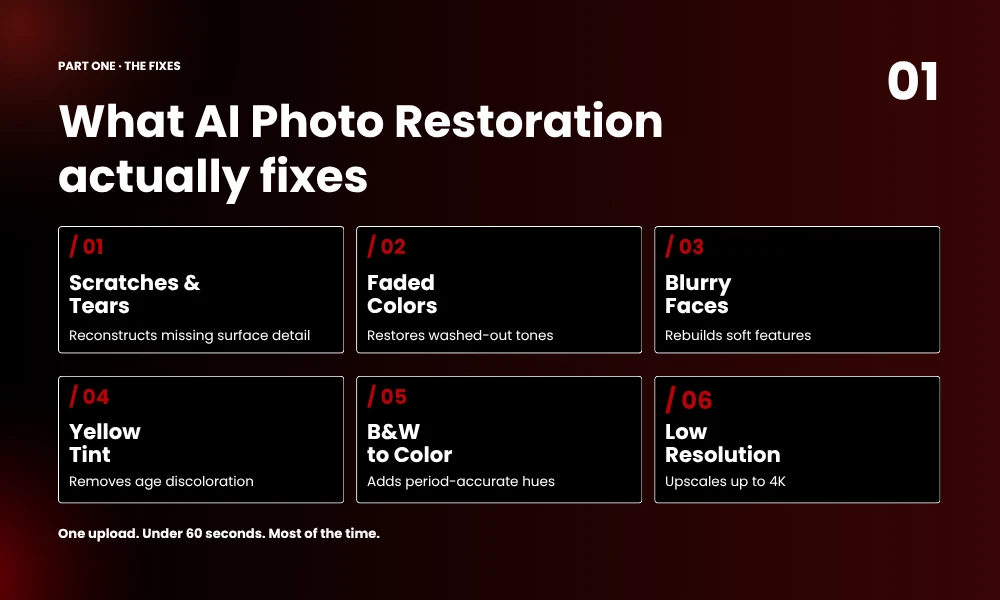
Stuff a decent AI photo restoration tool handles:
- Scratches, tears, dust spots
- Yellow fading and washed-out colour
- Blurry faces
- Black-and-white to colour conversion
- Tiny scans pushed up to print size
Most are done in under a minute. The slow ones, five. Beats the four hours my cousin Adil spent in Photoshop on his parents’ wedding photo, which ended up looking like an oil painting anyway.
The Quick Version Before You Scroll Forever
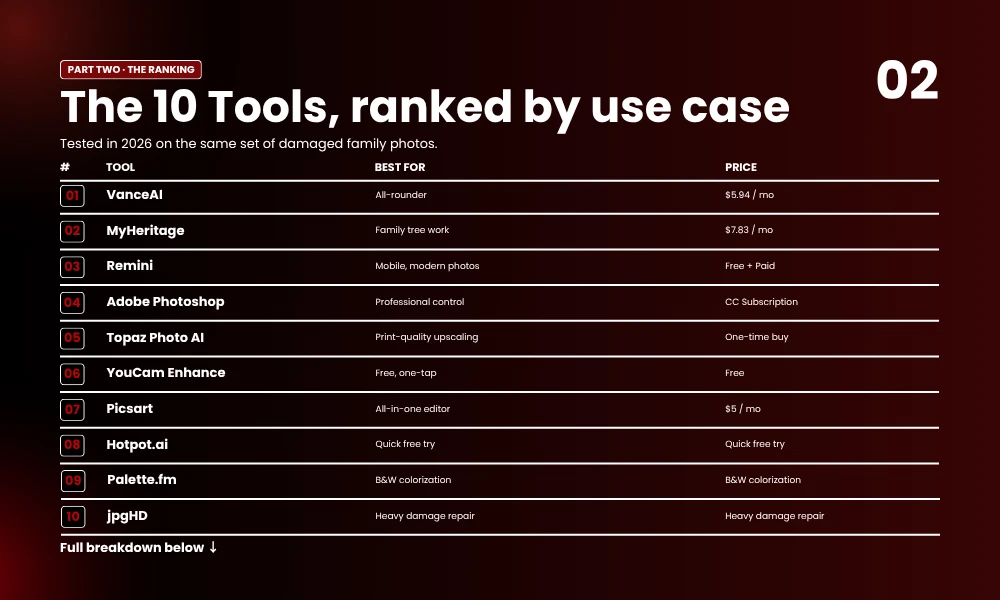
Skim time. Here’s the shortcut.
Free pick: YouCam Enhance. Serious work: Photoshop. Phone: Remini. Black-and-white colourising: Palette.fm. Badly damaged stuff: jpgHD or VanceAI.
Now the long version.
1. VanceAI Photo Restorer
VanceAI wants to be your one-stop shop. Scratch removal, face fix, denoise, upscale. You drop a photo in and it sorts out what needs doing.
What I liked about it. Faces don’t end up looking like wax dummies. A lot of these tools, when they hit an old portrait, smooth the skin into something out of a phone filter. VanceAI mostly doesn’t.
Free plan gives you five credits a month. Paid starts around six quid a month on the yearly plan.
Pick this if you want one tool that handles most jobs without you fiddling about.
2. MyHeritage Photo Enhancer
MyHeritage went mental a few years ago with Deep Nostalgia, the thing that made dead relatives blink. Creepy? Bit, yeah. Worked? Also yeah.
Past the gimmick, the normal enhancer is solid on old portraits. Single subjects come out clean. Group shots can get a bit confused, especially when faces overlap.
Web and mobile both. Five free goes, then around $7.83 a month yearly.
Good fit if you’re already doing family tree research.
3. Remini
Remini lives on your phone. Over 100 million downloads, mostly off the back of those “see yourself at 80” filters that did the rounds on TikTok.
The restoration side isn’t just hype though. Blurry phone pics from 2009 come out sharp. Old scanned prints from a 35mm roll? Coin toss.
Free tier exists. Paid unlocks the proper stuff.
Use it for newer photos and selfies. Skip it for prints from the 40s.
4. Adobe Photoshop with Neural Filters
The grown-up option.
Photoshop’s Neural Filters bundle Photo Restoration, Colorize, Super Zoom, plus a load more. You also get every manual tool ever made, which matters, because AI on its own rarely sticks the landing on a tough restoration. You’ll want to mask, clone, dodge, burn after the AI takes its first pass.
Catch. Creative Cloud subscription, and a learning curve measured in weeks not minutes.
If you’re serious about turning a stack of family prints into framed wall pieces, this is still where the road ends.
5. Topaz Photo AI
Topaz does three things. Sharpen. Denoise. Upscale. Each is its own AI model, and they stack on the same image.
I ran a 600px scan of my dad as a kid through it once. The print was the size of a stamp, the scan was grainy, and Topaz pulled out something I framed at 11×14 above the staircase.
Buy it once, no subscription. Photographers love it for exactly that.
If your problem is mostly fade and small size rather than rips, Topaz is the one.
6. YouCam Enhance
YouCam reels in beginners with a free tier that doesn’t feel crippled. AI Enhance, AI Colorize, AI Scratch Removal, all one tap. 4K output.
iOS, Android, web. Most casual jobs, you’ll never hit the paywall.
Quality won’t touch Photoshop or Topaz on a hard case. For someone just trying to fix a few photos for a birthday slideshow though, fine.
7. Picsart
Picsart isn’t really a restoration app. It’s a creative suite with restoration bolted on the side.
That said, AI Enhance works. Faded colour bounces back, scratches lift. And because Picsart already handles filters, templates, social exports, you can fix a photo and post it in the same sitting.
Batch processing eats whole albums. Plans start around five dollars a month, which is cheap.
Right pick if restoration is one task among ten you do with photos.
8. Hotpot.ai
Hotpot is plain. Upload, click, download. That’s the whole thing.
Free tier is generous. Paid kills wait times and bumps the resolution.
Heavy damage trips it up. Severely torn or stained photos confuse the model. For a moderately faded image you want fixed in 30 seconds though, Hotpot delivers.
Use it as a quick first try before paying anyone.
9. Palette.fm
Palette.fm only colourises. That’s it. But it does that one thing better than almost everyone else I tested.
Skin tones look like skin. Sky looks like sky. It picks period-accurate palettes too, so a 1920s photo doesn’t end up with grass the colour of a tennis ball.
You can nudge it with a quick prompt. “Red dress, blue car, autumn trees.” That fixes most of the guesses it gets wrong.
Free for small images. Paid unlocks high-res and bulk.
If your pile is mostly black-and-white, start here.
10. jpgHD
jpgHD takes its sweet time. Three to five minutes a photo. Sometimes more.
What you get back is often better than what the fast tools produce. Restoration, denoise, colourise, 4x upscale, all without smearing the detail. Heavy scratches get rebuilt with weird accuracy.
Free tier limits upload size and resolution. Paid unlocks scratch fix and bigger outputs.
Save jpgHD for the photos you actually care about.
Picking One Without Spending an Hour on It
There isn’t one right answer. I’m not going to pretend there is.
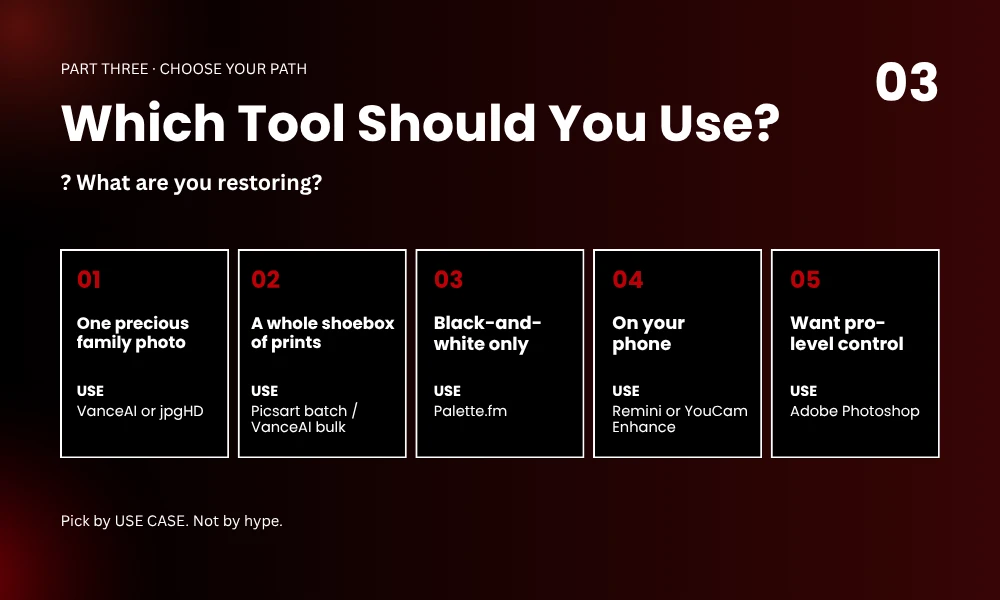
What matters is what you’ve got, and what you want from it. So:
- One photo of grandma? VanceAI or jpgHD, take your time with it
- A whole shoebox? Picsart batch, or VanceAI bulk
- Black-and-white only? Palette.fm
- Doing it on your phone in bed? Remini, YouCam Enhance
- Family tree project? MyHeritage
- Want prints big enough to frame? Topaz
- Going pro or want every dial? Photoshop
Money matters too. Restoring six photos a year? Subscription is daft. Pay-per-photo or a free tier makes way more sense. Working through hundreds? Yearly plan pays for itself by Wednesday.
A Few Things to Sort Before You Upload
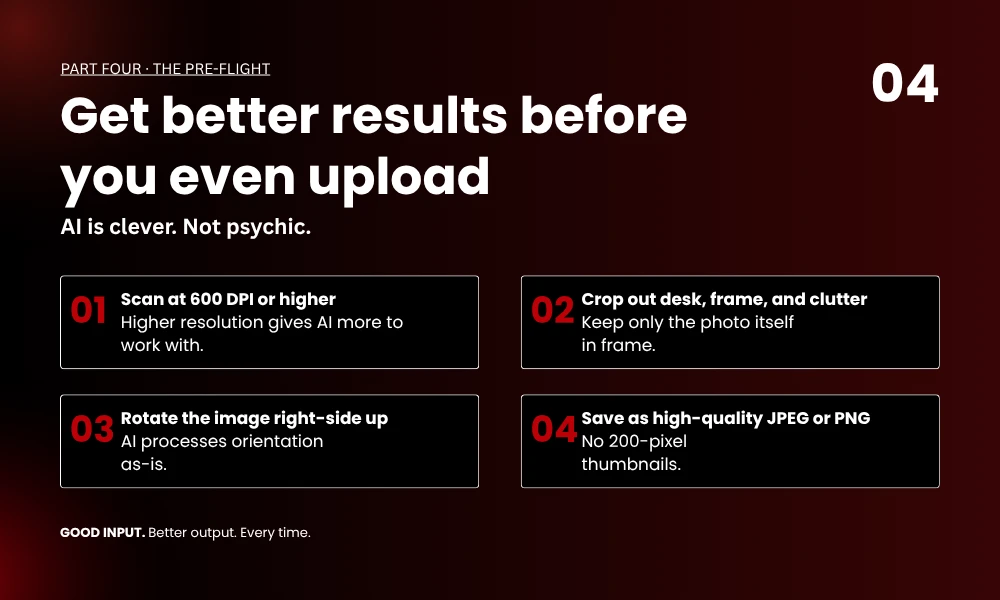
AI is clever. Not psychic.
Give it decent input and you’ll get better output:
- Scan prints at 600 DPI or above
- Crop out the desk, the frame, the cat’s tail
- Rotate the photo right side up first
- Save as a proper JPEG or PNG, not some 200-pixel thumbnail
After the AI does its bit, zoom in. Look at the eyes. Look at the hairline. If anything looks plastic or melted, send it through a different tool, or do a quick manual fix in Photoshop. AI photo restoration does the heavy lifting. Your eyes catch what the model misses.
Frequently Asked Questions
What’s the best free AI photo restoration tool right now?
YouCam Enhance and Hotpot.ai both have free tiers worth a go. No watermarks on basic output. Remini gives you a few free fixes on mobile before the subscription nag kicks in. Run the same photo through two or three. Whichever handles your specific damage best is your answer.
Can AI rebuild a face that’s totally missing from a photo?
No. Anything claiming otherwise is selling you something.
Tools like jpgHD and VanceAI can patch small missing areas by reading context from the rest of the image. A whole missing face though? The AI will invent one. It won’t be the right person.
Are these sites safe to upload personal family photos to?
Most reputable ones bin your uploads within a few days. jpgHD wipes after 72 hours. Even so, read the privacy policy before you trust anyone with your nan’s wedding photo.
How long does this actually take per photo?
Online tools usually finish in under a minute. The slower ones, especially jpgHD with scratch fix plus upscale plus colourise switched on, run three to five minutes. Batch jobs work in the background, so you can kick one off and go make tea.
Wrapping This Up
There’s something a bit odd about watching a photo come back to life. A face you barely remembered shows up sharper than your own phone camera could manage on a good day. Feels like the photo wanted to be seen again.
AI photo restoration isn’t magic. Some prints are too far gone. Some tools oversmooth and ruin the character. But for most of the boxes and tins and albums sitting in attics right now, the right tool will get you 90% of the way there in under a minute.
Pick one off the list. Try it on a single photo this weekend. You’ll probably end up restoring twenty before you remember to stop.