

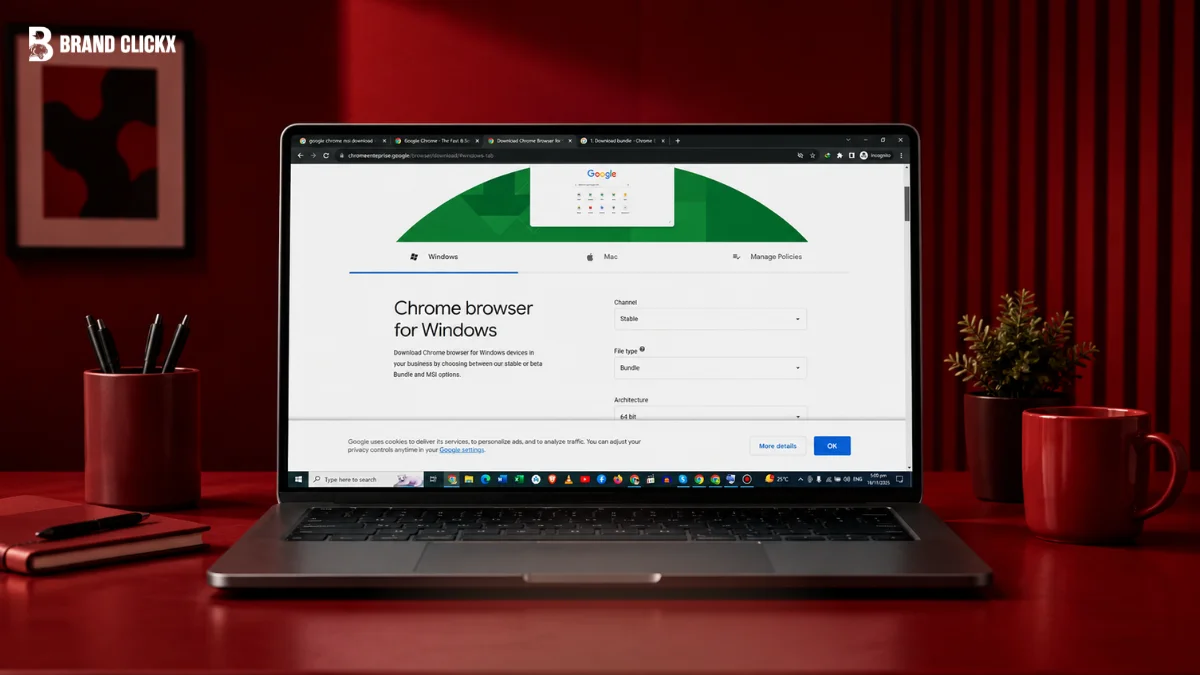
If you are searching for a Chrome Business MSI Download, you probably do not need another ordinary Chrome installer. You need the Windows package Google provides for organizations that want Chrome installed and managed across multiple computers.
The important distinction is simple: Google calls this the Chrome Enterprise MSI. It installs Chrome at the system level and can be distributed through Windows management tools such as Active Directory Group Policy Management and Microsoft System Center Configuration Manager.
This guide focuses on the official Windows deployment route, the difference between the MSI and the Enterprise Bundle, installation commands, policy verification, supported Windows versions, release channels, limitations, and the mistakes that can cause deployment problems.
AI Overview: Chrome Business MSI Download in brief
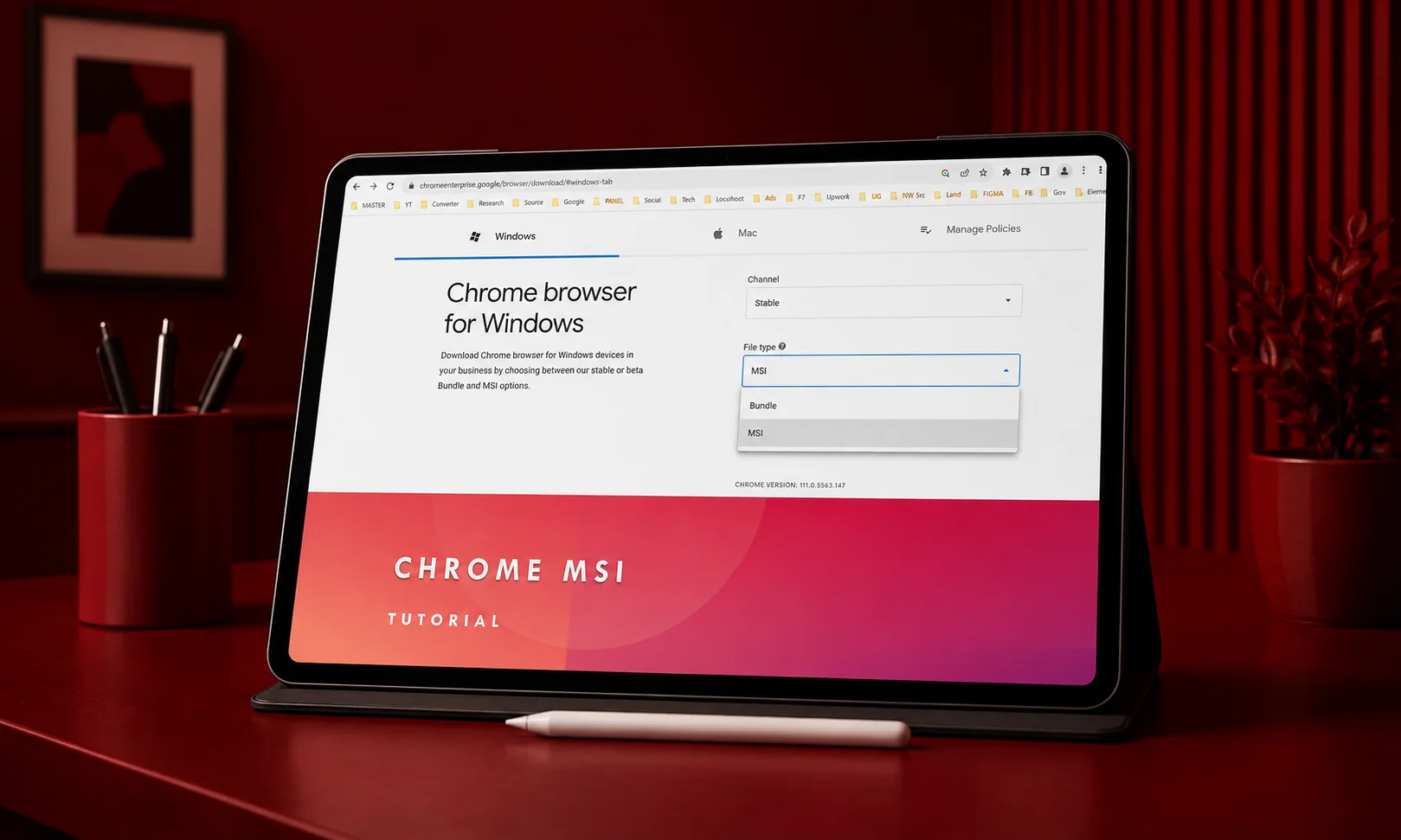
The official Chrome Business MSI Download is provided by Google through its Chrome Enterprise download resources. Administrators can choose an MSI or a Windows bundle, with the bundle containing the Windows Installer package plus policy and update-management templates.
The MSI is intended for managed Windows deployment rather than ordinary one-user installation. Google documents deployment through Active Directory Group Policy Management, Microsoft System Center Configuration Manager, and silent Windows Installer commands.
For a new organization-wide rollout, the bundle is useful when you also need policies and deployment resources. Before deploying broadly, Google recommends testing the installation and checking chrome://policy on test computers.
Key Takeaways
- Google officially provides Chrome Enterprise MSI options through its Chrome Enterprise download page.
- The Windows bundle includes an MSI, policy and preferences templates, an auto-update template, and Legacy Browser Support files.
- Google lists both 64-bit and 32-bit Windows bundles.
- MSI installation places Chrome at the system-level location under Program Files\Google\Chrome\Application\.
- Google supports deployment through Active Directory Group Policy Management and Microsoft System Center Configuration Manager.
- An MSI installation overrides a user-installed Chrome installation.
- Chrome does not normally allow an older MSI version to overwrite a newer Chrome version.
- Google lists Chrome 151 as the Stable milestone released on August 7, 2026 in its published release history.
Featured Snippet: Where can I download the Chrome Business MSI?
The official Chrome Business MSI is available from Google’s Chrome Enterprise download page. Select Windows, choose the appropriate Stable or Beta channel and MSI option, then select the required architecture. Google also provides Windows bundles containing the MSI and management files for administrators deploying Chrome across an organization.
What Is the Chrome Business MSI Download?
“Chrome Business MSI” is commonly used to describe the enterprise Windows installer for Chrome. Google’s own terminology is Chrome Enterprise MSI rather than a separate browser called “Chrome Business.”
The MSI is designed for administrators who need to deploy Chrome to managed Windows computers. Google specifically provides documentation for organizations rolling Chrome out through Windows management infrastructure.
The key difference is therefore deployment, not a completely different browser. The MSI installs Chrome, while enterprise management comes from the deployment and policy tools surrounding it.
Chrome Enterprise MSI vs. Chrome Enterprise Bundle
These two downloads are related, but they are not identical.
| Option | What you get | Best suited for |
| Chrome Enterprise MSI | Windows Installer package | Installing Chrome through existing deployment tools |
| Chrome Enterprise Bundle | MSI plus policy, update and supporting deployment files | Building a managed Windows deployment |
| Consumer Chrome installer | Standard Chrome installation | Individual users and ordinary installations |
Google says the Windows bundle contains the .msi installer, policy and preferences templates, an auto-update template, and Legacy Browser Support files. Google also allows these files to be downloaded individually from the Chrome Enterprise website.
Where to Get the Official Chrome Business MSI Download
The safest starting point is Google’s official Chrome Enterprise download page.
Google’s current download interface provides Windows options for Stable or Beta and lets administrators select MSI or bundle downloads and the appropriate architecture.
That matters because Chrome changes frequently. A third-party page may advertise an old build even though Google has already published a newer release.
For that reason, avoid treating an old direct-download URL or a version number copied from another article as the permanent source for your deployment package.
What Is the Latest Chrome Version for Enterprise?
Google’s published enterprise release history lists Chrome 151, released on August 7, 2026, as the latest Stable milestone in that release-history table. The same table records Chrome 150 on July 13, Chrome 149 on June 12, Chrome 148 on May 12, Chrome 147 on March 25, and Chrome 146 on February 25, 2026.
However, administrators should not hard-code an article’s version number into a deployment process. The Chrome Enterprise download page is the better source for obtaining the currently offered package because Chrome releases continue to move forward.
Chrome Business MSI Download: How Windows Deployment Works
The MSI is intended to work with normal Windows software-deployment infrastructure.
Google lists Active Directory Group Policy Management, HP Client Automation, and Microsoft System Center Configuration Manager among the ways administrators can distribute Chrome MSI packages.
The installation is system-level. Google identifies the system installation location as:
Program Files\Google\Chrome\Application\
A user-level Chrome installation uses a different location under the user’s data area.
This distinction is one reason the MSI is useful for organizational deployments: administrators are managing Chrome as a Windows application rather than relying solely on an employee’s individual browser installation.
How to Install Chrome Enterprise MSI Silently
Google documents a basic silent MSI installation pattern using Windows Installer:
msiexec /q /l GoogleChrome.msi
Replace GoogleChrome.msi with the actual filename or path used by your deployment system.
For a real organization, the command is only one part of the process. You should first deploy the package to a controlled test group, verify the installation, and confirm that the expected Chrome policies are actually being applied.
Verify Chrome Policies After Installation
After deploying Chrome to a test computer, open:
Google recommends checking this page to verify that the expected policies are active. If Group Policy settings are missing, Google documents gpupdate /force as a way to force a Group Policy refresh before checking again.
This small verification step can save considerable troubleshooting time because it separates an installation problem from a policy-delivery problem.
What Does the Chrome Enterprise Bundle Include?
The bundle is particularly useful when you are setting up managed Chrome for the first time.
Google says the Windows bundle includes:
- Windows Installer package (.msi)
- Policy and preferences templates (.admx)
- Auto-update template (.admx)
- Legacy Browser Support files
Google also provides 64-bit and 32-bit Windows bundles.
The broader Chrome deployment documentation covers policy configuration, app and extension management, testing, MSI rollout, Windows Group Policy, cloud policies, and support for legacy Internet Explorer applications.
How Many Chrome Policies Can You Manage?
Google’s enterprise documentation describes a large policy set for managed Chrome. The practical point is that the bundle is not simply a browser installer; it provides the administrative resources needed to configure Chrome across managed Windows devices.
That makes the bundle more appropriate than the MSI alone when your deployment requires centralized browser configuration.
Chrome Enterprise Release Channels: Stable, Beta, Dev and Canary
The MSI is only part of the enterprise deployment decision. You also need to decide which Chrome release channel fits your testing and production strategy.
Google describes Beta as a 4–6 week preview of upcoming Stable features. Dev provides a 9–12 week preview, while Canary is an experimental channel intended for advanced testing.
For normal production deployment, Stable is the straightforward choice.
For compatibility testing, however, a controlled Beta group can expose problems before changes reach your wider Stable deployment. Google specifically documents running different channels for testing on Windows.
What Is Changing With Chrome Releases?
Google’s published enterprise release information records a regular progression through Chrome 146, 147, 148, 149, 150 and 151 during 2026.
Google has also published future release changes in its enterprise documentation, so administrators should expect deployment planning to remain an ongoing process rather than a one-time MSI installation.
The practical lesson is simple: test the browser version you are actually preparing to deploy, rather than assuming today’s package will behave exactly like a future release.
Who Should Use Chrome Enterprise MSI?
The MSI makes sense when you manage Windows computers and need a repeatable Chrome deployment process.
It is particularly appropriate for:
- Businesses deploying Chrome across managed Windows devices
- IT teams using Active Directory Group Policy
- Organizations using Microsoft System Center Configuration Manager
- Administrators who need centralized Chrome policies
- Teams that want to test Chrome before a wider rollout
Google’s own deployment guide is explicitly aimed at Microsoft Windows administrators deploying Chrome to an organization.
Who Should Avoid the MSI?
If you are simply installing Chrome on your own personal computer, the enterprise MSI may add unnecessary administrative complexity.
The consumer installation route is generally more appropriate for a one-off personal installation. The enterprise package becomes useful when you need organization-wide deployment, policy management, or standardized installation.
In other words, don’t choose an enterprise deployment package merely because it sounds more advanced. Choose it when you actually need enterprise deployment capabilities.
Three Deployment Issues That Are Easy to Miss
1. A newer Chrome MSI does not normally downgrade Chrome
Google explicitly states that Chrome does not allow an older version to be installed over a newer version. The MSI you deploy should therefore be newer than the Chrome version already installed on the target computer.
This is especially important when testing a rollback strategy. A normal MSI installation should not be treated as a simple downgrade mechanism.
Google does document a specific downgrade procedure using ALLOWDOWNGRADE=1 for supported scenarios, but that is different from simply installing an older MSI over a newer version.
2. The MSI can replace a user-installed Chrome
Google states that installing Chrome through an MSI overrides a Chrome version previously installed by an individual user.
That means a large deployment should be tested against the organization’s existing browser environment rather than assuming every endpoint starts from a clean installation.
3. Policy verification is separate from installation
A successful MSI installation does not automatically prove that your intended policies are working.
Google’s recommended workflow is to install on a test group, open chrome://policy, verify the expected policies, and use gpupdate /force when necessary.
That distinction is easy to overlook and is one of the most useful checks in a real deployment.
Supported Windows Versions
Google’s current Chrome browser system requirements should be checked before deployment because support depends on the Windows environment and hardware architecture.
The important point for administrators is to use Google’s current system-requirements documentation rather than relying on an old blog post or an installer page copied from another source.
For a fleet deployment, check the supported operating system and architecture before packaging the MSI. This is especially important when your organization has a mixture of older Intel-based systems and newer Windows-on-ARM hardware.
Chrome Business MSI Download: Common Mistakes to Avoid
The first mistake is downloading an MSI from an unknown software repository simply because it appears higher in a search result. For enterprise deployment, start with Google’s Chrome Enterprise download page.
Another mistake is using a version number from an old article as though it were the current Chrome release. Chrome continues to receive new Stable milestones, so the live Google download source should remain your reference point.
A third mistake is deploying directly to the entire organization without testing. Google’s own Windows deployment workflow includes a test phase before broader deployment.
Finally, don’t confuse “Chrome installed successfully” with “Chrome is correctly managed.” Always check chrome://policy on your test machines.
Practical Application: A Safer Windows Deployment Process
If you are deploying Chrome across an organization, keep the process controlled and repeatable.
Step 1: Start with Google’s current download
Open the Chrome Enterprise download page and select Windows. Choose the required Stable or Beta option, MSI or bundle format, and appropriate architecture.
Step 2: Decide whether you need the MSI or bundle
Choose the MSI when your deployment system already has the management resources you need.
Choose the bundle when you also need the policy, update-management, and other deployment files supplied by Google.
Step 3: Deploy to a small test group
Do not begin with the entire fleet.
Google’s deployment documentation specifically describes testing Chrome with a group of users before organizational rollout.
Step 4: Verify the browser and policies
Open chrome://policy on each test scenario and verify that the expected settings are active.
If Group Policy settings are not appearing, run:
gpupdate /force
Then check the policy page again.
Step 5: Expand deployment gradually
Once the MSI, policies, extensions, and business applications behave as expected in the test group, move toward the wider deployment.
This approach also gives your IT team a clearer point of reference if something changes after a Chrome update.
Chrome Business MSI vs. Other Options
The most useful comparison is not simply “which browser is better?” It is which installation method matches your management requirement.
| Option | Main purpose | Best fit |
| Chrome Enterprise MSI | Managed Windows Chrome installation | Organization-wide Windows deployment |
| Chrome Enterprise Bundle | MSI plus management/deployment resources | New or more complete enterprise deployments |
| Standard Chrome installation | Individual browser installation | Personal or one-off use |
| Chrome Beta MSI | Testing upcoming Chrome features | Controlled compatibility testing |
Google confirms that the Stable and Beta bundle/MSI options are available through its enterprise download interface.
For most production environments, the decision should begin with your deployment requirements rather than the file extension itself.
What Is New in Chrome 151 for Enterprise Users?
Google’s enterprise release history lists Chrome 151 as the Stable milestone released on August 7, 2026.
The Chrome 151 enterprise release information includes management-related changes and security features. One notable Windows change is process isolation using Windows Access Control Lists intended to prevent other applications from reading or injecting into Chrome’s memory space. Google also warns that this change may cause interoperability issues with some older antivirus, DLP, or accessibility software.
That is a good example of why enterprise administrators should test Chrome releases instead of treating every browser update as a routine file replacement.
Google’s release notes also show changes involving URL filtering, enterprise sign-in behavior, Safe Browsing protections, and additional enterprise policies in Chrome 151.
A Practical Decision: MSI or Enterprise Bundle?
If your organization already has Chrome policies and deployment infrastructure in place, the standalone MSI may be enough.
If you are building a managed Chrome environment from the ground up, the Chrome Enterprise Bundle is usually the more useful starting point because Google packages the MSI together with policy and update-management resources.
There is no need to treat the two as competing browsers. They are different packaging choices for the same managed Chrome deployment workflow.
Conclusion
When you search for a Chrome Business MSI Download, the most important thing is knowing what Google actually provides. The official package is the Chrome Enterprise MSI, and Google makes it available through its Chrome Enterprise download resources for managed Windows deployment.
The MSI becomes valuable when Chrome needs to be deployed consistently across an organization. You can distribute it through Group Policy or Configuration Manager, install it silently, and verify the resulting browser policies through chrome://policy.
For a new deployment, the Enterprise Bundle can save time because it includes the MSI alongside policy, update-management, and other deployment resources. Just as importantly, test before rollout and remember that an older MSI does not normally overwrite a newer Chrome installation.
The best enterprise deployment is rarely the one with the most complicated configuration. It is the one that your IT team can install, verify, update, and troubleshoot consistently.
FAQ About Chrome Business MSI Download
Where can I download the official Chrome Business MSI?
Download the official Chrome Enterprise MSI from Google’s Chrome Enterprise download page. Use Google’s current source rather than an old third-party MSI link.
Is Chrome Enterprise MSI free?
Yes. Google provides the Chrome browser and MSI deployment package at no cost. Paid Chrome Enterprise products are separate offerings.
What command do I use for a silent Chrome MSI installation?
Google documents msiexec /q /l GoogleChrome.msi for silent MSI installation. Replace the example filename with your actual MSI package.
Can I deploy Chrome MSI with Group Policy or SCCM?
Yes. Google supports deployment through Active Directory Group Policy Management and Microsoft System Center Configuration Manager. After installation, check chrome://policy to verify policies.
What is the difference between Chrome MSI and the Enterprise Bundle?
The MSI is the browser installation package. The Enterprise Bundle adds policy templates, update settings, preferences, and other enterprise deployment files.
Can an older Chrome MSI be installed over a newer Chrome version?
Not normally. Google does not allow an older Chrome version to overwrite a newer installation through the standard MSI process.
How do I verify that Chrome policies were applied?
Open chrome://policy on the managed computer. If expected Group Policy settings are missing, run gpupdate /force and check again.
Which Chrome channel should an organization use?
Stable is the normal production channel. Beta and Dev are intended for testing, while Canary is designed for advanced development and compatibility testing.