

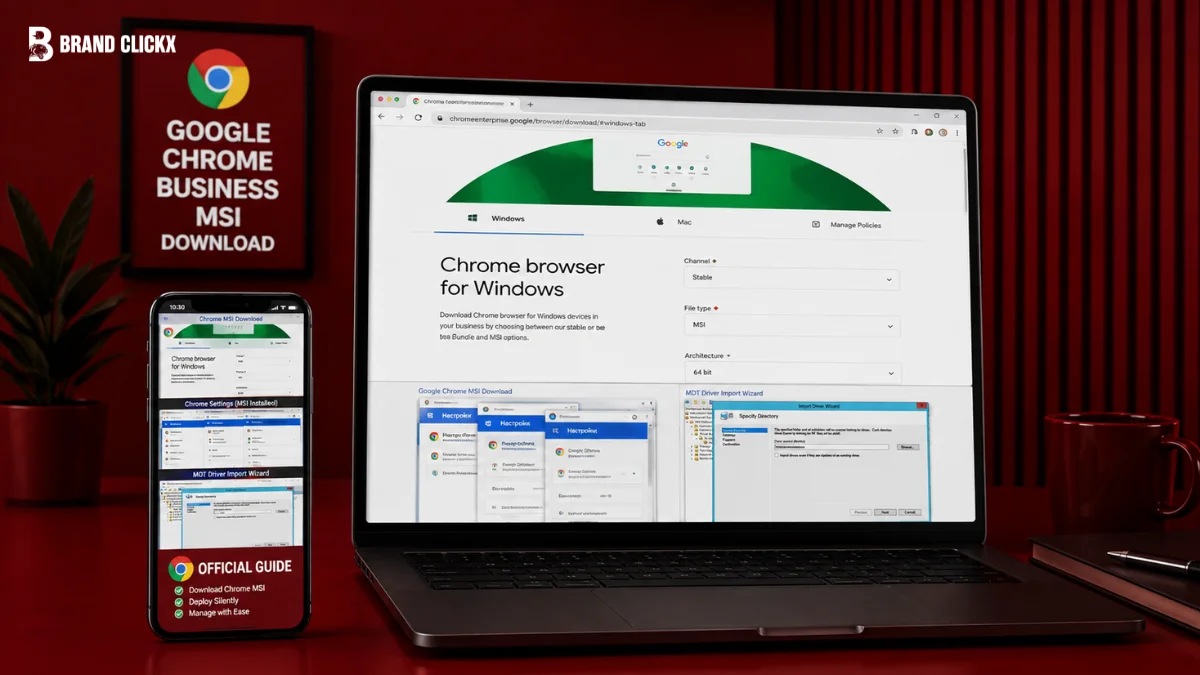
If you need to install Google Chrome across several Windows computers, downloading the normal consumer installer is not the best starting point. The Google Chrome Business MSI Download is designed for administrators who need a system-level Chrome installation that can be distributed through Windows management tools.
Google calls this package the Chrome Enterprise MSI. It is not a separate business-only browser. Instead, it is the Windows installer used to deploy Chrome in managed environments, alongside tools for policies, updates, extensions, and centralized administration.
The important part is choosing the right package before deployment. Google offers standalone MSI and bundle options, while organizations can use tools such as Group Policy and Microsoft management systems to distribute Chrome. This guide explains which download to choose, how to deploy it, how to verify policies, and where the MSI fits into Chrome Enterprise management.
AI Overview: Google Chrome Business MSI Download
The Google Chrome Business MSI Download is Google’s enterprise Windows Installer package for deploying Chrome on managed Windows computers. You can download the standalone MSI or the Chrome Enterprise Bundle from Google’s official enterprise download page. The MSI can be distributed through tools such as Active Directory Group Policy Management and Microsoft System Center Configuration Manager, while Chrome policies can be checked through chrome://policy.
Key Takeaways
- Google officially provides Chrome Enterprise MSI packages through its Chrome Enterprise download page.
- The MSI is intended for managed Windows deployment rather than ordinary one-computer installation.
- The Chrome Enterprise Bundle includes the MSI plus policy and update-management templates.
- Google supports MSI deployment through Active Directory Group Policy Management and Microsoft System Center Configuration Manager.
- Chrome Enterprise Core provides centralized browser management and reporting at no additional cost.
- You can verify applied Chrome policies at chrome://policy.
- Google recommends testing Chrome deployment with a small group before rolling it out broadly.
What Is the Google Chrome Business MSI Download?
The Google Chrome Business MSI Download is the Windows Installer package Google provides for organizations that need to deploy Chrome on managed Windows computers.
An MSI is useful because administrators can distribute it through established Windows software-deployment systems instead of asking every employee to install Chrome manually. Google’s deployment documentation specifically covers MSI rollout for organizations using Windows administration tools.
There is also an important distinction that is easy to miss: Chrome Enterprise is not a different browser from Google Chrome. Google describes its enterprise approach as managing the Chrome browser with deployment, policies, reporting, extensions, and other enterprise controls.
Chrome MSI vs. Chrome Enterprise Bundle
These two downloads serve slightly different purposes.
| Download | Best for | What you get |
| Chrome Enterprise MSI | Installing Chrome on managed Windows PCs | Windows .msi installer |
| Chrome Enterprise Bundle | Deployment plus policy configuration | MSI plus policy and update-management resources |
| Beta MSI/Bundle | Testing upcoming Chrome changes | Pre-release deployment channel |
| Extended Stable | Organizations wanting slower feature changes | Longer release cadence |
Google’s current download page provides Stable and Beta bundle/MSI choices, while its management documentation explains the additional deployment resources available with the bundle.
Where Can You Download the Official Chrome MSI?
For a Google Chrome MSI download, use Google’s official Chrome Enterprise download page rather than a third-party software repository.
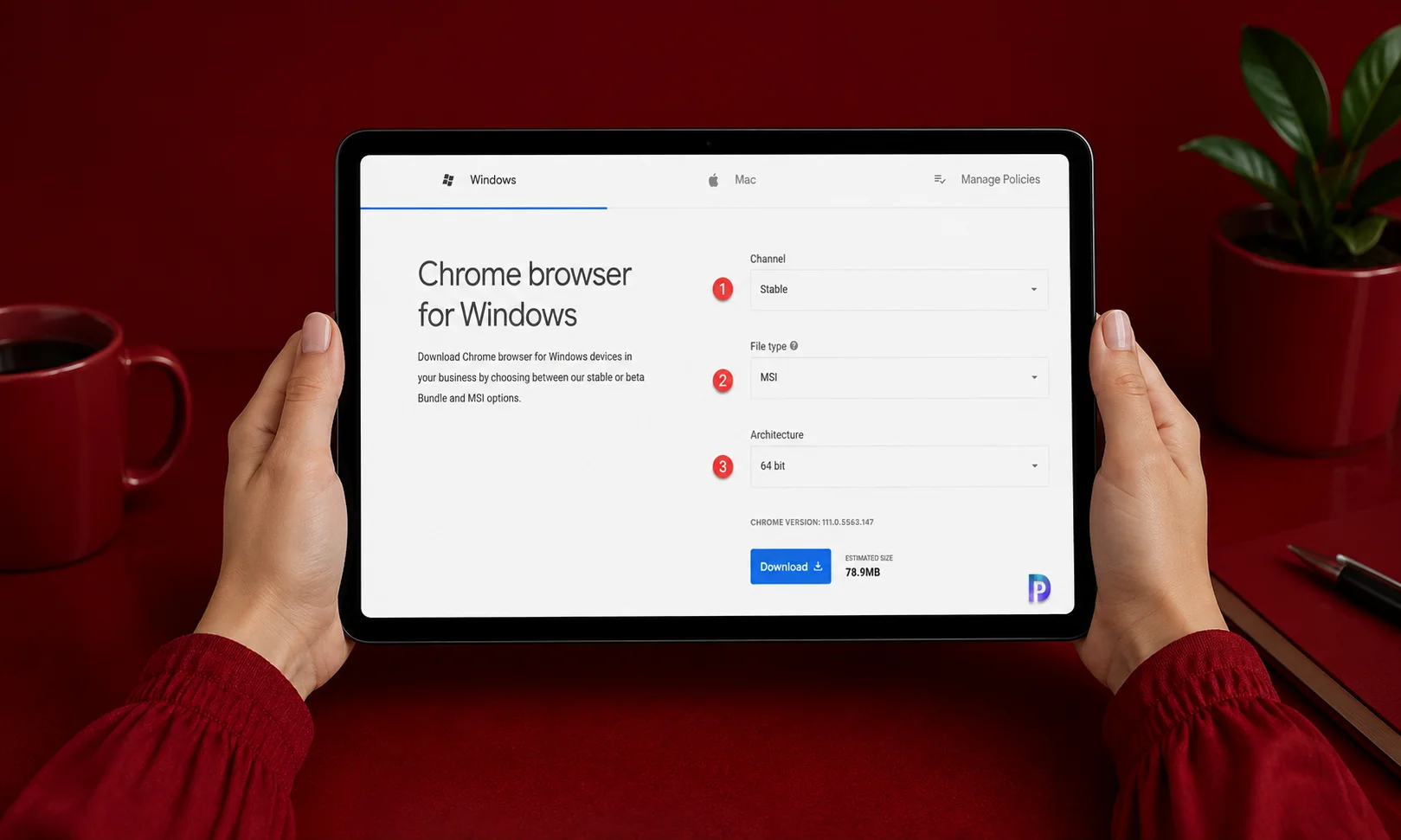
Google’s download page currently provides Windows enterprise downloads with channel, file-type, and architecture selections. It also provides access to policy and update-management resources.
For deployment documentation, Google’s Windows deployment guide explains the process from choosing a management method through testing and organization-wide rollout.
Which Chrome MSI Should You Choose?
For a normal production deployment, Stable is the sensible starting point. Google describes Stable as the channel intended for most users, while Beta is useful when administrators need to test upcoming changes.
Your architecture choice should match the Windows environment you are managing. Google provides Windows enterprise packages through its download system, so check the architecture of your devices before distributing an installer across the fleet.
How to Download Google Chrome Business MSI
The process is straightforward:
- Open Google’s Chrome Enterprise download page.
- Select Windows.
- Choose the appropriate release channel.
- Select the MSI option if you need the standalone Windows Installer.
- Choose the appropriate architecture.
- Download the package from Google.
- If you also need Windows policy templates and related deployment files, choose the Enterprise Bundle instead.
Google’s download page is the authoritative place to obtain the current enterprise package rather than relying on an old MSI hosted elsewhere.
How Do You Deploy Chrome MSI on Windows?
Once you have the Chrome MSI installer, you can distribute it through Windows management infrastructure.
Google lists several supported approaches, including Active Directory Group Policy Management, HP Client Automation, and Microsoft System Center Configuration Manager.
For a smaller test deployment, you can also run the MSI directly on a target Windows computer.
Google documents the following quiet installation command:
msiexec /q /l GoogleChrome.msi
The exact command you use in production should match your organization’s deployment and logging requirements. Google recommends testing the installation before deploying it widely.
Deploy Chrome MSI with Group Policy
If your organization already uses Active Directory, Group Policy Management can distribute the Chrome MSI to managed Windows computers.
Google’s deployment documentation specifically lists Active Directory Group Policy Management as an MSI distribution method.After deployment, policy configuration can be handled through Google’s Chrome policy templates and Windows policy infrastructure.
Deploy Chrome with Microsoft Intune
Microsoft Intune can also be used to manage Chrome on Windows.
Google’s current documentation explains that administrators can use Microsoft Intune to deploy and manage Chrome on Windows devices. It also documents using the Intune Settings Catalog to configure Chrome policies. This makes Intune particularly relevant if your organization already manages Windows devices through Microsoft’s cloud-based endpoint tools.
How Do You Verify a Chrome MSI Installation?
Installing the MSI is only half of the job. You also need to confirm that the expected policies reached the computer.
Open Chrome on a test device and enter:
chrome://policy
Google recommends checking this page after deployment to verify that the intended policies are active.If a Group Policy setting does not appear, Google recommends refreshing Windows Group Policy with:
gpupdate /force
Then return to chrome://policy and check the policies again.
A Simple Test-First Deployment
Google recommends testing with a small group before deploying Chrome policies throughout the organization. This gives administrators an opportunity to identify configuration problems before they affect a larger number of users.
A practical sequence is:
- Select a small test group.
- Deploy the Chrome MSI.
- Apply the intended policies.
- Open chrome://policy.
- Confirm the expected settings.
- Refresh Group Policy if necessary.
- Test important business websites and extensions.
- Expand deployment after the test is successful.
That approach is more reliable than treating the MSI as a one-click installation and immediately pushing it to every computer.
What Happens When Chrome Is Installed With the MSI?
The MSI performs a system-level Chrome installation.
Google documents the system-level installation path as:
Program Files\Google\Chrome\Application
A user-level Chrome installation uses a different location.
The MSI can also override a Chrome installation that was previously installed by an individual user. However, version order matters. Google states that an older Chrome version cannot be installed over a newer one. For example, Chrome 62 cannot overwrite Chrome 63. This is an easy detail to overlook when preparing an enterprise rollout.
What Does the Chrome Enterprise Bundle Include?
The bundle is useful when you need more than the browser installer itself.
Google’s Chrome Enterprise Bundle documentation describes a package containing the Chrome MSI along with policy and preference templates, the auto-update policy template, and legacy-browser-support files.
That makes the bundle a better fit when your IT team needs to configure Chrome immediately after installation. The standalone MSI, by comparison, is the simpler choice when your main requirement is the Windows installer itself.
Chrome Enterprise Core and the MSI Are Not the Same Thing
This distinction matters.
The Chrome MSI is an installation package. Chrome Enterprise Core is Google’s centralized browser-management service.
Google says Chrome Enterprise Core can manage policies, settings, apps, and extensions, with centralized browser management and reporting available at no additional cost.
So downloading the MSI does not mean you automatically receive every Chrome Enterprise security or management capability. The installer and management service solve different parts of the deployment problem.
How Much Does Chrome Enterprise Cost?
The Chrome browser download itself is free, and Google currently lists Chrome Enterprise Core at $0.
Google also lists Chrome Enterprise Premium at $6 per user per month. Premium adds capabilities such as real-time Safe Browsing, data-loss prevention, URL filtering, malware deep scanning, and context-aware access. The key point is that the MSI itself is not a paid browser license. Premium security features are a separate offering.
Who Should Use the Chrome Business MSI?
The MSI makes sense when you manage multiple Windows computers and want a consistent Chrome deployment.
It is particularly useful for:
- IT administrators managing business PCs
- Schools and organizations managing Windows fleets
- Organizations using Active Directory
- Teams using Microsoft endpoint-management tools
- Administrators who need centrally controlled Chrome policies
- Businesses that want a repeatable installation process
Google’s deployment documentation is specifically aimed at Microsoft Windows administrators managing Chrome for organizations.
Who Should Avoid the Chrome MSI?

You probably do not need the enterprise MSI if you are simply installing Chrome on your own personal computer.
For a single unmanaged PC, Google’s ordinary Chrome download is generally the simpler route. The enterprise MSI becomes useful when you need managed deployment, system-level installation, or organizational policy controls.
The Windows MSI also should not be treated as a cross-platform installer. Google provides separate deployment approaches for macOS, Linux, ChromeOS, and other platforms.
Chrome Enterprise MSI vs. Other Enterprise Browsers
Chrome is not the only browser available for managed environments. Microsoft Edge and Mozilla Firefox also provide enterprise deployment approaches.
| Option | Main deployment approach | Best fit |
| Chrome Enterprise MSI | Windows MSI, Group Policy and management tools | Organizations standardizing on Chrome |
| Microsoft Edge | Windows and Microsoft management ecosystem | Environments heavily centered on Microsoft tools |
| Firefox Enterprise | Enterprise installation and policy management | Organizations choosing Firefox |
The important decision is not simply which browser has an MSI. You should consider the management systems, policies, extensions, applications, and security requirements already used by your organization.
Common Mistakes With Chrome MSI Deployment
Downloading an MSI From an Unofficial Site
Avoid relying on old third-party MSI repositories when Google provides the current enterprise package directly. A current package from Google’s enterprise download system reduces the risk of using an outdated installer.
Skipping the Test Group
A deployment can fail because of policy configuration, version differences, or application compatibility. Google explicitly recommends testing Chrome with a small group before wider deployment.
Forgetting Version Order
An older Chrome MSI cannot overwrite a newer Chrome installation. Check the versions involved before attempting a downgrade-style deployment.
Installing the MSI Without Checking Policies
A successful installation does not automatically prove that your intended policies are working.
Use chrome://policy to verify the result, and use gpupdate /force when Windows Group Policy needs to be refreshed.
Practical Application: A Safer Chrome MSI Rollout
If you are responsible for a Windows Chrome deployment, keep the process simple.
Start by downloading the current package directly from Google’s Chrome Enterprise portal. Decide whether you need only the MSI or the full Enterprise Bundle.
Next, choose the deployment method already used by your organization. Google documents Group Policy and System Center Configuration Manager, while Microsoft Intune can also be used to deploy and manage Chrome.
Before a full rollout, create a small test group. Install Chrome, apply your intended policies, and check chrome://policy.
Then test the business applications and extensions your users actually depend on. If something does not behave as expected, fix the policy or deployment configuration before expanding the rollout. For organizations using release channels strategically, Google recommends Stable for most users. Extended Stable provides a slower feature cadence, while Beta can give administrators an early look at upcoming changes.
How We Research and Verify Chrome Enterprise Guides
Chrome Enterprise deployment involves software versions, Windows management tools, policies, and administrative settings that can change over time. For that reason, BrandClickx approaches this guide as a technical reference rather than relying on generic software-installation advice.
We verify product names, deployment options, installation methods, and management features against Google’s current Chrome Enterprise documentation and official download resources. Where a procedure or command is documented by Google, we prioritize Google’s instructions rather than relying on third-party tutorials or outdated deployment guides.
What We Verify
For Chrome Enterprise and Windows deployment guides, we focus on:
- Official downloads: We use Google’s Chrome Enterprise download resources for current MSI and bundle availability.
- Deployment methods: We verify supported approaches such as Windows Group Policy, Microsoft management tools, and MSI-based deployment against Google’s documentation.
- Policy management: We check how Chrome policies are configured and verified, including the use of chrome://policy.
- Installation behavior: We verify system-level installation details, version considerations, and documented MSI behavior before describing them as deployment guidance.
- Release channels: Stable, Beta, and Extended Stable information is checked against Google’s current enterprise documentation because Chrome release policies and versions change regularly.
- Enterprise management: We distinguish the Chrome MSI installer from Chrome Enterprise Core and other Chrome Enterprise services so readers understand what the installer does—and what it does not do.
- Pricing and availability: Enterprise services, licensing, and features can change, so these details should be confirmed against Google’s current product information before making purchasing or deployment decisions.
Our Editorial Standard
BrandClickX separates verified documentation from editorial explanation. We do not present a third-party claim, outdated version number, or unverified deployment method as an official Google requirement.
When a procedure depends on an organization’s Windows environment, management platform, Chrome version, or existing policies, we identify that dependency rather than presenting one configuration as universal.
This guide is intended to help IT administrators understand the Chrome Enterprise MSI and make informed deployment decisions. It is not a substitute for testing changes in a controlled environment before organization-wide deployment.
What Is the Latest Chrome Version?
Chrome releases move quickly, so an MSI article should not treat one browser version as permanently current.
As of the research date of August 25, 2026, Google’s August release information listed Stable Windows builds in the 151.0.7922.173/.174 range, released August 20. Google had also announced a limited early Stable rollout of Chrome 152 earlier in August.
The practical lesson is simple: check Google’s current enterprise download page and release information when preparing a production deployment instead of relying on an old version number copied from another website.
Google’s enterprise documentation also provides multiple release channels. Stable receives regular releases, while Extended Stable follows an eight-week update cadence.
Recent Chrome Enterprise Developments
Chrome Enterprise is evolving beyond basic software distribution.
Google’s current enterprise platform combines browser management with policy control, reporting, applications, extensions, and security features. Chrome Enterprise Core provides centralized management without an additional charge.
Google has also been discussing security controls for AI-assisted and agentic browsing. Those developments belong to the broader Chrome Enterprise product rather than being features automatically provided by downloading an MSI.
That distinction matters because the Chrome Business MSI Download is fundamentally a deployment mechanism. Enterprise management and premium security capabilities depend on the management products and policies your organization chooses.
Conclusion
When you search for a Google Chrome Business MSI Download, what you are really looking for is Google’s enterprise Windows installer for Chrome. It gives administrators a practical way to deploy the browser at system level and integrate it with established Windows management processes.
The best starting point is Google’s own Chrome Enterprise download page. Choose the standalone MSI when you primarily need the installer, or the Enterprise Bundle when you also need policy and update-management resources.
From there, the safest rollout is deliberately boring: test with a small group, apply the required policies, check chrome://policy, and only then expand deployment. Google itself recommends this test-first approach.
The real value of the MSI is not simply installing Chrome faster. It is giving an administrator a controlled, repeatable starting point for managing Chrome across Windows computers.
FAQ About Google Chrome Business MSI Download
What is Google Chrome Business MSI?
Google Chrome Business MSI is Google’s Windows Installer package for deploying Chrome on managed Windows computers. Google generally refers to it as the Chrome Enterprise MSI. It is designed for administrators rather than ordinary one-computer consumer installation. The MSI can be distributed through enterprise software-management tools.
Where can I download the official Chrome MSI?
You can download the official Chrome MSI from Google’s Chrome Enterprise download page. Google provides the current Windows MSI and bundle options there, along with channel and architecture choices.
Is Google Chrome Enterprise MSI free?
Yes. Google provides Chrome for download without a browser purchase price, and Chrome Enterprise Core is currently listed at $0. Chrome Enterprise Premium is a separate paid service that Google lists at $6 per user per month.
Can I install Chrome MSI silently?
Yes. Google documents a quiet MSI installation command using msiexec /q /l GoogleChrome.msi. The exact deployment command should be tested in your environment before broad distribution.
Can Group Policy deploy Chrome MSI?
Yes. Google specifically lists Active Directory Group Policy Management as a method for distributing Chrome MSI packages. You can also use Chrome policy templates to manage browser settings through Windows policy administration.
What is the difference between Chrome MSI and the Enterprise Bundle?
The MSI provides the Chrome Windows installer. The Enterprise Bundle adds deployment resources such as policy and update-management templates. If your IT team needs to configure Chrome through Windows policies, the bundle is generally the more useful package.
How do I check whether Chrome policies are working?
Open Chrome and enter chrome://policy in the address bar. If the expected Group Policy settings are missing, Google recommends using gpupdate /force and then checking the policy page again.
Does Chrome MSI replace an existing Chrome installation?
Google says an MSI installation overrides a Chrome version previously installed by a user. However, an older Chrome version cannot overwrite a newer version, so administrators should check version sequencing before deployment.