

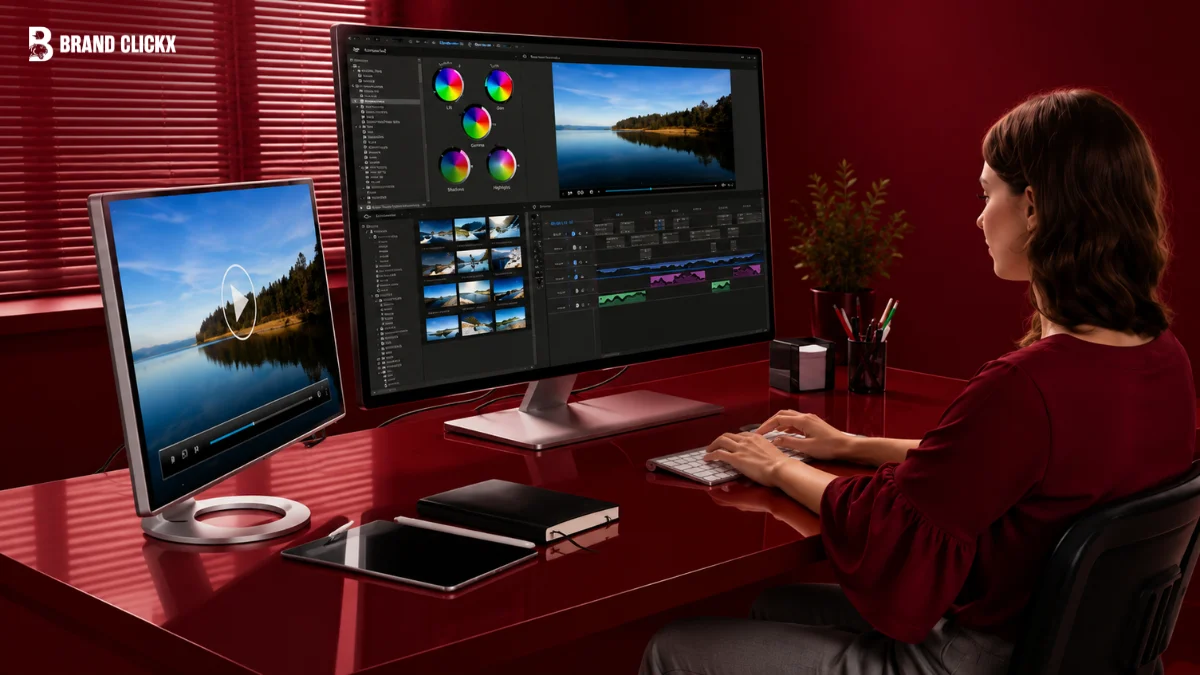
Video editing software has become much easier to access, but choosing the right program has become harder.
There are now simple editors designed for first time users, powerful consumer programs aimed at serious hobbyists, and increasingly sophisticated AI features built into almost every major platform. The problem is that the software with the longest feature list is not necessarily the best choice for you.
A beginner may be better off with a simple interface, while an experienced editor may quickly become frustrated by limited controls.
For this guide, the focus is on consumer and prosumer video editing software. The programs were compared based on usability, editing controls, performance, AI features, format support, export options, and the type of user they are actually designed to serve.
What Should You Look For in Video Editing Software?
The best video editing software should offer:
- Easy importing from cameras, phones, memory cards, and storage drives
- An interface that matches your actual editing experience
- Support for common video and audio formats
- A useful selection of effects and transitions
- Practical AI tools that save editing time
- Reliable performance on your computer
- Flexible export options for different platforms and resolutions
The right choice depends less on how many features a program has and more on whether those features match the way you edit.
Video Editing Software vs. Mobile and Quick Edit Apps
| Desktop Video Editing Software | Mobile and Quick Edit Apps |
|---|---|
| Multi track timeline | Fast template based editing |
| Greater manual control | Simpler controls |
| Color correction | Filters and presets |
| Layered effects | Quick transitions |
| Advanced audio controls | Basic audio editing |
| Flexible export settings | Social media focused exports |
| Examples: PowerDirector, Filmora, Pinnacle Studio | Examples: CapCut, InShot |
Mobile editors are excellent for quick social media content and simple videos.
Desktop software is better when you need multiple tracks, detailed editing, advanced color controls, complex audio, or more control over the final export.
How I Tested These Video Editing Programs
I tested the programs using the same basic editing workflow rather than simply comparing feature lists.
Each program was used to edit a short project involving mixed footage, titles, music, basic color correction, transitions, and final export.
The testing was performed on an ordinary Windows 11 computer used for everyday work rather than a dedicated professional editing workstation.
That distinction matters.
A program that performs well on a high end editing computer may behave differently on a normal laptop or desktop. For that reason, performance observations focus on practical everyday use rather than laboratory style hardware benchmarks.
Free trials were also considered where available because many readers will want to test a program before paying for it.
What I Looked For
Import and format support: Can the software handle footage directly from common phones, cameras, and storage devices?
Interface fit: Is the interface appropriate for the type of user the program targets?
Speed and resource use: How smoothly does the timeline respond and how practical is rendering on everyday hardware?
AI and effects: Do the AI features actually reduce editing work or simply add another button to the interface?
Export flexibility: Can users export videos in the formats, resolutions, and quality levels they actually need?
Learning curve: Can a beginner understand the basics without spending days learning the interface?
Quick Comparison: Best Video Editing Software at a Glance
| Software | Best For | Skill Level | Platform |
|---|---|---|---|
| CyberLink PowerDirector | Speed and AI editing | Consumer to Prosumer | Windows, Mac |
| Wondershare Filmora | Beginners who want to improve | Beginner to Semi Pro | Windows, Mac |
| Movavi Video Editor | Ease of use | Beginner | Windows, Mac |
| Pinnacle Studio | Maximum control | Prosumer | Windows |
| Adobe Premiere Elements | Guided editing | Beginner to Consumer | Windows, Mac |
| CapCut | Fast social and casual edits | Beginner | Windows, Mac |
The Best Video Editing Software, Reviewed
CyberLink PowerDirector: Best for Speed and AI Tools
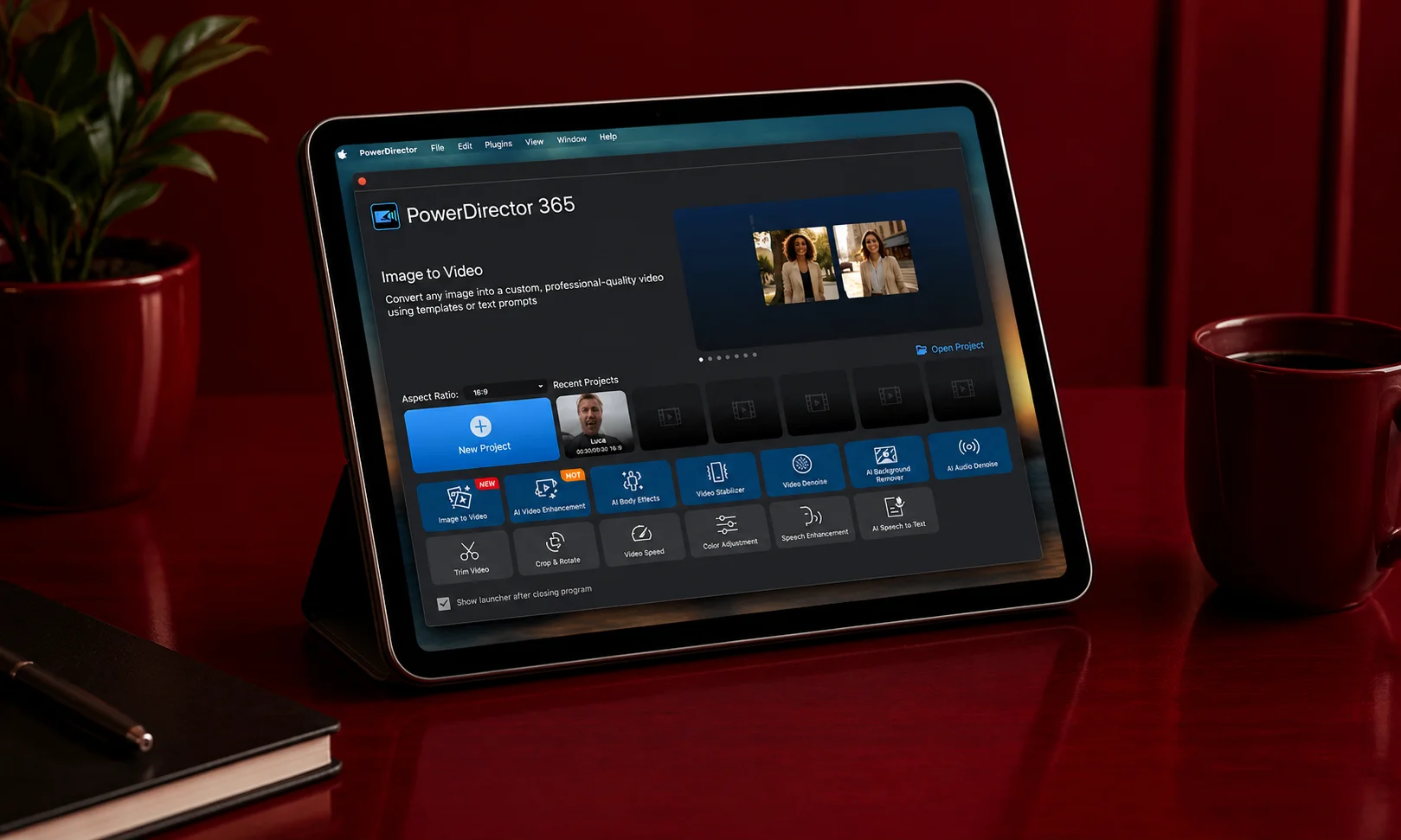
Best for: Users who want fast performance combined with a broad selection of editing and AI features
Key features: Multi track editing, AI tools, stabilization, effects, 360 degree video support, color tools, templates, and frequent updates
Pricing: Subscription and other pricing options vary by plan and platform.
Why it stands out: PowerDirector is one of the strongest choices for users who want a large feature set without moving into a full professional editing environment.
Its biggest advantage is the balance between performance and editing control. Timeline navigation can feel responsive, while rendering and processing are designed to make everyday editing relatively quick.
The program also includes a growing collection of AI powered features that can help with tasks such as stabilization, enhancement, object related editing, and automated adjustments.
That makes it particularly appealing to users who want advanced capabilities without manually completing every step.
Watch out for: The continuously updated subscription approach means the interface and feature set can change more frequently than traditional one time purchase software.
Best overall use case: Serious hobbyists who want speed, flexibility, and modern AI tools.
Wondershare Filmora: Best for Beginners Who Want Room to Grow
Best for: First time editors who want an easy starting point without immediately outgrowing the software
Key features: Simple timeline editing, templates, transitions, effects, color controls, audio tools, and AI features
Pricing: Subscription and perpetual purchase options may vary by plan.
Why it stands out: Filmora does a good job of making video editing feel approachable without limiting users to extremely basic tools.
The interface is easy to understand, which makes it suitable for someone opening a desktop editor for the first time.
At the same time, users can gradually move into more advanced editing techniques as their skills improve.
This makes Filmora particularly attractive to creators who do not want to learn one simple application and then move to another program a year later.
Its AI features also make common editing tasks faster.
Watch out for: Some advanced capabilities can feel less integrated than they do in software designed specifically for professional editors.
Best overall use case: Beginners and growing creators who want a balance between simplicity and flexibility.
Movavi Video Editor: Best for Ease of Use
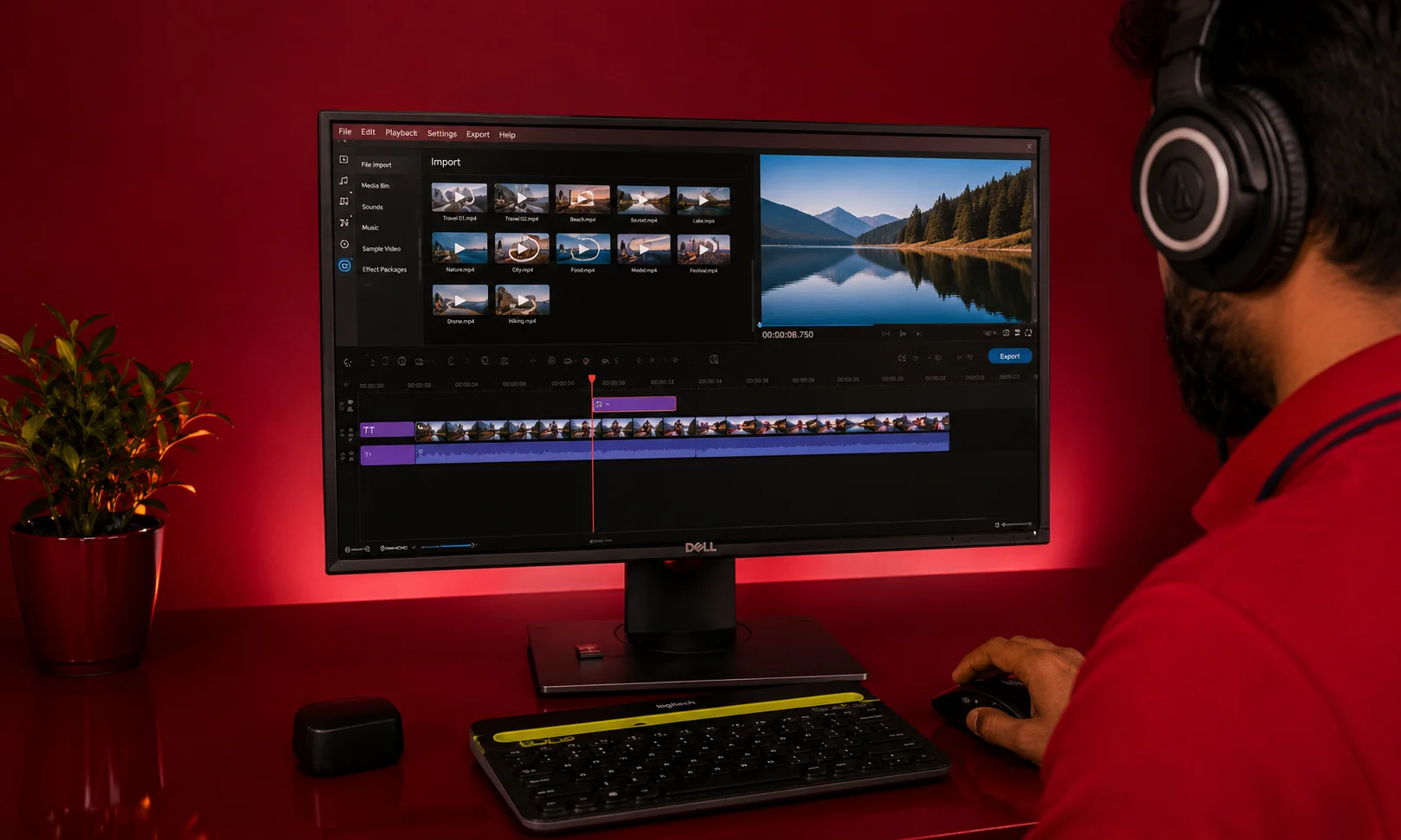
Best for: Users who want a straightforward drag and drop editing experience
Key features: Timeline editing, transitions, effects, color correction, stabilization, audio editing, titles, and broad format support
Pricing: Pricing varies by version and licensing option.
Why it stands out: Movavi focuses heavily on usability.
The interface is relatively easy to understand, making it a good choice for users who want to create polished videos without learning a complicated professional workflow.
Importing footage, placing clips on the timeline, adding titles, adjusting colors, and exporting the finished video are all relatively straightforward.
It is particularly useful for family videos, travel footage, YouTube content, presentations, and other everyday projects.
Watch out for: Experienced editors may eventually find the available controls less extensive than those in PowerDirector or Pinnacle Studio.
Best overall use case: Beginners who value simplicity above advanced control.
Pinnacle Studio: Best for Maximum Control
Best for: Experienced hobbyists who want extensive manual control
Key features: Multi track editing, advanced effects, color correction, audio tools, transitions, keyframe controls, and detailed editing options
Pricing: Paid software with different versions available depending on the feature set.
Why it stands out: Pinnacle Studio sits toward the more advanced end of consumer video editing software.
It offers considerably more control than a basic editor and gives experienced users room to build complex projects.
The additional control is useful for people who want to experiment with detailed timelines, layered effects, precise adjustments, and more advanced editing techniques.
It can therefore serve as a bridge between basic consumer software and professional editing environments.
Watch out for: The learning curve is considerably higher than Movavi or Filmora.
A first time editor may spend more time learning the interface than actually editing.
Best overall use case: Experienced hobbyists who prioritize control over simplicity.
Adobe Premiere Elements: Best for a Guided Learning Curve
Best for: Home users who want more advanced capabilities without immediately entering a professional workflow
Key features: Guided editing, effects, templates, color adjustments, audio tools, automated features, and different levels of editing assistance
Pricing: Pricing depends on the current version and licensing model.
Why it stands out: Premiere Elements is designed to make advanced editing concepts more approachable.
Its guided approach can help new users understand how different editing tools work while still providing room for more experienced users to take control.
That makes it appealing to people who want to learn gradually.
Instead of forcing beginners to understand every advanced control immediately, the software can introduce editing concepts in a more accessible way.
Watch out for: Users eventually seeking a professional production workflow may reach its limits and need to move to more advanced software.
Best overall use case: Home users who want guided editing and a gradual learning curve.
CapCut: Best for Fast, Template Based Editing
Best for: Social media creators, beginners, and users who want to produce videos quickly
Key features: Templates, captions, effects, transitions, filters, basic timeline editing, AI features, and social focused tools
Pricing: Free and paid options are available depending on features and platform.
Why it stands out: CapCut is built around speed.
It makes it easy to take footage, add captions, music, effects, transitions, and templates, then produce content for social platforms.
That workflow is very different from traditional desktop editing software.
Rather than requiring users to manually construct every part of a project, CapCut provides tools that can accelerate common content creation tasks.
Watch out for: Users who need detailed professional color grading, complex timelines, or highly precise editing controls may quickly outgrow it.
Best overall use case: Short form creators and casual editors who prioritize speed.
Best Video Editing Software by Skill Level
Skill level is one of the most important factors when choosing editing software.
A beginner does not necessarily benefit from having hundreds of controls, while an experienced editor may see simplicity as a limitation.
Best for Absolute Beginners
Top choices: Movavi Video Editor and Filmora
Movavi is particularly appealing if simplicity is the priority.
Filmora is the better choice for users who expect their editing needs to become more advanced over time.
Both provide accessible interfaces without requiring users to understand a professional editing workflow immediately.
Best for Growing Hobbyists
Top choices: Filmora and Adobe Premiere Elements
Growing hobbyists need more than basic trimming and transitions.
Filmora gives users room to explore more advanced features while retaining an approachable interface.
Premiere Elements is another strong choice for users who prefer guided learning.
Best for Prosumers
Top choices: PowerDirector and Pinnacle Studio
PowerDirector is the better option for users who prioritize speed and modern AI features.
Pinnacle Studio is better suited to users who want deeper manual control and are willing to accept a steeper learning curve.
Best for Fast Casual Edits
Top choice: CapCut
CapCut makes the most sense when the goal is quick content creation rather than detailed timeline editing.
It is particularly useful for short form social media videos and projects where templates and automated features can save time.
Best Video Editing Software by Platform
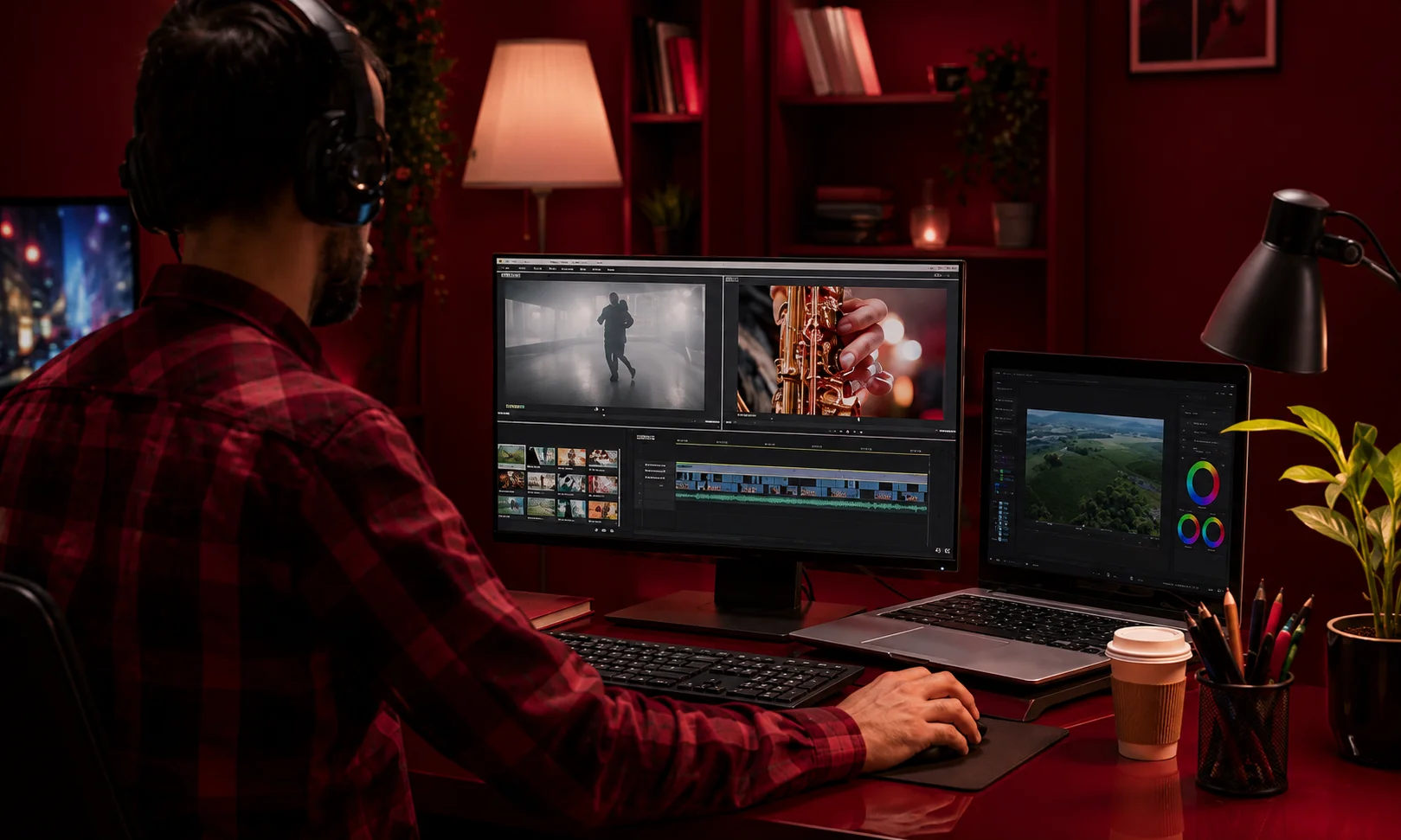
Best for Windows
Top choices: PowerDirector and Pinnacle Studio
Windows users have access to some of the strongest consumer and prosumer editing options.
PowerDirector offers a strong combination of speed and features, while Pinnacle Studio provides extensive manual controls for experienced editors.
Best for Mac
Top choices: Filmora, Movavi, and CapCut
Filmora provides a good balance between accessibility and editing flexibility.
Movavi is useful for users who prioritize ease of use, while CapCut is better suited to fast and social focused editing.
Mac users should always check feature availability for their specific version before purchasing because Windows and Mac versions do not always offer identical capabilities.
AI Tools in Video Editing: What’s Actually Useful?
AI has become one of the biggest selling points in video editing software.
But not every AI feature provides the same practical benefit.
Some can remove repetitive work. Others simply automate a task that an experienced editor could already complete quickly.
| AI Feature | What It Actually Does | Worth Prioritizing? |
|---|---|---|
| Auto stabilization | Reduces camera shake | Yes |
| AI upscaling | Attempts to improve lower resolution footage | Sometimes |
| Automatic highlight creation | Builds an initial selection of clips | Useful as a starting point |
| AI color correction | Suggests adjustments to footage | Useful for beginners |
| Automatic captions | Creates text from spoken audio | Yes |
| Background or object removal | Separates subjects from backgrounds | Useful for specific projects |
Auto Stabilization
Stabilization is one of the most practical uses of AI and automated processing.
It can improve footage recorded while walking, moving, or using handheld equipment.
The results still depend on the original footage, but the feature can save considerable manual work.
AI Upscaling
Upscaling can be useful when working with older or lower resolution footage.
However, AI cannot magically recreate information that was never captured.
The quality of the original footage still matters.
Automatic Highlight Creation
Automated highlight tools can scan footage and create an initial selection.
This can save time when dealing with long recordings.
However, the result usually needs human editing before publication.
AI Color Correction
Automatic color correction can provide a useful starting point for beginners.
Experienced editors will often want to make additional adjustments themselves.
Automatic Captions
Automatic captions are among the most useful AI features for modern creators.
They can save substantial time when preparing videos for social media and accessibility.
The important limitation is accuracy. Names, technical terms, accents, background noise, and overlapping speakers can still cause mistakes.
How to Choose the Right Video Editing Software
Start With Your Skill Level, Not the Feature List
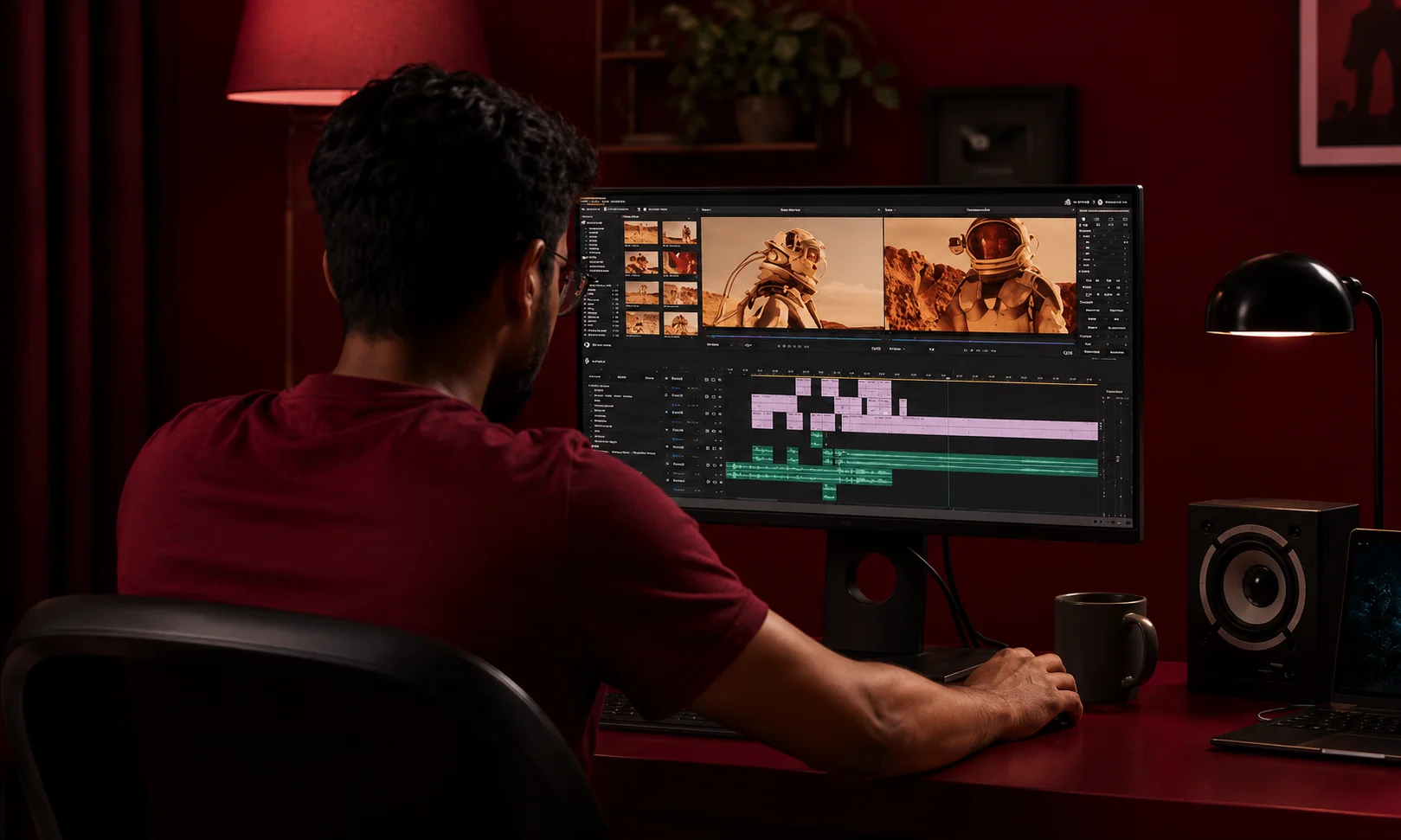
The biggest mistake is choosing software based on what you hope to learn rather than what you can comfortably use today.
If you are completely new to editing, a professional style interface may create unnecessary frustration.
If you already understand timelines, keyframes, color correction, and audio editing, a basic editor may feel restrictive.
Choose software that challenges you slightly without making every project feel like a technical exercise.
Check Format Compatibility With Your Footage
Before purchasing software, check the formats produced by your phone, camera, screen recorder, or action camera.
Most common formats are widely supported, but unusual codecs or specialized camera formats can create problems.
If your software cannot import your footage properly, all of its other features become irrelevant.
Weigh Rendering Speed on Your Actual Hardware
Performance depends on both the software and the computer.
A program that runs smoothly on a powerful editing workstation may struggle on an ordinary laptop.
Use the free trial to import your own footage and test timeline playback, effects, and export speed.
Use the Free Trial Before Committing
Do not judge editing software from screenshots.
Create an actual project.
Import your footage, cut several clips, add music, use transitions, make a color adjustment, and export the result.
That process will reveal more about the software than an hour of reading feature lists.
Think About Where Your Videos Will Be Published
Your destination also matters.
YouTube videos may require different export settings from short form social media content.
If you regularly create vertical videos, check whether the software makes vertical editing straightforward.
If you create high resolution projects, check its support for the resolutions and codecs you use.
Common Mistakes When Choosing Video Editing Software
Buying Based on Feature Count
More features do not automatically mean better software.
A program with hundreds of controls can be less useful to a beginner than an editor with a much smaller feature set.
Ignoring Format Compatibility
Always check whether the program supports your actual footage.
Do not wait until after purchasing the software to discover that your camera files require conversion.
Choosing Prosumer Software for Simple Projects
If you only create short family videos, basic travel videos, or occasional social media clips, you probably do not need the most advanced consumer editor available.
Extra complexity can slow you down rather than helping.
Skipping the Free Trial
Marketing screenshots show what software can do.
They do not show whether you will enjoy using it.
A real test project is the best way to judge the workflow.
Ignoring Windows and Mac Differences
Never assume the Windows and Mac versions are identical.
Check the exact operating system requirements and feature list before purchasing.
Video Editing Software in 2026: What’s Changed?
The video editing market continues to move toward faster workflows, AI assistance, and continuously updated software.
Continuously Updated Software vs. Static Releases
Some editing programs increasingly follow subscription based models that deliver regular feature updates.
Others continue to offer traditional versions that remain relatively stable.
Continuous updates can provide newer tools more quickly, but they can also mean that the interface changes over time.
Static releases can feel more predictable, but users may have to wait for major upgrades.
AI Features Are Becoming Standard
AI stabilization, automatic captions, enhancement tools, background removal, and automated editing features are increasingly common.
The important distinction is no longer whether software has AI.
The more useful question is whether its AI features actually save time in your workflow.
Support for Modern Video Formats Is Expanding
Creators increasingly work with high resolution footage, highly compressed video, vertical content, 360 degree footage, and footage from smartphones and action cameras.
Modern editing software therefore needs to handle a wide range of formats without creating unnecessary conversion steps.
Social Media Is Influencing Editing Workflows
Video editing is no longer limited to traditional horizontal videos.
Creators increasingly need vertical, square, and horizontal versions of the same content.
Software that makes it easy to resize projects, generate captions, and export different versions can save significant time.
Frequently Asked Questions
What’s the Best Video Editing Software for Beginners?
Movavi Video Editor and Filmora are two of the strongest choices for beginners.
Movavi is particularly good for users who want maximum simplicity, while Filmora offers more room to grow.
What’s the Best Free Video Editing Software?
CapCut is a strong option for users who want fast editing and social media focused features.
The best free choice depends on the type of project, because some free programs may have restrictions on exports, features, or advanced tools.
What’s the Difference Between Filmora and Premiere Elements?
Filmora focuses heavily on simplicity while providing room for more advanced editing.
Premiere Elements takes a more guided approach, making it useful for users who want to gradually learn more sophisticated editing techniques.
Do I Need Prosumer Software, or Is Consumer Level Enough?
Most casual editors do not need prosumer software.
If you mainly create family videos, travel footage, or basic social media content, a consumer editor should be enough.
Prosumer software becomes more valuable when you need extensive manual control, complex projects, advanced effects, or faster workflows.
Which Video Editing Software Is Fastest for Rendering?
PowerDirector is one of the strongest choices when speed is a priority.
However, rendering performance depends heavily on your computer, video format, project complexity, effects, and hardware acceleration.
What’s the Best Video Editing Software for Mac?
Filmora and Movavi are strong choices for Mac users who want accessible editing.
CapCut is another option for creators focused on quick social media content.
Always check current Mac feature support before purchasing.
Can These Programs Handle 4K or 360 Degree Footage?
Several programs support high resolution and specialized footage, but capabilities vary by software and version.
PowerDirector is particularly strong for users working with more demanding formats.
Check the exact specifications of your footage before purchasing.
How Long Does It Take to Learn Video Editing Software?
Basic editing can usually be learned quickly.
Cutting clips, adding music, creating titles, and exporting a video are relatively simple tasks.
More advanced skills such as color grading, keyframe animation, audio mixing, and complex effects take considerably longer.
The easiest way to learn is to edit real projects rather than simply watching tutorials.
Final Thoughts
The best video editing software in 2026 is not the program with the longest feature list.
It is the program that matches your current skill level, your computer, your footage, and the type of videos you actually want to create.
For beginners who want simplicity, Movavi is an excellent starting point. Filmora is a stronger choice for users who want an easy beginning with more room to grow.
PowerDirector is the standout option for users who want speed and modern AI tools, while Pinnacle Studio is better for experienced hobbyists who want deeper control.
Premiere Elements offers a guided path for home users who want to develop their skills, and CapCut remains highly useful for creators who prioritize fast, template based content.
Before choosing, start with your skill level rather than the feature list. Then check format compatibility, performance on your own computer, export requirements, and the quality of the AI tools you actually expect to use.
The best editor is ultimately the one you understand well enough to use consistently. A simpler program that helps you finish videos is usually more valuable than a powerful application that makes every project feel difficult.