

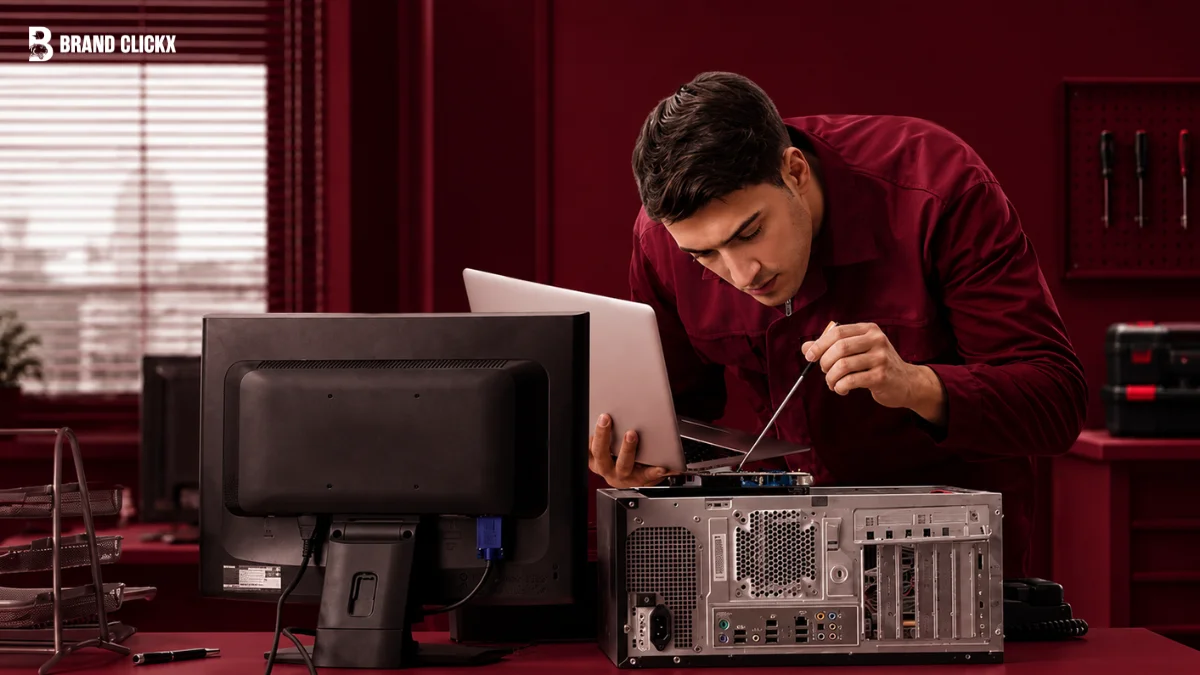
A computer that shuts down, runs slowly, loses Wi-Fi, or shows a blank screen can quickly become frustrating. But replacing parts immediately is rarely the best first step.
Good computer repair starts with diagnosis. The problem could involve software, power, overheating, cables, storage, memory, networking, or faulty hardware.
Modern PCs also require careful attention to SSDs, drivers, firmware, integrated components and data protection.
This guide explains how to troubleshoot common computer problems, make practical upgrades, repair issues safely, and know when professional help is needed.
What Computer Repair Actually Involves
Computer repair is broader than replacing a broken part.
It can include diagnosing operating-system problems, removing malware, fixing boot failures, replacing damaged components, improving cooling, upgrading storage or memory, resolving network problems, recovering data, and restoring a computer to working condition.
A useful way to think about repair is in four stages:
- Identify the symptom
- Find the most likely cause
- Test the simplest possible solution
- Repair or replace only what is necessary
This approach prevents one of the most common repair mistakes: changing multiple things at once and then not knowing what actually fixed the problem.
Start With Diagnosis, Not Disassembly
Before opening a desktop or laptop, ask a simple question:
What exactly is the computer doing wrong?
“Computer is broken” is not a diagnosis.
A more useful description might be:
- It powers on but shows no image.
- It starts normally but becomes extremely slow after several minutes.
- It restarts while gaming.
- Windows crashes with an error.
- The laptop works only when connected to its charger.
- The computer cannot detect its storage drive.
- Wi-Fi disappears after an update.
- A USB device works intermittently.
- The system makes unusual noises.
- The computer turns on and then immediately shuts down.
The more precise the symptom, the smaller the list of possible causes becomes.
Check the Easy Causes First
Before touching internal hardware, check the things that can be tested in minutes.
Confirm that:
- The power cable is properly connected.
- The monitor is switched on and set to the correct input.
- The keyboard and mouse work.
- External USB devices are not causing conflicts.
- The computer has not simply frozen.
- The problem occurs in more than one application.
- A recent software or driver change coincided with the problem.
- The computer has adequate ventilation.
- The issue happens consistently or only under certain conditions.
This simple process can prevent unnecessary repairs.
Back Up Important Data Before Repairing Hardware

One of the most important rules of computer repair is also one of the easiest to ignore:
Protect your data before attempting a repair.
If the computer still starts, back up important documents, photographs, work files and other irreplaceable data before opening the system.
A repair can involve unexpected risks. A storage device that was already failing can stop working completely. An incorrect installation can prevent the computer from booting. A reset or operating-system reinstall can also result in data loss.
Ideally, important files should already exist in more than one location.
Use the 3-2-1 Backup Principle
A practical backup strategy is the 3-2-1 approach:
- Keep three copies of important data.
- Store them on two different types of media or storage locations.
- Keep one copy away from the primary computer.
Cloud storage, an external drive and the computer itself can form part of such a strategy, depending on the user’s needs.
A backup is only useful if it can actually be restored, so periodically verify that important files are accessible.
Know Whether the Problem Is Hardware or Software
Many computer problems look like hardware failures when they are actually caused by software.
A system that freezes could have a failing SSD, but it could also have a buggy application, corrupted system files, insufficient memory, malware or a problematic driver.
Likewise, a computer that cannot connect to Wi-Fi might have a damaged network adapter, but the real problem could be a disabled adapter, driver issue, router problem or incorrect network configuration.
Signs of a Possible Software Problem
Look for symptoms such as:
- Problems appearing after an operating-system update
- One application repeatedly crashing
- Unexpected error messages
- Slow performance caused by excessive background activity
- Browser redirects or suspicious pop-ups
- New startup programs
- Missing or corrupted system files
- Problems that disappear in Safe Mode or another software environment
Signs of a Possible Hardware Problem
Hardware becomes more suspicious when you see:
- Physical damage
- Burning smells
- Unusual mechanical noises
- Repeated crashes under heavy workloads
- Memory errors
- A storage drive disappearing from the system
- A display that remains blank despite confirmed power
- Components failing to be detected by firmware
- A computer shutting down when temperatures rise
The goal is not to guess. It is to test competing explanations.
Fixing a Computer That Won’t Turn On
A computer that does nothing when the power button is pressed requires a different troubleshooting process from a computer that powers on but cannot boot.
Start with the power path.
Check the External Power
For a desktop:
- Verify the wall outlet.
- Check the power cable.
- Make sure the power supply switch is in the correct position where applicable.
- Try a known-good power cable if available.
- Disconnect unnecessary peripherals.
For a laptop:
- Check the charger.
- Inspect the charging connector for damage.
- Try another compatible power source if appropriate.
- Look for charging indicators.
- Disconnect accessories and attempt another startup.
If there are no lights, no fan movement and no signs of activity, the problem may involve power delivery, the charger, battery, power supply, motherboard or another internal component.
When the Computer Turns On but the Screen Is Blank
A blank display does not automatically mean the monitor or graphics card is defective.
Check the display chain from beginning to end.
Work Through the Display Path
Check:
- Monitor power
- Monitor input selection
- Video cable
- Correct video output on the computer
- Graphics card seating
- Memory installation
- Startup or firmware error indicators
If a desktop has a dedicated graphics card, make sure the display cable is connected to the appropriate output. Depending on the system configuration, connecting a monitor to the motherboard video output instead of the graphics card can produce a blank screen.
If the system has recently been upgraded, revisit the newly installed component first.
Troubleshooting Random Restarts and Shutdowns
Random restarts are particularly useful diagnostic clues.
Possible causes include:
- Overheating
- Unstable memory
- Power-supply problems
- Driver failures
- Operating-system errors
- Hardware instability
- Loose connections
The timing of the failure matters.
If the computer restarts during demanding workloads but remains stable during light use, heat or power delivery becomes more suspicious.
If it restarts randomly even while idle, software, memory, power and other causes need to be considered.
Overheating: One of the Most Common Repair Problems
Modern processors and graphics cards can produce substantial heat, particularly under heavy workloads.
Dust buildup, blocked vents, failing fans, poor airflow or deteriorating thermal interfaces can contribute to excessive temperatures.
Signs of Overheating
Watch for:
- Sudden performance drops
- Fans running loudly
- Shutdowns during demanding tasks
- Performance that deteriorates after extended use
- Unusually high temperatures
- System instability under load
A useful diagnostic technique is to compare temperatures at idle and under load rather than relying on a single reading.
Temperature limits vary significantly by processor, graphics card and system design, so manufacturer specifications are more useful than applying one universal temperature number to every computer.
Improve Airflow Before Buying More Hardware
Before purchasing additional cooling equipment:
- Clean blocked vents.
- Remove accumulated dust.
- Make sure fans can spin freely.
- Keep laptop ventilation openings unobstructed.
- Improve desktop cable management where it restricts airflow.
- Keep the computer away from cramped spaces that trap hot air.
For desktops with removable cooling hardware, thermal paste may eventually need replacement, but it should not automatically be treated as a routine repair for every machine.
Cleaning a Computer Safely
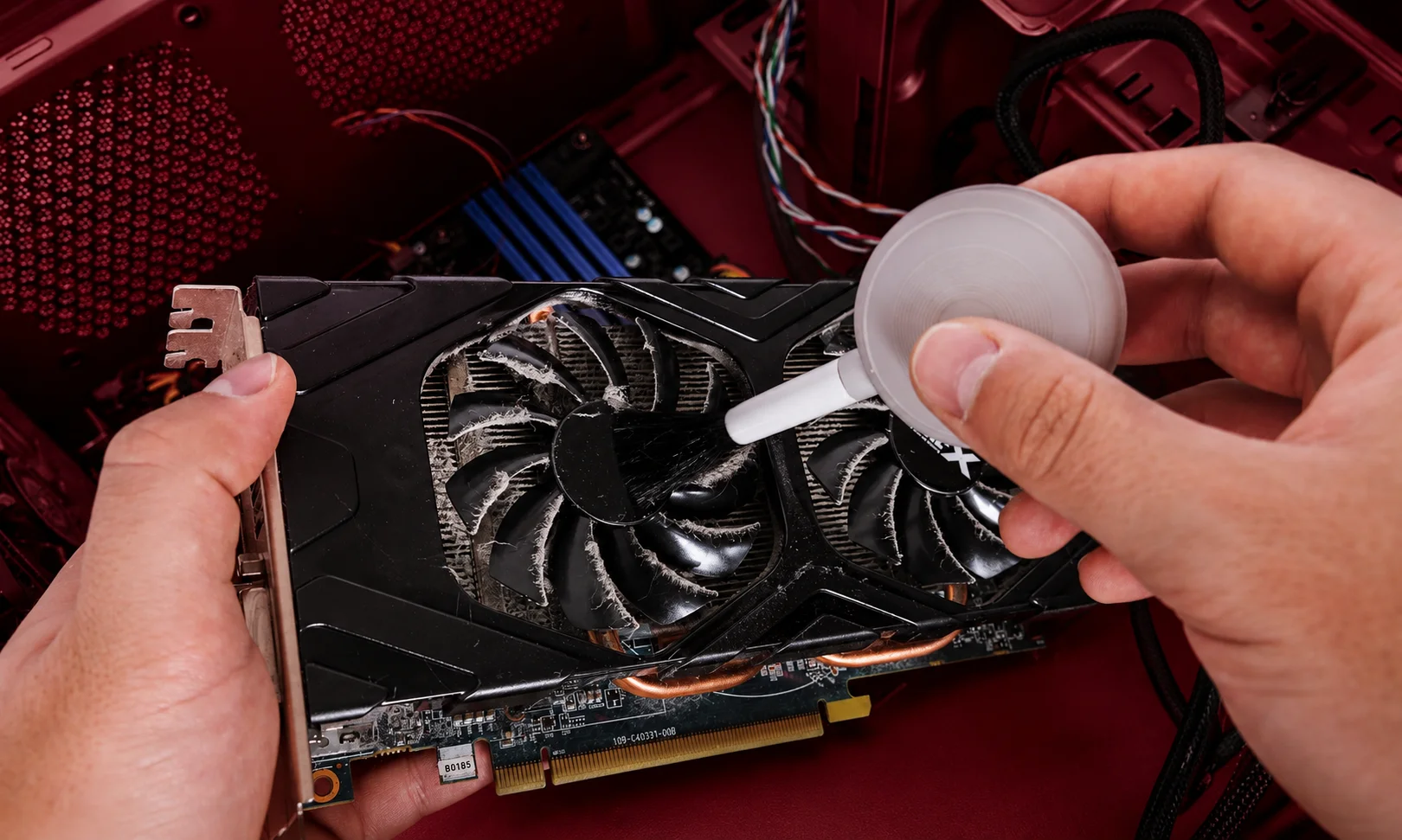
Cleaning can prevent many problems, but careless cleaning can create new ones.
Clean the Outside Regularly
Use a soft microfiber cloth for surfaces and follow the manufacturer’s cleaning instructions for displays.
Pay particular attention to:
- Air vents
- Fan openings
- Keyboard gaps
- Ports
- Dust around the chassis
Do not spray liquid directly into the computer.
Cleaning Inside a Desktop
Before opening the case:
- Shut the computer down.
- Disconnect the power.
- Disconnect external cables if necessary.
- Work on a stable surface.
- Take appropriate electrostatic precautions.
- Keep screws and small components organized.
Use suitable compressed air to remove dust and avoid forcing debris deeper into components.
When cleaning fans, prevent them from spinning excessively rather than allowing them to free-spin at high speed from compressed air.
Static Electricity and Computer Components
Electrostatic discharge can damage sensitive electronics.
You do not need an elaborate laboratory to reduce the risk, but you should establish good habits.
Work on a suitable non-carpeted surface where possible, avoid unnecessary contact with component contacts, and ground yourself appropriately before handling sensitive components.
Most importantly, do not handle circuit boards by their exposed electrical contacts.
Upgrading RAM: When More Memory Helps
Adding RAM can improve responsiveness when a computer regularly runs out of available memory.
It can be particularly useful when:
- Many browser tabs are open.
- Multiple applications run simultaneously.
- Creative workloads consume substantial memory.
- Virtual machines are used.
- A computer frequently relies on memory compression or storage-based paging.
However, more RAM does not automatically make every computer faster.
If memory is not the bottleneck, another upgrade may produce a greater improvement.
Check Compatibility Before Buying RAM
Before purchasing memory, verify:
- Memory type
- Supported capacity
- Number of available slots
- Maximum supported memory
- Module compatibility
- System or motherboard specifications
Laptop memory can be particularly restrictive because some systems use soldered memory that cannot be upgraded.
Upgrading From an HDD to an SSD
For computers that still use mechanical hard drives as primary storage, moving to an SSD can transform everyday responsiveness.
The improvement can be noticeable during:
- System startup
- Application loading
- File access
- Software installation
- General multitasking
Before replacing the drive, back up important data and confirm that the new storage device is compatible with the computer.
Don’t Confuse Storage Capacity With Performance
A larger drive gives you more space. It does not automatically make the computer faster.
Performance improvements depend on the type of storage technology, interface and workload.
Modern systems commonly use NVMe SSDs, while some older systems may support SATA SSDs. These are not interchangeable in every computer, so compatibility must be checked before purchasing an upgrade.
Fixing a Slow Computer
“Slow” is one of the most common computer complaints, but it has many possible causes.
A useful first step is to determine when the computer feels slow.
Slow During Startup
Check:
- Startup applications
- Available storage
- System updates
- Background services
- Storage health
- Malware or unwanted software
Slow All the Time
Check:
- CPU usage
- Memory usage
- Storage activity
- Available disk space
- Background processes
- Thermal performance
Slow Only During Heavy Workloads
The issue could involve:
- CPU limitations
- GPU limitations
- Insufficient RAM
- Thermal throttling
- Power settings
- Application configuration
The best repair is the one that addresses the actual bottleneck.
Be Careful With “PC Cleaning” Utilities
Many computers do not need aggressive third-party optimization tools.
Be particularly cautious with utilities that promise dramatic performance improvements by:
- Cleaning thousands of registry entries
- Deleting supposedly unnecessary system files
- Disabling large numbers of services
- Automatically changing system settings
- Removing files without clearly explaining their purpose
Built-in operating-system tools are often the safer starting point.
Repairing Wi-Fi and Network Problems
Network problems can originate from the computer, router, internet connection or network configuration.
Before replacing a network adapter, determine whether other devices can access the same network.
A Simple Network Troubleshooting Sequence
Try:
- Check whether other devices have internet access.
- Restart the affected computer.
- Restart the network equipment if appropriate.
- Check whether Wi-Fi is enabled.
- Confirm that the correct network is selected.
- Check the network adapter and driver.
- Test another connection where possible.
- Reset network settings only when simpler solutions fail.
This helps separate a computer problem from a network-wide problem.
Fixing Storage Problems Before They Become Data-Recovery Problems
Storage devices deserve special attention because a hardware failure can become a data-loss event.
Warning signs can include:
- Files becoming corrupted
- Extremely slow file operations
- Repeated system freezes during disk activity
- Unexpected drive disappearance
- Operating-system errors
- Unusual noises from mechanical drives
If a drive appears to be failing, avoid repeatedly stressing it with unnecessary repair attempts.
Back up or recover important data first.
For valuable or irreplaceable information, professional data-recovery assistance may be safer than repeatedly experimenting with the failing device.
Replacing a Laptop Battery
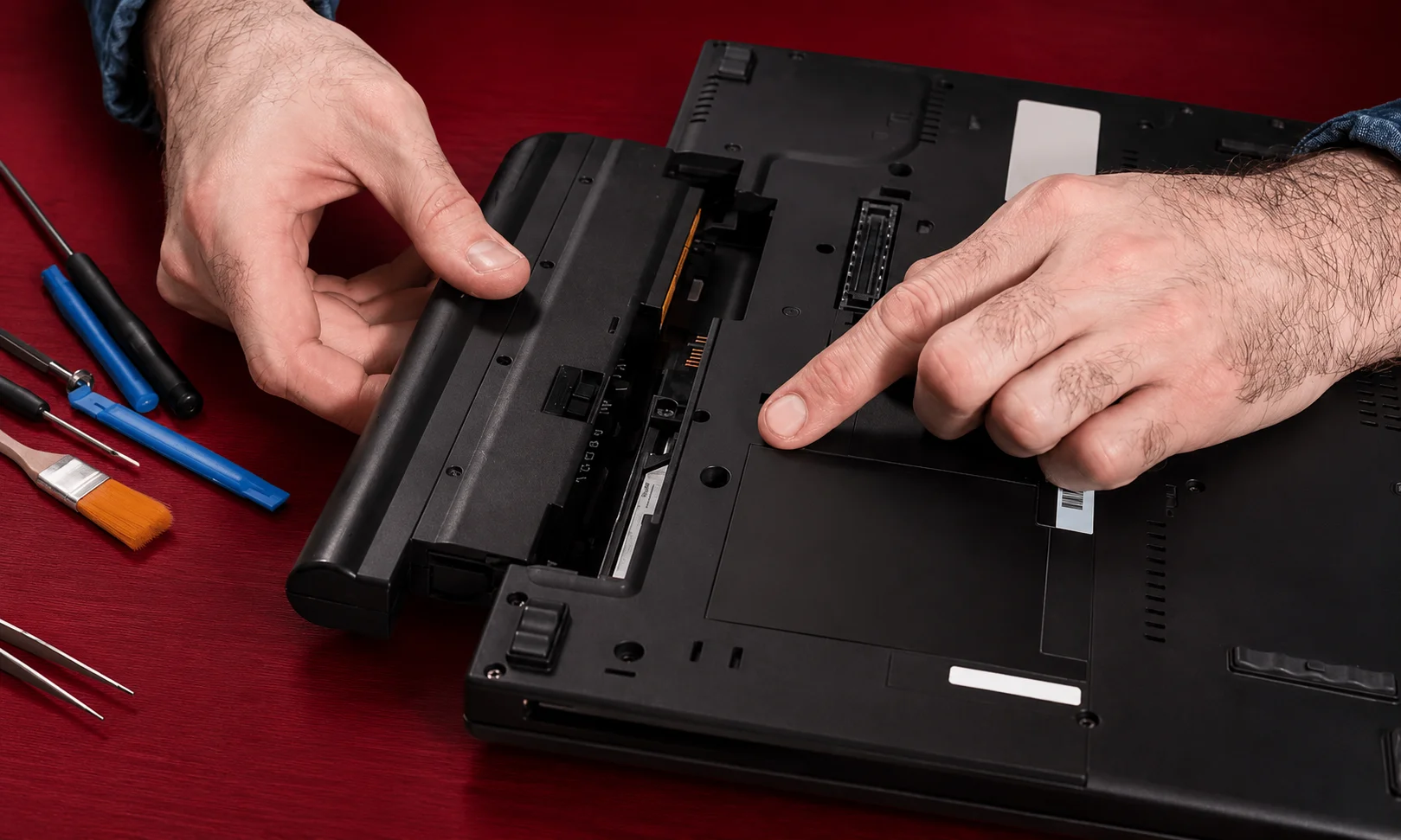
Laptop batteries naturally lose capacity over time.
A declining battery may cause:
- Shorter runtime
- Unexpected shutdowns
- Rapid percentage changes
- Charging problems
- Reduced mobility
Modern laptops vary considerably in battery design. Some use removable batteries, while others require partial disassembly.
If the battery is swollen, damaged or producing unusual heat, stop using the device and seek appropriate professional service rather than continuing to charge it.
Laptop Repair Requires Extra Care
Laptops are more compact than desktop PCs, which means repairs can be more difficult.
Common laptop repairs include:
- Battery replacement
- SSD replacement
- RAM upgrades on compatible models
- Keyboard replacement
- Screen replacement
- Fan cleaning
- Charging-port repair
- Hinge repair
Before opening a laptop, consult the manufacturer’s service documentation or a reliable repair guide for the exact model.
Do not assume that a procedure for one laptop applies to another.
Desktop Component Replacement
Desktop computers generally provide easier access to components than laptops.
Depending on the system, common replaceable components include:
- RAM
- SSDs and hard drives
- Graphics cards
- Power supplies
- Cooling fans
- CPU coolers
- Expansion cards
But compatibility matters more than simply finding a physically similar component.
Check Compatibility Before Buying a Part
Before purchasing an upgrade, verify:
- Physical dimensions
- Motherboard compatibility
- Power requirements
- Interface type
- Firmware support
- Cooling requirements
- Available expansion slots
- Operating-system support
A graphics card may physically fit inside a case but still exceed the power supply’s capabilities or interfere with other components.
Installing or Removing Expansion Cards
Expansion cards must be installed carefully.
Before installation:
- Shut down the computer.
- Disconnect power.
- Remove the case cover according to the manufacturer’s instructions.
- Identify the correct slot.
- Check the card’s physical clearance.
- Verify power requirements.
Insert the card evenly and firmly into the appropriate slot without forcing it.
After installation, secure it to the case and connect any required power cables.
Then test the system before closing everything permanently.
Managing Internal Cables Without Creating Problems
Cable connections are a surprisingly common source of computer failures.
A loose cable can make a working component appear dead.
Before disconnecting internal cables, consider taking clear photographs of the original configuration. Labeling cables can also help when several similar connectors are present.
Never Force a Connector
Modern connectors are usually designed to fit a specific way.
If a connector does not fit:
Stop.
Do not assume that more force will solve the problem.
Check:
- Connector orientation
- Keying
- Cable type
- Motherboard manual
- Component documentation
Forcing a connector can damage pins, sockets or the component itself.
SATA and Other Storage Connections
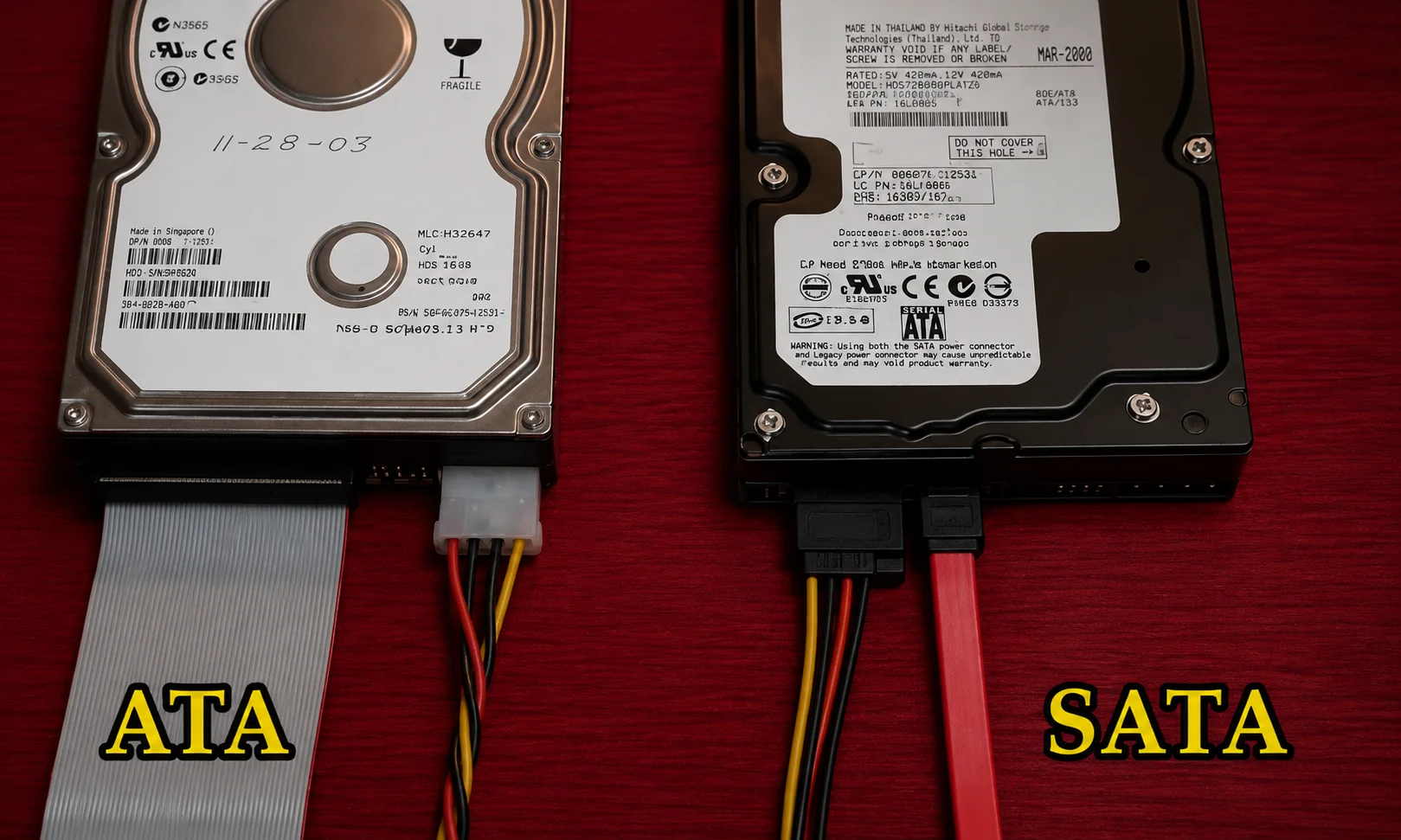
SATA cables use keyed connectors, but their connectors can still be damaged by excessive sideways pressure.
Insert and remove them carefully rather than twisting the connector.
For newer systems, storage may instead use an M.2 interface, which introduces a different installation process and compatibility requirements.
BIOS and UEFI Troubleshooting
Firmware settings can influence whether hardware is detected and whether an operating system can boot.
Problems after a hardware upgrade can sometimes be related to:
- Boot-device configuration
- Storage detection
- Memory settings
- Secure Boot configuration
- Firmware compatibility
- Hardware configuration
Do not randomly change firmware settings when troubleshooting.
Change one relevant setting at a time and record the original configuration before making significant changes.
When a BIOS or Firmware Update Makes Sense
Firmware updates can improve compatibility, address bugs or add support for newer hardware.
But firmware updates are not routine maintenance that should be performed without a reason.
Before updating:
- Confirm the exact motherboard or device model.
- Read the manufacturer’s instructions.
- Use the correct firmware file.
- Ensure stable power.
- Avoid interrupting the update process.
A failed firmware update can create a much more serious problem than the one you were originally trying to solve.
Malware and Security-Related Repairs
Not every computer problem is physical.
Malware can cause:
- Slow performance
- Browser changes
- Unexpected advertisements
- Suspicious applications
- Unusual network activity
- Account compromise
- Files becoming inaccessible
Keep the operating system, browser and security software updated.
If malware is suspected, avoid entering sensitive passwords on a compromised machine until the situation has been addressed.
For serious infections, professional assistance or a clean system reinstall may be preferable to repeatedly removing individual suspicious files.
Protecting a Repaired Computer
A repair should not simply restore functionality. It should reduce the chance of the same problem returning.
After a repair:
- Install current security updates.
- Confirm drivers are functioning.
- Verify storage health.
- Check temperatures.
- Confirm important files are backed up.
- Test ports and peripherals.
- Check that the computer starts normally several times.
- Monitor the system for recurring symptoms.
If a component was replaced because of overheating, for example, fixing the component without addressing the airflow problem may simply move the failure further down the road.
A Practical Computer Maintenance Schedule
Not every maintenance task needs to happen every day.
A simpler schedule is easier to follow.
| Frequency | What to Check |
|---|---|
| Weekly | Install important updates, check backups and look for unusual behavior |
| Monthly | Review storage, remove unnecessary applications and inspect ventilation |
| Every Few Months | Clean accessible dust and check system temperatures |
| Twice a Year | Review backup integrity, hardware condition and startup applications |
| When Needed | Update firmware, replace failing hardware and perform deeper troubleshooting |
The exact schedule should depend on the computer, environment and workload.
A gaming PC operating in a dusty environment may need cleaning more frequently than a lightly used office laptop.
Common Computer Repair Mistakes to Avoid
Some repair mistakes are more dangerous than the original problem.
Replacing Parts Without Testing
Do not replace the motherboard simply because the computer does not boot.
Test power, memory, display, storage and other likely causes first.
Ignoring Backups
A computer can be repaired successfully while the user’s data is lost.
Data protection should come before hardware experimentation.
Using Excessive Force
Computer components are precision parts.
If something does not fit, investigate why instead of forcing it.
Changing Too Many Things at Once
If you replace RAM, update firmware, reinstall Windows and change drivers simultaneously, you may solve the problem but lose the ability to identify its cause.
Change one major variable at a time whenever practical.
Using the Wrong Replacement Part
Physical compatibility does not guarantee electrical, thermal or firmware compatibility.
Always check the specifications.
When DIY Computer Repair Makes Sense
DIY repair can be reasonable when the problem is straightforward and you understand the procedure.
Good candidates include:
- Cleaning accessible dust
- Replacing compatible RAM
- Installing a supported SSD
- Replacing a desktop fan
- Reconnecting a loose cable
- Removing unnecessary software
- Installing normal software updates
The risk is generally lower when the repair is reversible and the component is easily accessible.
When You Should Call a Professional
Professional repair is often the better choice when:
- The motherboard is damaged.
- A laptop has liquid damage.
- A battery is swollen.
- The computer has suffered electrical damage.
- Data on a failing drive is extremely important.
- A charging port requires board-level repair.
- The device has complex physical damage.
- You cannot identify the cause after basic troubleshooting.
- The repair requires specialized diagnostic equipment.
The objective is not to prove that you can repair everything yourself.
It is to restore the computer safely without creating a larger problem.
How to Choose a Computer Repair Technician
If you decide to use a repair shop, ask what the technician plans to diagnose before replacing parts.
A good repair process should involve:
- A clear description of the reported symptoms
- Diagnostic testing
- An explanation of the suspected problem
- An estimate before major work
- Confirmation before expensive component replacement
- Appropriate handling of personal data
- Testing after the repair
Ask whether replaced parts will be returned to you and whether the repair includes any warranty or service guarantee.
For business computers, also ask about data privacy and confidentiality procedures.
How Much Does Computer Repair Cost?
There is no single price for computer repair.
The total cost depends on:
- The type of device
- The failed component
- Labor rates
- Availability of replacement parts
- Data-recovery requirements
- Whether the repair requires board-level work
- Whether the machine is still under warranty
A simple software problem can require very little hardware work, while a damaged motherboard, display or laptop charging circuit can become substantially more expensive.
The important comparison is not simply repair cost versus replacement cost.
Consider the computer’s age, performance, upgrade potential, condition and the value of the data stored on it.
Repair or Replace: Which Makes More Sense?
Repairing an older computer is not always the best financial decision.
Ask four questions:
Is the Computer Still Fast Enough?
If the processor, memory and storage meet your needs, repairing a single failed component may be worthwhile.
Is the Failed Component Replaceable?
A replaceable SSD or RAM module can make an older computer more useful.
A major motherboard failure may be harder to justify.
How Much Would a New Computer Cost?
Compare the repair with the cost of a replacement that offers a meaningful improvement.
What Is the Computer Worth to You?
A computer may have relatively low resale value but still be valuable because it contains a familiar workflow, specialized software or important files.
A Better Way to Think About Computer Repair
The most effective repair strategy is not to become an expert in every computer component.
It is to develop a disciplined troubleshooting process.
Start with the symptom.
Check the simplest explanations.
Protect the data.
Test one variable at a time.
Use documentation.
Replace only the component that the evidence points toward.
And stop when the repair becomes riskier than the problem itself.
Frequently Asked Questions
What is computer repair?
Computer repair involves diagnosing and correcting hardware, software, operating-system, storage, networking, power and performance problems. It can range from simple software troubleshooting to replacing major components.
Can I repair my computer myself?
Yes, many basic repairs can be performed safely by users with the correct instructions and compatible parts. Cleaning, software troubleshooting, storage upgrades and some RAM or fan replacements are common examples.
What should I do before opening my computer?
Back up important data, shut down the system, disconnect power and external cables, prepare a suitable workspace and identify the exact problem before removing components.
Why is my computer running slowly?
Slow performance can result from insufficient memory, limited storage, excessive background processes, thermal throttling, outdated software, malware or aging hardware. Check system-resource usage before purchasing an upgrade.
Is it worth repairing an old computer?
Sometimes. If the computer has a capable processor, adequate memory and upgradeable storage, a relatively inexpensive repair or upgrade can extend its useful life. A major repair on an obsolete system may make replacement more sensible.
Should I replace an HDD with an SSD?
If the computer supports a compatible SSD, replacing a mechanical hard drive can provide a substantial improvement in everyday responsiveness. Check the computer’s storage interface before buying.
When should I stop trying to repair a computer myself?
Stop when you encounter damaged power components, swollen batteries, liquid damage, board-level failures, important data on a failing drive, or a problem you cannot safely diagnose. At that point, professional repair may reduce the risk of additional damage.
Final Thoughts
Computer repair is not simply about opening a case and replacing whatever looks broken.
The best repairs begin with diagnosis.
A slow PC may need better storage rather than a new processor. A computer that shuts down may have a cooling problem rather than a dead motherboard. A blank screen may be caused by a cable rather than a failed graphics card.
That is why the most valuable repair skill is not memorizing every component. It is learning how to narrow down the problem logically.
Protect your data first, start with simple checks, work carefully, use compatible parts, and know when professional help is the safer option.
With that approach, computer repair becomes less about guessing and more about solving the right problem.