


Key Takeaways
- Cache stores temporary files to improve speed.
- Clear cache can fix many website and app issues.
- It usually does not delete personal files.
- Saved passwords remain unless you choose to remove them.
- The first page load after clearing cache may take slightly longer.
- Every major browser includes an option to clear cached files.
- Clearing cache regularly can help keep your browser running smoothly.
Quick Answer
To clear cache, open your browser or device settings, find the option to clear browsing data or storage, select Cached Images and Files, and confirm the action. This removes temporary files that may be causing loading or performance problems while allowing fresh versions to be downloaded the next time you visit a website.
Cache helps websites and apps load faster by storing temporary files on your device. Over time, however, these files can become outdated or corrupted. When that happens, you may notice slow performance, broken pages, login issues, or websites that do not display correctly.
The good news is that clearing your cache is quick and safe. In most cases, it fixes common problems without affecting your personal files. Even better, you can clear cache on almost any device in just a few minutes.
What Is Cache?
Cache is a collection of temporary files stored by your browser, apps, or operating system. These files include images, scripts, stylesheets, and other resources that help websites and applications open more quickly during future visits.
For example, the first time you visit a website, your browser downloads its logo, icons, and other files. Instead of downloading them again on your next visit, it loads them from the cache, making the page appear much faster.
Although this process improves speed, cached files are not meant to stay forever. As websites change, your browser may continue using old files, which can lead to display errors or outdated content.
Why Should You Clear Cache?
Most people only think about clearing cache when something goes wrong. Still, doing it occasionally can solve several everyday problems.
Here are some common reasons to clear cache:
| Issue | How Clearing Cache Helps |
|---|---|
| Website not loading correctly | Downloads the latest website files |
| Slow browsing | Removes old temporary data |
| Login problems | Refreshes outdated session files |
| Broken images | Loads updated images from the website |
| Display errors | Removes corrupted cached resources |
| Storage running low | Frees space used by temporary files |
Clearing cache is also a useful troubleshooting step before contacting website support. In many cases, it resolves the problem within minutes.
Different Types of Cache
Not all cache works the same way. Understanding the different types makes it easier to know what should be cleared.
Browser Cache
This is the most common type. Browsers such as Google Chrome, Microsoft Edge, Mozilla Firefox, and Safari save website files so pages load faster the next time you visit them.
App Cache
Mobile and desktop applications also store temporary data. Social media apps, streaming services, shopping apps, and games often build large cache files over time.
Unlike browser cache, clearing app cache usually removes temporary files without deleting your account or personal information.
System Cache
Operating systems create temporary files to improve performance. Windows, macOS, Android, and iOS all maintain different types of system cache.
While these files generally help your device run smoothly, outdated system cache can occasionally contribute to performance issues.
DNS Cache
Your device also stores website address information in a DNS cache. This allows domains to load faster because your computer remembers previous lookups.
Sometimes clearing the DNS cache helps when a website has changed servers or fails to load correctly.
Before You Clear Cache
Clearing cache is generally safe, but there are a few things worth knowing first.
- You may be signed out of some websites if you choose to clear cookies along with cached files.
- The first visit to a website after clearing cache may take slightly longer because new files need to download again.
- Your saved passwords usually remain available unless you specifically choose to remove them.
- Website preferences may reset if cookies are deleted.
If your goal is only to remove temporary files, select Cached Images and Files and leave passwords or saved autofill information unchecked.
How to Clear Browser Cache
Although every browser has a slightly different layout, the overall process is very similar.
- Open your browser.
- Go to Settings.
- Find Privacy or Browsing Data.
- Select Clear Browsing Data.
- Choose Cached Images and Files.
- Select the desired time range.
- Click Clear Data.
- Restart the browser if necessary.
Most modern browsers allow you to choose whether you want to remove the last hour, the last day, or all cached files.
How to Clear Cache on Google Chrome
Google Chrome is one of the most widely used browsers, and clearing its cache only takes a minute.
On Windows and Mac
- Open Chrome.
- Select the three-dot menu in the upper-right corner.
- Click Settings.
- Open Privacy and Security.
- Select Delete Browsing Data.
- Choose Cached Images and Files.
- Pick your preferred time range.
- Click Delete Data.
On Android
- Open Chrome.
- Tap the three-dot menu.
- Tap History.
- Select Delete Browsing Data.
- Tick Cached Images and Files.
- Tap Delete Data.
On iPhone and iPad
- Open Chrome.
- Tap the menu button.
- Go to History.
- Tap Delete Browsing Data.
- Select Cached Images and Files.
- Confirm the action.
The next time you open your favourite websites, Chrome will automatically create a fresh cache using the latest available files.
How to Clear Cache in Microsoft Edge
Microsoft Edge stores temporary website files to make browsing faster. However, old cache files can sometimes prevent websites from loading properly. Clearing them often fixes display issues and improves performance.
On Windows
- Open Microsoft Edge.
- Click the three-dot menu in the top-right corner.
- Select Settings.
- Open Privacy, Search, and Services.
- Scroll to Clear Browsing Data.
- Click Choose What to Clear.
- Select a time range.
- Tick Cached Images and Files.
- Click Clear Now.
On Mobile
The steps are similar on Android and iPhone.
- Open Edge.
- Tap the menu.
- Go to Settings.
- Open Privacy and Security.
- Select Clear Browsing Data.
- Choose Cached Images and Files.
- Confirm the action.
If a website still behaves strangely, close Edge completely and open it again.
How to Clear Cache in Mozilla Firefox
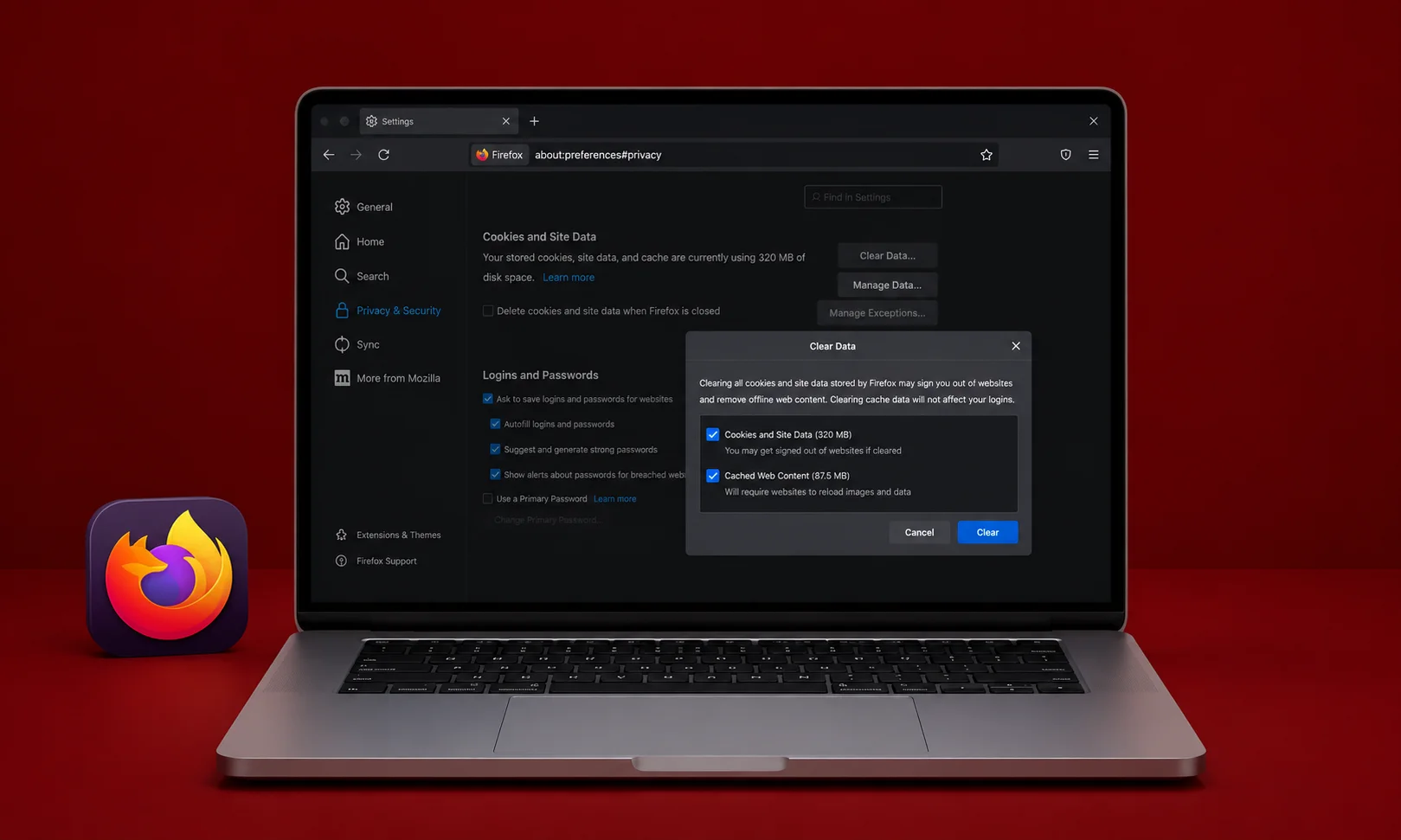
Firefox lets you remove cached files without deleting saved passwords or bookmarks. As a result, you can refresh your browser without losing important information.
On Desktop
- Open Firefox.
- Click the menu button.
- Select Settings.
- Open Privacy & Security.
- Find Cookies and Site Data.
- Click Clear Data.
- Tick Temporary Cached Files.
- Click Clear.
On Android
- Open Firefox.
- Tap the menu.
- Go to Settings.
- Select Delete Browsing Data.
- Choose Cached Images and Files.
- Confirm your choice.
On iPhone
- Open Firefox.
- Open Settings.
- Tap Data Management.
- Turn on Cache.
- Tap Clear Private Data.
Firefox will download fresh website files the next time you visit those pages.
How to Clear Cache in Safari
Safari automatically manages many temporary files, yet clearing its cache is helpful when websites appear outdated or refuse to load correctly.
On Mac
- Open Safari.
- Click Safari in the menu bar.
- Select Settings.
- Open the Advanced tab.
- Enable Show Features for Web Developers if needed.
- Click Develop from the menu bar.
- Select Empty Caches.
On iPhone and iPad
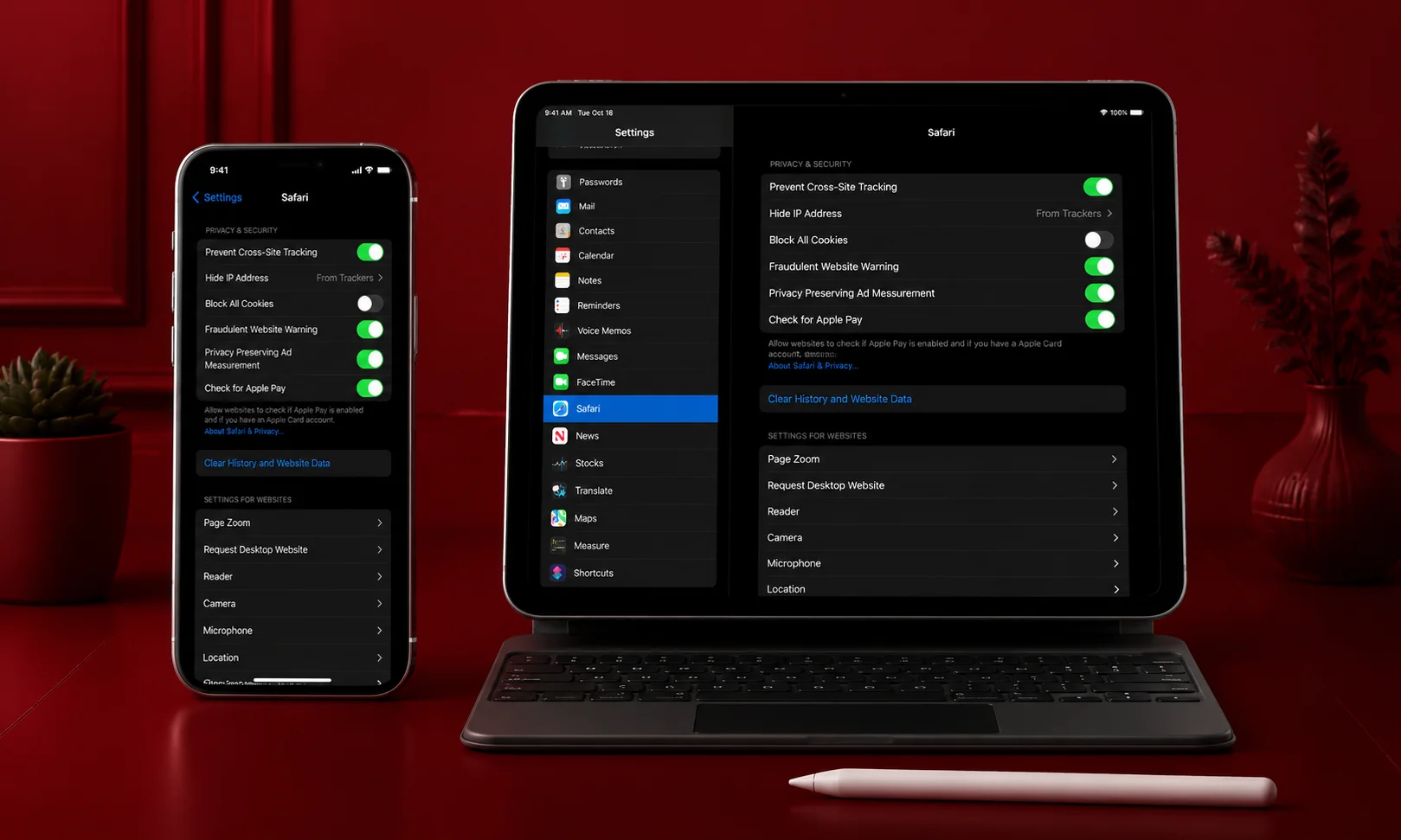
- Open Settings.
- Scroll to Apps and choose Safari.
- Tap Clear History and Website Data.
- Confirm your selection.
Remember that clearing Safari history also removes website data, so you may need to sign in again on some sites.
How to Clear Cache on Windows
Windows creates temporary files to improve system performance. Over time, these files may use unnecessary storage or contribute to minor performance issues.
Using Storage Settings
- Open Settings.
- Select System.
- Click Storage.
- Choose Temporary Files.
- Select the files you want to remove.
- Click Remove Files.
Using Disk Cleanup
- Search for Disk Cleanup.
- Open the application.
- Choose your Windows drive.
- Tick Temporary Internet Files and Temporary Files.
- Click OK.
- Confirm the cleanup.
How to Clear Cache on macOS
Mac computers also store temporary system and application files.
Clear User Cache
- Open Finder.
- Click Go.
- Select Go to Folder.
- Enter:
~/Library/Caches- Open the folders you recognise.
- Delete unnecessary cache files only.
- Empty the Trash.
Avoid deleting folders unless you know what they contain. Removing the wrong files could affect how certain apps behave.
How to Clear Cache on Android
Android apps build cache over time to improve loading speed. Nevertheless, very large cache files can occupy storage and sometimes cause app problems.
Clear Cache for a Single App
- Open Settings.
- Tap Apps.
- Choose the app.
- Open Storage.
- Tap Clear Cache.
This removes temporary files without deleting your account or personal data.
Clear Chrome Cache
Follow the Chrome browser steps explained earlier in this guide.
How to Clear Cache on iPhone and iPad
Apple devices manage much of their cache automatically. Even so, clearing browser and app data can solve loading issues.
Safari Cache
Use the Safari method explained above.
App Cache
Many iPhone apps do not have a dedicated Clear Cache button. Instead, you may need to:
- Offload the app
- Reinstall the app
- Clear cache from within the app’s settings if available
Browser Cache Comparison
| Browser | Cache Can Be Cleared Separately | Time Range Options | Available on Mobile |
|---|---|---|---|
| Google Chrome | Yes | Yes | Yes |
| Microsoft Edge | Yes | Yes | Yes |
| Mozilla Firefox | Yes | Yes | Yes |
| Safari | Limited options | Varies by device | Yes |
Browser Cache vs Cookies
Many people confuse cache with cookies. Although both improve your browsing experience, they serve different purposes.
| Cache | Cookies |
|---|---|
| Stores website files | Stores login and preference data |
| Speeds up page loading | Keeps you signed in |
| Safe to clear regularly | Clearing may sign you out |
| Does not normally affect saved passwords | May reset website preferences |
Benefits of Clearing Cache
Clearing cache offers several advantages.
- Fixes website loading problems.
- Displays the latest version of websites.
- Removes corrupted temporary files.
- Frees storage space.
- Improves browser responsiveness.
- Helps troubleshoot common errors.
- Reduces outdated content.
For most users, clearing cache every few months is enough unless you frequently experience browsing problems.
Possible Drawbacks
Although clearing cache is generally safe, there are a few temporary inconveniences.
| Advantage | Temporary Effect |
|---|---|
| Fresh website files | First page load may be slower |
| Fixes display issues | Some websites may require a new login |
| Removes corrupted files | Personal preferences may reset if cookies are removed |
These effects are usually short-lived and disappear after regular browsing resumes.
Expert Tips
- Clear only cached files if you want to stay signed in.
- Restart your browser after clearing cache.
- Update your browser to the latest version.
- Check your internet connection before assuming cache is the problem.
- Use private browsing when testing website changes.
- Restart your device if problems continue.
- Clear cache before contacting website support.
Common Mistakes
Many users accidentally create more problems while trying to fix one.
- Deleting passwords by mistake.
- Clearing cookies without realising the consequences.
- Forgetting to restart the browser.
- Assuming cache is always the cause of website errors.
- Ignoring browser updates.
- Deleting important system folders on a computer.
Cache Clearing Checklist
Before clearing cache, use this checklist.
- Back up important browser data if needed.
- Save unfinished online work.
- Close unnecessary browser tabs.
- Clear only cached files unless you need to remove cookies.
- Restart your browser afterwards.
- Test the website again.
Frequently Asked Questions
Is it safe to clear cache?
Yes. Clearing cache removes temporary files and does not delete your personal documents or photos.
Will clearing cache delete passwords?
Not unless you also choose the option to remove saved passwords.
How often should I clear cache?
Most people only need to clear cache every few months or whenever websites stop working correctly.
Does clearing cache improve speed?
It can improve performance if old or corrupted files are causing problems. However, the first visit to a website may be slightly slower because fresh files must be downloaded.
Should I clear cache or cookies?
If a website is simply loading incorrectly, clearing cache is usually enough. If login or account issues continue, clearing cookies may also help.
Why does my browser still show old content?
Try refreshing the page after clearing cache. If the problem continues, the website itself may still be serving older content or your internet service provider may still be using cached data.
Conclusion
Cache is designed to make websites and apps load faster by storing temporary files on your device. While this improves everyday browsing, those files can eventually become outdated or damaged, leading to loading errors, display problems, or slower performance.
Fortunately, clearing cache is a simple solution that takes only a few minutes. Whether you use Chrome, Edge, Firefox, Safari, Windows, Android, macOS, or an iPhone, following the right steps can help refresh your device and resolve many common issues without affecting your important files.