


Quick Answer
To clear cache on a Mac, open Finder, click Go in the menu bar, choose Go to Folder, type ~/Library/Caches, and delete the contents of the folders you no longer need. You can also clear browser cache directly from Safari, Chrome, or Firefox settings. Removing cache files helps recover storage space and may improve your Mac’s performance, especially if apps or websites are acting strangely.
If your Mac has started feeling slow, apps take longer to open, or websites don’t load correctly, clearing the cache can often help. Cache files are useful because they store temporary data that speeds up everyday tasks. However, over time these files can pile up and cause performance issues.
The good news is that you don’t need to be a tech expert to clear cache on a Mac. Whether you use Safari, Chrome, Firefox, or simply want to free up storage, the process is straightforward and safe when done correctly.
This guide explains everything in easy language, so anyone can follow along without worrying about damaging their Mac.
What Is Cache on a Mac?
Cache is a collection of temporary files your Mac saves while you use apps, browse websites, or run the operating system. These files help your Mac open apps faster, remember settings, and load websites more quickly.
For example, when you visit a website for the first time, your browser downloads images, scripts, and other files. The next time you visit the same website, your browser uses the saved files instead of downloading everything again. As a result, the page loads much faster.
Similarly, apps store temporary files to improve performance. While this is useful, cache files continue to grow over time. Eventually, they can take up a surprising amount of storage.
Instead of helping your Mac, outdated cache files may slow it down or create unexpected problems.
Is It Safe to Clear Cache?
Yes, clearing cache is generally safe. Cache files are temporary, which means your Mac or your apps can recreate them whenever they are needed.
However, you should only remove cache files and avoid deleting unknown system files. Deleting important files outside the cache folders could cause apps to behave unexpectedly.
After clearing cache, you may notice a few temporary changes:
| Action | What Happens |
|---|---|
| Open websites | They may load slightly slower the first time. |
| Launch apps | Some apps rebuild their cache automatically. |
| Logins | A few websites may ask you to sign in again. |
| Performance | Your Mac may feel smoother after rebuilding fresh cache. |
Although the first launch may take a little longer, everything usually returns to normal within a short time.
Why Should You Clear Cache?
Many people never think about cache until they run into problems. Fortunately, clearing unnecessary cache files can solve several common issues.
Some of the biggest benefits include:
- Free up valuable storage space.
- Fix websites that refuse to load correctly.
- Improve browser performance.
- Remove outdated temporary files.
- Resolve minor app glitches.
- Help apps rebuild fresh data.
- Speed up certain system processes.
- Reduce loading errors after software updates.
Even so, clearing cache is not a magic solution for every slow Mac. If your storage is almost full or your Mac is very old, other factors may also affect performance.
Types of Cache on Mac
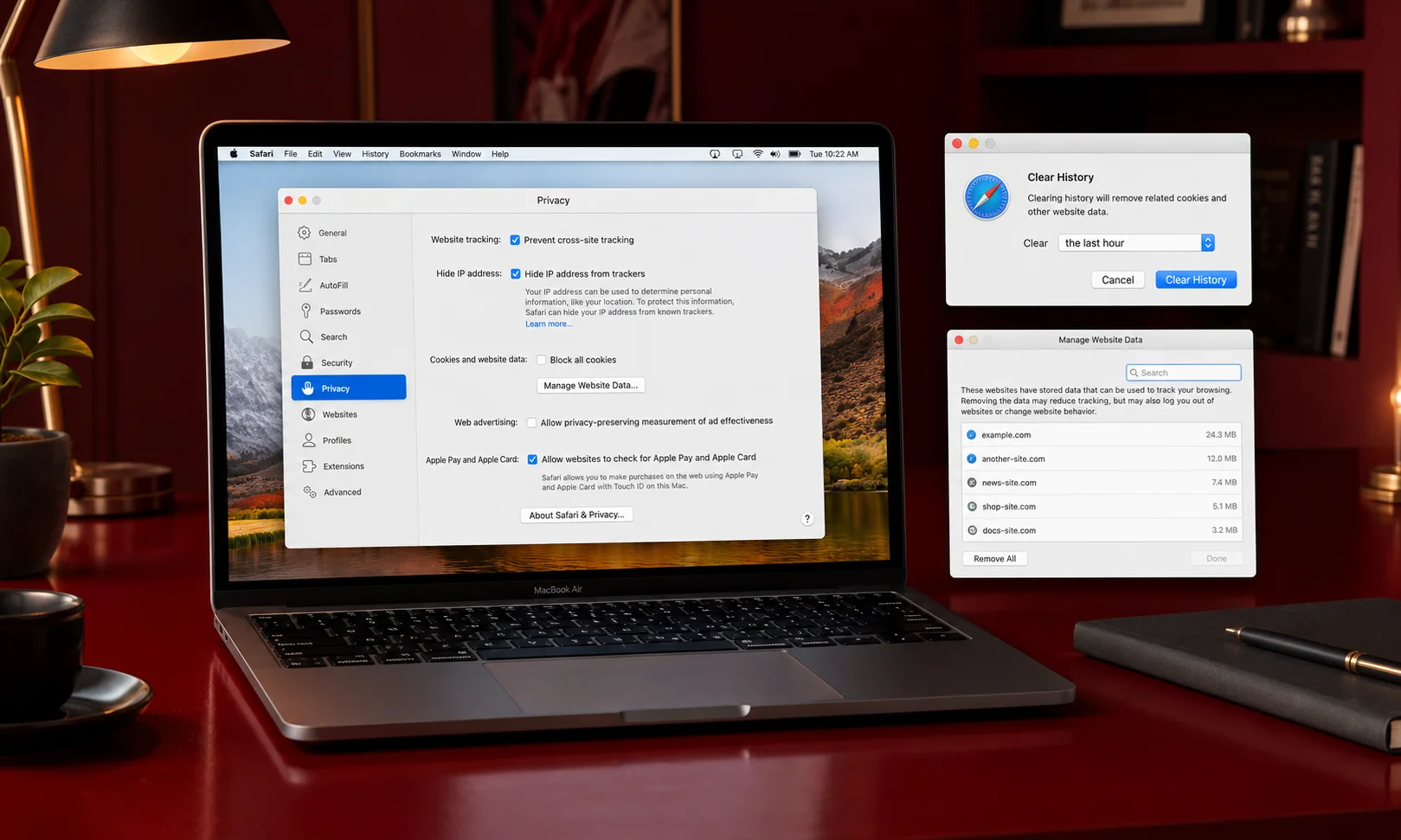
Not every cache serves the same purpose. Understanding the different types helps you know what you’re deleting.
User Cache
User cache belongs to your personal account. Apps save temporary files here to improve everyday performance.
This is usually the safest cache to clear because the files are recreated automatically whenever necessary.
Examples include:
- Image previews
- Temporary downloads
- App preferences
- Cached media files
System Cache
System cache is created by macOS itself. It stores temporary operating system data that helps your Mac run efficiently.
Unlike user cache, system cache should be handled carefully. While temporary files can be removed when troubleshooting, deleting the wrong folders may create unnecessary issues.
If your Mac is working normally, there is often no need to clear system cache regularly.
Browser Cache
Every web browser stores cached files to speed up browsing.
These files include:
- Images
- Website styles
- JavaScript files
- Videos
- Cookies (stored separately in many browsers)
Although browser cache improves speed, it can also cause websites to display outdated content. Clearing browser cache often fixes loading errors and formatting problems.
App Cache
Many apps create their own cache folders.
Examples include:
- Photo editing software
- Music applications
- Messaging apps
- Video editing programs
- Productivity tools
Large creative apps sometimes generate several gigabytes of temporary cache files. If an app behaves unexpectedly, clearing its cache may solve the issue without reinstalling it.
System Cache vs User Cache vs Browser Cache
| Cache Type | Purpose | Safe to Clear? | Best Time to Clear |
|---|---|---|---|
| User Cache | Stores temporary app files | Yes | When storage is low or apps misbehave |
| System Cache | Helps macOS run efficiently | Usually, with care | During troubleshooting |
| Browser Cache | Speeds up websites | Yes | When websites load incorrectly |
| App Cache | Stores temporary app data | Yes | If a specific app has problems |
Knowing the difference helps you avoid deleting files you don’t need to touch.
How to Clear User Cache on Mac
Removing user cache is one of the safest ways to free storage.
Open the Cache Folder
- Open Finder.
- Click Go from the menu bar.
- Select Go to Folder.
- Type:
~/Library/Caches- Press Return.
You will now see folders created by different apps installed on your Mac.
Delete Cache Files
Open the folders belonging to apps you no longer use or those causing problems. Delete only the cached files inside those folders instead of removing the entire application folder.
Finally, move the deleted files to the Trash.
Restart Your Mac
After clearing cache, restart your Mac. This allows the operating system and your apps to rebuild fresh cache files where needed.
In many cases, you’ll notice smoother performance, fewer glitches, and extra available storage.
How to Clear System Cache on Mac
System cache helps macOS run smoothly by storing temporary files used by the operating system. Most users rarely need to clear it, but it can help if your Mac is acting unusually after an update or experiencing persistent issues.
Open the System Cache Folder
- Open Finder.
- Click Go in the menu bar.
- Choose Go to Folder.
- Enter:
/Library/Caches- Press Return.
You’ll see cache folders created by macOS and installed applications.
Remove Cache Files Carefully
Only delete the contents of cache folders if you’re confident they are temporary files. Avoid deleting folders unless you know what they contain.
After deleting the files, empty the Trash and restart your Mac. macOS will automatically create new cache files as needed.
How to Clear Safari Cache
Safari stores website data to make pages load faster. If websites look broken or display outdated information, clearing the cache can help.
Steps
- Open Safari.
- Open Settings (or Preferences on older macOS versions).
- Go to the Advanced tab.
- Turn on Show Develop menu in menu bar if it isn’t already enabled.
- Click Develop in the menu bar.
- Select Empty Caches.
If you also want to remove browsing history and cookies, go to History and choose Clear History.
How to Clear Chrome Cache
If you use Google Chrome, clearing the browser cache can solve loading issues and free up storage.
Steps
- Open Google Chrome.
- Click the three-dot menu.
- Choose Delete Browsing Data.
- Select a time range such as All Time.
- Check Cached images and files.
- Click Delete Data.
You can leave browsing history and saved passwords unchecked if you only want to remove cached files.
How to Clear Firefox Cache

Firefox also stores temporary website files to improve browsing speed.
Steps
- Open Firefox.
- Click the menu button.
- Select Settings.
- Open Privacy & Security.
- Scroll to Cookies and Site Data.
- Click Clear Data.
- Select Cached Web Content.
- Click Clear.
The browser may take a few moments to remove all cached files.
How to Clear App Cache
Many applications store temporary files that continue growing over time. Clearing app cache can fix bugs and recover storage.
Navigate to:
~/Library/CachesLocate the folder for the app causing problems.
Delete only the cache files inside that folder. Restart the application afterward so it can generate fresh temporary files.
If you’re unsure which folder belongs to an app, leave it untouched.
How to Flush DNS Cache on Mac
DNS cache stores website address information to speed up future connections. Flushing it can help if websites refuse to load or point to the wrong server.
Steps
- Open Terminal.
- Enter the appropriate command for your macOS version.
- Press Return.
- Enter your administrator password if prompted.
After the command finishes, the DNS cache is cleared.
If you’re unsure which command matches your macOS version, check Apple’s latest support documentation before proceeding.
When Should You Clear Cache?
There’s no need to clear cache every day. In most cases, doing it only when necessary is enough.
Good times to clear cache include:
- Your Mac feels slower than usual.
- Storage space is running low.
- Apps keep crashing.
- Websites won’t load correctly.
- Pages show outdated content.
- You recently updated macOS.
- An application behaves unexpectedly.
Clearing cache occasionally keeps temporary files from building up without affecting normal performance.
Common Mistakes to Avoid
Many users accidentally create new problems while trying to clean their Mac.
Avoid these common mistakes:
| Mistake | Better Approach |
|---|---|
| Deleting unknown system files | Delete only cache files. |
| Removing entire application folders | Delete cached content instead. |
| Clearing cache every day | Do it only when needed. |
| Forgetting to restart | Restart after major cache cleanup. |
| Assuming cache fixes every issue | Check storage, memory, and software updates too. |
Expert Tips
A few simple habits can keep your Mac running smoothly without constantly deleting cache.
- Keep at least 15–20% of your storage free.
- Restart your Mac regularly.
- Remove apps you no longer use.
- Update macOS and your applications.
- Empty the Trash after deleting cache files.
- Review large files using Storage Management.
- Clear browser cache if websites behave unexpectedly.
These small steps often improve performance more than frequent cache cleaning.
Cache Cleaning Checklist
Use this quick checklist whenever you decide to clean your Mac.
- Back up important files.
- Close running applications.
- Clear browser cache if needed.
- Remove user cache.
- Clear app cache for problematic apps.
- Clear system cache only if necessary.
- Empty the Trash.
- Restart your Mac.
- Check available storage.
- Test your apps and browser afterward.
Frequently Asked Questions
Does clearing cache delete my files?
No. Cache files are temporary and do not include your personal documents, photos, or videos.
Will clearing cache make my Mac faster?
It can improve performance if temporary files have become outdated or excessively large. However, it won’t solve every performance issue.
How often should I clear cache?
Most users only need to clear cache every few months or when they notice problems.
Can clearing cache free storage?
Yes. Some apps and browsers store several gigabytes of temporary files over time.
Will I lose saved passwords?
Not if you only clear cached files. Passwords are usually stored separately unless you choose to remove them.
Is it safe to delete everything inside the Caches folder?
Generally, deleting cache contents is safe, but avoid removing unknown system files or folders unless you understand their purpose.
Why do websites load slowly after clearing cache?
Your browser must download fresh copies of images and other website resources. Loading speed usually returns to normal after the first visit.
Should I use a Mac cleaning app?
macOS includes built-in tools that are enough for most users. If you choose a third-party cleaner, download it only from a trusted developer and review what it removes before confirming.
Conclusion
Cache helps your Mac work faster by storing temporary files, but those files can grow over time and occasionally cause problems. Clearing user, browser, or app cache is a simple way to recover storage and fix minor issues without affecting your personal data.
You don’t need to clean your cache regularly. Instead, do it when your Mac feels slow, websites stop loading correctly, or an app starts behaving unexpectedly. By following the steps in this guide and deleting only temporary files, you can keep your Mac running smoothly and avoid unnecessary issues.