
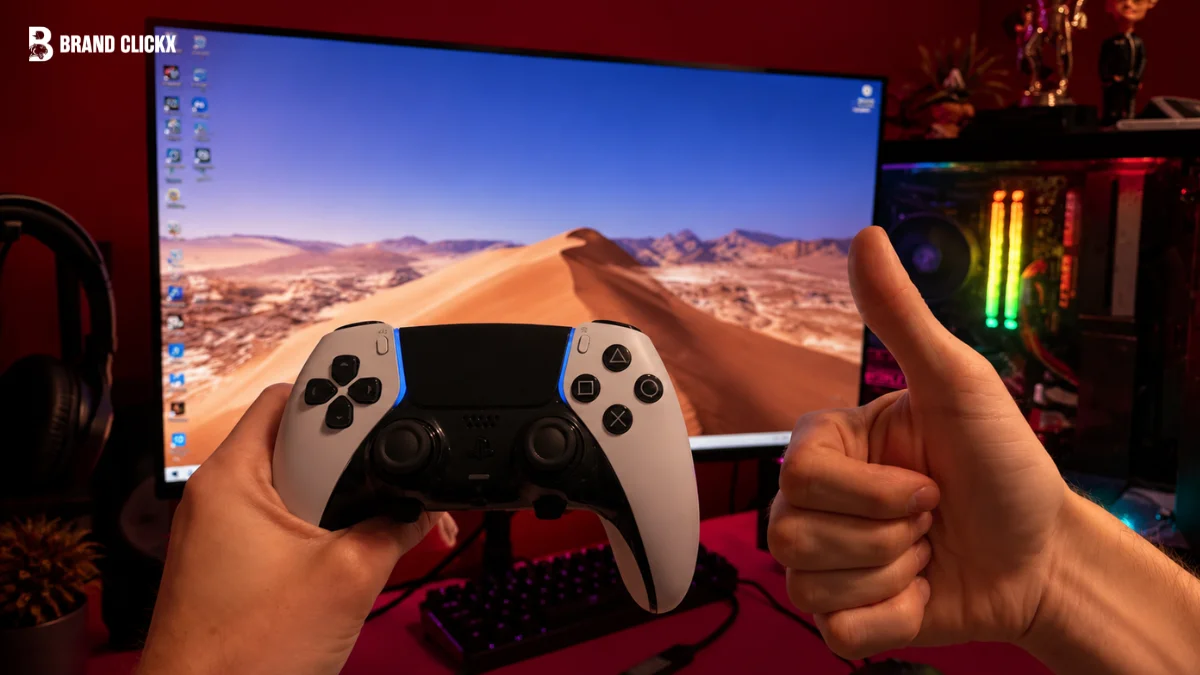
You finally sit down to play on your PC, connect your PS5 controller, and expect everything to work instantly. Instead, Windows may not detect it, Bluetooth may refuse to pair, or your game may recognize the controller but ignore your inputs.
If you’re wondering how to connect a PS5 controller to PC, the process is actually simpler than it first appears. You can use a USB-C cable for a quick wired connection or pair the DualSense through Bluetooth for wireless gaming.
Steam can also help with compatibility when a game does not support the controller directly.
In this guide, you’ll learn how to connect your PS5 DualSense to a Windows PC, set it up for Steam and non-Steam games, use compatible DualSense features, and troubleshoot the problems that can stop your controller from working properly.
How to Connect a PS5 Controller to PC at a Glance
You can connect a PS5 DualSense controller to a Windows PC in two main ways: with a USB-C cable or Bluetooth. For USB, plug the controller into the PC with a data-capable USB-C cable and let Windows detect it.
For Bluetooth, put the controller into pairing mode by holding the PS and Create buttons, then select Wireless Controller from Windows Bluetooth settings. Once connected, you can configure the controller in Steam or use it with compatible PC games.
Key Takeaways
- USB is the simplest wired option: Connect the DualSense with a USB-C data cable for a direct connection.
- Bluetooth gives you wireless freedom: Pair the controller through Windows Bluetooth settings without keeping a cable attached.
- Steam can improve compatibility: Steam Input can help games recognize the DualSense when native support is unavailable.
- Not every game supports every DualSense feature: Basic controls are broadly useful, while haptic feedback and adaptive triggers depend on the game and its PC implementation.
- A charging-only cable can cause problems: If Windows charges the controller but does not detect it, try a USB-C cable that supports data transfer.
- Troubleshooting starts with the basics: Check the cable or Bluetooth pairing, reconnect the controller, restart the relevant software, and update firmware before assuming the controller is faulty.
What You Need Before Connecting a PS5 Controller
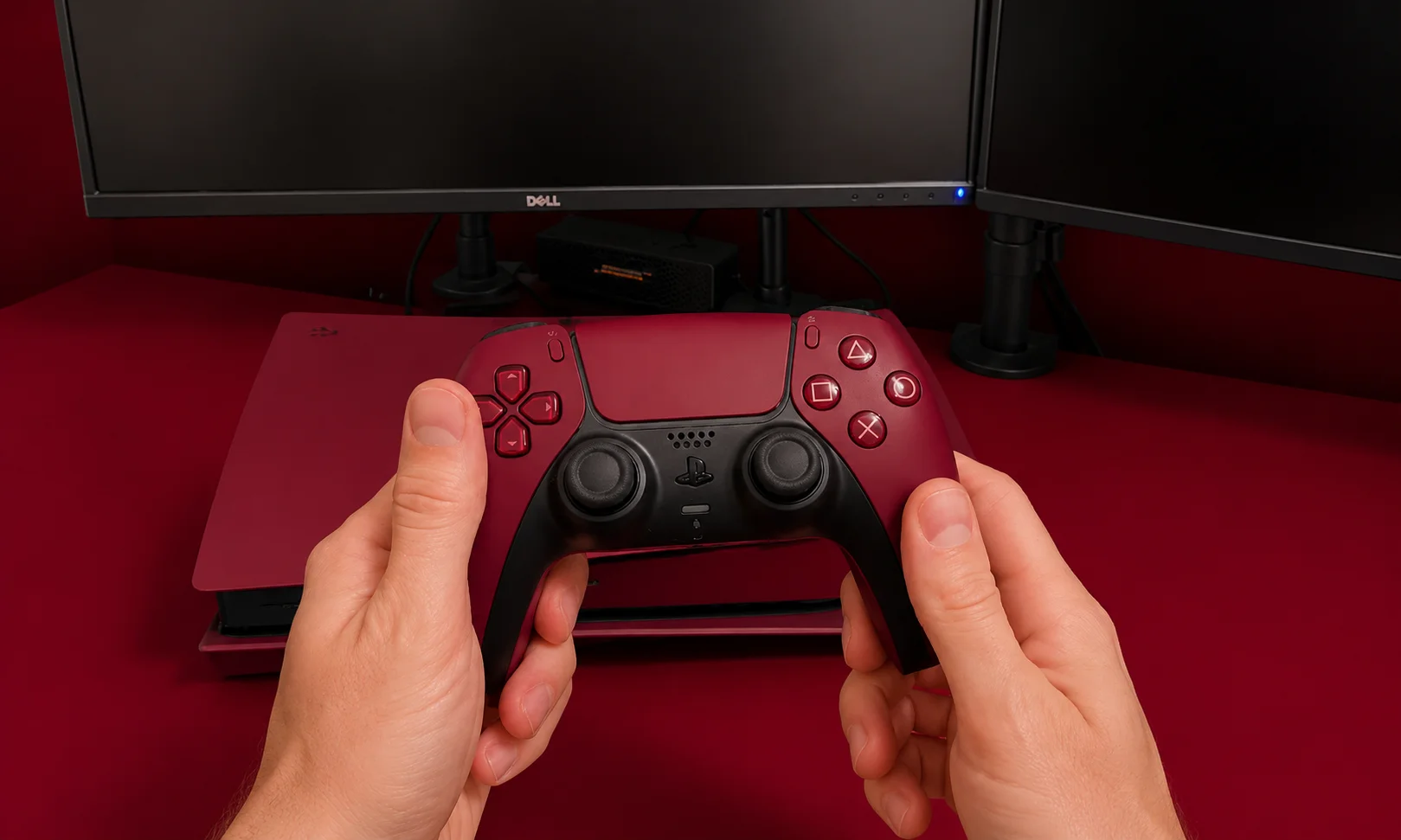
Before pairing your DualSense with a PC, check which connection method you want to use. Both are simple, but the requirements are slightly different.
USB Connection Requirements
For a wired connection, you need your PS5 DualSense controller and a USB-C cable that supports data transfer, not just charging. Plug the cable into an available USB port on your PC.
A data cable matters because a charging-only cable can power the controller without allowing Windows to communicate with it.
Bluetooth Connection Requirements
For a wireless connection, your PC needs working Bluetooth. Most modern laptops have it built in, while some desktop PCs may need a compatible Bluetooth adapter.
Keep the controller charged enough for pairing and make sure it is not actively connected to another device.
Windows 10 and Windows 11 Compatibility
The DualSense can be used with Windows PCs, but how well it works depends on the game and software. Basic controller input is widely supported, while features such as adaptive triggers and haptic feedback require compatible games and implementations.
With those requirements checked, you can connect the controller directly through USB or pair it wirelessly over Bluetooth.
How to Connect a PS5 Controller to PC With USB
If you want the quickest and most reliable way to use a PS5 controller on PC, start with USB. There is no Bluetooth pairing to deal with, and Windows can usually recognize the DualSense as soon as you connect it.
Connect the DualSense With a USB-C Data Cable
Plug the USB-C end into the port on your PS5 controller and connect the other end to your PC.
Make sure the cable supports data transfer. Some USB-C cables are designed only for charging, which can leave the controller powered on without allowing the PC to recognize it properly.
Let Windows Detect the Controller
After connecting the controller, give Windows a moment to detect it. You may see a notification that a new device has been connected, but you do not necessarily need to install a separate driver manually.
Press the PS button on the DualSense if the controller does not appear to be active.
Once Windows recognizes it, you can open your game or Steam and check whether the controller responds.
Check That the Controller Is Working
Before troubleshooting your game, first confirm that Windows can see the controller.
If the controller is detected but the game does not respond, the problem may be the game’s controller configuration rather than the USB connection itself. Steam Input or the game’s own controller settings may be needed.
What to Do if the Controller Only Charges
If the DualSense lights up or charges but Windows does not detect it, the USB cable is one of the first things to check.
Try a different USB-C cable that is known to support data transfer. You can also try another USB port on the PC and reconnect the controller.
If it still is not detected, restart Windows and reconnect the controller before moving on to more advanced troubleshooting. This simple check often separates a cable or USB-port problem from a software or game-compatibility problem.
How to Connect a PS5 Controller to PC With Bluetooth
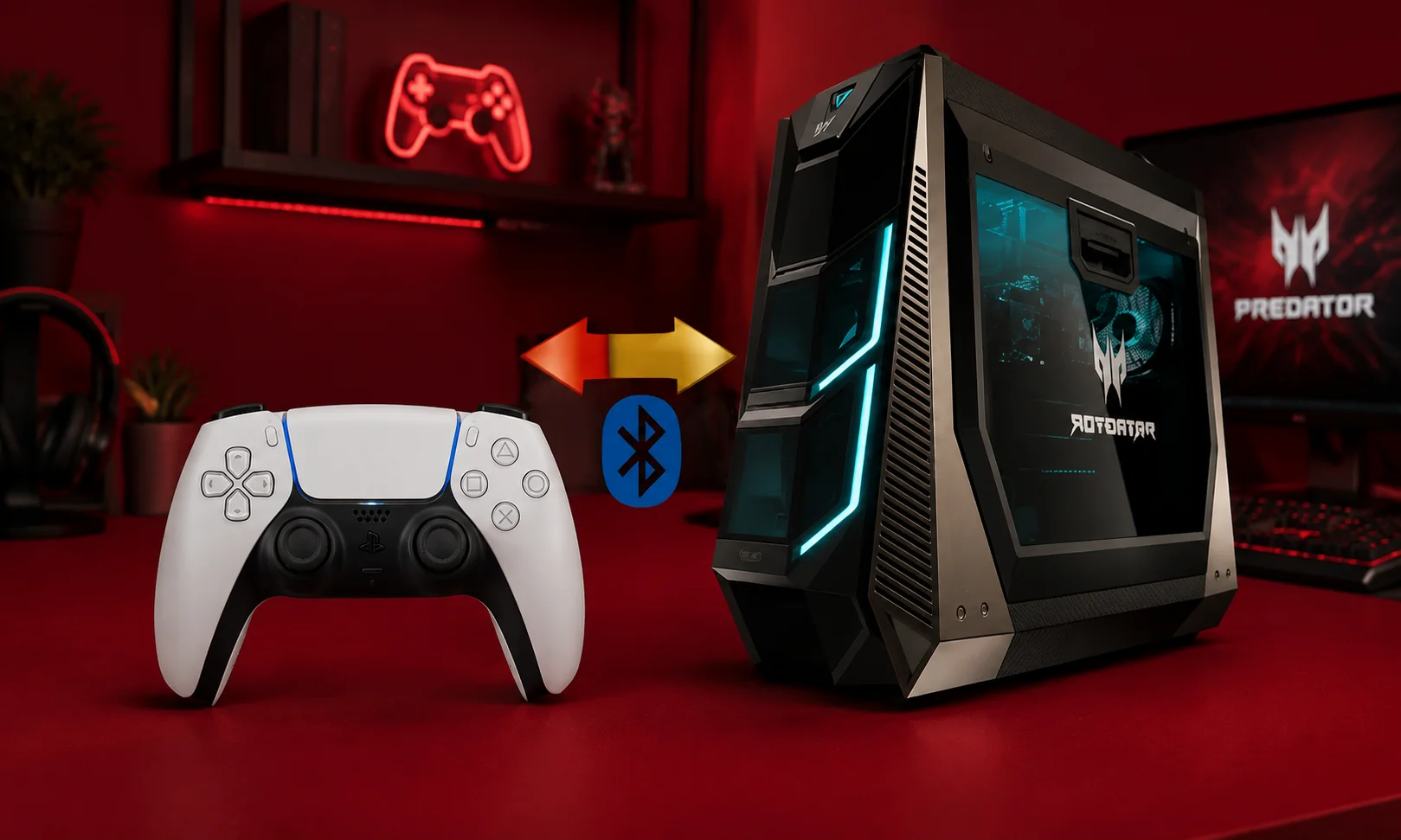
Bluetooth is the better option when you want to use your PS5 controller without keeping a USB cable connected. The setup takes a little longer than plugging it in, but once paired, the DualSense can reconnect wirelessly.
Put the DualSense Into Pairing Mode
First, make sure the controller is turned on or ready to pair.
Press and hold the PS button and Create button at the same time until the light around the touchpad begins flashing. The flashing light indicates that the DualSense is searching for a Bluetooth device.
If the controller is already connected to another device, disconnect it first and repeat the pairing process.
Open Bluetooth Settings in Windows
On your Windows PC, open Settings and go to:
Bluetooth & devices → Add device → Bluetooth
Make sure Bluetooth is switched on before searching for nearby devices.
Windows will scan for available Bluetooth devices. Keep the controller close to the PC while the search is running.
Select “Wireless Controller”
When the DualSense appears in the available-device list, look for Wireless Controller and select it.
Windows should complete the pairing process within a few moments. Once connected, the controller should appear as a paired Bluetooth device.
You can now open Steam or a compatible PC game and test the controller.
Test the Wireless Connection
Before launching a demanding game, check that the controller responds correctly.
If Windows shows the controller as connected but the game does not respond, the Bluetooth connection itself may not be the problem. The game may require Steam Input, native DualSense support, or another compatible controller configuration.
What If Your PC Does Not Have Bluetooth?
Some desktop PCs do not include built-in Bluetooth. In that case, you need a compatible Bluetooth adapter before you can pair the DualSense wirelessly.
If Bluetooth is available but the controller does not appear, turn Bluetooth off and back on, place the DualSense into pairing mode again, and search for Wireless Controller once more.
If the controller was previously paired with the PC but refuses to reconnect, removing the old Bluetooth entry and pairing it again can also help.
How to Set Up a PS5 Controller on Steam
Connecting the DualSense to Windows is only the first step. If you play through Steam, checking Steam’s controller configuration can make the difference between a controller that is detected and one that actually works in your game.
Check the Controller in Steam
Open Steam and go to its controller settings to see whether the DualSense is recognized.
If Steam detects the controller, you can check its input and configuration options before launching your game. This is useful for confirming that the connection is working at the Steam level rather than troubleshooting inside the game first.
When to Use Steam Input
Steam Input can help when a game does not have direct DualSense support. It allows Steam to translate controller input into a format that the game can understand.
However, you do not always need Steam Input. Some PC games have native DualSense support, which can provide access to features such as adaptive triggers or haptic feedback. In those cases, the game’s native implementation may be preferable.
If a game is not responding to your controller, try checking its Steam controller configuration rather than immediately assuming the DualSense or Bluetooth connection is faulty.
Test the Controller Before Starting a Game
Once Steam recognizes the controller, test the buttons and sticks before launching your game.
If the controller works in Steam but stops responding after the game starts, the issue is more likely related to that game’s controller support or input configuration. Checking whether the title supports DualSense natively can help you choose between native input and Steam Input.
How to Use a PS5 Controller With Non-Steam Games
A PS5 controller can work with games outside Steam, but compatibility is less consistent because each launcher and game can handle controller input differently. If your DualSense works in Windows or Steam but not in a particular game, the game’s own controller support is worth checking first.
Epic Games
Epic Games titles may recognize a DualSense directly when the game supports it. If the controller is connected but the game does not respond, you may need a compatible input configuration or another controller-translation method.
Do not assume that every Epic Games title supports the DualSense in the same way. Controller behavior can vary from one game to another.
Xbox Game Pass
Game Pass support also depends on the individual game. Some PC titles may recognize the DualSense, while others are designed primarily around Xbox/XInput controllers.
If a Game Pass title does not respond to your controller, check its controller requirements before changing your Windows or Bluetooth setup.
EA App and Battle.net
The same principle applies to games launched through the EA App or Battle.net. The launcher itself does not guarantee that every game will support every DualSense feature.
If basic input is unavailable, a compatibility solution may be necessary. If basic controls work but features such as haptic feedback or adaptive triggers do not, the limitation may simply be the game’s implementation.
When DS4Windows Is Useful
DS4Windows can be useful when a game does not recognize the DualSense correctly and you need a compatibility layer that presents controller input in a format the game understands.
It should not be treated as a required step for every PC setup. If Windows and your game already recognize the DualSense correctly, adding another software layer is unnecessary.
Before using it, try the game’s native controller support or Steam Input where applicable. This keeps your setup simpler and makes troubleshooting easier.
USB vs. Bluetooth: Which Connection Should You Use?
Both methods work, but the better choice depends on whether you care more about reliability or convenience.
| Feature | USB | Bluetooth |
| Setup | Very simple | Simple after pairing |
| Wireless | No | Yes |
| Battery | Not required for the connection | Required |
| Stability | Generally very stable | Can vary with signal and interference |
| Latency | Generally lowest | Can be slightly more variable |
| Convenience | Requires a cable | Cable-free |
| DualSense features | Better support in some games | Feature support varies |
USB Is Better for Wired Reliability
Choose USB if you want the most straightforward setup or are playing games where consistent input matters.
A wired connection also removes Bluetooth pairing and wireless interference from the equation. If you are troubleshooting an unreliable wireless connection, switching to USB is a useful way to determine whether Bluetooth is the source of the problem.
Bluetooth Is Better for Wireless Convenience
Bluetooth makes the DualSense easier to use from a distance and keeps your desk free from another cable.
It is a good choice for casual gaming and situations where convenience matters more than having a wired connection. Just remember that the controller needs battery power, and wireless performance can depend on the PC’s Bluetooth hardware and surrounding interference.
Which One Should You Choose?
For the simplest and most predictable connection, USB is the better starting point. If you want a cable-free setup and your PC has reliable Bluetooth, Bluetooth is the more convenient option.
For advanced DualSense features, compatibility depends on the individual game and how it implements controller support, so the connection method alone does not guarantee haptic feedback or adaptive triggers.
Do DualSense Features Work on PC?
Getting the PS5 controller connected is only part of the experience. The DualSense has features that can go beyond basic buttons and analog-stick input, but PC support depends heavily on the individual game and how its developers implemented DualSense support.
Adaptive Triggers
Adaptive triggers can change the resistance of the L2 and R2 buttons to create different sensations during gameplay.
On PC, this feature is game-dependent. A controller connection by itself does not guarantee that adaptive triggers will work, so check whether the specific game provides native DualSense support.
Haptic Feedback
The DualSense uses haptic feedback to provide more detailed vibration effects than traditional rumble.
Some PC games support these effects, but availability varies. If a game only recognizes the controller through a compatibility layer, you may get basic input without the full DualSense feature set.
Motion Controls and Touchpad
The DualSense also includes a touchpad and motion sensors. Whether these features work on PC depends on the game and its controller implementation.
For basic PC gaming, you generally do not need to configure these separately. If a particular game supports them, follow that game’s controller settings or documentation.
Headset, Speaker, and Microphone
The DualSense includes audio-related hardware, but PC support can vary depending on the connection method, Windows configuration, and the game or application.
If you connect a headset to the controller and Windows does not use it automatically, check the available audio input and output devices in Windows and select the appropriate controller-related device.
DualSense Feature Compatibility at a Glance
| Feature | PC Support |
| Buttons and analog sticks | Broad support |
| Touchpad | Game-dependent |
| Motion controls | Game-dependent |
| Haptic feedback | Game-dependent |
| Adaptive triggers | Game-dependent |
| Headset/audio | Depends on Windows and software support |
| Built-in microphone | Depends on Windows and software support |
The important distinction is that connecting a DualSense to your PC does not automatically unlock every PS5 feature. Native game support is usually the deciding factor for advanced features.
How to Update a PS5 Controller on PC
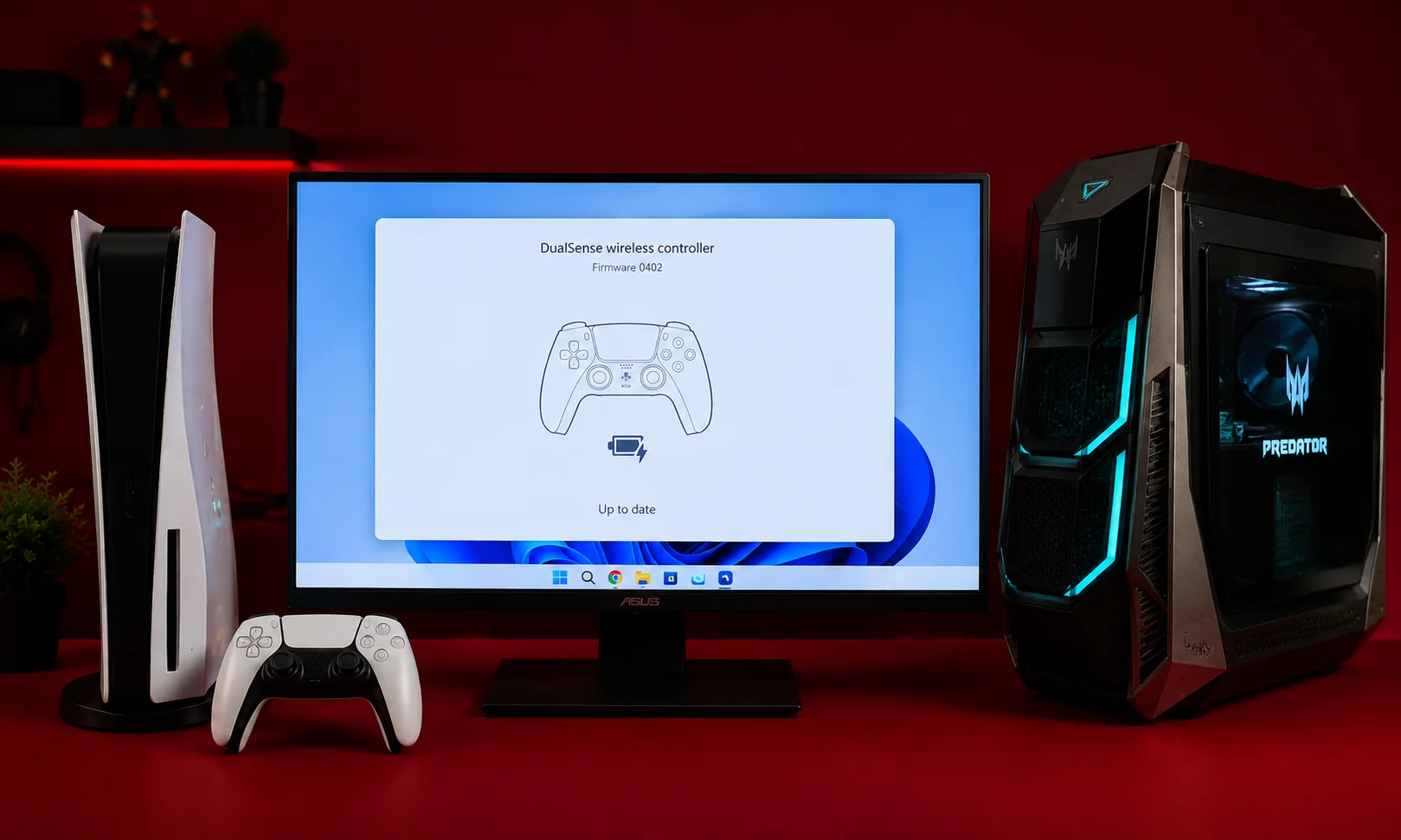
If your DualSense connects but behaves inconsistently, updating its firmware is a useful step before moving into more complicated troubleshooting. Firmware updates can improve compatibility, stability, and controller behavior.
Why DualSense Firmware Matters
Controller firmware controls how the DualSense communicates with compatible devices. Keeping it updated can help avoid problems caused by outdated controller software.
You do not need to update the firmware every time you connect the controller. It is mainly worth checking when you are experiencing compatibility or connection problems.
Update the Controller With Sony’s PC Software
Sony provides PC software for managing and updating compatible PlayStation controllers.
Connect the DualSense to your PC using a USB-C data cable, open Sony’s controller software, and follow the on-screen instructions if an available firmware update is offered.
Keep the controller connected during the update and avoid interrupting the process.
When Should You Update the Firmware?
If the controller works normally, there is no reason to treat a firmware update as the first step.
If Windows repeatedly fails to detect the DualSense, Bluetooth pairing is unreliable, or the controller behaves unexpectedly across different games, checking for a firmware update is a sensible troubleshooting step before resetting the controller or changing your entire setup.
PS5 Controller Not Connecting to PC? Try These Fixes
A DualSense can fail at several different points: Windows may not detect it, Bluetooth may not find it, or the controller may connect successfully but fail inside a game. The quickest approach is to identify where the connection breaks instead of changing several settings at once.
Windows Does Not Detect the Controller
If you connected the DualSense with USB but Windows does not recognize it, start with the simplest checks.
Try another USB port and, more importantly, another USB-C cable that supports data transfer. A cable that only charges the controller can make it appear powered while preventing Windows from communicating with it.
If the controller still does not appear, disconnect it, restart Windows, and reconnect it after the PC has fully started.
The Controller Does Not Appear in Bluetooth
First, make sure the DualSense is actually in pairing mode. Hold the PS and Create buttons together until the light begins flashing.
If Windows still cannot find the Wireless Controller, turn Bluetooth off and back on and search again. If the controller was previously paired but has stopped reconnecting, remove its old Bluetooth entry and pair it again.
Also make sure the controller is not currently connected to another nearby device.
The Controller Connects but Does Not Work in a Game
This usually means the physical connection is working, but the game does not support the controller in the same way Windows does.
If you are using Steam, check the game’s controller configuration and Steam Input settings. For non-Steam games, check whether the specific title supports DualSense or expects an XInput-compatible controller.
If the controller works in Windows or Steam but not in one particular game, the game itself is an important part of the troubleshooting process.
The Controller Keeps Disconnecting
For Bluetooth connections, check the controller’s battery level and make sure the PC’s Bluetooth signal is reliable. Wireless interference or a weak Bluetooth adapter can also affect stability.
For USB connections, try another cable and USB port. If the problem occurs across multiple games and connection methods, checking for a DualSense firmware update is also worthwhile.
Steam Does Not Recognize the Controller
If Windows sees the DualSense but Steam does not, completely close and reopen Steam after reconnecting the controller.
Then check Steam’s controller settings to confirm whether the DualSense is being detected. If it appears there but a specific game still does not respond, review that game’s controller configuration and Steam Input settings.
Avoid installing additional controller software immediately. First determine whether the issue is with Windows, Steam, or the individual game.
Reset the DualSense
If pairing and connection problems continue after checking the cable, Bluetooth settings, Steam configuration, and firmware, resetting the controller can be a final troubleshooting step.
The DualSense has a small reset button on the back of the controller. Use an appropriate small object to press it, then reconnect the controller and repeat the USB or Bluetooth setup.
If the controller still fails across different cables, USB ports, and PCs, the problem may be hardware-related rather than a Windows configuration issue.
Which PC Games Support DualSense Features?
Connecting a PS5 controller to your PC does not mean every game will automatically use all of its DualSense features. Basic controls are generally easier to support, while features such as adaptive triggers and advanced haptic feedback require the game to implement them.
Games With Native DualSense Support
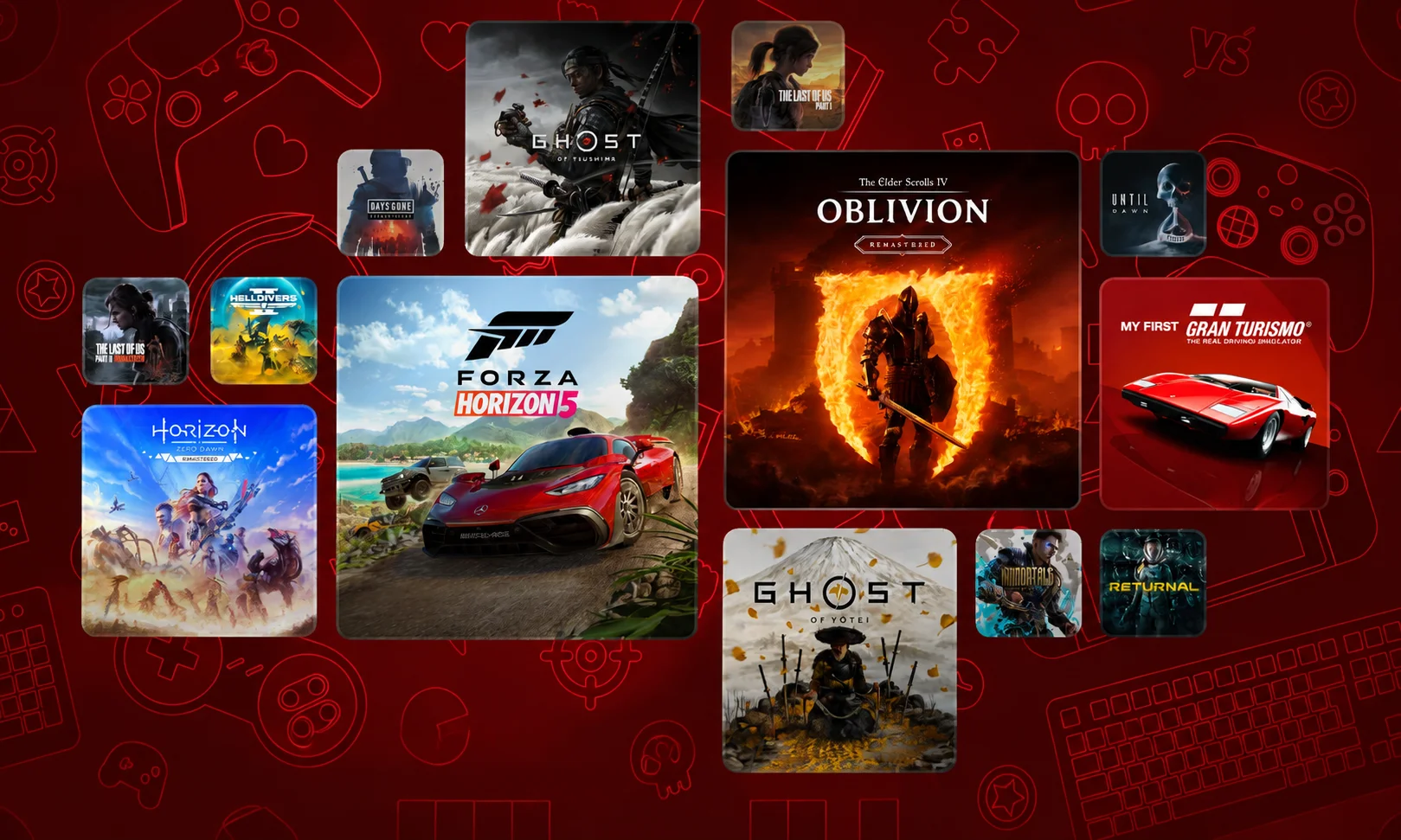
Some PC games provide native DualSense support, allowing compatible features to work without treating the controller as a generic gamepad.
When a game has native support, you may be able to use features such as adaptive triggers and more detailed haptic feedback. The exact features can still depend on the game, connection method, and its PC implementation.
Because game support changes over time, check the individual game’s current PC requirements or official documentation rather than assuming that a feature available on PS5 is also available on PC.
Why Some Games Show Xbox Button Prompts
Seeing Xbox-style button prompts does not necessarily mean your PS5 controller is broken.
Many PC games are designed around XInput, the controller-input standard commonly associated with Xbox controllers. When the DualSense is translated into an XInput-compatible format through Steam Input or another compatibility layer, the game may display Xbox button labels even though you are physically using a PS5 controller.
If the game supports native DualSense input, switching to that mode may provide PlayStation button prompts and, where supported, additional DualSense features.
The key is to separate controller detection from feature support: if the sticks and buttons work, the controller is connected even if the on-screen prompts do not match the DualSense layout.
The Fastest Setup for Most PC Gamers
If you simply want your PS5 controller working on your PC, you do not need to change a long list of settings.
Start with the connection that best matches how you want to play.
Choose USB for the Simplest Wired Setup
Connect the DualSense with a USB-C data cable and let Windows detect it. This is usually the easiest starting point because there is no Bluetooth pairing to configure.
If Steam recognizes the controller, you can launch your game and test it. If the game does not respond, check its controller settings or Steam Input rather than reconnecting the controller repeatedly.
Choose Bluetooth for Cable-Free Gaming
For wireless gaming, put the DualSense into pairing mode by holding the PS and Create buttons until the light flashes.
Then open Windows Settings → Bluetooth & devices → Add device → Bluetooth and select Wireless Controller.
Once Windows reports that the controller is connected, test it in Steam or your game.
If It Still Does Not Work, Follow This Order
Avoid changing several settings at once. Check the connection in this order:
- USB: Try another USB-C data cable and USB port.
- Bluetooth: Re-enter pairing mode and remove an old Bluetooth pairing if necessary.
- Windows: Restart the PC and reconnect the controller.
- Steam: Check whether Steam detects the DualSense and review Steam Input.
- Game: Confirm whether the individual game supports DualSense.
- Firmware: Check for a controller firmware update.
- Reset: Reset the DualSense only after the simpler checks fail.
This approach makes it easier to identify whether the problem comes from the controller, Windows, Steam, or the game itself.
Final Recommendation
For most PC gamers, start with USB if you want the quickest and most predictable setup. A USB-C data cable removes Bluetooth pairing from the equation and makes it easier to determine whether the controller itself is working.
If you prefer a cable-free setup, Bluetooth is a convenient alternative. Pair the DualSense through Windows, then check Steam or the individual game’s controller support.
And if everything looks connected but the game still refuses to respond, do not immediately assume the controller is faulty. Check the game, Steam Input, cable or Bluetooth connection, and firmware in that order.
The goal is simple: connect the DualSense, make sure Windows sees it, configure the game if necessary, and start playing.
Frequently Asked Questions About PS5 Controllers on PC
Can you connect a PS5 controller to a PC?
Yes. You can connect a PS5 DualSense controller to a Windows PC using a USB-C data cable or Bluetooth. Games may require additional configuration depending on their controller support.
Is USB better than Bluetooth for a PS5 controller?
USB is generally the better choice when you want a simple, stable wired connection. Bluetooth is more convenient if you prefer playing without a cable.
Does Steam support the PS5 DualSense controller?
Yes. Steam supports the DualSense, and Steam Input can help with games that do not provide native DualSense support. The exact behavior depends on the game.
Do you need DS4Windows for a PS5 controller?
No. DS4Windows is not required for every setup. It can be useful when a particular game does not recognize the DualSense correctly, but native game support or Steam Input may already be enough.
Why won’t my PS5 controller connect to my PC?
Common causes include a charging-only USB cable, incorrect Bluetooth pairing mode, an old Bluetooth pairing, connection problems, or game-specific compatibility. Start by checking the cable or pairing process before changing advanced settings.
Do PS5 adaptive triggers work on PC?
They can, but support depends on the individual PC game and its DualSense implementation. Connecting the controller alone does not guarantee adaptive trigger functionality.
Does PS5 haptic feedback work on PC?
Some PC games support DualSense haptic feedback, but compatibility varies by game and setup. Basic controller input can work even when advanced haptic features are unavailable.
Can you use a PS5 controller with Game Pass?
It depends on the individual PC Game Pass game. Some games can recognize the DualSense directly, while others may require a compatible input configuration.
How do you update a PS5 controller on PC?
Sony provides PC software that can be used with compatible PlayStation controllers. Connect the DualSense with a USB-C data cable and follow the software’s instructions if a firmware update is available.
Can you use a PS5 controller wirelessly without Steam?
Yes. Steam is not required to establish a Bluetooth connection between the DualSense and Windows. Whether a game recognizes the controller afterward depends on that game’s controller support.