

Key Takeaways
- Browser cache stores temporary website files to improve loading speed.
- Clear browser cache can fix loading errors, broken layouts, and outdated website content.
- Cached files are different from cookies and browsing history.
- Clearing only cached images and files usually won’t remove passwords or bookmarks.
- Most users only need to clear their cache when they encounter website issues.
- Every major browser includes a built-in option to clear cached files in just a few clicks.
- Updating your browser regularly helps improve performance and security.
- If clearing the cache doesn’t work, try a hard refresh, disable extensions, or test the website in another browser.
Quick Answer
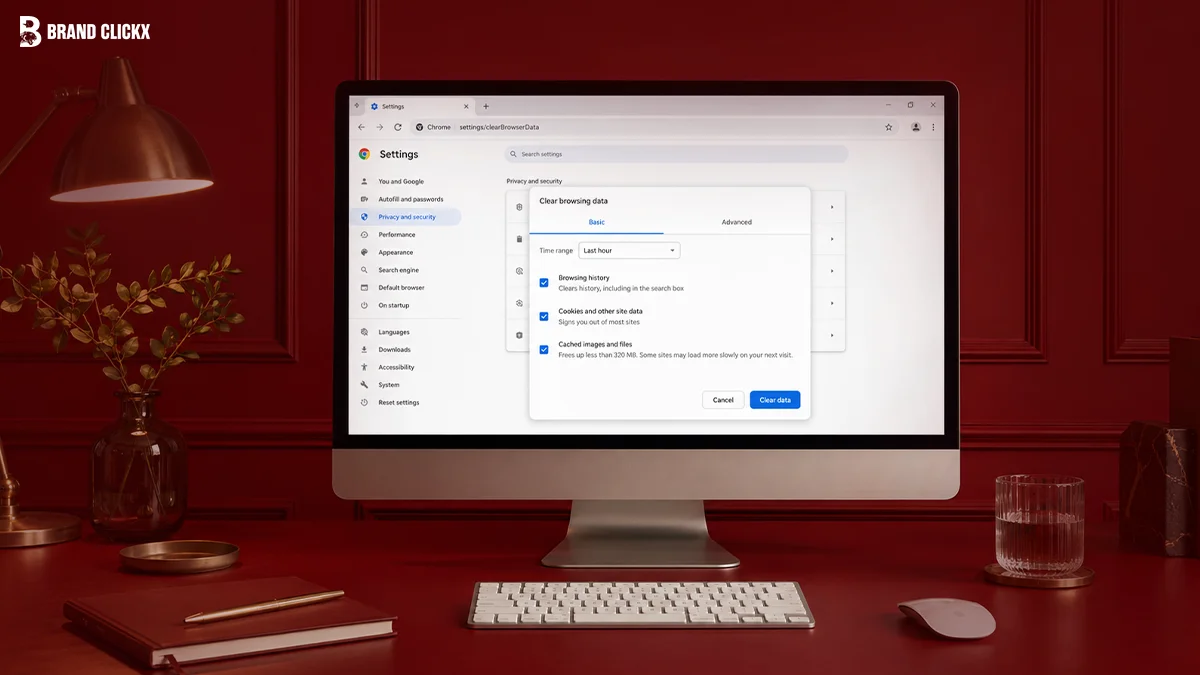
To clear your browser cache, open your browser’s Settings, go to Privacy or Browsing Data, select Cached Images and Files, choose your preferred time range, and click Clear Data.
This removes temporary website files without deleting most of your saved passwords or bookmarks, as long as you don’t select those options.
| Browser | Fastest Way |
|---|---|
| Google Chrome | Settings → Privacy and Security → Clear Browsing Data |
| Microsoft Edge | Settings → Privacy, Search, and Services → Clear Browsing Data |
| Mozilla Firefox | Settings → Privacy & Security → Cookies and Site Data |
| Safari | Settings → Safari → Clear History and Website Data |
| Brave | Settings → Privacy and Security → Clear Browsing Data |
| Opera | Settings → Privacy & Security → Clear Browsing Data |
Have you ever visited a website only to find that it looks broken, won’t load properly, or still shows old content after an update? In many cases, the problem isn’t the website. It’s your browser cache.
Every modern browser stores temporary files to help websites load faster. While this usually improves your browsing experience, those saved files can become outdated or corrupted over time. As a result, you may experience loading errors, display issues, login problems, or missing website updates.
The good news is that clearing your browser cache takes only a few minutes. Whether you use Google Chrome, Microsoft Edge, Mozilla Firefox, Safari, Opera, Brave, or a mobile browser, the process is simple.
This guide explains what browser cache is, why it matters, when you should clear it, and how to do it safely on every major browser in 2026.
What Is Browser Cache?
Browser cache is a collection of temporary files that your web browser saves while you browse the internet. These files can include images, style sheets, JavaScript files, fonts, and other website resources.
Instead of downloading these files every time you visit a website, your browser loads them from local storage. This makes websites open faster and reduces data usage.
For example, if you visit the same news website every morning, your browser may already have its logo, icons, and layout files stored. As a result, only new content needs to be downloaded.
Why Browsers Store Cache
Caching exists to improve speed and performance.
Without cached files, every webpage would have to download every image, script, and design element each time you visit. That would slow down browsing and increase internet usage.
By storing frequently used files, browsers can:
- Load websites faster
- Reduce bandwidth usage
- Improve overall browsing performance
- Deliver a smoother experience on slower internet connections
- Reduce the workload on website servers
Although cache is useful, it isn’t perfect. Old files may conflict with newer website versions, causing unexpected problems.
Benefits of Clearing Browser Cache
Clearing cache doesn’t make your browser permanently faster. Instead, it removes outdated files so your browser can download fresh versions.
Some of the biggest benefits include:
Fixes Website Loading Problems
If a webpage refuses to load correctly, clearing cached files often solves the issue.
Shows Updated Website Content
Website owners regularly update layouts, images, and code. An old cache may continue displaying outdated content until it is cleared.
Resolves Login Issues
Sometimes login pages fail because cached files conflict with updated website settings.
Refreshing the cache can restore normal access.
Removes Corrupted Files
Temporary files occasionally become damaged.
Deleting them allows your browser to create fresh copies automatically.
Frees Some Storage Space
Although browser cache usually doesn’t consume massive storage, clearing it occasionally can recover disk space, especially after months of browsing.
When Should You Clear Your Browser Cache?
You don’t need to clear your cache every day. In fact, frequent clearing may slow down websites temporarily because your browser must download files again.
Instead, clear your cache when you notice problems like these:
| Sign | Why Clearing Cache Helps |
|---|---|
| Website won’t load | Removes damaged files |
| Images are missing | Downloads fresh images |
| Layout looks broken | Replaces outdated CSS files |
| Login isn’t working | Removes conflicting session files |
| Website still shows old content | Loads the latest version |
| Browser feels inconsistent | Eliminates corrupted cached data |
If everything works normally, there’s usually no reason to clear the cache.
Will Clearing Cache Delete Your Data?
This is one of the most common concerns.
In most cases, clearing only cached images and files will not delete:
- Saved passwords
- Bookmarks
- Downloads
- Autofill information
- Browser extensions
However, if you also select options such as Cookies, Saved Passwords, or Browsing History, those items may be removed depending on the browser.
Before clicking Clear Data, always check which options are selected.
How Often Should You Clear Browser Cache?
There isn’t a universal schedule because it depends on how you use the internet.
The table below provides a good starting point.
| User Type | Recommended Frequency |
|---|---|
| Everyday browsing | Every 2–3 months |
| Web developers | Daily or as needed |
| Website owners | After publishing updates |
| Online shoppers | Only when issues appear |
| Students | Every few months |
| Office users | When websites stop working correctly |
Regular maintenance is helpful, but clearing cache too often offers little benefit if your browser is working properly.
How to Clear Cache in Google Chrome
Google Chrome is the world’s most widely used browser, and clearing its cache takes less than a minute.
On Windows and Mac
- Open Google Chrome.
- Click the three-dot menu in the upper-right corner.
- Select Settings.
- Open Privacy and Security.
- Click Clear Browsing Data.
- Choose a Time Range.
- Check Cached Images and Files.
- Leave other options unchecked if you only want to remove cache.
- Click Clear Data.
Once completed, refresh the website that was giving you trouble. Chrome will automatically download fresh website files.
How to Clear Cache in Microsoft Edge
Microsoft Edge uses a process similar to Google Chrome because both browsers are built on Chromium.
On Windows and Mac
- Open Microsoft Edge.
- Click the three-dot menu in the top-right corner.
- Select Settings.
- Open Privacy, Search, and Services.
- Scroll to Clear Browsing Data.
- Click Choose What to Clear.
- Select your preferred Time Range.
- Check Cached Images and Files.
- Click Clear Now.
Reload the webpage afterward. If the issue was caused by outdated files, the latest version should now appear.
How to Clear Cache in Mozilla Firefox
Firefox gives you control over what browsing data you want to remove.
On Windows and Mac
- Open Mozilla Firefox.
- Click the menu button.
- Choose Settings.
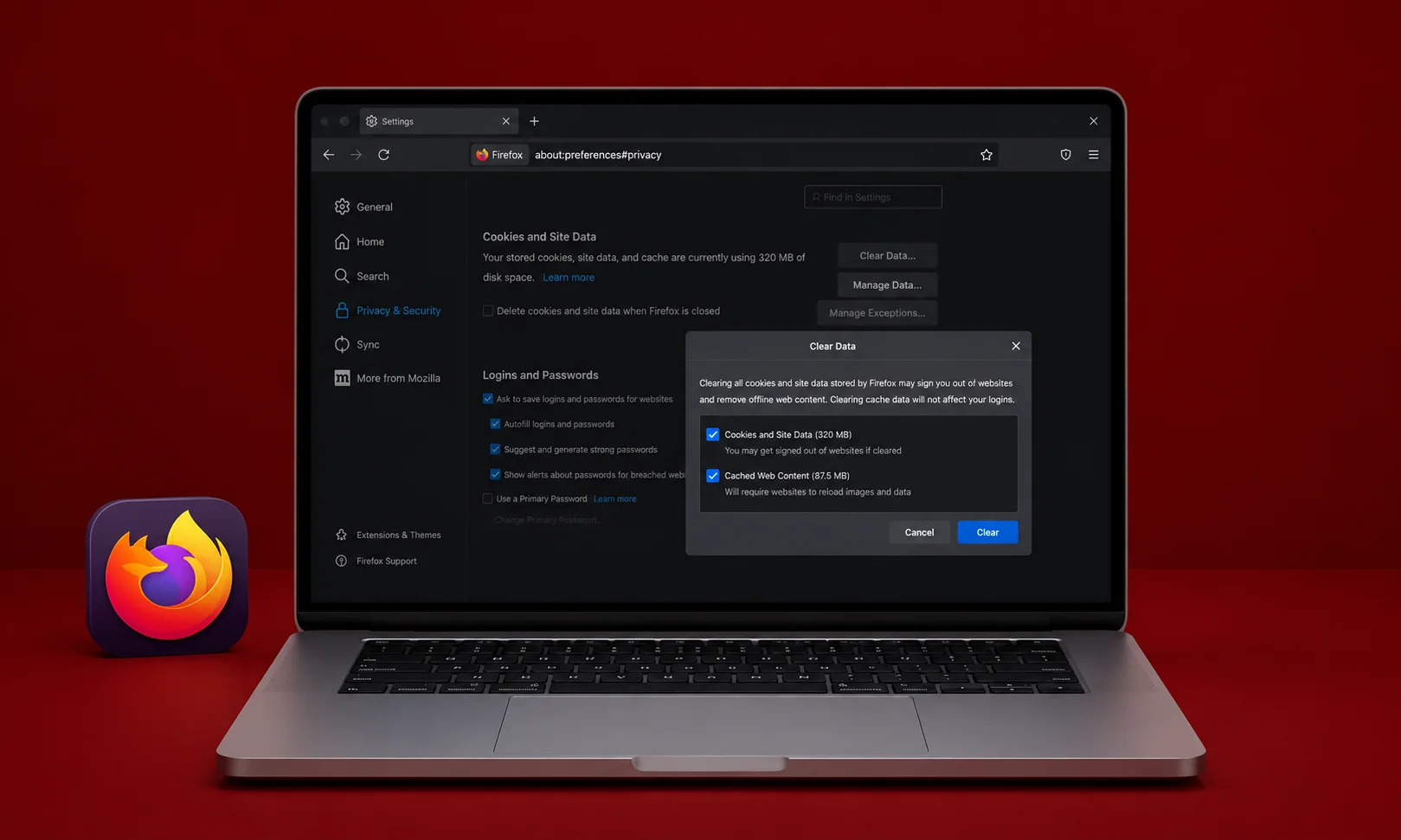
- Open Privacy & Security.
- Scroll to Cookies and Site Data.
- Click Clear Data.
- Select Cached Web Content.
- Click Clear.
Firefox immediately removes the stored cache and downloads fresh website files the next time you visit a page.
How to Clear Cache in Safari
Safari works a little differently depending on whether you’re using a Mac, iPhone, or iPad.
On Mac
- Open Safari.
- Click Safari in the menu bar.
- Select Settings.
- Open the Advanced tab.
- Enable Show Features for Web Developers if it isn’t already enabled.
- Open the Develop menu.
- Click Empty Caches.
If you also want to remove browsing history, use Clear History from the Safari menu.
How to Clear Cache in Brave
Brave offers the same basic steps as Chrome while adding extra privacy features.
On Windows and Mac
- Open Brave.
- Click the menu icon.
- Select Settings.
- Open Privacy and Security.
- Click Clear Browsing Data.
- Select Cached Images and Files.
- Choose the desired Time Range.
- Click Clear Data.
Brave will refresh website files automatically when you revisit a page.
How to Clear Cache in Opera
Opera includes a built-in cache management tool that’s easy to access.
On Windows and Mac
- Open Opera.
- Click the Opera menu.
- Select Settings.
- Open Privacy & Security.
- Click Clear Browsing Data.
- Select Cached Images and Files.
- Choose your preferred Time Range.
- Click Clear Data.
After clearing the cache, reload the affected website.
How to Clear Cache on Android
Most Android users browse the web using Chrome, although the steps are similar for other browsers.
Google Chrome for Android
- Open Chrome.
- Tap the three-dot menu.
- Select History.
- Tap Clear Browsing Data.
- Choose the desired Time Range.
- Select Cached Images and Files.
- Tap Clear Data.
The browser will fetch updated website files the next time you visit a page.
How to Clear Cache on iPhone and iPad
The process depends on the browser you use.
Safari
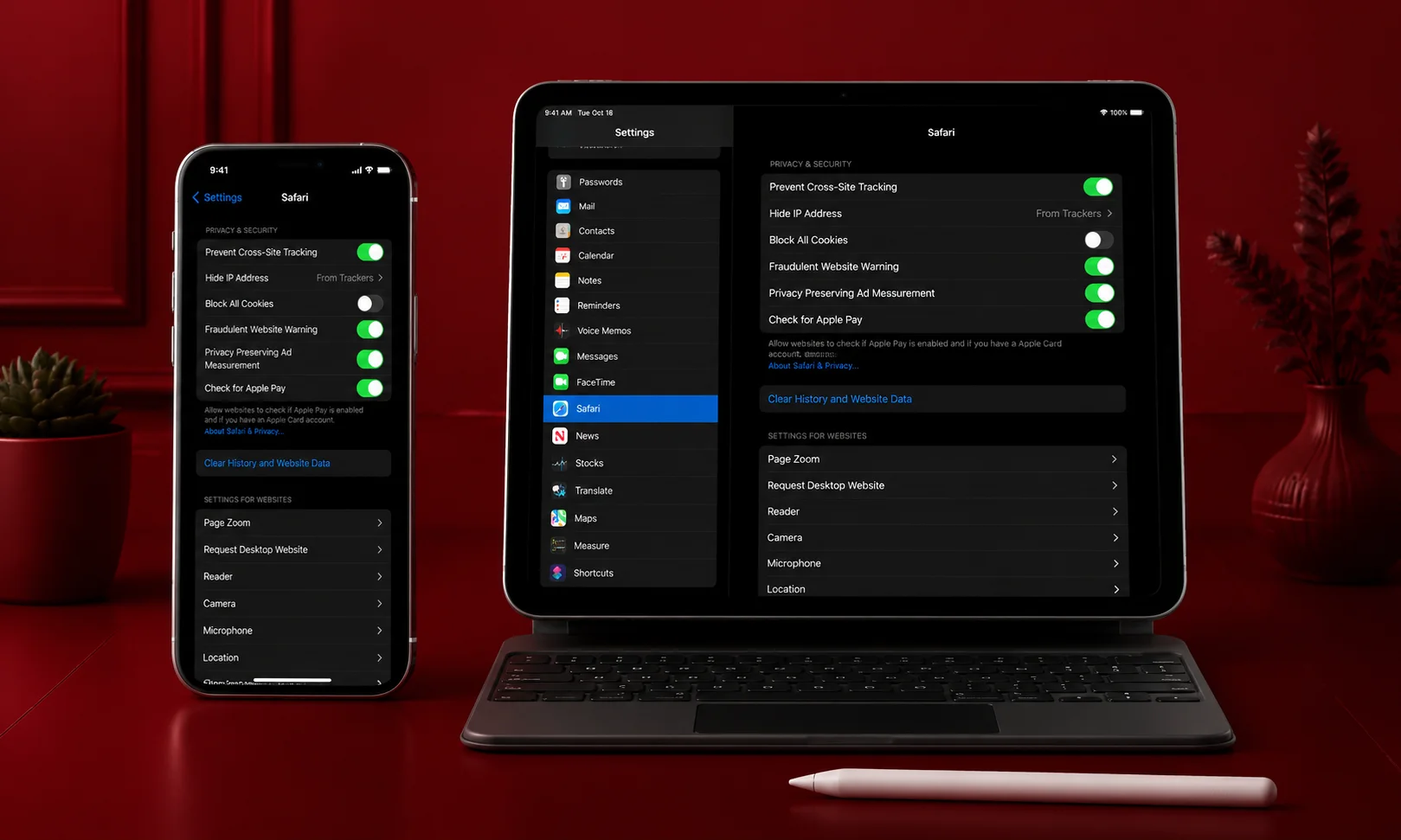
- Open Settings.
- Scroll down and tap Apps > Safari (or Safari, depending on your iOS version).
- Tap Clear History and Website Data.
- Confirm your choice.
Chrome
- Open Chrome.
- Tap the three-dot menu.
- Select History.
- Tap Clear Browsing Data.
- Select Cached Images and Files.
- Tap Clear Browsing Data again.
Cache vs Cookies vs Browsing History
Many people confuse these three types of browser data. While they are related, they serve different purposes.
| Feature | Browser Cache | Cookies | Browsing History |
|---|---|---|---|
| Stores images and website files | Yes | No | No |
| Saves login sessions | No | Yes | No |
| Records visited websites | No | No | Yes |
| Helps websites load faster | Yes | No | No |
| May fix display issues when cleared | Yes | Sometimes | No |
| Usually safe to clear | Yes | Yes, but you’ll be signed out of many sites | Yes |
Knowing the difference helps you avoid deleting information you still need.
Common Problems After Clearing Cache
Most people won’t notice any issues after clearing cached files. However, a few temporary changes are normal.
| Issue | Solution |
|---|---|
| Websites load slower at first | Wait for the browser to rebuild the cache |
| Images take longer to appear | Refresh the page once |
| You are signed out | This usually happens only if cookies were also removed |
| Website still looks broken | Perform a hard refresh or restart the browser |
These effects are temporary and usually disappear after a few visits.
Common Mistakes to Avoid
Clearing cache is simple, but small mistakes can lead to confusion.
Deleting Everything Without Checking
Many browsers select multiple data types by default. Always review the options before confirming.
Clearing Cache Too Often
Cache exists to improve browsing speed. Removing it every day offers little benefit unless you’re troubleshooting a problem.
Forgetting to Refresh the Page
Some websites continue displaying old content until you reload the page after clearing the cache.
Confusing Cache With Cookies
Cache stores website files, while cookies store login and preference information. Deleting one is not the same as deleting the other.
Expert Tips
A few simple habits can help keep your browser running smoothly.
- Clear cache only when needed.
- Keep your browser updated to the latest version.
- Restart your browser after removing cached files.
- Use a hard refresh if a webpage still looks outdated.
- Avoid installing unnecessary browser extensions, as they can interfere with website performance.
- If a single website has problems, test it in Incognito or Private Browsing mode before clearing all your data.
- Sync your browser account so bookmarks and passwords stay backed up even if you reset browsing data.
Troubleshooting Browser Cache Issues
If clearing the cache doesn’t solve the problem, try these additional steps.
| Problem | What to Try |
|---|---|
| Website won’t open | Restart the browser and your device |
| Still seeing old content | Perform a hard refresh (Ctrl + F5 on Windows or Command + Shift + R on Mac) |
| Login page keeps refreshing | Clear cookies for that specific website |
| Browser feels slow | Update the browser and disable unused extensions |
| Page displays errors | Try opening it in another browser to rule out a website issue |
Sometimes the issue is with the website itself rather than your browser, so checking another browser can save time.
Browser Cache Best Practices
Clearing your browser cache is useful, but making it a daily habit usually isn’t necessary. A better approach is to clear it only when you notice a problem or after major website updates.
Keeping your browser updated is just as important. New browser versions often include security fixes, performance improvements, and better cache management.
If you regularly work on websites or web applications, consider using a separate browser profile for testing. This helps prevent old cached files from affecting your work.
For everyday browsing, avoid installing too many extensions. Some extensions can interfere with website loading and create problems that appear to be cache related.
Security and Privacy Considerations
Browser cache mainly stores website resources like images, fonts, and scripts. It generally doesn’t contain sensitive information such as your passwords.
However, if you use a shared or public computer, clearing your browsing data before signing out is a smart habit. This helps remove temporary website files and reduces the chance of someone accessing cached content.
For personal devices, clearing cache occasionally is enough. If your goal is to protect your privacy, consider clearing cookies and browsing history as well, but remember that doing so may sign you out of websites.
Browser Cache Checklist
Use this quick checklist whenever a website isn’t working as expected.
| Task | Done |
|---|---|
| Close unnecessary browser tabs | ☐ |
| Update your browser | ☐ |
| Clear cached images and files | ☐ |
| Refresh the webpage | ☐ |
| Restart the browser | ☐ |
| Disable suspicious extensions | ☐ |
| Try another browser | ☐ |
| Restart your device if needed | ☐ |
Completing these steps solves many common browsing issues without requiring advanced troubleshooting.
Frequently Asked Questions
Is it safe to clear browser cache?
Yes. Clearing cached files is completely safe and is a common way to fix website loading or display problems. Your bookmarks and saved passwords remain unless you choose to remove them.
Will clearing cache delete my passwords?
No. Passwords are not removed if you only select Cached Images and Files. Always review the selected options before clearing browsing data.
How often should I clear my browser cache?
Most people only need to clear it every few months or when they experience problems such as outdated pages, broken layouts, or loading errors.
Why is a website still showing old content after clearing cache?
Try performing a hard refresh or restarting your browser. If the problem continues, the website may still be serving older content from its server.
What’s the difference between cache and cookies?
Cache stores temporary website files to improve loading speed. Cookies store information like login sessions, preferences, and shopping cart data.
Does clearing cache make my browser faster?
Not permanently. Right after clearing the cache, websites may load a little slower because your browser downloads fresh files. Once the cache rebuilds, browsing speed usually returns to normal.
Can I clear cache for one website only?
Yes. Most modern browsers let you remove site data for a specific website through their privacy or site settings. This is useful if only one website is causing problems.
Will clearing cache fix website errors?
It often does. Many display issues, loading problems, and outdated content are caused by old or corrupted cached files. If the problem continues, the cause may be unrelated to the cache.
Conclusion
Browser cache is designed to make your browsing experience faster by storing temporary website files. While this improves performance, outdated or damaged cache files can sometimes prevent websites from working correctly.
Fortunately, clearing your browser cache is quick, safe, and effective. Whether you use Chrome, Edge, Firefox, Safari, Brave, Opera, or a mobile browser, the process takes only a few minutes and can resolve many common browsing issues.
Instead of clearing your cache regularly, do it only when needed. Combined with keeping your browser updated and following good browsing habits, this simple maintenance step can help websites load correctly and provide a smoother online experience.