
I’ve been pushing pixels for years. So when folks kept telling me an AI design assistant would change my life, I rolled my eyes. Mostly.
Then I sat down and tested them. All of them. Or close.
Here’s what I found. Most of these tools do the same five things. A couple do one thing brilliantly. And two are quietly reshaping how design teams ship work.
This is the short list. Ten AI design assistant picks that earned a spot in my stack, what each one is good for, and where each one trips up.
We update this every couple months. Bookmark it.
| QUICK NOTE Not affiliated with any tool below. I’ve paid out of pocket for most. Pricing was checked in May 2026. This stuff moves fast, so double-check before signing up. |
| BLOG SUMMARY Quick answer: An AI design assistant uses machine learning to handle slow design tasks like layouts, color picking, copy, or turning prompts into real UI. Top picks: Figma Make, Canva Magic Studio, Adobe Firefly, Uizard, Khroma, Galileo AI (now Google Stitch), Midjourney, Relume, Magician for Figma, and ImagineArt. Most have free tiers. Paid plans start around $12 to $20 a month. |
What Are the Best AI Design Assistant Tools?
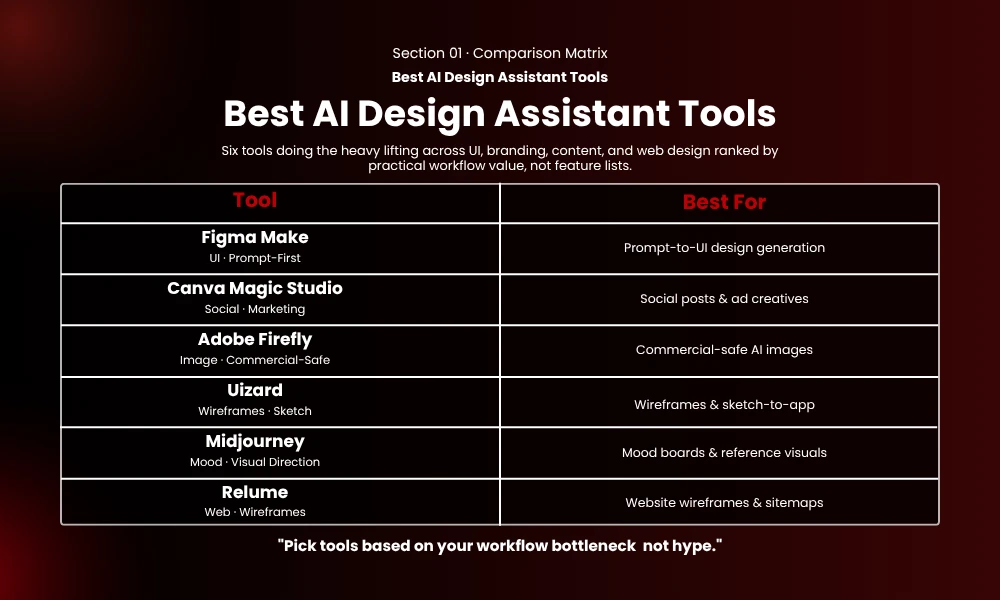
A quick scan. Full breakdowns below.
| Tool | Best For | Starting Price |
|---|---|---|
| Figma Make | Prompt-to-prototype inside the Figma you already use | $15/editor/month (Pro) |
| Canva Magic Studio | Social, ads, and high-volume brand graphics | Free; Pro from ~$15/month |
| Adobe Firefly | Commercially safe AI images for client work | From $9.99/month |
| Uizard | Napkin sketches and beginner-friendly UI generation | Free; Pro from $12/seat/month |
| Khroma | Color palettes that match your taste, fast | Free (beta) |
| Galileo AI (Google Stitch) | High-fidelity UI mockups from text prompts | Free tier via Google Stitch |
| Midjourney | Mood boards, campaign visuals, brand imagery | From $10/month (no free tier) |
| Relume | Full website sitemaps and wireframes | Free with limits; Pro ~$32/month |
| Magician for Figma | Quick text, icons, and images inside Figma | ~$8/month |
| ImagineArt | Multi-step batch creative for content teams | Free tier; Pro from ~$12/month |
How to Use This Guide
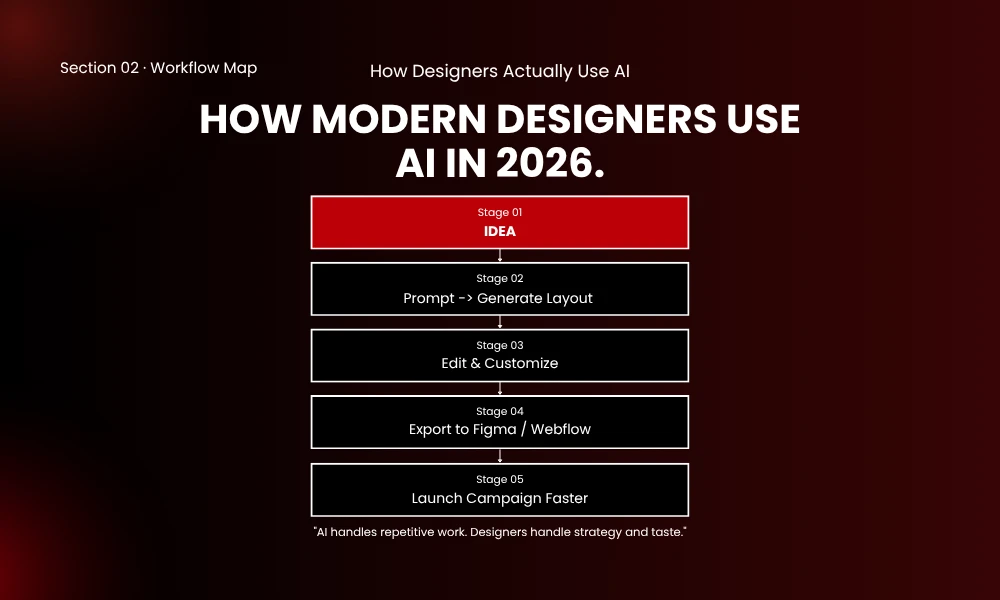
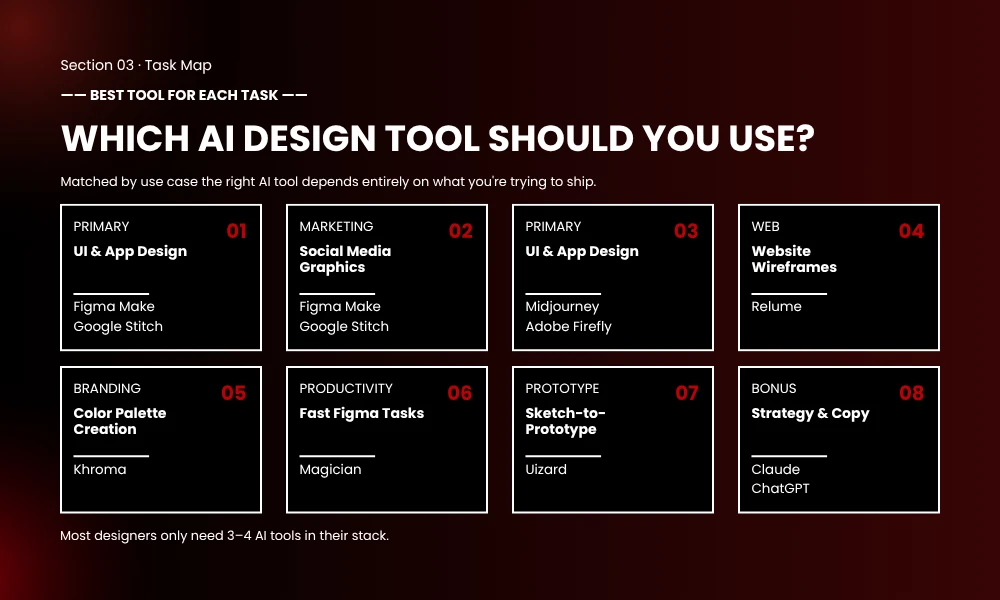
You don’t need all ten. Most designers I know use three or four.
Pick by your bottleneck:
- Building product UI or sites? Figma Make, Galileo (Stitch), and Relume
- Cranking out social or ads? Canva, Firefly, and Midjourney
- Stuck in wireframes? Uizard
- Stuck on color? Khroma fixes that in an afternoon
- Live in Figma? Magician handles the daily friction
Now to the tools.
#1 Figma Make
Best for: prompt-to-prototype inside the tool you already use
Figma Make is Figma’s text-to-UI feature. Describe a screen. It builds one. Clickable, working, on-brand.
I tested it last week with: “dashboard for an SEO agency that shows traffic, rankings, and backlink growth.”
Ninety seconds later. Three screens. Real nav. Working buttons. Spacing that didn’t look like a stock template.
The kicker? Figma Make runs on Claude Sonnet. Same brain behind the AI coding tools that actually work. Output feels structured, not random.
The real reason it earned the top slot? It reads your existing style libraries, components, and design tokens. Output speaks your brand’s language from the first generation.
| PRO TIP If your design system is messy, Figma Make gives you messy back. Spend an afternoon cleaning your tokens before you prompt. Night and day. |
It Pulls From Your Real Brand Styles
One of my clients uses a very specific crimson and an unusual typeface combo. Old workflow? Swap colors and fonts manually on every screen. Tedious. With Figma Make, brand styles get pulled in. Crimson lands where it should. Type behaves. Saves two hours per project.
Working Interactivity, Not Just Layouts
Most AI tools generate visuals. Figma Make generates working buttons, form states, and conditional logic if you ask. Hand a prototype to a stakeholder, let them click through, get real feedback. No code.
Pros and Cons
| ✓ PROS | ✗ CONS |
|---|---|
| Pulls from your real design system, so output stays on-brand | AI credits burn FAST. A complex prompt can eat 50–100 credits in one go |
| Output includes working interactivity, not just static screens | Strict credit caps enforced since March 18, 2026. Heavy users hit limits |
| Runs on Claude Sonnet, which produces structured, sensible layouts | Beta-stage features can shift in scope or pricing without much warning |
| Fits inside the Figma workflow most teams already use | Big prompts generate dozens of unused screens, eating credits for nothing |
Pricing
Figma Make is bundled with Figma’s paid plans:
- Starter (free) — 150 credits/day, 500/month cap
- Professional — $15/editor/month annual. 3,000 credits/month
- Organization — $55/seat/month. 3,500 credits/month
- Enterprise — $90/seat/month. 4,250 credits/month
Figma started enforcing credit caps strictly on March 18, 2026. Over the limit? $0.03 per add-on credit, or wait for next cycle.
#2 Canva Magic Studio
Best for: high-volume social, ad, and brand graphics
Canva used to be the cheap option. That story’s old.
Magic Studio bundles a whole AI suite: Magic Write for copy, Magic Design for layouts from a prompt, Magic Edit for image changes, and Magic Switch to resize one design across twelve social platforms in seconds.
We run a lot of client social batches at Brand ClickX. The kind where someone wants twenty assets across LinkedIn, Instagram, Pinterest, and X, all on-brand. Old workflow: three hours easy. With Magic Studio: 25 minutes.
Will it replace a senior designer? Nope. But for the 80% of marketing work that’s templated, it works.
| SIDE NOTE The Brand Kit feature is the underrated hero. Upload your colors, fonts, and logos once. Magic Studio locks every asset to those parameters. No fighting the AI. |
Magic Switch Saves Hours
Build one design, click Magic Switch, pick formats. Canva resizes intelligently. It doesn’t stretch. It rearranges elements to fit each canvas. AI makes weird crops sometimes, but you’re 90% there in five seconds.
Magic Write Is Usable Now
Copy quality used to be embarrassing. Got better since the OpenAI integration. Usable for first drafts of captions and ad headlines. I rewrite most. Rewriting beats writing from scratch.
Pros and Cons
| ✓ PROS | ✗ CONS |
|---|---|
| Magic Switch resize is genuinely time-saving for social teams | Output quality plateaus. Great for templated work, weaker for custom |
| Brand Kit keeps generated assets on-brand without manual cleanup | Magic Write copy still needs heavy editing. Don’t ship raw |
| Free tier is generous enough to test real workflows | Interface gets cluttered with feature upsells |
| Massive template library covers almost every social use case | Some Magic features are pay-walled inside Pro, not obvious upfront |
Pricing
- Free — Unlimited basic designs, limited Magic Studio
- Canva Pro — ~$15/month or $120/year. Full Magic Studio
- Canva Teams — From $10/user/month (3+ users). Brand controls
- Enterprise — Custom pricing
Pro is the sweet spot for solo creators and small agencies.
#3 Adobe Firefly
Best for: commercially safe AI images for client work
Here’s a thing nobody likes talking about: copyright. Most generators train on whatever they scrape, including art that wasn’t licensed. Ship a client deliverable and they get sued? You’re the one explaining.
Firefly sidesteps that. Trained on Adobe Stock and licensed content. Adobe offers legal indemnification on Enterprise plans. Big deal.
The killer feature isn’t the standalone app. It’s Generative Fill inside Photoshop.
I used it last month on a luxury watch shot. Photographer cropped too tight, we needed more background for a billboard ratio. Old me? Reshoot or hire a retoucher. New me? Selected the empty zone. Typed “soft marble countertop, warm directional lighting.” Four minutes later, the extension matched the original shoot.
Generative Fill Is The Reason To Subscribe
Use it to extend backgrounds, remove objects cleanly, add elements that match lighting, or swap product colors without a manual grade. I use it almost daily. Sometimes you regenerate three or four times. But the floor of what’s possible got way higher.
Vector Recolor Saves Hours
Upload a logo or illustration in SVG. Describe a new palette. Firefly spits out twenty recolor options in seconds. For agencies producing brand variations, this alone pays the subscription.
Pros and Cons
| ✓ PROS | ✗ CONS |
|---|---|
| Trained on licensed content. Commercially safe out of the box | Standalone Firefly app less impressive than Generative Fill in Photoshop |
| Generative Fill inside Photoshop is genuinely best-in-class | Subscription locks you into the Adobe ecosystem, which isn’t cheap |
| Vector Recolor saves hours on brand variations | Output can feel “stock-photo-ish” if you don’t prompt carefully |
| Content Credentials baked in for transparent AI use | Generation speed slower than Midjourney for raw image work |
Pricing
- Firefly Standard — $9.99/month. 2,000 credits
- Firefly Pro — $29.99/month. 7,000 credits
- Firefly Premium — $199.99/month. 50,000 credits
- Creative Cloud All Apps — ~$59.99/month. Firefly included
Already paying for Creative Cloud? You’ve got Firefly. If not, standalone is the cheaper way in.
#4 Uizard
Best for: founders, PMs, and folks who sketch on paper
Uizard does something nothing else does well. Photograph a napkin sketch. It turns the sketch into a clean, editable digital UI.
I tested with a genuinely awful hand-drawn wireframe. Bad geometry. Crooked lines. A coffee stain. Uizard somehow turned it into a working three-screen prototype.
It also has Autodesigner, which generates multi-screen apps from a prompt. Less polished than Figma Make. But faster, and built for non-designers.
PMs love it. Sketch an idea in a meeting, photograph it, walk out with a clickable prototype before the meeting ends.
Sketch-to-Design Conversion
The workflow that blows people away in workshops: sketch on paper, snap a photo, upload to Uizard, edit the result directly. For brainstorming and stakeholder buy-in? Unbeatable.
Screenshot Conversion Too
Upload a screenshot of any design and Uizard turns it into editable layers. Handy for competitive teardowns and redesigning legacy interfaces.
| PRO TIP Use Uizard for first drafts. Then export to Figma for refinement. Shipping polished work directly out of Uizard is where folks get frustrated. |
Pros and Cons
| ✓ PROS | ✗ CONS |
|---|---|
| Sketch-to-design conversion is a category of one | Output quality plateaus. You’ll outgrow Uizard for production work |
| Beginner-friendly interface non-designers can actually use | Component library smaller than Figma’s, limits design system work |
| Free plan supports 2 projects, enough to test real ideas | Free plan caps you at 3 generations/month. Hits fast |
| Autodesigner generates entire multi-screen apps from short prompts | Designs can feel “templatey” if you don’t customize after generation |
Pricing
- Free — 2 projects, 3 generations/month
- Pro — $12/seat/month. 500 generations, unlimited projects
- Business — $39/seat/month. Team features
Solo users live on Pro. Teams of 3+ jump to Business.
#5 Khroma
Best for: solving color paralysis once and for all
I’ll admit something. For most of my career, I’ve struggled with color. Palette tools spit out the same trendy combos. I’d burn hours iterating and land somewhere fine. Not great.
Khroma fixed that in one afternoon.
You’re shown a grid of 50 colors. Pick what you like. That’s it. Khroma trains a personal AI model on your taste, then generates endless palettes that match.
First session, I generated 200 palettes in ten minutes. About 30 were usable. With Coolors, my ratio was more like 3-in-200.
It Actually Learns Your Taste
After about 50 picks, suggestions get noticeably better. After a few sessions, it’s almost eerie. I went back six months later and the palettes still felt like me. Not generic.
Preview Palettes On Real Use Cases
You don’t just see swatches. You see how the palette looks on typography, gradients, posters, and UI mockups. Saves you mocking it up just to check if a palette works in context.
Pros and Cons
| ✓ PROS | ✗ CONS |
|---|---|
| Trains on your taste. Output stays personal, not generic | Still in beta. Some features glitchy on slower connections |
| Free. Genuinely free. Not a “free trial” gotcha | No team collaboration. It’s a solo tool by design |
| Preview palettes on real use cases (type, gradients, posters) | No export to design tools beyond copying hex codes manually |
| Saves hours of palette iteration on brand projects | Initial training takes about 15 minutes of picking colors |
Pricing
Free. Genuinely free. Khroma’s been in open beta for over two years.
#6 Galileo AI (now Google Stitch)
Best for: high-fidelity mobile and web mockups from text
Quick history. Galileo AI was one of the first text-to-UI tools that felt useful. Google bought it in 2024 and rebranded it as Google Stitch.
Prompt: “settings page for a fintech app with dark mode, biometric login, and notification controls grouped by category.” Stitch generates a high-fidelity mockup. Real text, proper hierarchy, clean spacing.
The big 2026 upgrade is the Figma export. One click and the design lands in your Figma file with auto-layout applied. No rebuilding. It also exports HTML and Tailwind code.
One-Click Figma Export
This is what made me switch from Galileo to Stitch. Before, you’d generate a beautiful mockup, then spend 45 minutes rebuilding it manually in Figma. Now? Click “Export to Figma.” Done. Layers are named. Auto-layout applied. Not perfect, but the time it saves is real.
Real Copy, Not Lorem Ipsum
Stitch generates contextual copy. Prompt a fintech app, the notifications say fintech things. Prompt a recipe app, you get cooking labels. Way easier to evaluate a design when the words make sense.
Pros and Cons
| ✓ PROS | ✗ CONS |
|---|---|
| One-click Figma export with auto-layout. Major time saver | Heavily mobile-focused. Web mockups okay but not as strong |
| Generates real contextual copy, not Lorem Ipsum | Output skews toward certain visual styles. Hard to fully customize |
| HTML + Tailwind code export for dev handoff | Free tier limits are tight. Heavy users need a paid Google AI plan |
| Backed by Google’s resources, so feature velocity is high | Galileo-to-Stitch transition broke some legacy workflows |
Pricing
Free tier via Google Stitch’s web app. Paid access tied to Google’s AI bundles, including Google One AI Premium ($19.99/month). Still in flux post-acquisition.
#7 Midjourney
Best for: mood boards and brand visuals that don’t look “AI-generated”
Strictly speaking, Midjourney isn’t a design tool. No editor, no vector export. It’s an image generator.
But leaving it off would be silly. For pure visual quality on mood boards, hero images, and campaign creative, nothing hits the same level. Better composition. More interesting lighting. Less of that AI-generated plastic look.
I use it almost exclusively for client mood boards. Last week’s brief: “minimal luxury skincare brand, Scandinavian feel, soft natural light, ceramic textures, neutral palette.” Two minutes later, sixteen reference images. Six were good enough to pull straight into the brand deck.
Mood Boards In Minutes
Pre-Midjourney workflow: spend an hour digging through Pinterest, Unsplash, Pexels. Save 30 images. Realize half don’t fit. Repeat. Now: write the prompt, get sixteen images, pick four. Ten minutes total.
Where It Falls Apart
Text in images. Letters still come out wonky. If your design needs readable text inside the image, use Ideogram. And no editor. You generate, then move into Photoshop or Figma for editing.
| PRO TIP Use the –sref parameter to lock a consistent visual style across a campaign. Generate one image you love, grab its style reference code, append it to every prompt. Output stays coherent. |
Pros and Cons
| ✓ PROS | ✗ CONS |
|---|---|
| Best-in-class visual aesthetics. Output rarely looks “AI-made” | No free tier. Have to commit to a paid plan to even try it |
| Wide stylistic range with strong control via style references | Discord-based interface is clunky. Steep learning curve |
| Excellent for mood boards, brand visuals, and campaign creative | Bad at text in images. Use Ideogram for that |
| Active community sharing prompts and techniques | No editor or design tools. Pure generation only |
Pricing
- Basic — $10/month. 200 generations
- Standard — $30/month. 15 hours fast + unlimited relaxed
- Pro — $60/month. 30 hours fast + stealth generations
- Mega — $120/month. 60 hours fast + max control
For commercial work, you need at least Pro. Otherwise generations are public by default.
#8 Relume
Best for: web designers building landing pages and full sites
Of every tool here, Relume’s the one I yell about most. If you build websites for a living and don’t have it, you’re underpaying yourself.
You describe the site you want. Something like: “SaaS landing page for a project management tool. Hero, social proof, three feature sections, pricing table, testimonials, CTA, footer.”
Relume generates a full sitemap. Then wireframes for every page. Then drops the whole thing into Figma or Webflow with one click.
Wireframes are deliberately low-fidelity. Not the final visual design. They’re the structure. The decision about what goes on which page, in what order, with what hierarchy. That structural call is the part of any web project that takes the longest. Relume hands it to you in two minutes.
Sitemap Generation
Sitemap building used to be a whole workshop with stakeholders. What pages do we need? In what order? Relume gives you a starting structure to react to, which is way faster than starting blank. I adjust 20–30% of what it suggests. Adjusting beats inventing.
Massive Component Library
Hundreds of pre-built sections, all based on real high-converting patterns. Pricing table? Twenty styles. Testimonial carousel? Fifteen layouts. Each one is clean and translates well to Figma or Webflow.
| SIDE NOTE Webflow shops, this is your secret weapon. Pair Relume with Webflow and you can ship a polished marketing site in 1–2 days instead of 1–2 weeks. |
Pros and Cons
| ✓ PROS | ✗ CONS |
|---|---|
| Sitemap + wireframe generation is genuinely one-of-a-kind | Wireframes are intentionally low-fidelity. You still design visuals |
| Massive component library based on real high-converting patterns | Limited beyond Figma and Webflow exports |
| Pairs incredibly well with Webflow for production sites | Pro plan is the only plan that unlocks the full library |
| Saves the dreaded “what sections should this page have” debate | Output can feel generic if you don’t refine it |
Pricing
- Free — Limited library access
- Starter — $16/month. Most of the library
- Pro — $32/month. Full library + AI sitemap & wireframing
- Business — $58/month. Team collaboration
Pro pays for itself the first time you use it.
#9 Magician for Figma
Best for: small daily AI tasks that don’t justify leaving Figma
Magician isn’t flashy. You won’t see it making bold claims. But it’s the plugin I use most often.
Lives inside Figma as three tools: text generation, icon generation, image generation. That’s the whole product.
Need a quick headline for a feature card? Right-click. Prompt. Done. Need a unique icon that matches your set? Same flow. Need a placeholder image that fits the layout instead of a Lorem Picsum block? Magician handles it.
Doesn’t change your life on any single use. Changes your life when you realize you’ve used it 40 times this week and saved half an hour a day.
Text Gen In Context
Highlight any text layer, hit Magician, ask for variations, shorter copy, more casual tone, or a complete rewrite. The “in context” part is the magic. It reads what’s around the text and writes copy that fits.
Custom Icons On Demand
Most icon sets are great until you need that one specific icon that doesn’t exist. Magician generates custom icons in your set’s style. Not perfect. You’ll refine them. But starting at “80% there” beats blank.
Pros and Cons
| ✓ PROS | ✗ CONS |
|---|---|
| Lives inside Figma. No app switching | Limited to three core features. Don’t expect a full design suite |
| Tiny daily wins add up to real weekly time savings | Generated icons sometimes need refinement to match existing sets |
| Cheaper than most AI design tools | Free tier limits are tight. Pro is basically required for serious use |
| Doesn’t try to do too much. Focused product | Less polished than first-party Figma AI features |
Pricing
Around $8/month for the full plugin. Free tier with limited generations. Under ten bucks. No-brainer if you spend serious time in Figma.
#10 ImagineArt
Best for: content teams running high-volume creative production
ImagineArt’s in a different category. It’s an AI design agent. You don’t just hand it a prompt. You hand it a brief. It generates multiple assets, checks them against your brand parameters, picks the best, delivers a batch.
First time I tested it, I recreated the workflow because I didn’t believe it.
Brief: “Generate 30 LinkedIn carousel slides for Brand ClickX. Topic: SEO mistakes that kill rankings. Near-black background, crimson accent. Bold sans-serif type. One main point and one supporting line per slide.”
Old workflow: six hours minimum. ImagineArt: 40 minutes, including review and rejecting maybe 6 out of 30.
Output isn’t flawless. You still need a human in the loop. But the volume you can produce while staying on-brand is wild.
Multi-Step Workflows
The standout feature is Workflows. Build a pipeline once. It takes a brief, runs multiple generation steps, evaluates output against brand parameters, delivers final assets. For teams shipping dozens of pieces weekly, game-changer. For solo work, overkill.
Brand Parameter Locking
Define your brand once. Colors. Type. Tone. Forbidden patterns (“no stock photos of people in suits”). Every run respects those rules without you re-explaining. This is what pushes ImagineArt past “tool” into “agent.”
Pros and Cons
| ✓ PROS | ✗ CONS |
|---|---|
| Multi-step workflows automate batch creative at production scale | Steep learning curve. The workflow builder isn’t beginner-friendly |
| Brand parameter locking keeps output consistent across hundreds of assets | Overkill for solo designers doing one-off work |
| Genuinely saves hours on high-volume content production | Free tier is limited. Real workflows need a paid plan |
| Strong API for teams that want to embed it into existing pipelines | Output quality varies more than single-prompt tools like Midjourney |
Pricing
- Free — Limited daily generations
- Standard — ~$12/month
- Pro — ~$27/month. Full workflow access
- Business — Custom pricing + API
For teams producing 50+ branded assets weekly, the math works fast.
Bonus: Three Tools That Almost Made The Cut
Claude. Not a visual tool, but the AI I lean on for everything around design. UX copy. Briefs. Personas.
Visily. Sits between Uizard and Figma. Strong at converting wireframes into editable designs.
Ideogram. The fix for Midjourney’s text problem. Need readable text inside the image? Use Ideogram.
How To Build Your AI Design Stack
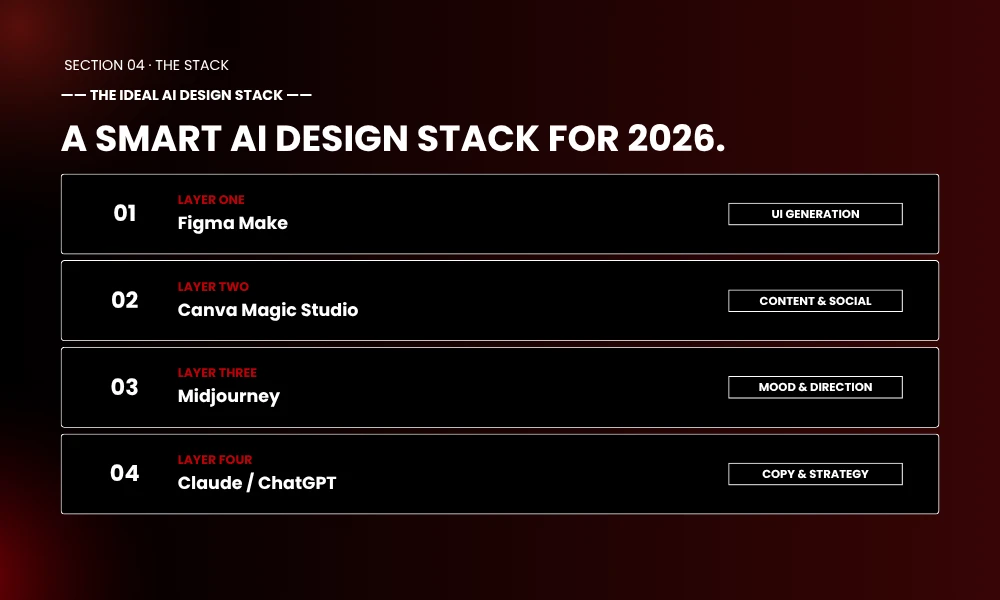
You don’t need every tool above. Most working designers run three or four.
A typical 2026 stack:
- One generation tool: Figma Make, Galileo (Stitch), or Uizard
- One asset tool: Canva Magic Studio or Adobe Firefly
- One visual or mood tool: Midjourney or Khroma
- One strategy/copy tool: Claude or ChatGPT
Start with the one that fixes your biggest bottleneck. Layer in the rest as gaps appear.
| STEAL A PAGE FROM BRANDCLICKX’S PLAYBOOK For client work, my stack is Figma Make + Canva Magic Studio + Midjourney + Claude. First handles UI prototypes. Second handles social and ad creative at scale. Third gives me mood boards. Fourth handles copy, briefs, and strategy. Four tools. Covers roughly 80% of every project. |
What People Also Ask
What is an AI design assistant?
Software that uses machine learning to handle design tasks like generating layouts, creating images, writing copy, picking colors, or turning prompts into editable UI. Works with a designer, not instead of one.
Is there a free AI design tool?
Yep. Canva, Figma Starter, Uizard, Khroma, ImagineArt, and Microsoft Designer all offer free plans. Most cap monthly generations. Midjourney’s the main exception.
Can AI replace a graphic designer?
No. AI handles repetitive bits like resizing, variations, and basic layouts. Can’t replace strategic thinking, brand voice, or the judgment to know when a design’s working.
Which AI tool is best for UI/UX design?
For full UI: Figma Make and Google Stitch lead. For early wireframes: Uizard wins on speed. For design system work: Magician inside Figma fits most teams.
Are AI-generated designs safe to use commercially?
Depends. Firefly is the safest because it’s trained on licensed Adobe Stock. Canva’s outputs include commercial rights. Midjourney needs a paid plan, with Pro for private generations. Read current terms before shipping client work.
You’ve Got The Tools. Now Use Them.
Look. There’s a thousand “best AI design tool” lists out there. Half are written by folks who never opened the tools.
Everything above? I’ve paid for, used on real client work, and broken in ways the marketing pages don’t mention.
Pick two. Use them for a week. Notice where your hours go. That’s the whole game.
The designers who freak out about AI treat it like competition. The ones who win treat it like a junior assistant. One that works at 3am, never complains, and handles the boring 80% so you can focus on the 20% that matters.
Want help on the strategy side? That’s what we do at Brand ClickX. SEO, design, and content built to ship.
Now go build something good.