

If you manage Windows computers for a business, school, or other organization, installing Chrome on one PC is easy. Installing and managing it across dozens or hundreds of Windows devices is a different job. That is where the Google Chrome Business MSI becomes useful.
The MSI installer gives administrators a practical way to deploy Chrome across managed Windows computers and then control browser settings through Group Policy or cloud-based management. Google’s own Windows deployment guide specifically covers MSI deployment, testing, policy configuration, and organization-wide rollout.
This guide explains what the Chrome Enterprise MSI is, where to get it, how deployment works, which management options are available, what can go wrong, and whether it makes sense for your environment.
AI Overview: What is Google Chrome Business MSI?
Google Chrome Business MSI is the commonly used name for Google Chrome’s enterprise Windows Installer package. It is intended for administrators who need to deploy Chrome to managed Windows computers rather than install it separately for individual users.
Google provides the MSI through its Chrome Enterprise Windows bundle, which also contains policy and update templates. Administrators can deploy the package through tools such as Active Directory Group Policy and Microsoft System Center Configuration Manager, then verify Chrome policies on the target machines.
Chrome Enterprise Core provides browser management at no added cost, while Chrome Enterprise Premium is a separate paid tier with additional security capabilities.
Key Takeaways
- The Google Chrome Business MSI is designed for managed Windows deployment.
- Google provides the MSI through its official Chrome Enterprise Windows bundle.
- The bundle includes the Windows Installer package, ADMX policy templates, and update-related templates.
- MSI deployment can be performed through management systems such as Group Policy and Microsoft System Center Configuration Manager.
- Chrome policies can be checked from chrome://policy after deployment.
- Chrome Enterprise Core is listed by Google at $0, while Premium is listed at $6 per user per month.
- Google says Extended Stable remains on an eight-week release cycle while Chrome moves toward a faster Stable cadence.
What is Google Chrome Business MSI?
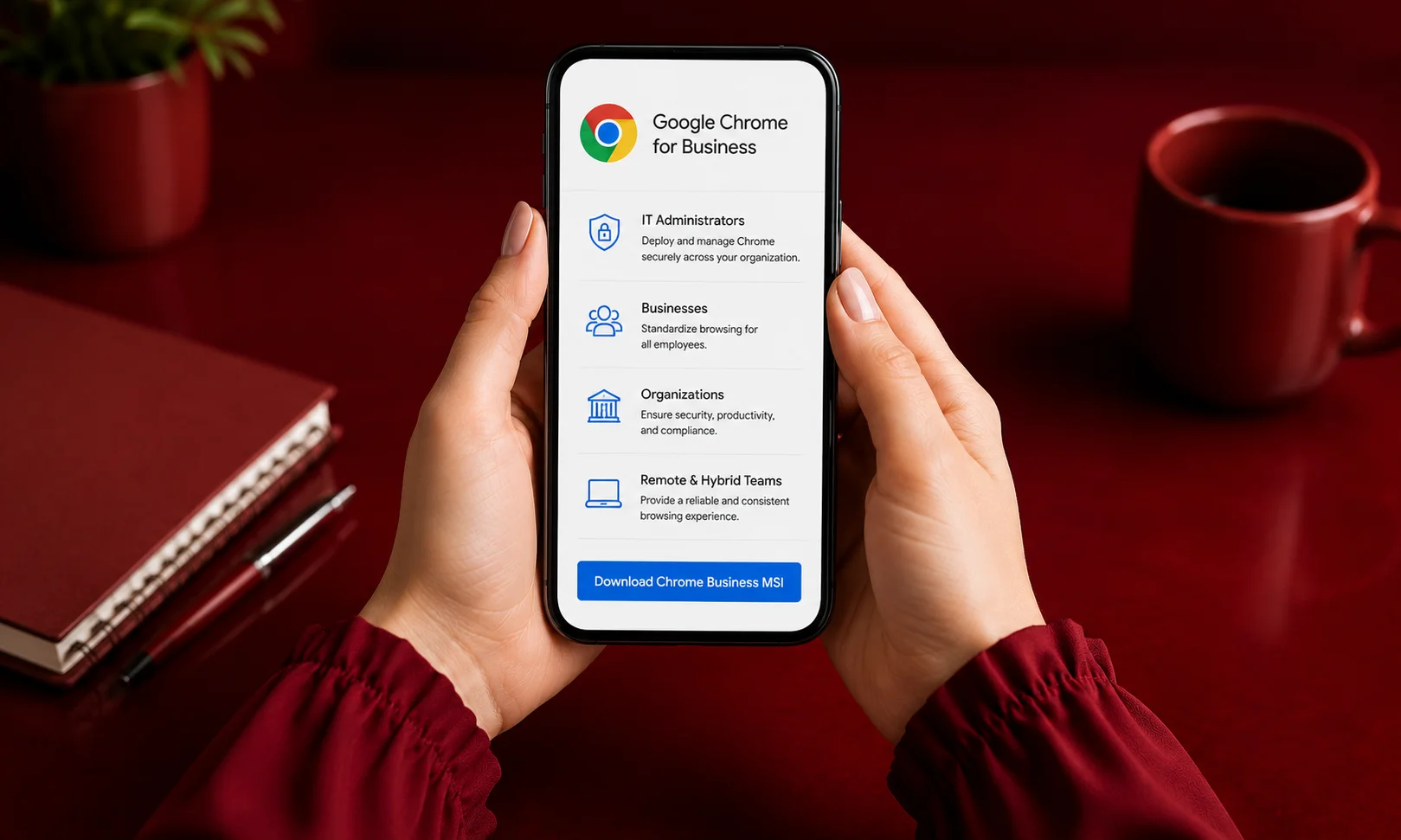
Google Chrome Business MSI is an enterprise Windows Installer package used to deploy Chrome across managed Windows computers. Administrators can distribute the MSI through enterprise deployment tools and configure Chrome using Group Policy or cloud policies. Google also provides ADMX templates and other deployment files through its Chrome Enterprise Windows bundle.
The phrase Google Chrome Business MSI is commonly used when people search for Chrome’s enterprise MSI installer. Google itself generally refers to the product as Chrome Enterprise or Chrome browser for managed Windows environments.
The key difference is not that the MSI contains a completely different browser. Instead, it provides an installation and management route designed for organizations that need consistent deployment across Windows devices.
Google’s Windows deployment documentation explicitly describes using an MSI to roll out Chrome throughout an organization.
Why does Google provide an MSI?
An MSI fits naturally into Windows administration.
Instead of asking every employee to download Chrome individually, an administrator can distribute the installation package through an organization’s existing software-management process.
Google lists Active Directory Group Policy Management and Microsoft System Center Configuration Manager among the methods that can distribute Chrome MSI packages to managed Windows computers.
That makes the MSI particularly useful when the goal is consistent installation rather than a one-off browser download.
Google Chrome Business MSI Download
The safest place to obtain the enterprise installer is Google’s official Chrome Enterprise download resources.
Official Chrome Enterprise download page
Google’s Windows bundle is particularly useful because it is not limited to the browser installer. The bundle contains the Windows Installer package, Chrome policy and preference templates, the auto-update template, and legacy browser support files.
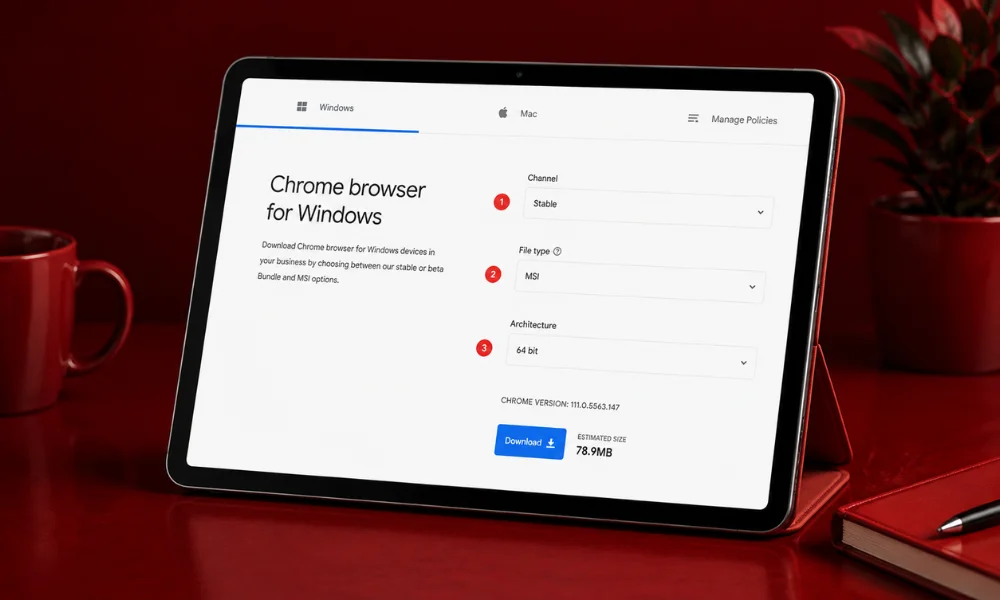
Google provides separate 64-bit and 32-bit Windows bundles. You should choose the package that matches the systems you intend to manage.
What is inside the Chrome Enterprise Bundle?
| Component | Purpose |
| MSI installer | Installs Chrome on managed Windows computers |
| ADMX templates | Provides Chrome policy controls |
| Auto-update template | Helps administrators manage update-related policies |
| Legacy browser support files | Supports organizations with certain legacy application requirements |
The important point is that you do not need to search random software-download websites for an enterprise MSI. Google already provides the deployment package and associated administrative files through its official resources.
Google Chrome Business MSI System Requirements
Before deployment, check the Windows environment rather than assuming every older computer will support the current browser.
Google’s current requirements list Windows 10 or later for Intel-based Windows systems. For Windows on ARM, Google lists Windows 11 or later.
There is also an important historical cutoff: Google states that Chrome 109 was the final Chrome version supporting Windows 7, Windows 8, Windows 8.1, Windows Server 2012, and Windows Server 2012 R2.
That means a current enterprise deployment should not be planned around those older operating systems.
How to Install Google Chrome Business MSI
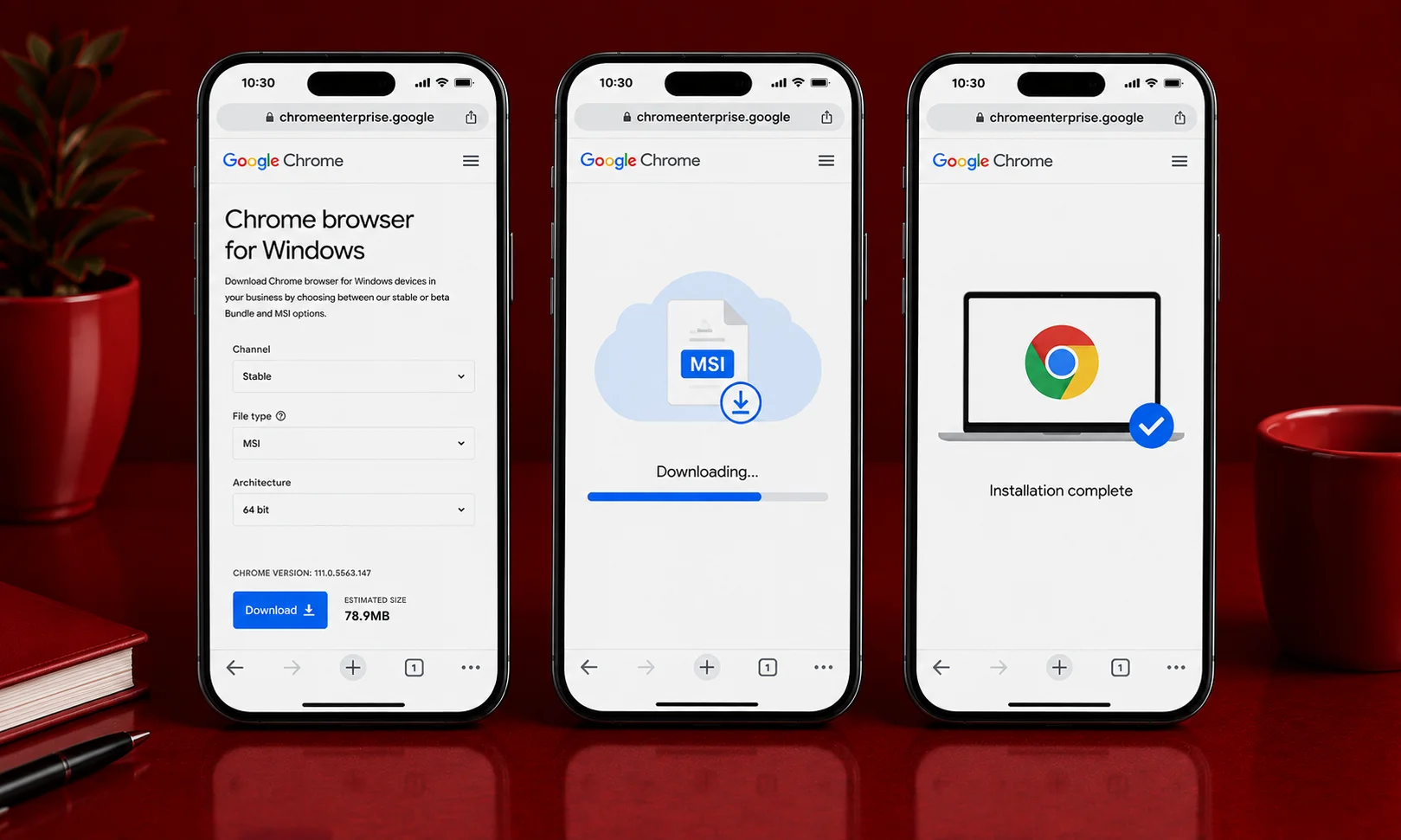
Google recommends a deployment process that starts with preparation and testing rather than immediately pushing the browser to every computer. Its Windows deployment guide specifically includes policy planning, test deployment, MSI rollout, and policy configuration.
1. Download the Windows Chrome bundle
Start with Google’s official Chrome Enterprise download resources. Choose the appropriate Windows bundle and architecture for your environment. The bundle provides the MSI together with the administrative files needed for a managed deployment.
2. Test the MSI on a small group
Do not make the first installation your organization-wide deployment.
Google recommends testing Chrome with a group of Windows users before the wider rollout. This gives you an opportunity to check policies, extensions, web applications, and other dependencies before they affect the larger environment.
3. Deploy the MSI
The MSI can be distributed using Windows management infrastructure.
Google specifically documents deployment through Active Directory Group Policy Management and Microsoft System Center Configuration Manager.
For a direct silent MSI installation, Google documents an msiexec approach. A commonly used command is:
msiexec /i GoogleChromeStandaloneEnterprise64.msi /qn /norestart
The exact package name and deployment settings should match the file and management system you are actually using.
4. Configure Chrome policies
Installing Chrome and managing Chrome are two separate parts of the job.
Google provides ADMX policy templates through the Windows bundle. Administrators can use those templates with Windows Group Policy, while Google also supports cloud-based management approaches.
Policies can be used to control browser behavior, extensions, security settings, and other administrative options.
5. Verify the installation
After deployment, open:
chrome://policy
This page lets you check which Chrome policies are being applied to the device.
If a Windows Group Policy setting does not appear, Google’s deployment guidance recommends running:
gpupdate /force
and then checking the policy page again.
Can You Deploy Chrome MSI With Intune?
Yes, Chrome can be managed in Microsoft environments that use Intune.
Google provides documentation for importing Chrome administrative templates into Microsoft’s Intune workflow. This allows administrators to configure Chrome policies from the same general management environment used for other Windows devices.
The important distinction is that policy management and application deployment are not exactly the same task. Your Intune configuration should be tested against your organization’s application packaging, detection, assignment, and device-management setup.
Google Chrome Business MSI vs Regular Chrome Installer
For an individual user, the normal Chrome installation process is usually all that is needed. Enterprise MSI deployment solves a different problem: centralized Windows administration.
Google’s own deployment documentation distinguishes between user-level and system-level Chrome installations. It states that MSI installation uses the system-level location under:
Program Files\Google\Chrome\Application\
while a user-level installation uses the user’s application data location.
| Feature | Regular user installation | Chrome Enterprise MSI |
| Main purpose | Individual installation | Managed Windows deployment |
| Deployment model | User-focused | Organization-focused |
| Group Policy management | Not the main installation method | Supported |
| Centralized rollout | Limited | Designed for it |
| ADMX policy templates | Not required | Available through Enterprise bundle |
| Enterprise testing | Optional | Strongly recommended |
The MSI therefore makes the most sense when you are managing multiple Windows computers rather than simply installing Chrome for yourself.
Google Chrome Business MSI: Channels Explained
Chrome is not limited to one release channel.
Google documents Stable, Beta, Dev, Canary, and Extended Stable options for organizations that need different levels of testing and release control.
Stable is the normal production choice.
Beta gives administrators a way to test upcoming Chrome changes before wider deployment. Dev and Canary are earlier testing channels and are better suited to organizations that specifically need early testing.
Extended Stable is the slower enterprise-oriented option. Google says Extended Stable remains on an eight-week release cycle, while its regular Stable and Beta channels are scheduled to move to a two-week cycle beginning with Chrome 153 on September 8, 2026.
What does the 2026 Chrome release change mean?
Google announced that Chrome Stable and Beta will move from a four-week cycle to a two-week cycle starting with Chrome 153.
That does not mean every organization must update every two weeks. Extended Stable remains available for organizations that need more time between major browser changes. For IT teams, the practical lesson is simple: testing and update planning matter more when browser releases become more frequent.
Chrome Enterprise Core vs Premium
The MSI itself should not be confused with Chrome Enterprise’s paid security products.
Google lists Chrome Enterprise Core at $0, while Chrome Enterprise Premium costs $6 per user per month.
| Feature | Chrome Enterprise Core | Chrome Enterprise Premium |
| Price | $0 | $6/user/month |
| Browser management | Yes | Yes |
| Browser reporting | Yes | Yes |
| Extension management | Yes | Yes |
| Advanced security controls | More limited | Expanded |
| Data-loss prevention | Not included as Premium capability | Included |
| Advanced malware/phishing protection | Standard capabilities | Expanded capabilities |
Google describes Core as a browser-management tier with enrollment, reporting, and policy enforcement. Premium adds advanced security protections and visibility. So, if your goal is simply to deploy Chrome and manage browser policies, you should not assume that you need the Premium subscription.
Who Should Use Google Chrome Business MSI?
The MSI is a good fit when you have a managed Windows environment and need consistent browser deployment.
It makes particular sense for:
- Businesses managing multiple Windows PCs.
- Schools and other organizations managing shared computers.
- IT departments using Group Policy.
- Organizations using Microsoft endpoint-management tools.
- Teams that need centrally controlled Chrome policies.
- Administrators who need structured browser testing before wider deployment.
Google’s own deployment guide is specifically written for Microsoft Windows administrators deploying Chrome across an organization.
Who Should Avoid It?
If you are installing Chrome on one personal Windows computer, the enterprise MSI is usually more administration than you need. You also should not treat an MSI deployment as a substitute for compatibility testing. Google explicitly recommends test deployments before organization-wide rollout.
Organizations running unsupported Windows versions should address the operating-system requirement first rather than trying to force a current Chrome deployment onto legacy systems.
Three Problems Administrators Often Overlook
An older MSI cannot simply replace a newer Chrome version
Google’s deployment documentation states that Chrome does not allow an older version to be installed over a newer version.This matters when you keep old MSI files in a software repository.
Before deploying an older package, check the Chrome version already installed on the target machines.
Installation does not prove that policies worked
A successful Chrome installation only tells you that the browser was installed.
You still need to check chrome://policy and confirm that the settings you intended to apply actually reached the machine. Google specifically recommends this verification step.
A faster release cycle changes your testing routine
The upcoming two-week Stable/Beta cadence means organizations should think carefully about how they test browser updates.Google’s continued eight-week Extended Stable option can be useful when your environment needs more time to validate changes.
Common Chrome MSI Deployment Mistakes
Downloading the installer from an unofficial website
Use Google’s enterprise resources whenever possible. There is little reason to depend on an unknown third-party MSI when Google publishes the Windows deployment bundle itself.
Skipping the pilot deployment
A browser can affect extensions, web applications, authentication, printing, and other everyday workflows. A small pilot group gives you a safer place to find problems before a larger rollout.
Forgetting policy verification
Do not assume that a policy applied simply because the MSI installation succeeded.
Check chrome://policy on the test machine.
Keeping outdated packages forever
Chrome changes frequently.
Google’s release history shows multiple Stable updates during August 2026 alone, including a build on August 11 with five security fixes. That is why an enterprise MSI should be treated as part of an ongoing deployment process rather than a one-time file that you download and forget.
Practical Application: A Safer Chrome MSI Rollout
If you are responsible for a real Windows environment, a straightforward rollout looks like this:
First, download the official Windows Chrome bundle and keep the MSI and policy files together in your controlled deployment location.
Next, choose your release channel. Stable is the natural production choice, while Beta can provide a useful testing path.
Then, deploy Chrome to a small representative group. Include the types of users, applications, extensions, and Windows configurations that exist in the wider environment.
After that, check chrome://policy and confirm the policies you expected are actually present. If Windows Group Policy has not refreshed, run gpupdate /force and check again.
Finally, expand the rollout only after the pilot behaves as expected. Keep your deployment package and browser-update process current as Chrome continues to release new versions.
Who Is Behind Chrome Enterprise?
Google develops Chrome and provides the Chrome Enterprise deployment and management ecosystem.
Microsoft provides the Windows platform and the management technologies commonly used alongside the MSI, including Group Policy and System Center Configuration Manager.
The two products therefore meet at a very practical point: Google supplies the Chrome enterprise package, while Windows administrators use Microsoft’s management infrastructure to distribute and configure it. Google’s own deployment documentation is written specifically for this Windows administration scenario.
What Is the Latest Chrome MSI Version?
There is no single MSI version that should be treated as permanently “latest.”
Chrome releases are rolled out progressively, and Google publishes updates throughout the month. For example, Google’s August 2026 release history records Chrome 151 Stable updates on August 4, August 6, and August 11, with different builds and security fixes.
For that reason, check Google’s current Enterprise download source when preparing a deployment instead of relying on an old MSI file saved from a previous rollout.
Real-World Enterprise Use Cases
The strongest use cases for Chrome MSI are not flashy. They are the everyday administrative jobs that become difficult when every Windows computer is configured differently.
A business can use it to establish a consistent Chrome deployment across managed PCs.
A school can use centralized policies to manage Chrome on organization-owned Windows computers. An IT department can use a test group to check an upcoming Chrome channel before deciding whether it is suitable for broader deployment.
Google’s documentation specifically supports organization-wide MSI deployment, policy management, testing, and compatibility planning.
Chrome Enterprise MSI Alternatives
The right alternative depends on the problem you are actually trying to solve.
| Option | Best suited for | Main difference |
| Chrome Enterprise MSI | Managed Windows Chrome deployment | Google’s MSI-based deployment route |
| Chrome Extended Stable | Organizations wanting slower major-release changes | Eight-week release cycle |
| Microsoft Edge for Business | Microsoft-centered browser environments | Microsoft’s enterprise browser ecosystem |
| Firefox ESR | Organizations seeking another enterprise browser option | Mozilla’s enterprise-oriented ESR model |
The comparison is not simply about which browser is “best.” Your existing identity system, endpoint-management tools, web applications, extensions, security requirements, and release-testing process should drive the decision.
What to Expect From Chrome Enterprise
Google’s direction is clear in one important area: browser management is becoming increasingly centralized.
Chrome Enterprise Core currently provides browser enrollment, reporting, policy enforcement, and extension management at no added cost. Premium adds more advanced security controls for organizations that need them.
At the same time, Chrome’s announced move toward a two-week Stable and Beta release cycle means organizations will need a sensible way to test and manage changes. That does not make the MSI obsolete. If anything, a structured deployment process becomes more useful when the browser changes more frequently.
Conclusion
When you first look at the Google Chrome Business MSI, it can seem like just another Windows installer file. In practice, its value comes from what happens around that file: centralized deployment, policy management, testing, and a repeatable way to keep Chrome consistent across managed Windows computers.
The safest approach is straightforward. Get the package from Google, select the right channel and architecture, test it with a representative group, verify policies through chrome://policy, and only then expand deployment. Google’s own documentation follows this same deployment philosophy essentially.
Chrome is also changing quickly. Google has announced a two-week Stable and Beta release cycle beginning with Chrome 153 on September 8, 2026, while Extended Stable will remain on an eight-week schedule.
So the real lesson is not simply how to install an MSI. It is how to build a Chrome deployment process that can keep working as the browser changes. A good enterprise setup is the one your IT team can understand, test, verify, and maintain without surprises.
Google Chrome Business MSI FAQ
What is Google Chrome Business MSI?
Google Chrome Business MSI is the commonly used name for Chrome’s enterprise Windows Installer package. It is intended for managed Windows deployment rather than a normal individual Chrome installation. Google documents MSI deployment as part of its Chrome Enterprise Windows workflow.
Is Chrome Enterprise MSI free?
Yes, Google provides the Chrome Enterprise MSI through its enterprise deployment resources. Chrome Enterprise Core is listed at $0, while Premium is a separate service priced at $6 per user per month.
Where can I download Chrome Enterprise MSI?
Download it from Google’s official Chrome Enterprise resources. The Windows bundle includes the MSI along with policy and update templates needed for managed deployment.
Can I install Chrome MSI silently?
Yes. Windows Installer supports quiet installation options, and Google documents msiexec commands for Chrome MSI deployment and troubleshooting. Test the exact command in your environment before a broad rollout.
Can I deploy Chrome MSI with Group Policy?
Yes. Google specifically lists Active Directory Group Policy Management as one method for distributing Chrome MSI packages to managed Windows computers. Chrome’s ADMX templates are also provided in the Windows enterprise bundle.
Can I manage Chrome with Intune?
Yes. Google provides guidance for importing Chrome administrative templates into Microsoft’s Intune workflow. This allows administrators to configure Chrome policies through Intune.
How do I check whether Chrome policies worked?
Open chrome://policy on the managed computer. If the expected Group Policy settings are missing, Google recommends refreshing Windows Group Policy with gpupdate /force.
Does Chrome Enterprise support Windows 7?
No. Google states that Chrome 109 was the final Chrome version supporting Windows 7, Windows 8, Windows 8.1, and Windows Server 2012/2012 R2. Current enterprise deployments should use supported Windows versions.
What is Chrome Extended Stable?
Extended Stable is a slower Chrome release option intended for organizations that need more time between major browser changes. Google says it remains on an eight-week cycle while regular Stable is scheduled to move to a two-week cadence.
Is Chrome Enterprise Core different from Premium?
Yes. Core is Google’s no-cost browser-management tier, while Premium adds advanced security capabilities and is currently listed at $6 per user per month.