A friend once called me in a panic just 30 minutes before an important client meeting. He had spotted a mistake in a signed contract, but the only thing he could do was read the PDF, not edit it. After trying several “free PDF editors,” he ran into watermarks, locked features, and formatting that fell apart the moment he changed a sentence.
That situation isn’t unusual. Whether you’re correcting a resume, reviewing research papers, filling out tax forms, signing contracts, or managing business documents, choosing the wrong PDF editor can waste hours instead of saving them.
The best PDF editors don’t just let you change text; they help you work faster, protect sensitive information, and make document management much easier.
The challenge is that there are dozens of PDF editing tools claiming to be the best. Some are built for large organizations with advanced security needs. Others focus on affordability, while a growing number of free editors now include features like OCR and AI-powered document assistance.
The right choice depends less on marketing claims and more on how you actually use PDFs every day.
This article cuts through the noise. You’ll see which PDF editors truly stand out in 2026, how they compare in real-world use, where free tools are enough, and when paying for premium software actually makes sense.
By the end, you’ll know exactly which editor fits your workflow instead of paying for features you’ll never use.
AI Overview
The best PDF editor in 2026 depends on what you need to accomplish. Adobe Acrobat remains the benchmark for enterprise workflows and advanced document management, while Foxit PDF Editor offers many professional features at a lower cost. If you’re looking for the best free option, PDFgear stands out by including OCR and AI capabilities without requiring a paid subscription.
Modern PDF editors now do much more than edit text. Many include AI-powered document summaries, OCR for scanned files, e-signatures, collaboration tools, and cloud synchronization, making them valuable productivity tools for students, professionals, and businesses alike.
Key Takeaways
- Adobe Acrobat remains the strongest choice for enterprise users who need advanced editing, compliance, and document security.
- Foxit PDF Editor delivers professional features at a lower price than Adobe, making it a strong value for businesses.
- PDFgear is one of the best completely free PDF editors, offering both OCR and AI-powered features.
- UPDF and Wondershare PDFelement provide an excellent balance of affordability, AI tools, and cross-platform support.
- Mac users will appreciate PDF Expert for its polished interface and optimized performance.
- Adobe’s AI Assistant is a separate paid add-on rather than a standard Acrobat Pro feature check what is included before you buy.
- Before buying any PDF editor, match its features to your workflow rather than choosing the software with the longest feature list.
What is the best PDF editor?
The best PDF editor depends on your needs. Adobe Acrobat is the leading choice for enterprise users who require advanced editing, OCR, and compliance features. Foxit PDF Editor offers similar capabilities at a lower price, while PDFgear is widely recognized as one of the best free PDF editors thanks to its AI and OCR features.
Best PDF Editors at a Glance
| PDF Editor | Best For | Platforms | OCR | AI Features | Free Version | Starting Price* |
|---|---|---|---|---|---|---|
| Adobe Acrobat Pro | Enterprise & professionals | Windows, Mac, Web, Mobile | Yes | Add-on | Trial | $19.99/month (annual) |
| Foxit PDF Editor | Business value | Windows, Mac | Yes | Yes | Trial | Around $159.99/year |
| PDFgear | Free users | Windows, Mac, Web | Yes | Yes | Yes | Free |
| UPDF | Students & professionals | Windows, Mac, iOS, Android | Yes | Yes | Limited | Around $49.99/year |
| Wondershare PDFelement | AI productivity | Windows, Mac | Yes | Yes | Trial | Promotional pricing around $49.99/year |
| PDF Expert | Apple users | Mac, iPhone, iPad | Yes | Limited AI | Trial | Around €84.99/year |
| Smallpdf | Quick browser editing | Web, Mobile | Yes | Basic AI | Yes | Paid plans available |
| PDF-XChange Editor | Windows power users | Windows | Yes | Limited | Free version | Paid upgrade available |
*Prices vary by region and promotions.
Why Choosing the Right PDF Editor Matters More Than Ever
Not long ago, most PDF software simply opened documents and let you highlight text. Editing a paragraph, rearranging pages, or converting scanned files usually required expensive software.
That has changed dramatically.
Today’s PDF editors combine traditional editing tools with artificial intelligence, OCR, cloud collaboration, digital signatures, and workflow automation. Instead of switching between multiple apps, you can complete nearly every document-related task in one place.
The pace of innovation has accelerated even further during 2026.
Independent reviews from publications such as TechRadar, PCWorld and PCMag highlight AI-assisted document summaries, smarter OCR, and improved cross-device experiences as the biggest changes in the market.
For everyday users, this means fewer manual tasks. For businesses, it means faster approvals, better collaboration, and more secure document handling.
How We Evaluated the Best PDF Editors
Choosing a PDF editor isn’t only about finding the tool with the longest feature list. The best software is the one that solves your specific problems without adding unnecessary complexity.
To compare today’s leading PDF editors, we focused on the features that matter most to real users.
Editing Experience
A good PDF editor should let you modify text, images, pages, and layouts while preserving the document’s original formatting.
OCR Accuracy
Many people work with scanned contracts, invoices, books, or handwritten notes.
OCR (Optical Character Recognition) converts those scanned pages into editable text, making it one of the most valuable features in modern PDF software.
AI Features
AI has become a major differentiator in 2026.
Several editors now offer document summaries, question-and-answer assistants, translation tools, and intelligent search, reducing the time needed to work through lengthy documents.
Platform Support
A PDF editor should work wherever you do.
The strongest options support Windows, macOS, mobile devices, and web browsers so your documents remain accessible across every device.
Pricing and Value
The most expensive option isn’t always the best.
Some affordable editors now provide nearly every feature most people need, while several free tools have narrowed the gap even further by including OCR and AI capabilities.
Best PDF Editors Reviewed
There is no single PDF editor that wins for everyone.
A student editing lecture notes has different needs from a legal team managing confidential contracts. A freelancer may want affordable AI features, while a company may prioritize security, compliance, and collaboration.
The following PDF editors stand out because they solve different problems.
Adobe Acrobat Pro: Best Overall PDF Editor for Professionals
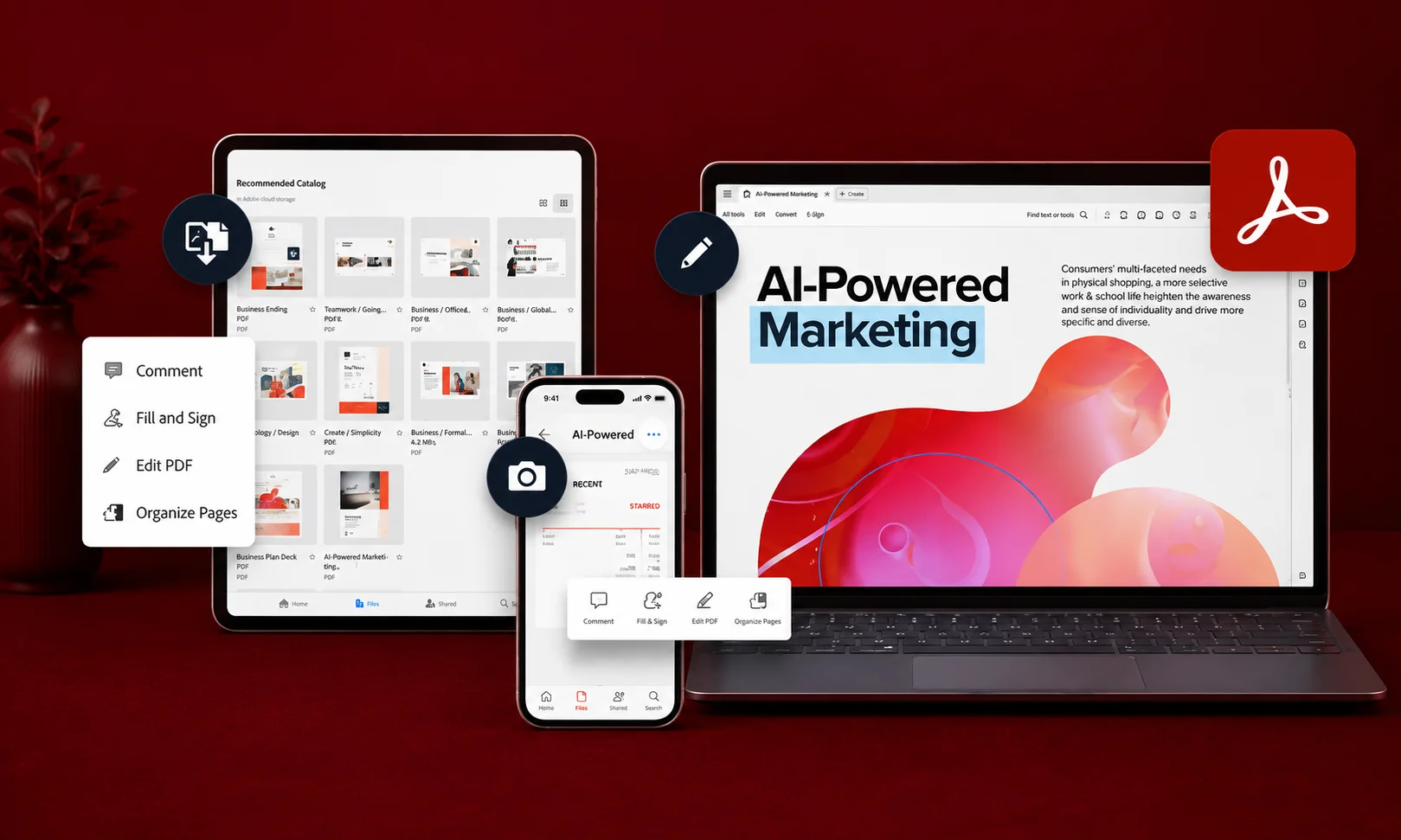
Adobe Acrobat has been the name most associated with PDF software since Adobe created the PDF format in the early 1990s.
Even with increasing competition, it remains one of the strongest choices for organizations that need advanced document workflows.
Adobe Acrobat Pro allows you to edit text and images, create forms, add signatures, manage permissions, convert files, and work with scanned documents through OCR.
Recent updates have also pushed Adobe deeper into AI-powered document workflows. Adobe’s ecosystem now includes AI features designed for summarizing documents, answering questions, and extracting information from PDFs — though it is worth knowing that AI Assistant attaches as a separate paid add-on rather than being bundled into a standard Pro licence.
Adobe has also introduced a higher Acrobat Studio tier, which layers AI Assistant, PDF Spaces and Adobe Express Premium on top of the Pro toolset.
Key Features
- Advanced PDF editing
- OCR for scanned documents
- Electronic signatures
- Document security controls
- Form creation
- File conversion
- AI-assisted document features (paid add-on)
- Cloud integration
Who Should Use Adobe Acrobat Pro?
Adobe Acrobat Pro is best for:
- Large businesses
- Legal professionals
- Enterprise teams
- Users handling sensitive documents
- Organizations already using Adobe products
Who Should Avoid Adobe Acrobat Pro?
It may not be the best choice if:
- You only edit PDFs occasionally
- You need a completely free solution
- You want a cheaper personal tool
Pricing is one of Adobe’s biggest disadvantages. Adobe Acrobat Pro runs at $19.99/month on an annual individual plan (about $239.88 a year), rising to $29.99/month if you pay month to month — a 50% premium for flexibility. Team plans list at $23.99 per licence per month on annual billing, roughly $287.88 per user per year.
For occasional users, paying that much every month may feel unnecessary.
Foxit PDF Editor: Best Adobe Alternative for Business Value
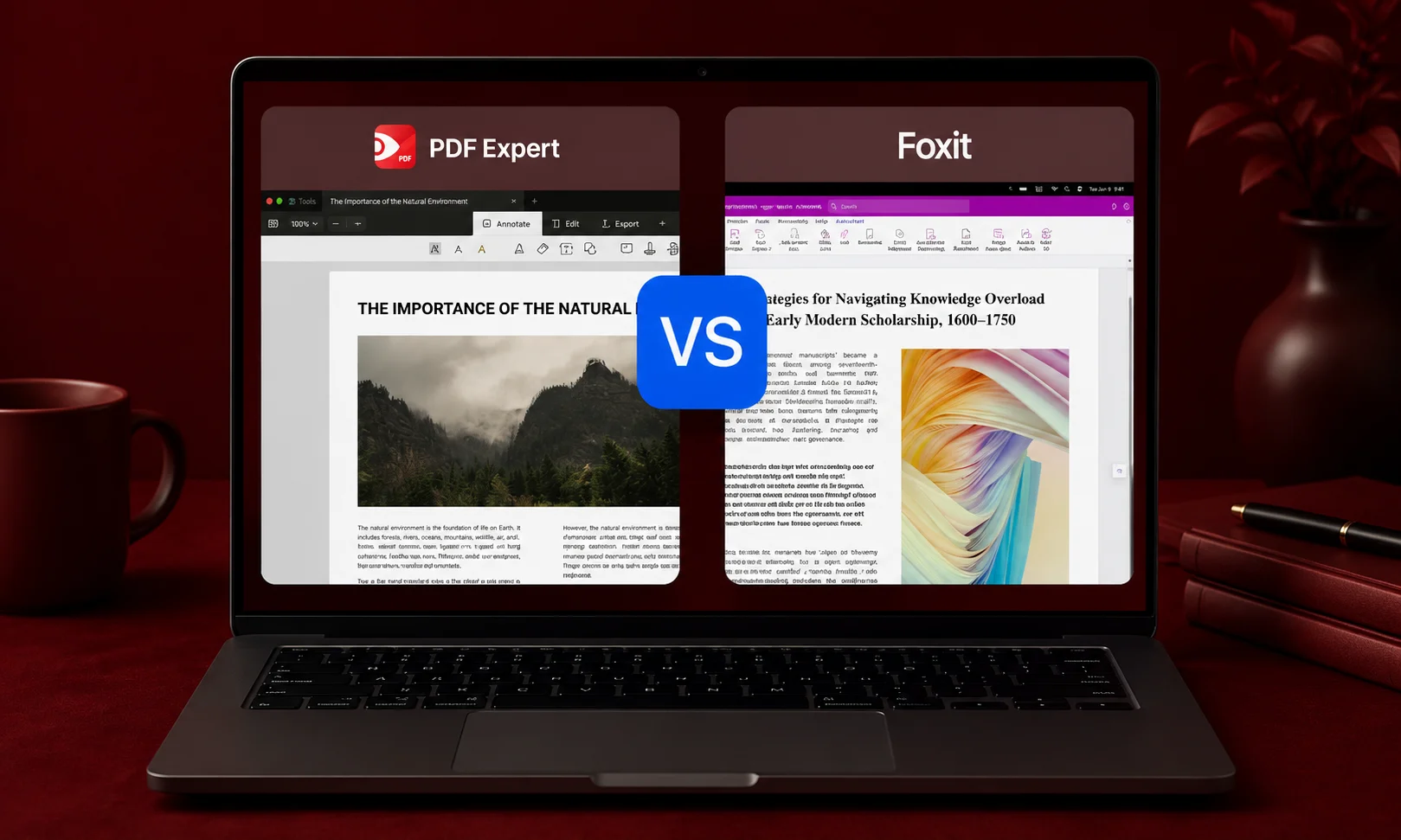
Foxit PDF Editor has become one of the strongest alternatives to Adobe Acrobat.
It focuses on delivering professional PDF editing features while keeping costs lower, making it attractive for businesses that need advanced tools without paying premium pricing.
Several 2026 comparisons position Foxit as a strong value option because it combines editing, OCR, security, and collaboration features in one package.
Key Features
- PDF text and image editing
- OCR conversion
- Document collaboration
- Security features
- E-signatures
- Cloud connectivity
- Cross-platform support
Who Should Use Foxit PDF Editor?
Foxit works well for:
- Small and medium businesses
- Teams managing many documents
- Professionals who need Adobe-level features at a lower cost
Who Should Avoid Foxit PDF Editor?
It may not be ideal if:
- You need the largest possible ecosystem of integrations
- You only need basic PDF edits
- You prefer a completely free tool
Foxit PDF Editor is often priced around $159.99 per year, with reviewers frequently highlighting that it costs significantly less than comparable Adobe solutions for teams.
PDFgear: Best Free PDF Editor
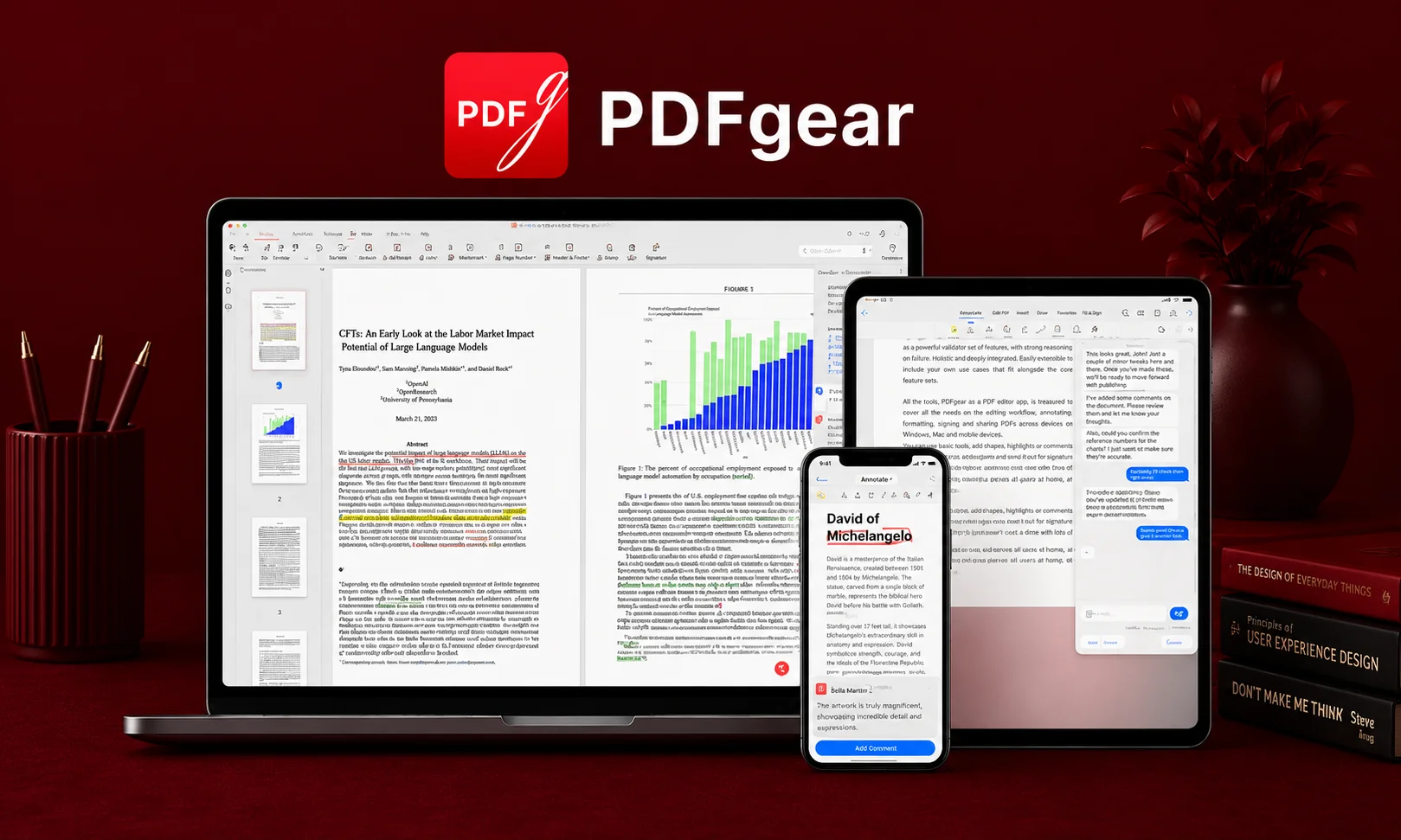
Free PDF editors have improved significantly, and PDFgear is one of the clearest examples of that change.
Many free tools previously forced users into limited features, watermarks, or expensive upgrades. PDFgear has gained attention because it provides features that were traditionally reserved for paid software.
It includes OCR and AI capabilities without requiring a paid subscription.
Key Features
- PDF text editing
- OCR
- AI-powered tools
- Annotation
- Page management
- PDF conversion
Who Should Use PDFgear?
PDFgear is a strong choice for:
- Students
- Occasional PDF users
- Researchers
- People who need basic editing without paying
Who Should Avoid PDFgear?
Consider another option if you need:
- Enterprise-level compliance
- Advanced team management
- Complex business workflows
PDFgear is excellent for everyday tasks, but organizations handling highly sensitive documents may prefer professional solutions with deeper security controls. If cost is your main driver, it is also worth looking at free and open-source alternatives to expensive commercial platforms more broadly.
UPDF: Best Value PDF Editor for Students and Professionals
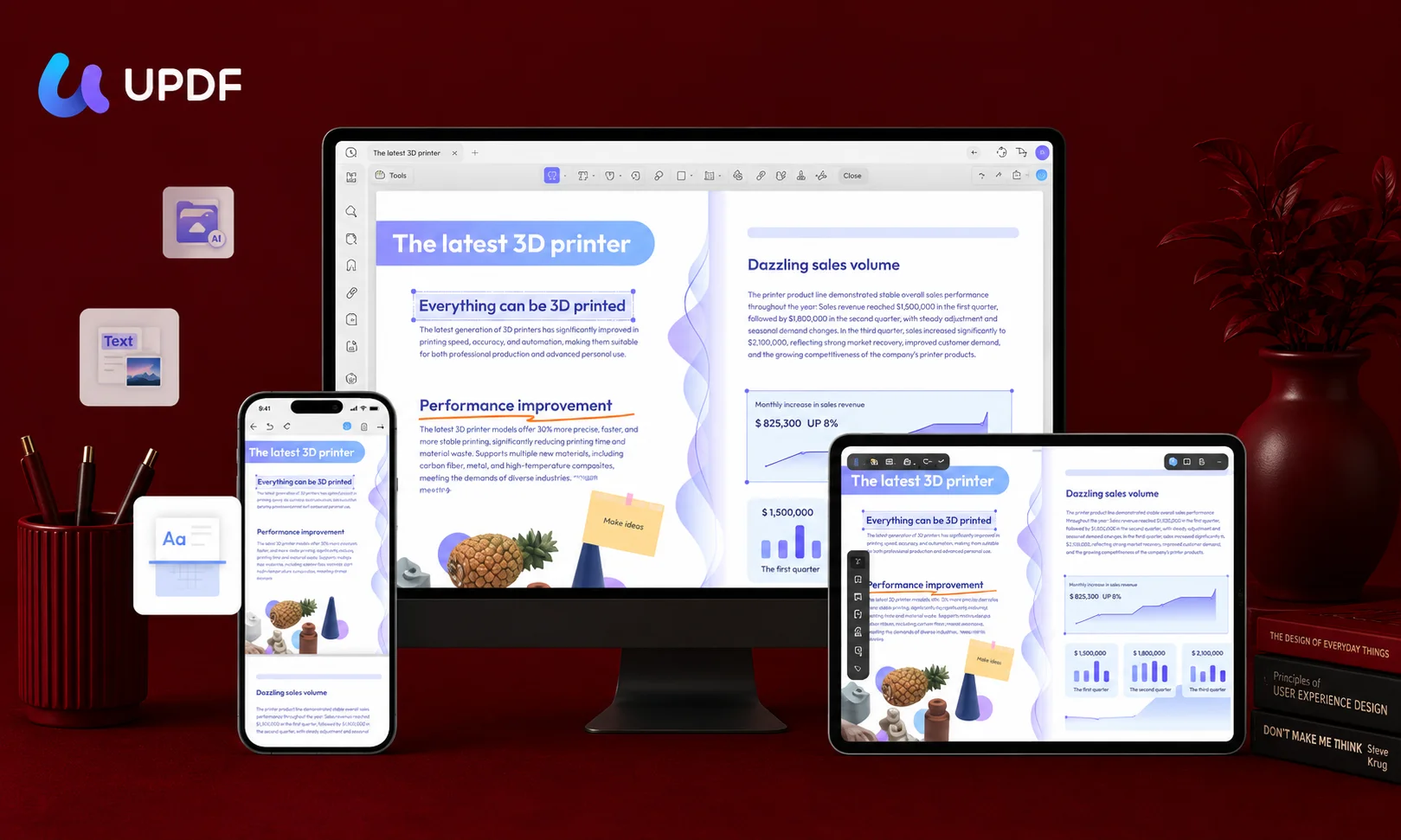
UPDF has gained popularity by focusing on affordability and cross-device flexibility.
It aims to provide many premium PDF features at a lower cost, making it appealing for users who want modern tools without committing to expensive subscriptions.
One of its biggest advantages is its multi-device approach, allowing users to work across desktop and mobile platforms.
Key Features
- PDF editing
- OCR
- AI document assistance
- Annotation
- File conversion
- Cross-platform support
Who Should Use UPDF?
UPDF is a good match for:
- Students
- Researchers
- Freelancers
- Professionals who want affordable premium features
Who Should Avoid UPDF?
It may not be the best option for:
- Large enterprises requiring advanced compliance systems
- Users who only need a simple browser editor
UPDF pricing is often listed around $49.99 per year, with some promotions offering lifetime licenses.
Wondershare PDFelement: Best AI-Powered PDF Editor
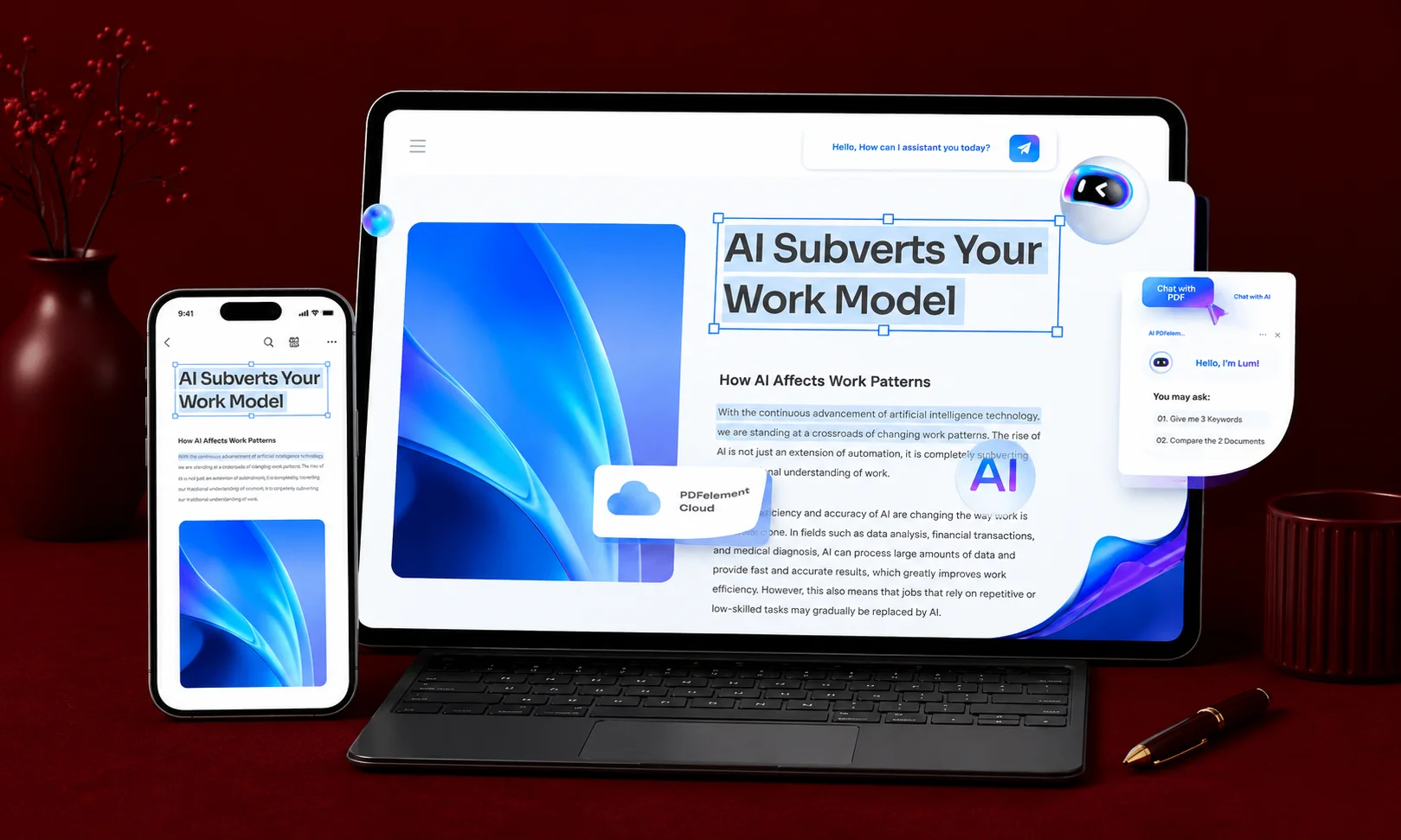
Wondershare PDFelement sits between free tools and enterprise software.
It offers a broad feature set while keeping pricing lower than premium competitors. Its AI tools are one of its biggest selling points.
The software includes AI-assisted features designed to help users summarize documents, analyze content, and work faster with large files.
Key Features
- PDF editing
- AI assistant
- OCR
- Document conversion
- Form creation
- Annotation
- E-signatures
Who Should Use PDFelement?
PDFelement is suitable for:
- Students working with research papers
- Professionals handling reports
- Small businesses
- Users who want AI features without enterprise pricing
Who Should Avoid PDFelement?
It may not be necessary if:
- You only make occasional PDF edits
- You already have access to another document suite
Promotional pricing is often around $49.99 per year, while regular pricing varies depending on the plan.
PDF Expert: Best PDF Editor for Mac and iPad Users
Apple users often look for software that feels natural on macOS and iPad.
PDF Expert stands out because it focuses heavily on the Apple ecosystem, offering a clean interface and smooth document handling.
Key Features
- PDF annotation
- Editing tools
- Document organization
- Apple device optimization
- Cloud support
Who Should Use PDF Expert?
Best suited for:
- Mac users
- iPad users
- Students using Apple devices
- Professionals who prefer a simple interface
Who Should Avoid PDF Expert?
It may not fit users who:
- Need Windows support
- Require enterprise-level workflows
- Need extensive AI capabilities
PDF Expert is commonly listed at around €63.74 for the first year, renewing at approximately €84.99 annually, with lifetime pricing available in some markets. That includes updates, the iPhone and iPad versions, and its PDF co-pilot feature.
Smallpdf: Best Online PDF Editor for Quick Tasks
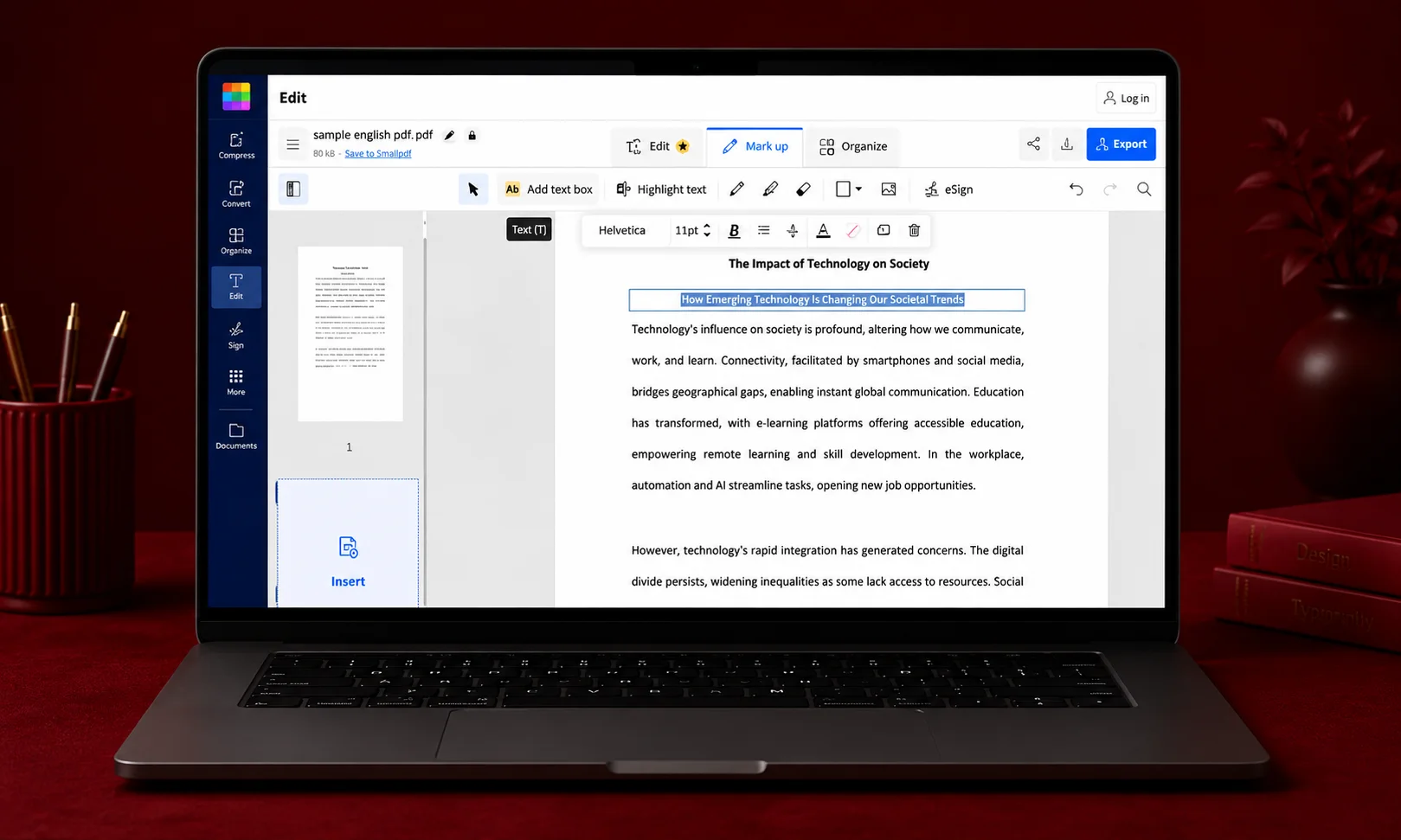
Not everyone needs a desktop application.
Sometimes you just need to merge files, convert documents, sign a PDF, or make a quick edit from a browser.
Smallpdf focuses on convenience through a web-first approach.
Key Features
- Browser-based editing
- PDF conversion
- Compression
- Merging and splitting files
- OCR tools
Who Should Use Smallpdf?
Smallpdf works well for:
- Quick document changes
- Remote workers
- Users who rarely edit PDFs
Who Should Avoid Smallpdf?
Avoid relying only on browser editors when:
- You handle confidential documents
- You work with very large files regularly
- You need advanced offline editing
Online tools are convenient, but privacy and performance should always be considered for sensitive files.
PDF-XChange Editor: Best Lightweight Windows PDF Editor
PDF-XChange Editor is popular among Windows users who want a fast application with strong annotation features.
It focuses on performance and productivity rather than trying to become a full enterprise document platform.
Key Features
- PDF annotation
- Editing tools
- OCR
- Lightweight performance
- Document markup
Who Should Use PDF-XChange Editor?
Recommended for:
- Windows users
- Researchers
- Technical professionals
- Users who annotate documents frequently
Who Should Avoid PDF-XChange Editor?
It may not be ideal if:
- You need Mac support
- You prefer a browser-based solution
- You want a polished mobile ecosystem
Best PDF Editors by Use Case
The “best” option changes depending on your workflow.
Best PDF Editor for Students
Recommended: PDFgear, UPDF, or PDFelement
Students usually need:
- Annotation
- Highlighting
- OCR for scanned books
- AI summaries
- Affordable pricing
Free tools like PDFgear can handle many academic tasks, while UPDF and PDFelement add stronger AI features.
Best PDF Editor for Businesses
Recommended: Adobe Acrobat Pro or Foxit PDF Editor
Businesses usually care about:
- Security
- Team collaboration
- Digital signatures
- Document permissions
- Reliable workflows
Adobe remains the enterprise benchmark, while Foxit provides a more budget-friendly alternative.
Best PDF Editor for Mac Users
Recommended: PDF Expert
PDF Expert is frequently recommended for Apple users because of its optimized interface and smooth experience across Mac and iPad devices.
Best Free PDF Editor
Recommended: PDFgear
PDFgear stands out because it provides OCR and AI features without requiring payment.
However, free tools are usually better for personal workflows than complex business environments.
Best AI PDF Editor
Recommended: PDFelement, UPDF, Adobe Acrobat
AI features are becoming one of the biggest differences between PDF editors.
Modern tools can help summarize documents, answer questions, extract information, and speed up research and writing workflows.
Free vs Paid PDF Editors: Which One Should You Choose?
The biggest mistake people make when choosing a PDF editor is assuming the most expensive option must be the best.
That is not always true.
A free PDF editor may be all you need if you occasionally highlight documents, rearrange pages, or make small text changes. However, professionals working with contracts, reports, scanned documents, or confidential files often need advanced features that free tools cannot provide.
The right decision depends on how often you work with PDFs and what problems you need to solve.
What Free PDF Editors Do Well
Free PDF editors have improved significantly in recent years.
Tools like PDFgear now offer features that were previously limited to premium software, including OCR and AI-powered assistance.
A free editor can usually handle:
- Basic text editing
- Adding comments
- Highlighting documents
- Rearranging pages
- Converting files
- Simple annotations
For students, researchers, and occasional users, these features are often enough.
Where Paid PDF Editors Win
Paid PDF editors become valuable when your workflow becomes more complex.
Premium tools usually provide:
- Better OCR accuracy
- Advanced security controls
- Digital signature workflows
- Batch processing
- Professional form creation
- Team collaboration
- Enterprise integrations
For example, Adobe Acrobat and Foxit PDF Editor are designed for users who manage large volumes of documents and require stronger control over security and permissions.
Hidden Limitations of Free PDF Editors
Before choosing a free tool, check what restrictions exist.
Some free editors may limit:
- Number of documents you can process
- File size
- Advanced editing features
- Export quality
- Cloud storage options
- Access to AI features
A free editor can save money, but it may cost time if you repeatedly encounter limitations.
Online vs Desktop PDF Editors: Which Is Better?
The choice between an online PDF editor and a desktop application depends on your workflow.
Both options solve different problems.
Benefits of Online PDF Editors
Browser-based tools like Smallpdf are useful because they require no installation.
They are practical when you need to:
- Quickly merge PDFs
- Convert files
- Compress documents
- Sign a document
- Make simple edits from any device
They work especially well for remote workers and occasional users.
Benefits of Desktop PDF Editors
Desktop PDF editors provide deeper functionality.
They are better for:
- Large documents
- Frequent editing
- Offline work
- Sensitive information
- Professional workflows
Applications such as Adobe Acrobat, Foxit, and PDF-XChange Editor provide stronger control over document handling.
Which One Should You Choose?
Choose an online PDF editor if:
- You edit PDFs occasionally
- Your files are not sensitive
- You need convenience
Choose a desktop PDF editor if:
- You edit documents regularly
- You work with confidential files
- You need advanced features
For legal, medical, financial, or business documents, local processing is often a safer approach than uploading files to browser-based services.
How AI Is Changing PDF Editors in 2026
AI has become one of the biggest changes in the PDF software industry.
Modern PDF editors are moving beyond simple editing tools and becoming document assistants.
Instead of manually reading hundreds of pages, users can now ask questions, summarize information, and extract important details faster.
AI Summaries and Document Questions
AI-powered PDF editors can help users understand large documents quickly.
For example, a researcher can summarize a long academic paper, while a business professional can extract key points from a lengthy report.
Adobe, PDFelement, and UPDF are among the tools adding AI-powered document features — though pricing models differ, and Adobe charges separately for AI Assistant.
AI OCR for Scanned Documents
OCR has always been an important PDF feature.
However, AI improvements are helping software better recognize complicated layouts, scanned pages, and mixed content.
This is especially useful for:
- Old documents
- Printed books
- Invoices
- Contracts
AI Translation and Productivity Features
Some modern PDF tools are expanding beyond editing.
Newer AI features include:
- Document translation
- Content extraction
- Question answering
- Automated summaries
Adobe’s ecosystem has also explored AI features that can generate additional insights from documents, including audio-style summaries.
How to Choose the Right PDF Editor for Your Needs
The best PDF editor is the one that matches your actual workflow.
Before paying for software, ask yourself a few questions.
Step 1: Identify Your Main Task
First, decide what you mainly do with PDFs.
Do you need to:
- Edit text?
- Convert files?
- Scan documents?
- Sign contracts?
- Collaborate with a team?
- Analyze research papers?
Different tasks require different tools.
Step 2: Decide Your Budget
Your budget affects your options.
If you rarely edit PDFs, free tools may be enough.
If PDFs are part of your daily work, investing in premium software can save significant time.
Step 3: Check Platform Compatibility
Make sure the software works where you need it.
Consider:
- Windows
- macOS
- Mobile devices
- Web browsers
Some tools focus on specific platforms.
For example, PDF-XChange Editor is mainly known for Windows, while PDF Expert focuses strongly on Mac and iPad users.
Step 4: Test With Your Real Documents
A PDF editor may look impressive but perform poorly with your actual files.
Before committing, test:
- Large PDFs
- Scanned documents
- Complex layouts
- Tables
- Images
This helps identify OCR or formatting problems before purchase.
Practical Guide: How to Start Using a PDF Editor Effectively
Choosing software is only the first step.
A good workflow helps you get more value from your PDF editor.
Step 1: Organize Your PDF Workflow
Create a simple system for:
- Document storage
- File naming
- Version control
- Sharing permissions
This prevents confusion when managing multiple files.
Step 2: Use OCR for Scanned Files
If you regularly work with scanned documents, OCR can save hours.
Instead of manually rewriting information, OCR converts images into searchable and editable text.
Step 3: Automate Repetitive Tasks
Many PDF editors support features such as:
- Batch processing
- Templates
- Form creation
- Digital signatures
These features are especially useful for businesses.
Step 4: Protect Sensitive Documents
Use security features when handling important files.
Recommended practices include:
- Password protection
- Encryption
- Permission controls
- Secure sharing
Privacy and Security: What to Consider Before Choosing a PDF Editor
PDF files often contain sensitive information.
Contracts, financial records, medical documents, and business reports require careful handling.
Security features vary between software providers.
Encryption and Password Protection
Professional PDF editors often include tools to restrict access and protect documents.
Adobe Acrobat and Foxit focus heavily on security features for business users.
Cloud vs Local Processing
Online PDF editors are convenient, but uploading sensitive documents requires trust in the provider.
For private information, desktop applications with local processing may provide more control.
AI Privacy Considerations
AI-powered PDF tools create new questions about data handling.
Users should understand:
- Where documents are processed
- Whether files are stored
- How AI features use document data
As AI PDF assistants become more common, transparency around data handling will become increasingly important.
Common Mistakes People Make When Choosing a PDF Editor
Many users choose PDF software based only on the feature list.
That can lead to expensive mistakes.
Choosing More Features Than You Need
A freelancer editing invoices does not need the same tool as a legal department.
More features often mean higher costs and more complexity.
Ignoring Long-Term Pricing
Some subscriptions seem affordable initially but become expensive over years.
Compare:
- Monthly pricing
- Annual pricing
- Lifetime options
- Upgrade policies
- Whether AI features cost extra
Forgetting About Your Real Documents
A PDF editor should be tested with your own files.
A tool that works perfectly with simple documents may struggle with complex layouts or scanned pages.
Final Verdict: Choosing the Best PDF Editors in 2026
The search for the best PDF editors does not end with finding the software with the most features.
It ends when you find the tool that fits the way you work.
If you manage business documents, Adobe Acrobat and Foxit remain strong professional choices. If you want affordable premium features, UPDF and PDFelement offer impressive value. For free editing, PDFgear has changed expectations by bringing AI and OCR features to users without a subscription.
Remember the contract problem from the beginning?
The real issue was never just editing a PDF. It was having the right tool when an important moment arrived.
A good PDF editor quietly removes those frustrating moments from your workflow. It lets you focus on the document itself instead of fighting the software behind it.
The best choice is not the most expensive one. It is the one that makes your everyday work simpler.
Frequently Asked Questions
What is the best PDF editor overall?
The best PDF editor depends on your requirements. Adobe Acrobat remains the strongest choice for enterprise users because of its advanced editing, security, and workflow features. For individuals, cheaper alternatives like Foxit, UPDF, and PDFelement may provide better value.
Which PDF editor is completely free?
PDFgear is one of the strongest free PDF editors available in 2026. It offers features such as OCR and AI tools without requiring a paid subscription. It is especially suitable for students, researchers, and users who need basic PDF editing.
How much does Adobe Acrobat Pro cost in 2026?
Acrobat Pro lists at $19.99 per month on an annual individual plan, or $29.99 per month if billed month to month. Team plans are $23.99 per licence per month on annual billing. Adobe’s AI Assistant is charged separately as an add-on.
Is Adobe Acrobat still worth it?
Adobe Acrobat is still worth considering for businesses and professionals who need advanced PDF workflows. It remains a benchmark for features like OCR, security controls, and document management. However, casual users may find lower-cost alternatives sufficient.
Can I edit PDFs without Adobe Acrobat?
Yes, you can edit PDFs without Adobe Acrobat. Tools such as PDFgear, Foxit PDF Editor, UPDF, and PDFelement provide PDF editing features at different price points. The right choice depends on your required features and budget.
Which PDF editor has the best OCR?
OCR quality varies depending on the document type and software. Adobe Acrobat, Foxit, PDFelement, UPDF, and PDFgear all provide OCR features. For scanned documents, testing the software with your own files is the best way to judge accuracy.
Are online PDF editors safe?
Online PDF editors can be safe for general documents, but caution is needed with sensitive files. Browser-based tools may require uploading documents to external servers. For confidential information, desktop editors with local processing may be a better choice.
Which PDF editor is best for students and researchers?
Students often benefit from affordable tools such as UPDF, PDFelement, and PDFgear. These editors provide useful features like annotation, OCR, AI summaries, and document organization. The best option depends on whether you need advanced AI features or only basic editing.