College isn’t cheap. A laptop is one of the biggest purchases for most students before classes even start. It’s got to handle lecture notes, essays, research rabbit holes, Zoom calls, slide decks, and those study marathons that stretch past midnight.
Not every student needs the same setup. Someone writing papers and pulling up Google Docs all day is in a totally different boat than someone doing CAD work, coding, or editing video footage. That’s why the list mixes it up, cheaper laptops for regular coursework, and stronger ones for people who need the extra power.
You don’t have to break the bank to land something solid, but going too cheap usually means giving something up, slower performance, weaker battery life, a flimsier build, or a machine that won’t last as long as you’d hoped. The goal here is helping you strike the right balance so your laptop just works, and you can focus on school instead of troubleshooting your machine.
Our Top Tested Picks
Best Windows Laptop For College Students
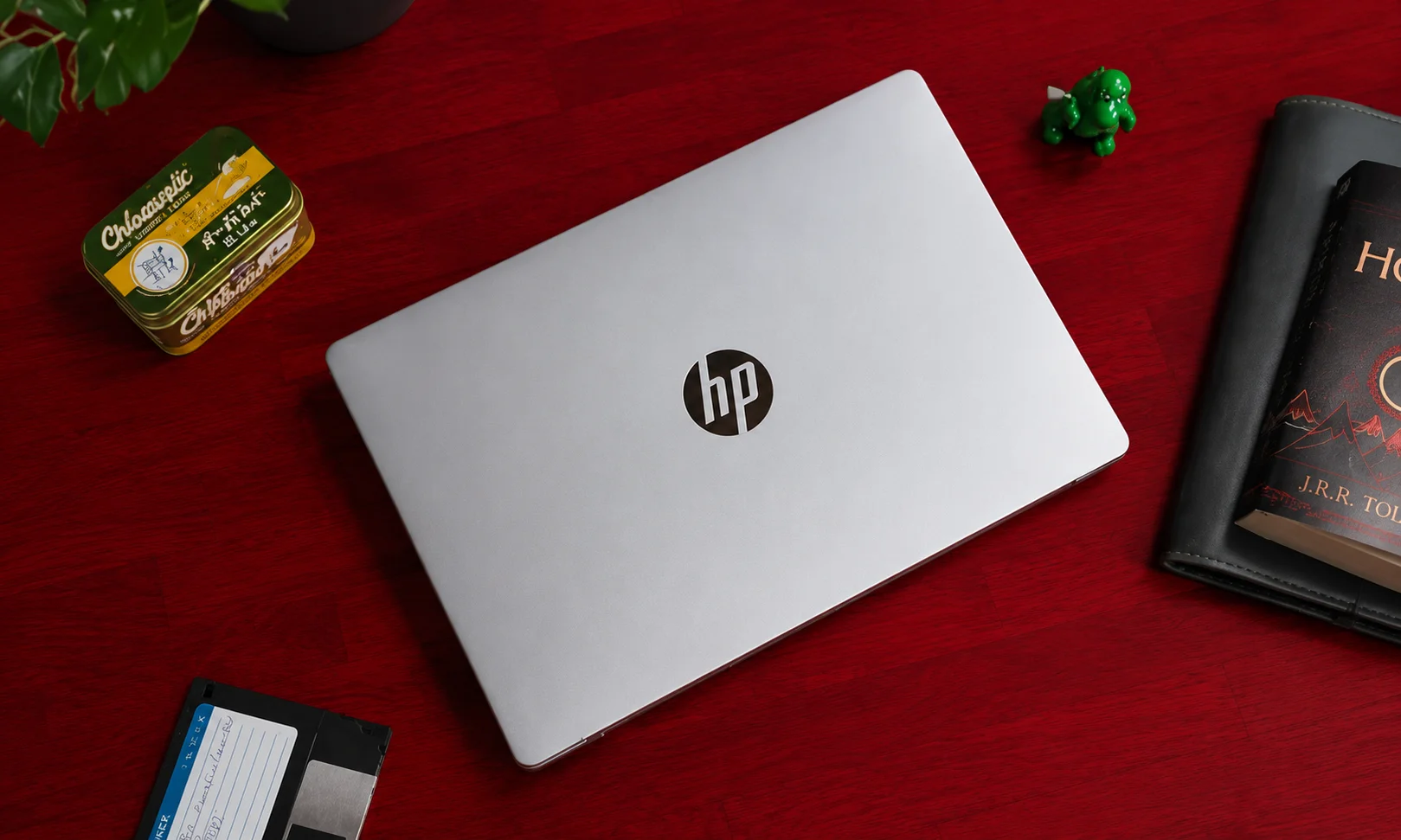
HP Omnibook 5 14
Pros
- Exceptional battery life
- Outstanding value for the price
- Vibrant OLED display
- Slim, lightweight design
- Generous 32GB RAM and 1TB SSD
- Stylish, compact construction
Cons
- Windows on Arm can have compatibility limitations
- Integrated graphics are not suited to demanding workloads
- OLED panel could be brighter
- USB-C ports offer relatively modest speeds
- Keyboard deck has noticeable flex
Why We Picked It
The HP OmniBook 5 14 is the kind of laptop that just makes college life easier. With battery life clocking in at an incredible 34 hours, you could realistically go a couple of days between charges, no more hunting for an outlet between classes. Under the hood, the Snapdragon X processor keeps everyday tasks running smoothly without draining that battery, all at a price that doesn’t feel outrageous. The OLED display is a nice bonus too, with rich blacks and colors that pop. Add in a slim, lightweight build that won’t weigh down your backpack, plus 32GB of RAM and a full 1TB of storage, and you’re looking at specs that punch well above what you’d expect at this price point.
Who It’s For
Students on the go: Classes, library, late-night studying the 34-hour battery means you don’t even need to bring your charger.
Students on a budget: The OLED screen, thin design, and small size make it look way more expensive than it is.
Students with everyday work: Papers, research, video calls, presentations it handles all the usual school stuff just fine.
Who should skip it:
If your coursework depends on niche Windows-only software, an Intel or AMD-powered laptop is probably the safer bet, Windows-on-Arm can still run into compatibility snags with certain programs.
Specifications and Configurations
| Processor | Qualcomm Snapdragon X Plus X1P-42-100 |
| RAM | 32GB |
| Storage | 1TB SSD |
| Display | 14-inch OLED |
| Resolution | 1,920 × 1,200 |
| Refresh rate | 60Hz |
| Graphics | Qualcomm Adreno X1-45 |
| Wireless | Wi-Fi 6E, Bluetooth 5.3 |
| Weight | 2.98 lbs |
| Operating system | Windows 11 |
| Battery life | Up to 34 hours 48 minutes in testing |
Best-Budget MacBook For College Students

MacBook Neo
Pros
- Powerful A18 Pro chip for everyday performance
- Solid aluminum build with a premium feel
- Excellent display with sharp, colorful visuals
- Surprisingly low price for a MacBook
- Impressive graphics and stereo speakers
- Great value for students and casual users
Cons
- Limited physical ports, including a slow USB 2.0 port
- No keyboard backlighting
- Base 256GB SSD can fill up quickly
- Touch ID costs extra
- No MagSafe or fast charging
- Shorter battery life than the MacBook Air
Why We Picked It
The MacBook Neo gives you that premium Apple feel without the premium Apple price. It starts at $699 (or $599 if you’re a student), and comes with a solid aluminum body, a sharp 13-inch display, and Apple’s A18 Pro chip inside. It’s more than capable for schoolwork — papers, browsing, presentations, multitasking and can even handle some solid graphics work too.
If you already use an iPhone, this is an easy pick since everything connects so smoothly between the two devices. The compact size, full macOS setup, and sturdy build make it feel far pricier than it actually is, and the screen size is close to what you get on the MacBook Air’s 13.6 inch display.
Who It’s For
Budget conscious students: If you want a Mac that does your schoolwork without paying over $1,000, this is it, especially with the $599 student price.
Everyday users: Fine for browsing, writing papers, presentations, streaming, and normal daily use.
iPhone users: Makes even more sense if you already have an iPhone, since it pairs up so easily with macOS.
Entry level Mac buyers: A cheaper way to get into Apple’s ecosystem instead of paying MacBook Air or Pro prices.
Who should skip it:
If you’re in STEM or design and need serious processing power, go with a MacBook Air or Pro instead.
Specifications and Configurations
| Processor | Apple A18 Pro |
| Display | 13-inch, 2408×1506 IPS |
| Memory | 8GB |
| Storage | 256GB SSD |
| Weight | 2.7 lbs |
| Battery Life | Up to 15 hours |
| Graphics | A18 Pro 5-core GPU |
| OS | macOS Tahoe |
| Charging | USB-C |
| Connectivity | Wi-Fi 6E, Bluetooth 6 |
Best entry-level budget laptop for students
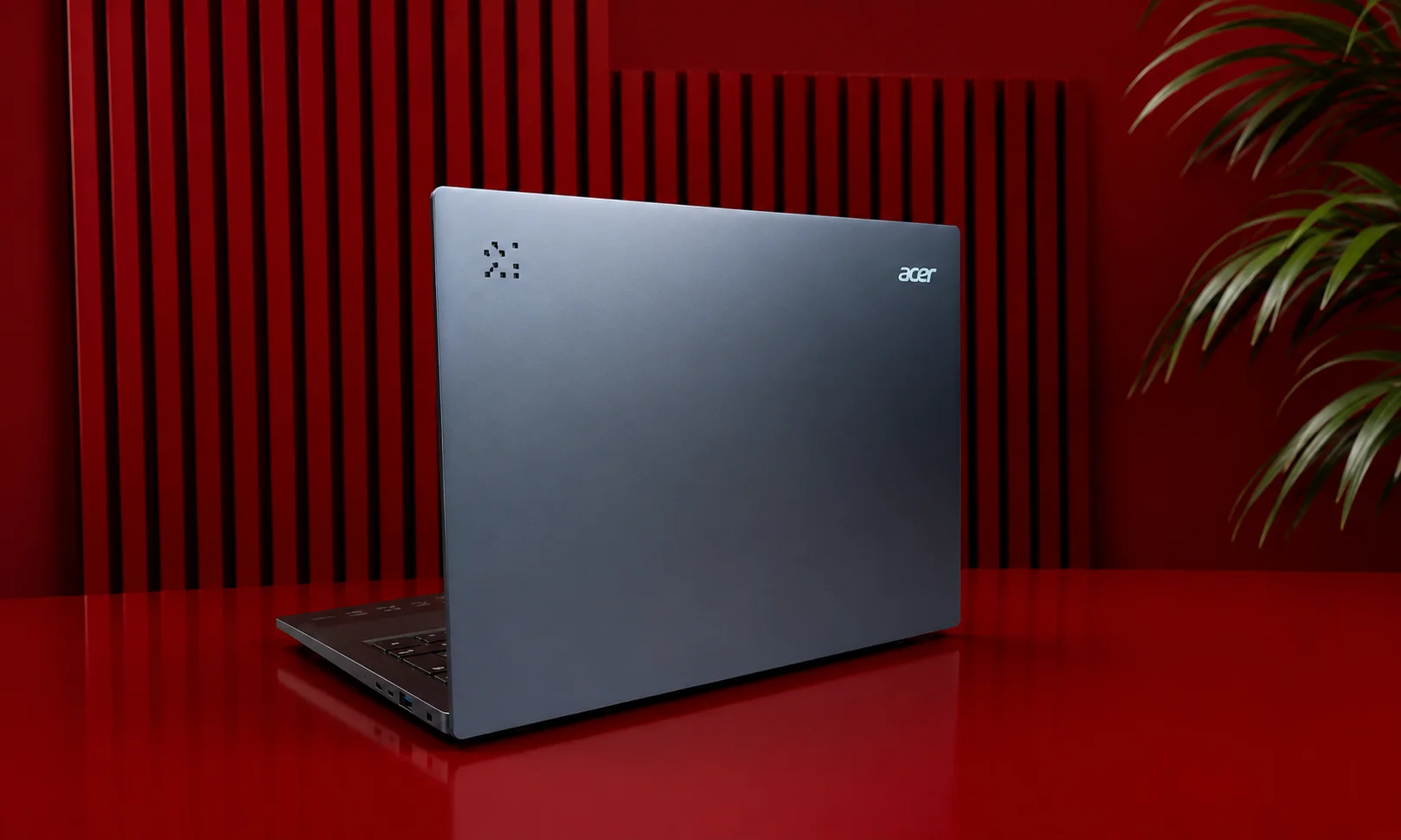
Acer Aspire 14 AI
Pros
- Exceptional battery life for all-day use
- Strong performance and AI features for the price
- Useful port selection with Thunderbolt 4 and HDMI
- Lightweight design at around 3.1 pounds
- Affordable entry into Copilot+ PCs
Cons
- Dim, dull 60Hz display
- Plain, uninspiring design
- Weak built-in speakers
- Not suitable for demanding gaming or 3D work
- Soldered RAM cannot be upgraded
Why We Picked It
The Acer Aspire 14 AI is one of the cheapest Copilot+ PCs you can get, but it doesn’t feel cheap in daily use. It runs on an Intel Core Ultra 5 226V processor with a 40 TOPS NPU built in for on device AI features, and that same chip helps it get great battery life too.
It’s also light enough to carry around all day, and performs better than you’d expect for the price. The display is nothing special, that’s the main tradeoff, but if you care more about battery life, portability, and having AI features built in, the Aspire 14 AI is hard to beat for the money.
Who It’s For
Budget conscious Copilot+ buyers: If you want long battery life, solid AI features, and good everyday performance without paying top dollar, this fits the bill.
Students and everyday users: It’s light, runs efficiently, and lasts all day, good for school, work, browsing, and general productivity.
Who should skip it:
If a brighter, more colorful screen or a fancier design matters to you, put your money toward a higher end laptop instead.
Specifications and Configurations
| Processor | Intel Core Ultra 5 226V |
| RAM | 16GB LPDDR5-8533 |
| Storage | 1TB SSD |
| Display | 14-inch touch IPS LCD |
| Resolution | 1,920 × 1,200 |
| Graphics | Intel Arc 130V |
| Weight | 3.05 lbs |
| Operating system | Windows 11 Home |
| Battery life | Up to 18 hours 56 minutes |
Best Laptops For College Students Compared
| Laptop | Display size/resolution | Weight | CPU tested | GPU tested |
| HP OmniBook 5 14 | 14-inch, 1,920 × 1,200 OLED | 2.98 lbs | Qualcomm Snapdragon X Plus X1P-42-100 | Qualcomm Adreno X1-45 |
| MacBook Neo | 13-inch, 2,408 × 1,506 IPS | 2.7 lbs | Apple A18 Pro | A18 Pro 5-core GPU |
| Acer Aspire 14 AI | 14-inch, 1,920 × 1,200 IPS LCD | 3.05 lbs | Intel Core Ultra 5 226V | Intel Arc 130V |
Factors to Consider Before Buying a Student Laptop
Performance: The processor and RAM need to match what you’re actually doing on it. If it’s just regular coursework, a decent modern processor with 8GB RAM will hold up fine. Engineering, coding, photo editing, video work though — that’s a different story, you’ll want more muscle under the hood.
Battery life: People underestimate this one until it bites them. What you want is something that survives a full day of back-to-back classes without you begging someone for an outlet in a hallway somewhere.
Weight and portability: This thing’s coming with you everywhere classes, library, back home, probably daily. Every extra pound adds up fast once your bag’s already stuffed with books and other junk.
Display quality: Your eyes are going to be glued to this screen for hours, so this isn’t where you want to cut corners. A sharp, bright screen just makes everything less annoying reading, writing, sitting through recorded lectures, whatever.
Keyboard and trackpad: You’ll type more on this thing than you realize, so comfort actually matters here. Good key travel, a trackpad that responds properly, and backlighting if you’re often working after dark.
Storage: 256GB is basically the floor now. Got a lot of files, photos, videos, or apps piling up? Go 512GB or more so you’re not stuck deleting stuff every few weeks.
Ports and connectivity: Check what’s actually built in — USB-C, USB-A, HDMI, headphone jack. Having the right ports saves you from hauling around a bag of dongles just to plug things in.
Operating system and software: Windows, macOS, either works for normal schoolwork. But if your major needs specific programs, check they’ll actually run before you commit to buying.
Build quality: Worth spending a bit more for something that can survive getting tossed around in a backpack daily. Aluminum or solid composite holds up way longer than cheap plastic tends to.
Price and value: Don’t just chase the lowest price tag. Weigh battery, performance, storage, and screen together, and think about how long you actually want to keep it. Spending more now can be cheaper than replacing it in two years.
Our Ranking Methodology
We tried these laptops out the way a college student actually would, day to day, not just on paper. That meant looking at how they handle everyday use, battery life, how easy they are to haul around campus, screen quality, keyboard comfort, build quality, the ports you get, and whether the price actually feels fair. We also had them run through the usual school routine — writing papers, browsing around, video calls, presentations, and switching between a bunch of things at once without slowing down.
Frequently Asked Questions
How much should a student spend on a laptop?
Honestly, it’s all over the place, but most students end up spending somewhere between $500 and $1,000. If you’re just writing papers and pulling up websites, you don’t need to go all out. Now if you’re in something like engineering or design, spending a bit extra tends to pay off later.
Is 8GB of RAM enough for college?
Depends how you actually use the thing, really. Writing docs, browsing, jumping on the occasional call, 8GB won’t give you any trouble there. But if you’re someone who’s always got a million tabs open plus a couple apps running in the background, you’re gonna feel it lag eventually. In that case just go with 16GB and save yourself the annoyance later.
Is a 13-inch or 14-inch laptop better for students?
Not really a right answer here, it’s more personal preference. 14-inch gets you more screen to actually work on, but it’s a bit bigger and heavier. 13-inch is easier on your bag and your back, just less real estate to look at.
Do college students need a dedicated graphics card?
Most people, no, not really. Unless you’re doing 3D modeling, working on games, or editing video seriously, whatever graphics chip is already built in will be plenty.
Should I choose Windows or macOS for college?
For everyday classwork, doesn’t really make a difference, they both get you through fine. What actually matters is if your major needs certain software, what you’re already used to using, and how much you want to spend. Probably smart to check with your school before locking anything in.