


The internet contains an overwhelming amount of information. According to research by Internet Live Stats, more than 5 billion searches happen on Google every single day. But sometimes the information you need is already on a specific website page. The challenge is locating it quickly.
That is where knowing how to search for a word in a website becomes extremely helpful.
Instead of scrolling through long articles or complex pages, you can instantly jump to the exact word or phrase you are looking for. This small skill saves time and makes browsing far more efficient.
Students use it to find keywords in research papers. Professionals rely on it to scan reports and documentation. Everyday users use it to quickly locate information within blogs, guides, and online manuals.
The good news is that searching for words on a website is surprisingly easy once you know the right tools and shortcuts.
In this guide, we will walk through the most effective methods for how to search for a word in a website, whether you are using a desktop computer, smartphone, or tablet.
Understanding How Web Pages Are Structured

Before learning the techniques, it helps to understand how websites are structured.
Most web pages are built using HTML code that organizes text into sections such as headings, paragraphs, lists, and links. Browsers load this content and display it visually on your screen.
When you search for a word on a page, your browser scans that text instantly and highlights every matching word or phrase.
Because browsers process the entire page at once, the search function works almost instantly even on long pages.
This is why learning how to search for a word in a website can dramatically improve your browsing efficiency.
The Fastest Method Using Keyboard Shortcuts
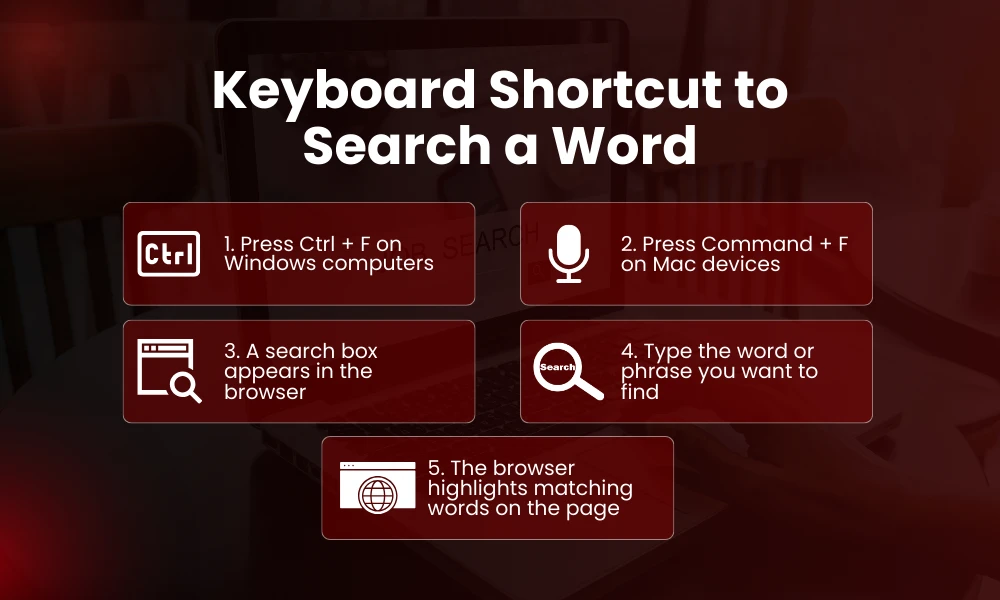
The most widely used method for finding a word on a website involves a simple keyboard shortcut.
On most computers, the shortcut is:
Ctrl + F
When you press these keys together, a small search box appears in your browser. You can then type the word or phrase you want to locate.
Your browser immediately highlights every matching result on the page.
This shortcut works across most browsers including:
- Google Chrome
- Mozilla Firefox
- Microsoft Edge
- Safari
Mac users use a slightly different shortcut.
Instead of Ctrl + F, the command is:
Command + F
Once you know this shortcut, you instantly understand how to search for a word in a website without needing any additional tools.
Searching for Words in Long Articles
Many websites publish long guides or research articles that may contain thousands of words.
Without a search feature, scanning through these pages would take several minutes. With the search shortcut, you can locate information in seconds.
For example, imagine you are reading a 4000 word article about nutrition but want to find mentions of “vitamin D.”
By pressing Ctrl + F and typing the phrase, the browser highlights every location where that term appears.
Some browsers even display the number of matches on the page.
This is one reason journalists, researchers, and editors frequently rely on how to search for a word in a website during their daily work.
Searching for Words on a Website Using Mobile Devices

Most people now browse the internet on smartphones. According to Statista, over 58 percent of global web traffic comes from mobile devices.
Fortunately, mobile browsers also allow users to search for specific words on a page.
The steps vary slightly depending on the browser, but the process is similar across most platforms.
Searching in Chrome on Mobile
- Open the webpage in Chrome
- Tap the three dot menu in the top corner
- Select “Find in page”
- Type the word you want to search for
Chrome highlights the word and shows how many times it appears on the page.
Searching in Safari on iPhone
- Open the webpage in Safari
- Tap the share or options icon
- Scroll down and choose “Find on Page”
- Enter the word or phrase
Safari highlights each instance of the word as you scroll through the results.
Learning how to search for a word in a website on mobile devices ensures you can quickly locate information even when using your phone.
Using Browser Search Bars for Site Specific Searches
Sometimes the word you want may not appear on the current page but somewhere else on the same website.
In that situation, you can perform a site specific search using Google.
This method searches the entire website instead of just one page.
The format looks like this:
site:example.com keyword
For example:
site:wikipedia.org climate change
Google will return pages from that specific site that contain the keyword.
This approach complements the techniques used for how to search for a word in a website, especially when the information might exist on another page.
Searching Inside PDFs on Websites

Many websites host documents such as research reports, white papers, and manuals in PDF format.
PDF files also support word searching.
Most PDF viewers allow you to use the same keyboard shortcut:
Ctrl + F
After pressing the shortcut, you can type the word and instantly jump to the matching text inside the document.
Researchers often use this technique when reviewing long studies or technical papers.
Knowing how to search for a word in a website becomes even more valuable when working with large documents.
Why the Find Function Is Essential for Researchers
Students and researchers often read large volumes of online material.
Instead of manually scanning through entire pages, they rely on the browser find tool to identify important sections quickly.
For example, a student writing a research paper might search for specific terms like:
- methodology
- results
- conclusion
This allows them to jump directly to relevant sections within articles.
Because of this efficiency, many research guides and academic tutorials include instructions on how to search for a word in a website as a basic digital literacy skill.
Searching for Multiple Word Variations
Sometimes you may want to search for variations of a word.
For example, an article might use both “optimize” and “optimization.”
Most browsers only search for exact matches. However, you can run multiple searches quickly to find variations.
For example:
First search: optimize
Second search: optimization
Running multiple searches helps ensure you find all relevant sections.
This technique improves the usefulness of how to search for a word in a website when dealing with complex topics.
Using Browser Extensions for Advanced Search
Advanced users sometimes install browser extensions that enhance search functionality.
These tools can:
- highlight multiple keywords
- search across several pages
- organize matches visually
While these extensions are optional, they can make how to search for a word in a website even more powerful for professionals who review large amounts of online content.
Why Many People Still Do Not Use the Find Feature
Despite how useful it is, many internet users are unaware of the find function.
A Nielsen Norman usability study found that a large percentage of users still rely on scrolling rather than using built in search tools.
This means many people spend unnecessary time scanning pages manually.
Once users learn how to search for a word in a website, they often adopt it as a daily habit because it saves so much time.
Troubleshooting When the Search Function Does Not Work
Occasionally the search function may not locate a word even though it appears on the page.
There are several possible reasons.
Hidden Text or Images
Sometimes words appear inside images rather than actual text. In that case the browser cannot detect them.
Dynamic Content
Some websites load content dynamically as you scroll. The search tool may only scan the visible portion of the page.
Different Word Forms
The page may use a slightly different version of the word you searched for.
Understanding these issues helps users better apply how to search for a word in a website effectively.
The Future of On Page Search
Search technology continues to evolve as browsers integrate AI powered tools.
Future browsing tools may allow users to search pages using natural language questions rather than individual words.
For example, instead of searching for a specific keyword, users might ask a browser:
Where does this article explain the main benefits?
The browser could then highlight relevant sections.
Even with these advancements, the basic principles of how to search for a word in a website will remain valuable for quickly locating information.
Final Thoughts
The internet contains more information than any person could manually scan. Learning simple browsing skills can dramatically improve how efficiently you navigate that information.
Understanding how to search for a word in a website is one of the most useful skills for students, professionals, and everyday internet users.
With a simple keyboard shortcut or mobile browser feature, you can instantly locate important information on even the longest pages.
Whether you are researching academic material, reading documentation, or browsing online articles, mastering this technique will save time and make your online experience far more productive.
FAQs
What is the shortcut to search for a word on a website?
The most common shortcut is Ctrl + F on Windows computers and Command + F on Mac devices.
Can I search for words on websites using a phone?
Yes. Most mobile browsers include a “Find in Page” option that allows you to search for words within a webpage.
Why does the search function sometimes miss words?
This may happen if the word appears inside an image or if the webpage loads content dynamically as you scroll.
Can I search an entire website for a keyword?
Yes. You can use Google’s site search feature by typing site:website.com keyword into the search bar.
Is the find tool available in every browser?
Almost all modern browsers including Chrome, Safari, Edge, and Firefox include the find feature for searching words within a page.