
If you’ve ever logged into your WordPress site, or any site really, and suddenly saw that gray, lifeless screen saying “There has been a critical error on this website,” you know the feeling. Cold. Nerve-jangling. Panic is almost reflexive. You ask yourself: what did I break? A plugin? A theme? Or did the update just fail silently?
The good news: this isn’t the end of the world. From an SEO perspective, unresolved site errors can impact visibility and rankings, which is why maintaining strong search engine optimization practices is critical for long-term site health. It’s a warning. A sign that something stopped executing. And usually, fixing it is possible without calling in a full-time developer.
We’ll cover why it happens, how to find the culprit, and step-by-step fixes, plus some preventative advice so it doesn’t keep happening. I’ll keep it direct, no sugar coating, no perfect grammar. Things are messy sometimes, just like this error.
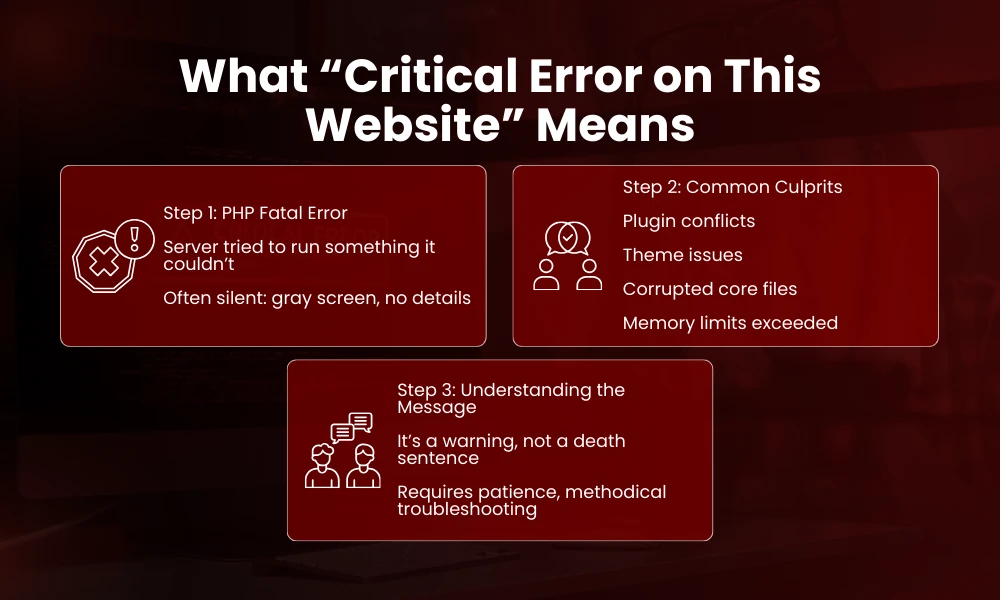
What “Critical Error on This Website” Really Means
The message is blunt. WordPress is basically screaming: “I cannot run this site. Something is wrong.”
It usually points to a PHP fatal error, meaning the server tried to execute something it couldn’t handle. Could be:
- A plugin conflict
- A theme malfunction
- Corrupted WordPress core files
- Memory limits reached
- Or something even messier: a combination of all of the above
WordPress doesn’t always tell you exactly what broke. You get the gray screen, the cold, short sentence. Nothing more. No code, no file name, nothing. That’s why troubleshooting requires patience and methodical steps. Left unchecked, these failures can turn into deeper technical SEO issues that affect crawling, indexing, and overall site stability. You’ll need to dig, test, isolate.
Step 1: Stop, Don’t Panic. Backup First
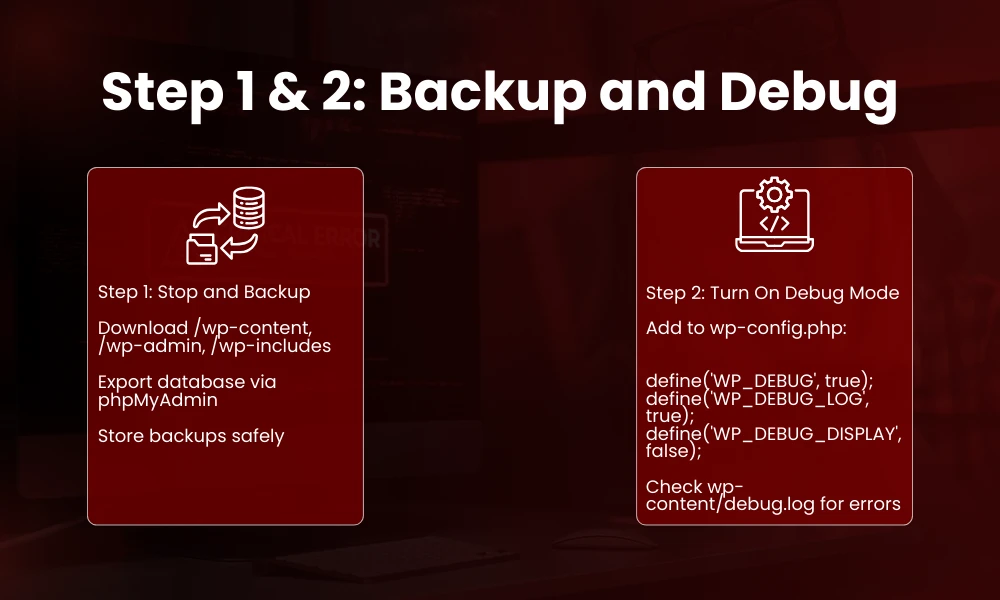
First thing first. Don’t start clicking buttons. Don’t try to reinstall plugins immediately. Just stop.
Why? Because fixing this often involves renaming files, deleting folders, or replacing things in /wp-content or /wp-includes. One misclick, and the site gets worse.
So, backup. Full. Files plus database. FTP, cPanel, whatever you have.
- Download all files from /wp-content, /wp-admin, /wp-includes
- Export your database via phpMyAdmin
- Store it somewhere safe
No backup? Every step forward is gambling with your site.
Step 2: Turn On Debug Mode for Critical Error on This Website
WordPress has a hidden debug mode. It doesn’t shout, but it whispers. Tells you which file, which line, which function failed.
- Open wp-config.php
- Add or modify these lines:
define(‘WP_DEBUG’, true);
define(‘WP_DEBUG_LOG’, true);
define(‘WP_DEBUG_DISPLAY’, false);
- Save and reload the site
- Check wp-content/debug.log
The log often says:
Fatal error: Uncaught Error: Call to undefined function xyz() in /wp-content/plugins/abc/plugin.php:45
Boom. That’s the culprit. Could be plugin, theme, or something custom in functions.php.
Debugging is the fastest way to stop guessing. While reviewing logs, it’s also smart to cross-check your setup against a solid WordPress security checklist to ensure file access and permissions aren’t exposing deeper risks.
Step 3: Plugin Conflicts with Critical Error on This Website
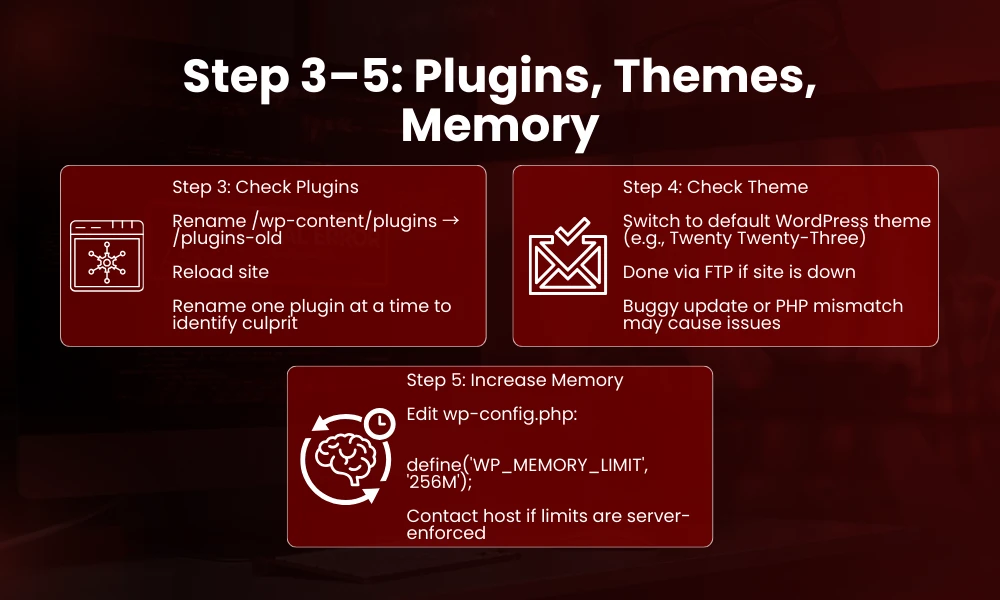
Plugins are usually guilty. They update, clash, break, sometimes silently.
How to check:
- Rename /wp-content/plugins to /plugins-old via FTP
- Reload site
- If it works, the error is plugin-related
Then:
- Rename back, one plugin at a time
- Reload after each
- Watch for the crash
Pro tip: start with plugins recently updated or installed. Those are most likely to cause chaos.
Some plugins just don’t play nicely together. Overloading your site with unnecessary plugins is one of the most common SEO mistakes small businesses make, often leading to performance drops and site crashes. Security plugin vs caching plugin vs page builder. Conflict city.
Step 4: Theme Troubles
If plugins aren’t the issue, your theme might be. Themes have code, templates, functions. One typo, one missing function, and boom, Critical Error on This Website.
- Switch to a default WordPress theme like Twenty Twenty-Three
- You can do this via FTP by renaming the active theme’s folder
- Reload site
If it works, your theme broke. Either:
- A recent update was buggy
- A custom function misfires
- Or it’s incompatible with your PHP version
Sometimes it’s plugin + theme combo. You might disable plugins, switch themes, still get errors. That’s why debugging logs help.
Step 5: Memory Limits
Some crashes are boring. Just memory exhaustion. Heavy plugins, large images, scripts, lots of traffic. The server chokes.
- Edit wp-config.php:
define(‘WP_MEMORY_LIMIT’, ‘256M’);
- Reload site
Often enough, that’s the fix. Sometimes your host sets hard limits. Contact them. They can bump memory limits quickly.
Memory limits tend to crop up after updates or big media imports. Addressing these limits doesn’t just fix errors—it can directly help improve website speed and performance, especially on content-heavy WordPress sites. It’s not fancy, but it’s common.
Step 6: Corrupted Core Files
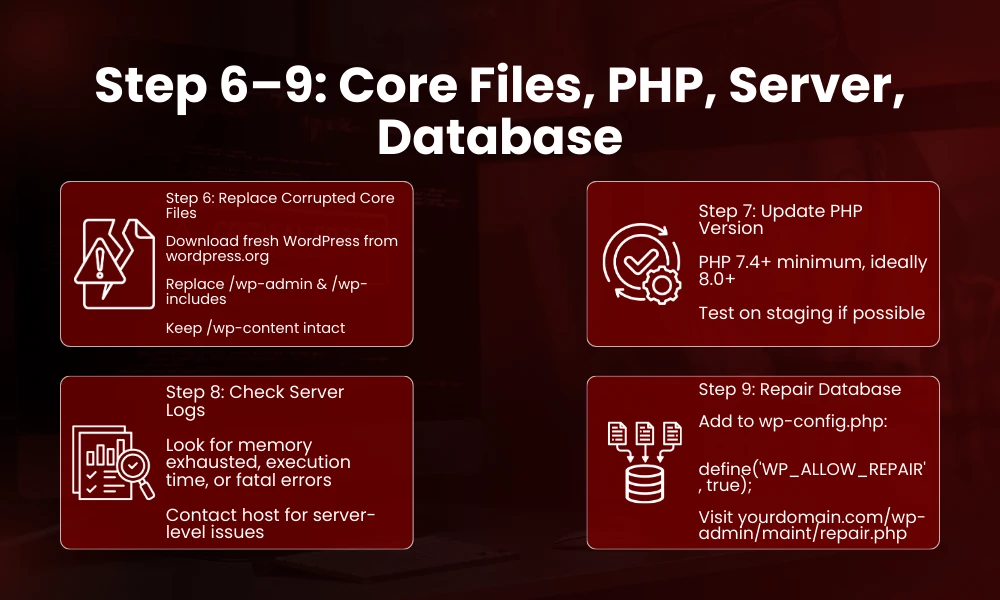
Updates fail. FTP uploads get interrupted. Files get corrupted. WordPress refuses to execute half-missing files.
- Download fresh WordPress from wordpress.org
- Replace /wp-admin and /wp-includes via FTP
- Leave /wp-content alone—your themes and plugins live there
Reload site. If it works, core corruption was the issue.
Most beginners skip this. Then blame plugins. Sometimes it’s really WordPress itself, not you.
Step 7: PHP Version Issues
WordPress plugins and themes expect modern PHP. Old PHP, fatal errors.
- Check your server’s PHP version
- Below 7.4? Update to at least 8.0
- Test site
Caution: old plugins sometimes break on newer PHP. Staging environment is ideal, but if that’s not possible, backup first, update, test.
PHP version mismatches are silent killers. They quietly degrade load times and user experience, which directly impacts Core Web Vitals and overall site performance metrics. Plugin looks fine, theme works. Site crashes anyway.
Step 8: Server & Error Logs
Sometimes it isn’t WordPress at all. Server misconfigurations cause errors.
- Check cPanel or FTP logs
- Look for: memory exhausted, max execution time exceeded, fatal errors
- Contact host if logs indicate server-level failure
Hosts often fix config issues instantly. They know memory limits, file permissions, missing modules.
Step 9: Database Repair
Corrupt database = critical errors. Especially after updates, crashes, or messy plugin installs.
- Add this to wp-config.php:
define(‘WP_ALLOW_REPAIR’, true);
- Visit yourdomain.com/wp-admin/maint/repair.php
- Click repair or repair + optimize
Remove the line after repair. Security risk if left.
Databases are delicate. Even small corruption can trigger errors that look like catastrophic plugin failures.
Step 10: Last Resorts
Sometimes it’s deep. Custom code, outdated hooks, rogue snippets.
- Restore backup
- Hire a developer if needed
- Consider a staging site to test updates before live launch
Critical errors are common. But recurring crashes usually mean poor update hygiene, outdated plugins/themes, or server limits ignored.
Common Scenarios
Plugin Update Gone Wrong
Updated a plugin. Boom. Gray screen.
- Disable plugin via FTP
- Reload site
- Reinstall older version or find alternative
Simple. Fast. Painful if you forget backups.
Theme Update Disaster
Custom theme updates break PHP. Fatal errors.
- Switch to default theme
- Check logs
- Revert or fix broken files
Sometimes plugin conflicts linger even after theme fix.
Mixed Errors
Plugin + theme + memory limit. Chaos. Debug logs usually reveal the first domino.
Quick Troubleshooting Checklist
Backup. Debug. Disable plugins. Switch theme. Increase memory. Replace core files. Update PHP. Check server logs. Repair database. Restore backup.
- Step-by-step. Don’t skip.
- One change at a time. Reload after each.
Chaos feels scary. But structured chaos works.
Prevent Future Critical Errors
- Update plugins/themes one at a time
- Use staging environments for testing
- Keep daily backups
- Monitor server memory, PHP version, disk space
- Avoid outdated or poorly coded plugins
Most critical errors are avoidable. Regular updates, clean code practices, and knowing how to secure your website from hackers go a long way in preventing repeat failures. Discipline prevents panic.
Final Thoughts
A “critical error on this website” is scary. But it’s fixable.
Backup. Debug. Plugins. Theme. Memory. Core files. PHP. Server logs. Database. Step by step. One at a time.
Messy. Uneven. Frustrating. But routine once you know the steps.
WordPress thrives on iteration, update, test, break, repair, repeat. The error is not death. It’s often a reminder that consistent monitoring and website performance optimization are essential to keeping WordPress sites stable and scalable. It’s a call to action. Fix it. Move on.
Working beats perfection.
FAQs
Q: Can I fix Critical Error on This Website without FTP?
Yes, sometimes you can fix Critical Error on This Website. File managers in cPanel or hosting dashboards can rename folders. But FTP is safer.
Q: Debug log is empty. Now how to fix Critical Error on This Website?
Check server logs. Memory limits, PHP errors, corrupted core files, hosts see these.
Q: PHP update always breaks the site?
Not always. Old plugins may fail. Staging test recommended.
Q: How common are critical errors?
They’re fairly common. Especially after plugin/theme updates. WordPress flexibility = more ways to break.