

Key Takeaways
- Back up your data before starting a factory reset iphone.
- Use Erase All Content and Settings for a complete reset.
- Sign out of your Apple ID before selling your iPhone.
- Finder is the preferred option for Macs, while iTunes is used on Windows.
- Recovery Mode helps restore locked or unresponsive devices.
- A factory reset permanently erases personal data, so make sure anything important is backed up first.
Quick Answer
If your iPhone is working normally, you can factory reset it directly from the Settings app.
| Step | Action |
|---|---|
| 1 | Open Settings. |
| 2 | Tap General. |
| 3 | Select Transfer or Reset iPhone. |
| 4 | Tap Erase All Content and Settings. |
| 5 | Review the information shown on the screen. |
| 6 | Enter your passcode if prompted. |
| 7 | Confirm that you want to erase your iPhone and wait for the process to finish. |
The reset usually takes several minutes depending on the amount of data stored on the device. Once it’s complete, your iPhone will restart and display the Hello setup screen, just like it did when it was new.
Factory resetting an iPhone is one of the best ways to solve software problems, prepare your device for sale, or simply start with a clean slate. However, resetting your iPhone without taking the right steps can lead to permanent data loss or even leave the device locked to your Apple ID.
The good news is that Apple has made the process straightforward. Whether you have the latest iPhone or an older model, you can erase everything in just a few minutes by following the correct method.
This guide explains everything you need to know before, during, and after a factory reset. You’ll also learn when a factory reset is necessary, how to back up your data, and which reset method is best for your situation.
What Does a Factory Reset Do?
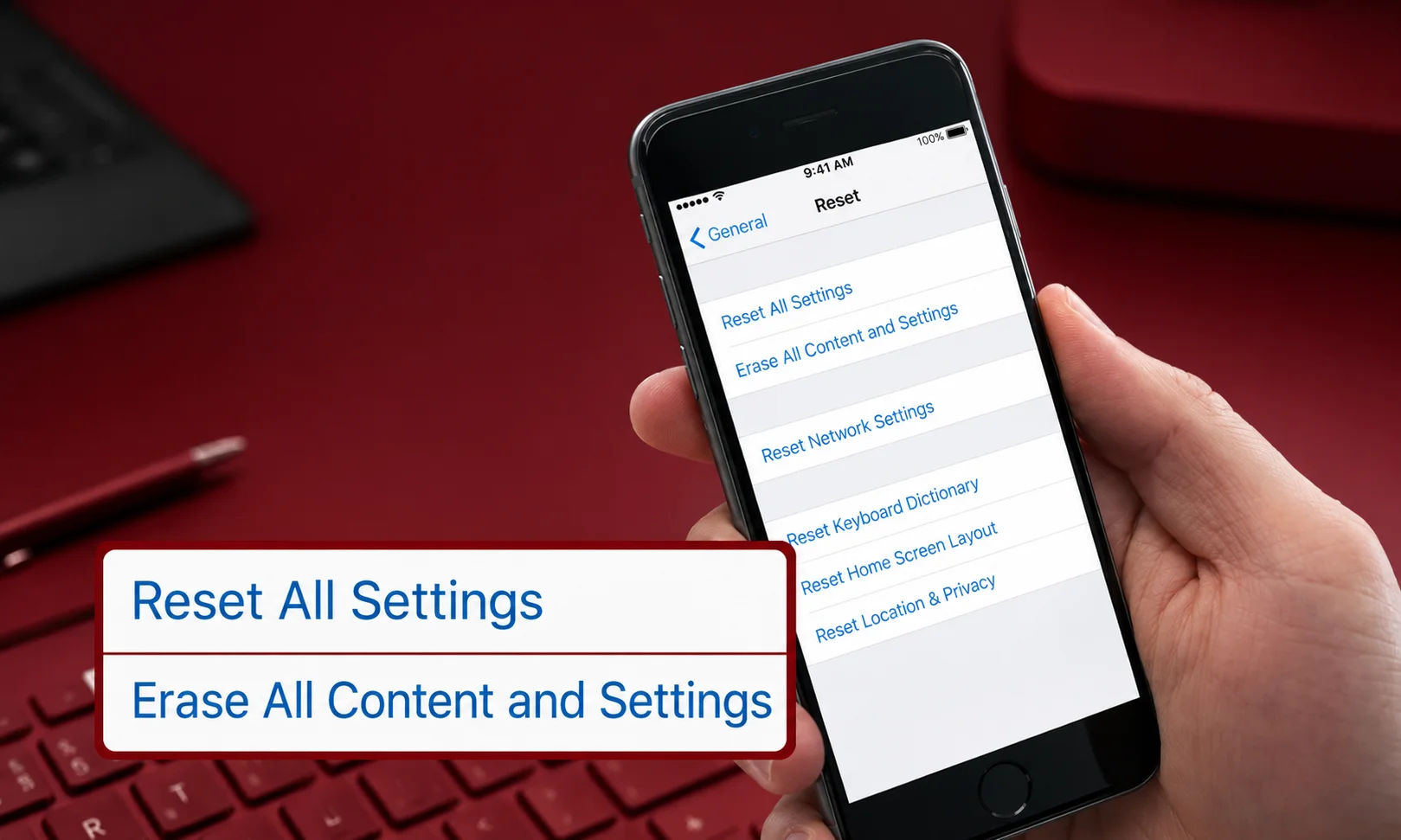
A factory reset completely erases your personal information and restores your iPhone to its original factory settings.
This process removes almost everything stored on the device, including:
- Photos and videos
- Apps
- Contacts
- Messages
- Music
- Documents
- Downloaded files
- Saved Wi-Fi networks
- Device settings
- Personal accounts
The version of iOS installed on your iPhone usually stays the same unless you restore the device through a computer during certain recovery procedures.
A factory reset does not physically damage your iPhone or shorten its lifespan. It simply clears the stored data and settings.
Factory Reset vs Reset Settings
Many people confuse these two options. They serve different purposes.
| Feature | Factory Reset | Reset Settings |
|---|---|---|
| Deletes personal data | Yes | No |
| Removes installed apps | Yes | No |
| Restores default settings | Yes | Yes |
| Removes photos and videos | Yes | No |
| Requires setup again | Yes | No |
| Best for selling your iPhone | Yes | No |
If your goal is only to fix minor issues like Wi-Fi or Bluetooth problems, resetting settings may be enough. If you’re selling your iPhone or fixing major software problems, a full factory reset is the better choice.
When Should You Factory Reset Your iPhone?
A factory reset isn’t something you should do regularly. It’s most useful in specific situations where starting fresh is the safest option.
You should consider a factory reset if:
- You’re selling your iPhone.
- You’re giving it to a family member or friend.
- The device has serious software problems.
- Apps keep crashing.
- The phone is unusually slow.
- Storage problems continue after deleting files.
- You want a completely fresh start.
On the other hand, if you’re only experiencing a small issue, such as a frozen app or temporary lag, restarting your iPhone or updating iOS may solve the problem without deleting your data.
Things to Do Before Factory Resetting
Preparing your iPhone before erasing it can save you from losing important information. Spending a few minutes on these steps can prevent a lot of frustration later.
Back Up Your iPhone
Backing up your iPhone is the most important step before performing a factory reset.
A backup allows you to restore:
- Photos
- Contacts
- Messages
- App data
- Device settings
- Notes
- Calendars
- Health information (when supported)
You can create a backup using iCloud or by connecting your iPhone to a Mac or Windows PC.
If you’re planning to use another iPhone afterward, restoring from a recent backup makes the transition much easier.
Sign Out of Your Apple ID Before Selling
If you’re giving your iPhone to someone else, remember to sign out of your Apple ID before handing it over.
Signing out removes your account from the device and disables Activation Lock, making it easier for the next owner to set up the phone.
Failing to do this may prevent the new owner from using the device until your Apple ID credentials are entered.
If you’re only resetting the iPhone for your own use, you can simply sign back in during setup after the reset is complete.
Charge Your Battery
Although a factory reset usually takes only a few minutes, it’s a good idea to make sure your battery has enough charge before you begin.
Aim for at least 50% battery, or keep your iPhone connected to a charger throughout the process.
This reduces the chance of the phone powering off during data erasure.
Remove Your SIM Card
Removing the SIM card isn’t required for a factory reset because the reset does not erase information stored on the SIM itself.
However, if you’re selling or trading in your iPhone, removing the SIM card before giving the device away is a smart precaution.
If you’re continuing to use the same iPhone after resetting it, you can simply leave the SIM card in place.
How to Factory Reset an iPhone Using Settings
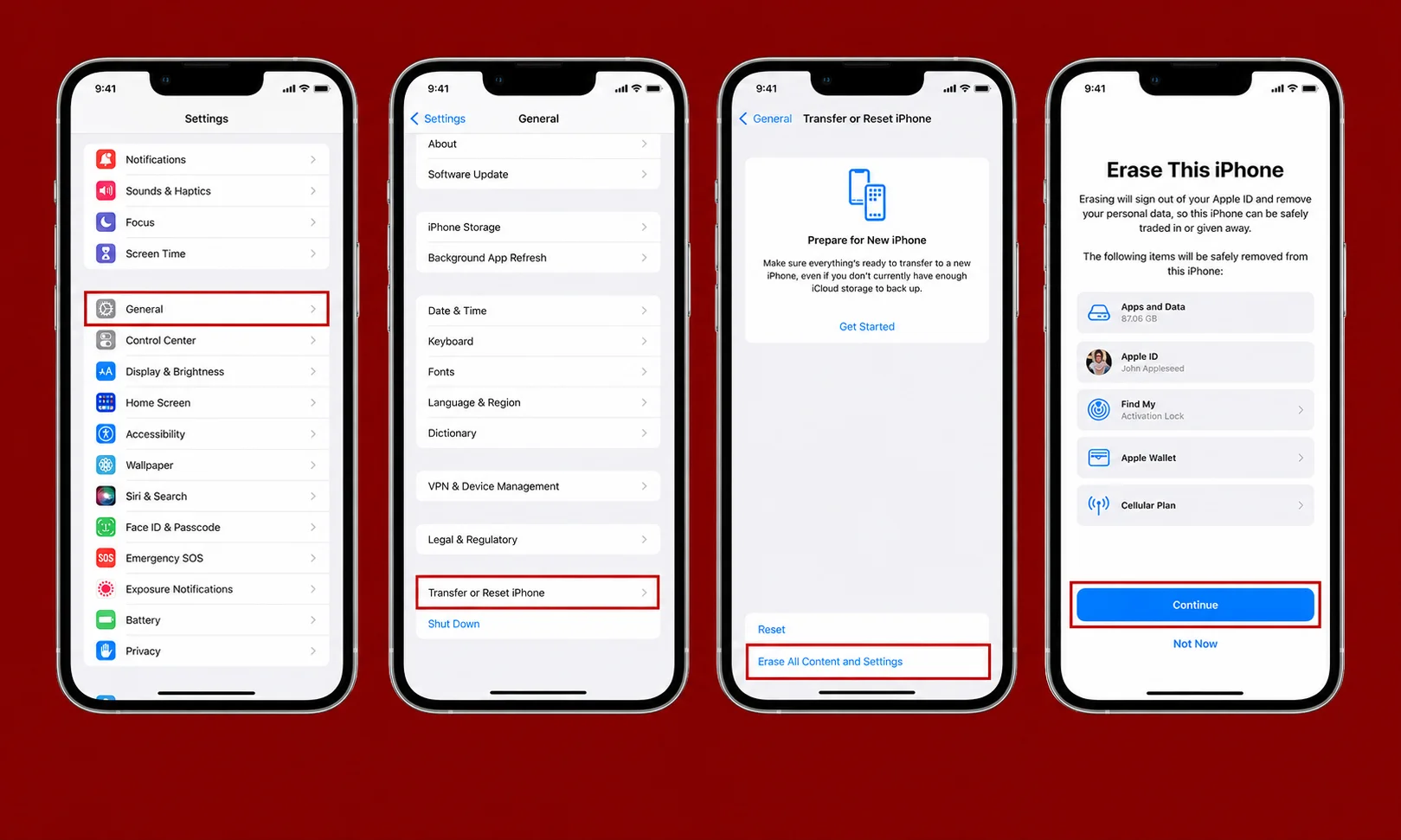
For most users, the Settings app is the easiest and fastest way to erase an iPhone.
Follow these steps carefully:
- Unlock your iPhone.
- Open Settings.
- Tap General.
- Scroll down and tap Transfer or Reset iPhone.
- Choose Erase All Content and Settings.
- Review the information shown on the screen.
- Tap Continue.
- Enter your device passcode if requested.
- Enter your Apple ID password if prompted to turn off Find My.
- Confirm that you want to erase the device.
Your iPhone will begin deleting all personal data and restoring factory settings. During this time, the Apple logo and a progress bar may appear on the screen.
Avoid turning off the device or disconnecting it from power until the process finishes.
What Happens After a Factory Reset?
Once the reset is complete, your iPhone restarts automatically and displays the familiar Hello screen.
From there, you can choose to:
- Set up the iPhone as a new device.
- Restore your information from an iCloud backup.
- Restore from a Mac or Windows backup.
- Transfer data from another iPhone.
- Sign in with your Apple ID.
- Download your apps again.
If you’re selling or giving away the device, you don’t need to complete the setup. Simply leave it on the Hello screen so the new owner can configure it themselves.
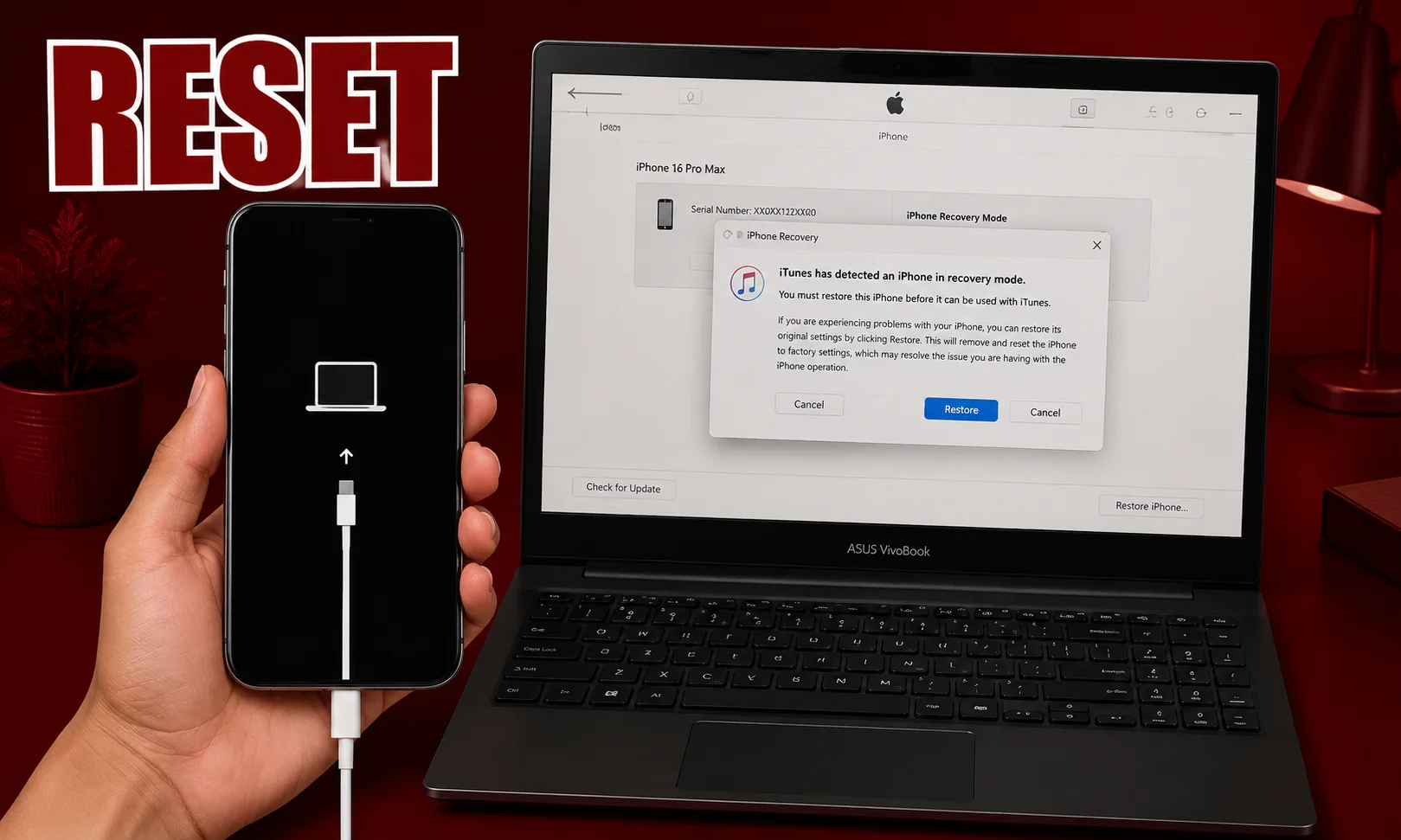
How to Factory Reset an iPhone Using Finder (Mac)
If your iPhone isn’t responding properly or you prefer using a computer, Finder is the recommended option on macOS Catalina or later. This method also helps when you need to reinstall iOS during the restore process.
Steps to Reset Using Finder
- Connect your iPhone to your Mac using a USB cable.
- Open Finder.
- Select your iPhone from the sidebar.
- If prompted, tap Trust on your iPhone and enter your passcode.
- Under the General tab, click Restore iPhone.
- Confirm your choice and wait while Finder downloads and installs the latest version of iOS if needed.
Your iPhone will restart once the process is complete. You can then set it up as a new device or restore it from a backup.
When to Use Finder
- Your iPhone is experiencing software issues.
- You want to reinstall iOS.
- The Settings app isn’t working.
- You’re preparing the device for resale.
How to Factory Reset an iPhone Using iTunes (Windows)

Windows users can reset an iPhone through iTunes. Although newer Macs use Finder, iTunes remains the standard option for Windows computers.
Steps to Reset Using iTunes
- Install the latest version of iTunes if it isn’t already installed.
- Connect your iPhone to the computer.
- Open iTunes.
- Click the iPhone icon near the top of the window.
- Select Summary.
- Click Restore iPhone.
- Confirm the restore process.
Keep your iPhone connected until the reset finishes. Interrupting the process could require additional recovery steps.
How to Factory Reset an iPhone Using Recovery Mode
Recovery Mode is useful when your iPhone is stuck on the Apple logo, won’t boot normally, or you’ve forgotten the device passcode.
When Recovery Mode Is Helpful
- iPhone won’t turn on.
- Device is frozen.
- Software update failed.
- Continuous restart loop.
- Passcode is forgotten.
Steps
- Connect your iPhone to a Mac or Windows PC.
- Open Finder or iTunes.
- Put your iPhone into Recovery Mode using the correct button combination for your model.
- A message will appear on your computer.
- Choose Restore instead of Update.
- Wait for iOS to download and install.
After the restore finishes, your iPhone returns to factory settings.
Can You Factory Reset an iPhone Without a Passcode?
It depends on the situation.
If Find My is turned off and you have access to a trusted computer, Recovery Mode may allow you to erase the device.
However, if Activation Lock is enabled, you’ll still need the Apple ID and password that were previously linked to the iPhone during setup.
This security feature protects lost or stolen devices and cannot be bypassed through a normal factory reset.
Comparison of iPhone Factory Reset Methods
| Method | Computer Needed | Passcode Needed | Best For | Erases Data |
|---|---|---|---|---|
| Settings | No | Yes | Everyday reset | Yes |
| Finder | Mac | Usually | Software problems | Yes |
| iTunes | Windows | Usually | Restore from computer | Yes |
| Recovery Mode | Yes | Not always | Locked or unresponsive iPhone | Yes |
Benefits of Factory Resetting an iPhone
A factory reset can solve many common issues and prepare your device for a fresh start.
Some of the main benefits include:
- Removes personal information before selling.
- Fixes many software-related problems.
- Clears unwanted files and apps.
- Restores default settings.
- Improves stability when software has become corrupted.
- Gives you a clean setup experience.
Drawbacks to Consider
Although a factory reset is useful, it also has a few disadvantages.
- All personal data is erased.
- Apps must be downloaded again.
- You’ll need to sign back into your accounts.
- Some settings must be configured again.
- Data without a backup cannot be recovered.
Expert Tips
Following a few best practices can make the reset process smoother.
- Back up your iPhone before erasing it.
- Make sure you know your Apple ID password.
- Keep the battery above 50% or connect the charger.
- Update iOS before resetting if possible.
- Remove your SIM card if you’re selling the device.
- Double-check that your important photos and documents have been backed up.
Common Mistakes to Avoid
Many users run into problems because they skip important preparation steps.
| Mistake | Better Approach |
|---|---|
| Forgetting to back up data | Create a backup before resetting |
| Selling without signing out of Apple ID | Sign out to remove Activation Lock |
| Choosing the wrong reset option | Use Erase All Content and Settings for a true factory reset |
| Interrupting the reset | Wait until the process is fully complete |
| Forgetting Apple ID credentials | Verify your login details before starting |
Factory Reset Checklist
Use this checklist before you erase your iPhone.
| Task | Complete |
|---|---|
| Back up important data | ✓ |
| Confirm Apple ID password | ✓ |
| Charge the battery | ✓ |
| Remove SIM card if selling | ✓ |
| Disable Find My if transferring ownership | ✓ |
| Start the factory reset | ✓ |
| Verify the Hello screen appears | ✓ |
Frequently Asked Questions
Will a factory reset delete everything on my iPhone?
Yes. It removes your apps, photos, contacts, messages, settings, and other personal data stored on the device.
Can I recover my data after a factory reset?
Only if you created an iCloud or computer backup before resetting the device.
Does a factory reset remove iOS?
No. Your iPhone still includes iOS after the reset. It simply returns to its original factory settings.
How long does a factory reset take?
Most resets finish within 5 to 15 minutes. If iOS needs to be downloaded during a computer restore, it may take longer depending on your internet speed.
Will a factory reset remove viruses or malware?
A factory reset can remove most software-related issues caused by malicious apps or corrupted data. However, keeping iOS updated and installing apps only from trusted sources remains important.
Is a factory reset safe?
Yes. When performed correctly, it’s a safe process recommended by Apple for troubleshooting or preparing an iPhone for a new owner.
Should I remove my SIM card before resetting?
It’s not required, but it’s a good idea if you’re selling or giving away your iPhone.
Does a factory reset improve performance?
If your iPhone has become slow because of software issues, a factory reset may improve performance. It won’t fix hardware-related problems.
Conclusion
Factory resetting your iPhone is a straightforward process when you follow the right steps. Whether you’re fixing software problems, preparing your device for sale, or starting over with a clean setup, taking a few minutes to back up your data and verify your Apple ID details can save you from unnecessary headaches.
Most users can complete the reset directly from the Settings app, while Finder, iTunes, and Recovery Mode provide reliable alternatives for devices that aren’t working normally. Choosing the right method depends on your situation, but each one restores your iPhone to a fresh state when used correctly.